
Before you begin
- Ready video or image assets in your Library.
- Readable video durations and a signed-in account.
What you’ll achieve:
Model choices
You can assemble clips made with unrestricted AI image and video models in this editor. Merge and export work with ready media; they do not change a clip's generation model or submit its content for a new AI generation.
Open a clip edit and add media
Select ready media in Library and use the merge/edit action, or open Merge clips in Video Editor. Use Add media to choose saved videos or images. This flow assembles existing files rather than regenerating each source.
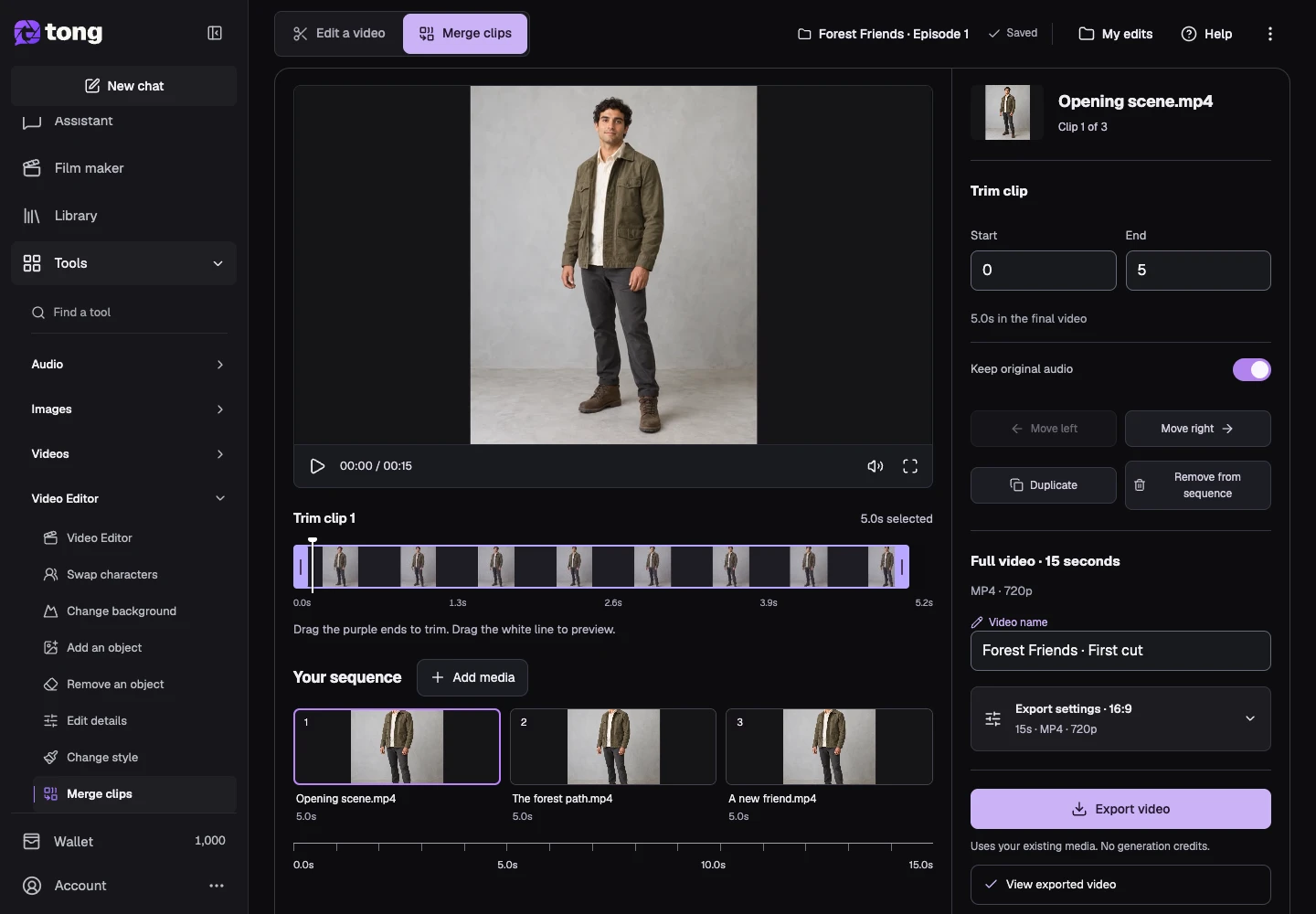
Select a clip in the sequence
Choose the clip you want to adjust in the timeline. Check its preview and source name before editing. You can include several occurrences of the same source when you deliberately want to repeat a moment.
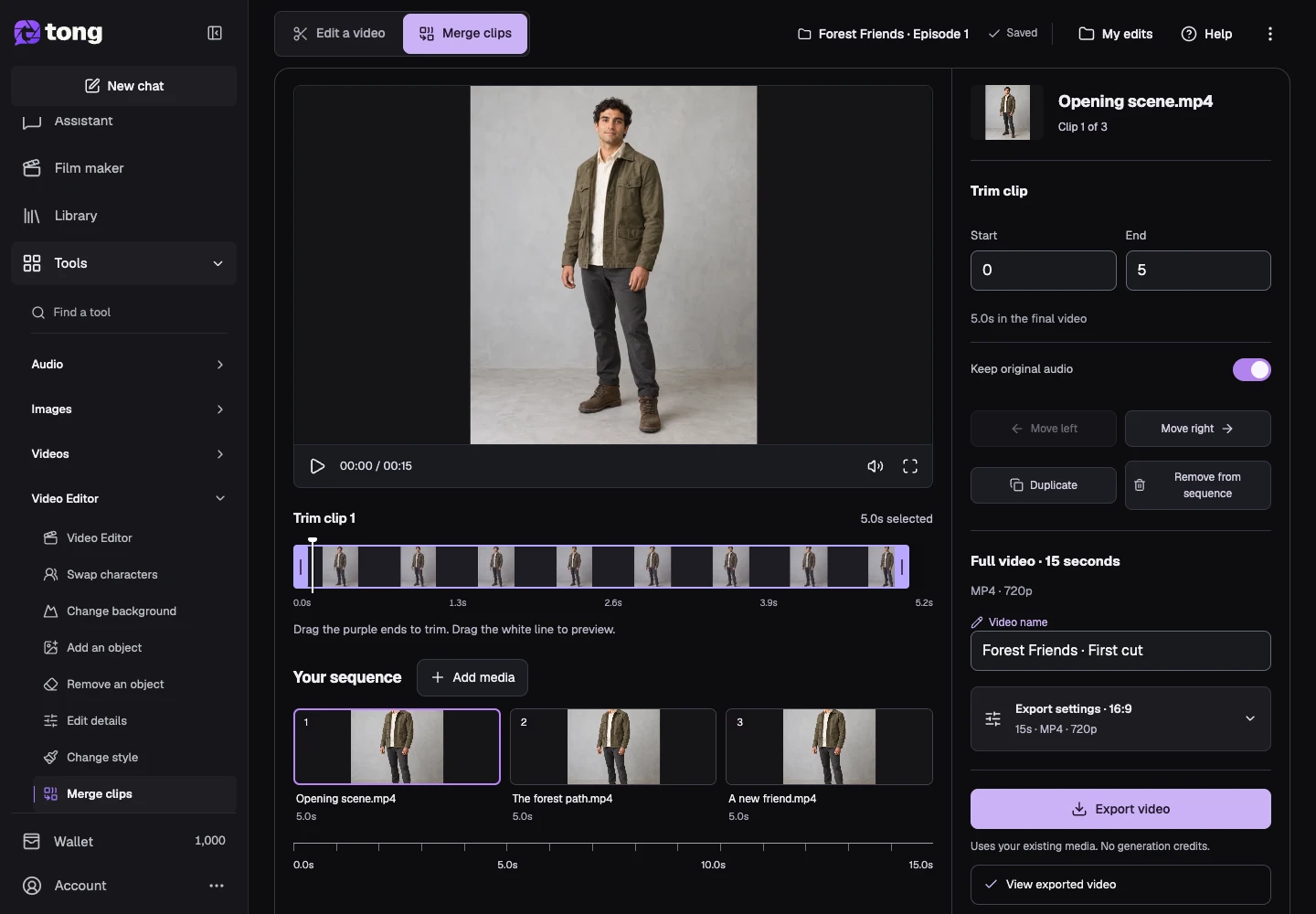
Trim the selected clip
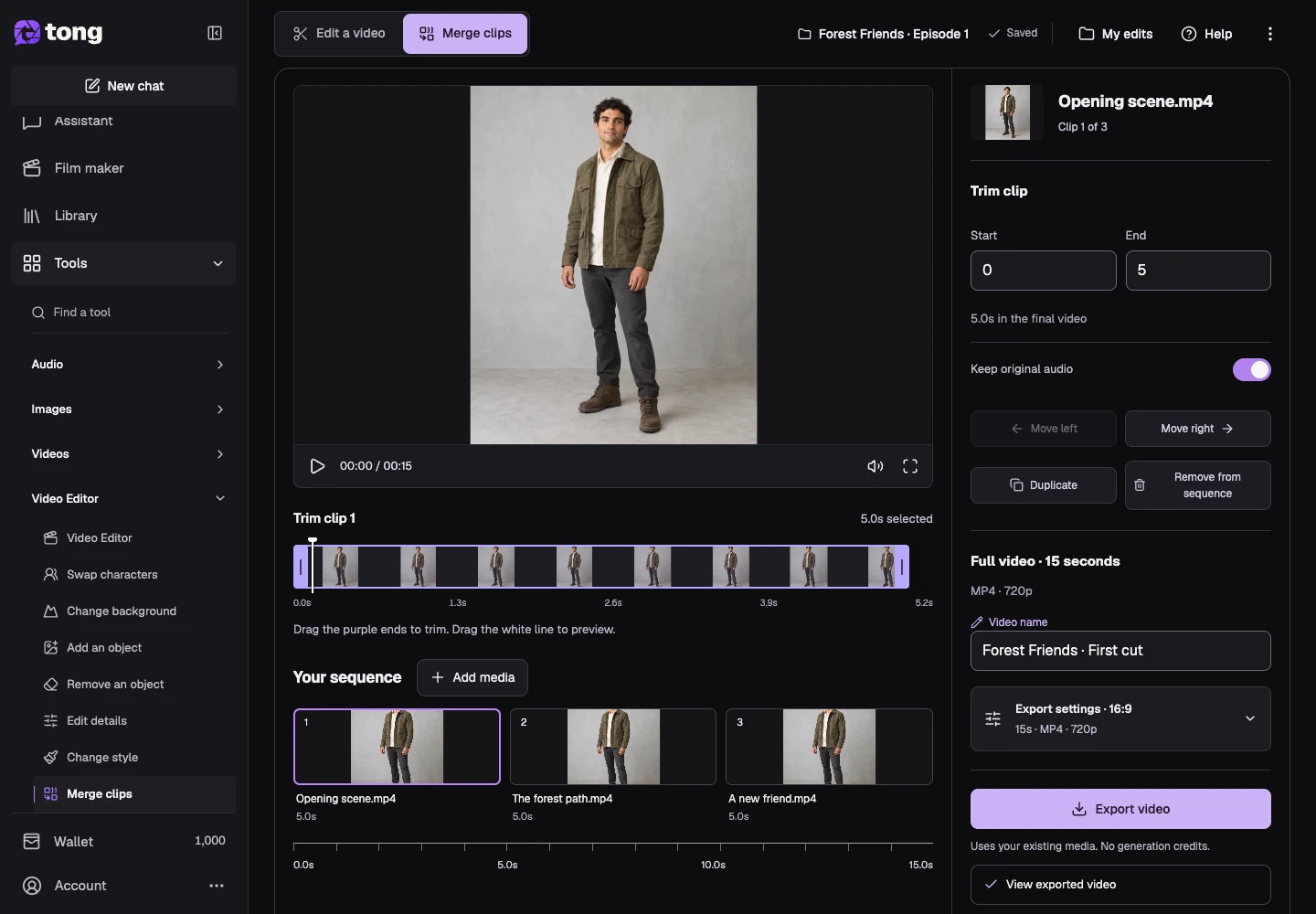
Use Clip start and Clip end, or the range handles, to keep the part of the source you want. Stay within its loaded duration and keep the end after the start. An image uses a display duration instead of a video source trim.
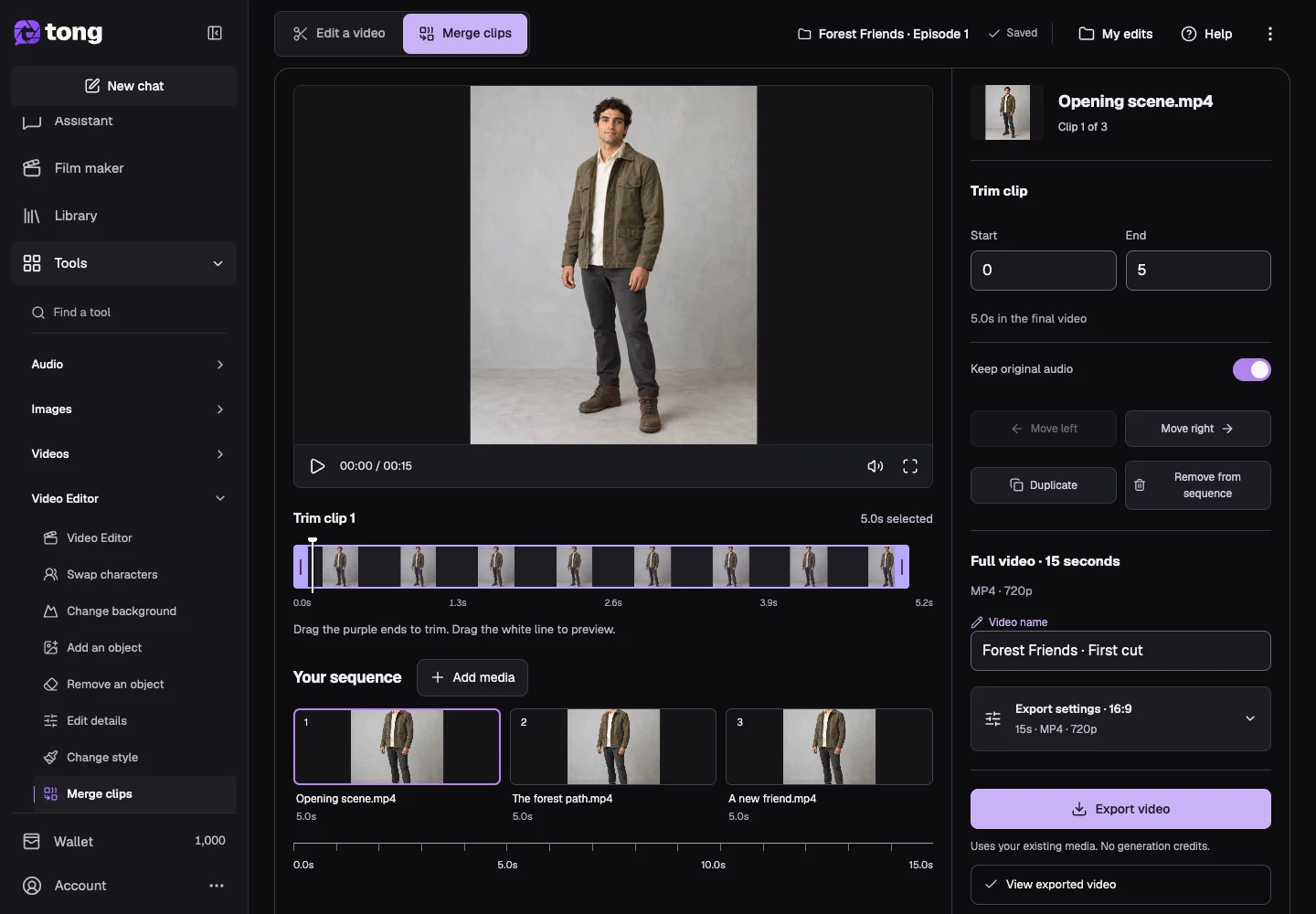
Reorder, duplicate or remove clips
Use Move clip earlier or Move clip later to change the selected clip's position. Duplicate makes another occurrence in this sequence; Remove from sequence removes that occurrence while retaining the original media in Library.
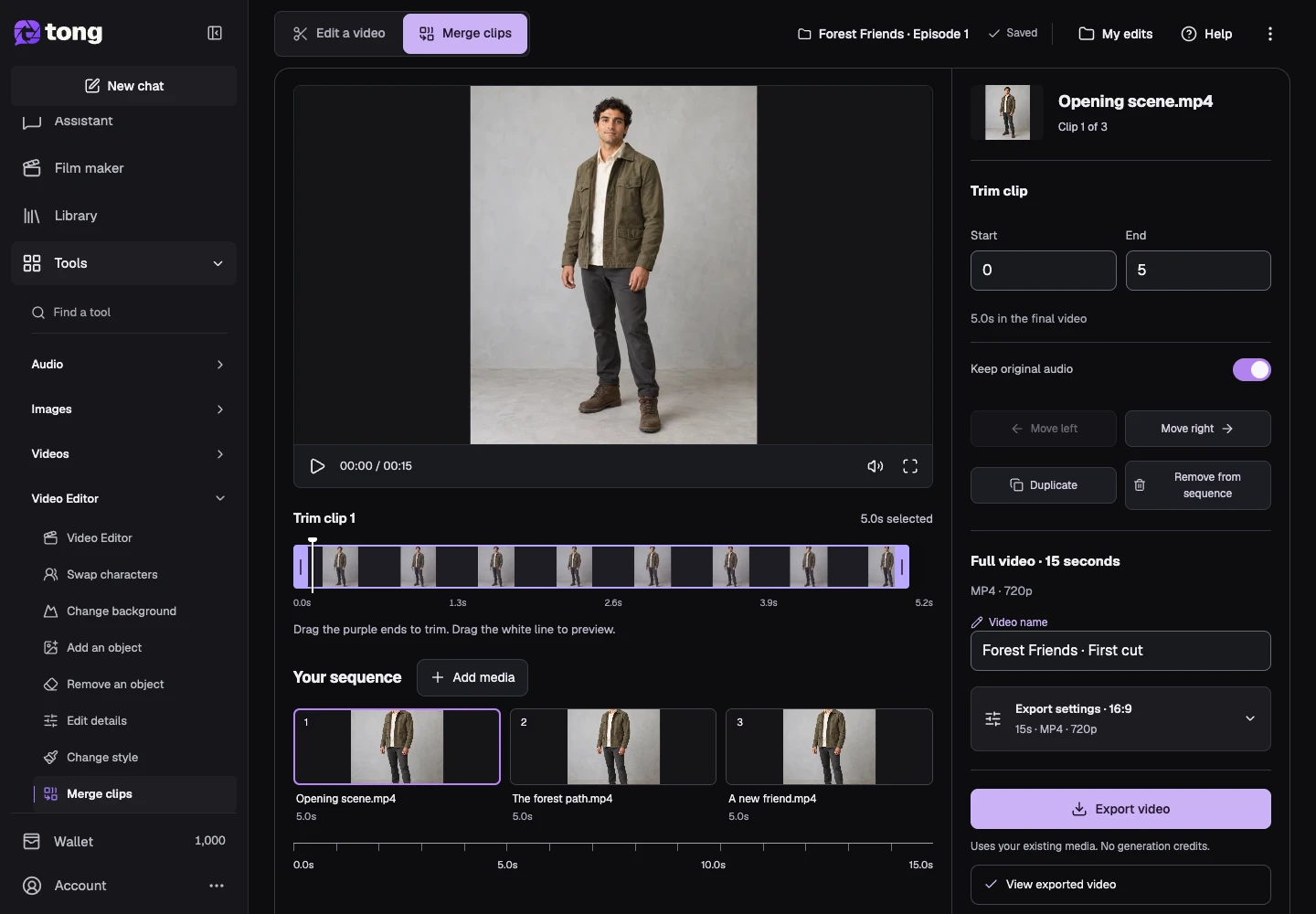
Choose the export format
Open Export settings and choose the output ratio and fit. Preview how portrait, square and landscape sources appear together. Choose whether to contain or fill the frame according to the composition you intend.
Review the audio
Use Keep original audio for each selected video to retain or mute its sound. Add optional soundtrack audio when needed and review its volume. Preview the assembled sequence to check that the intended sound is present without unwanted overlap.
Export the assembled edit
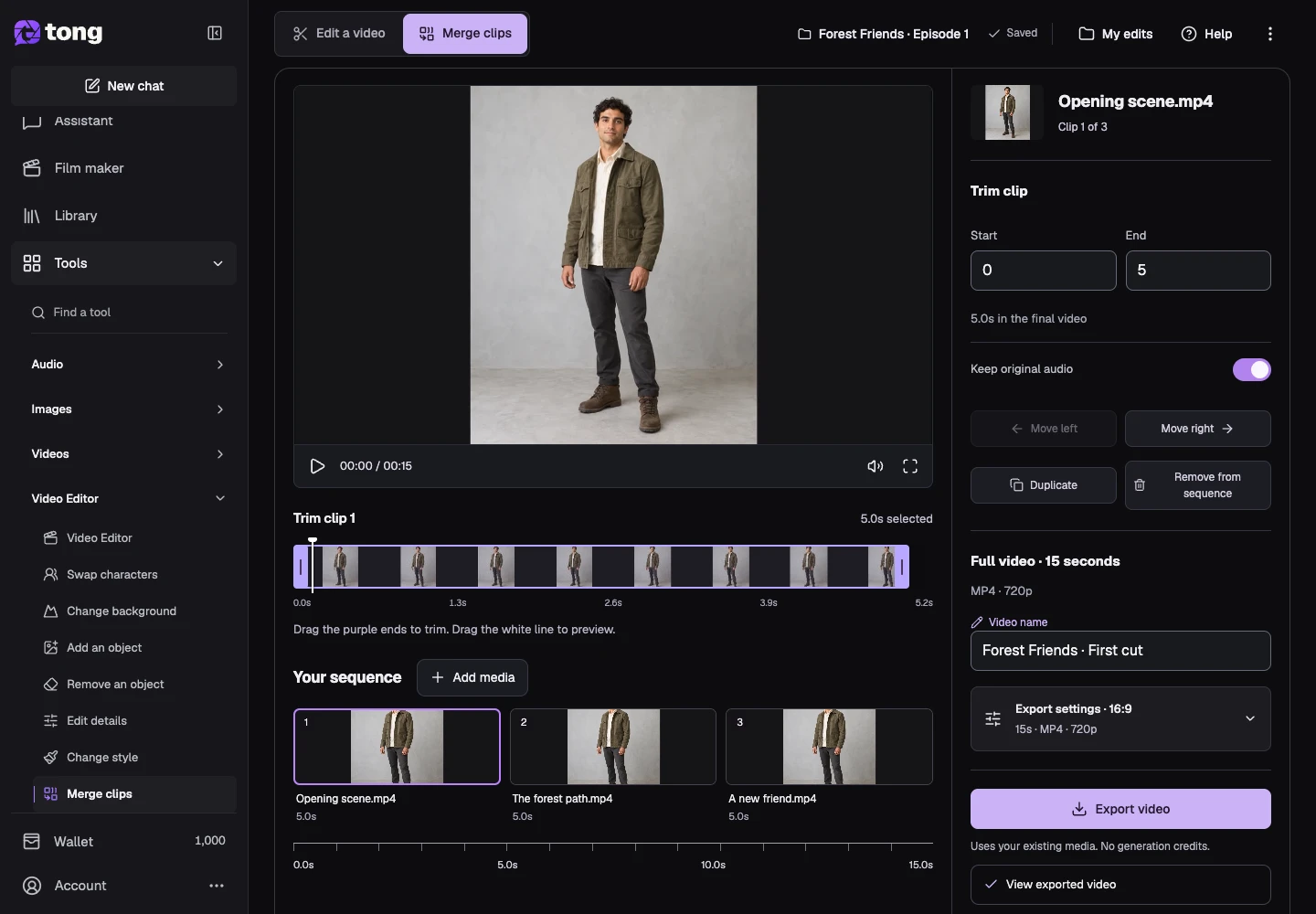
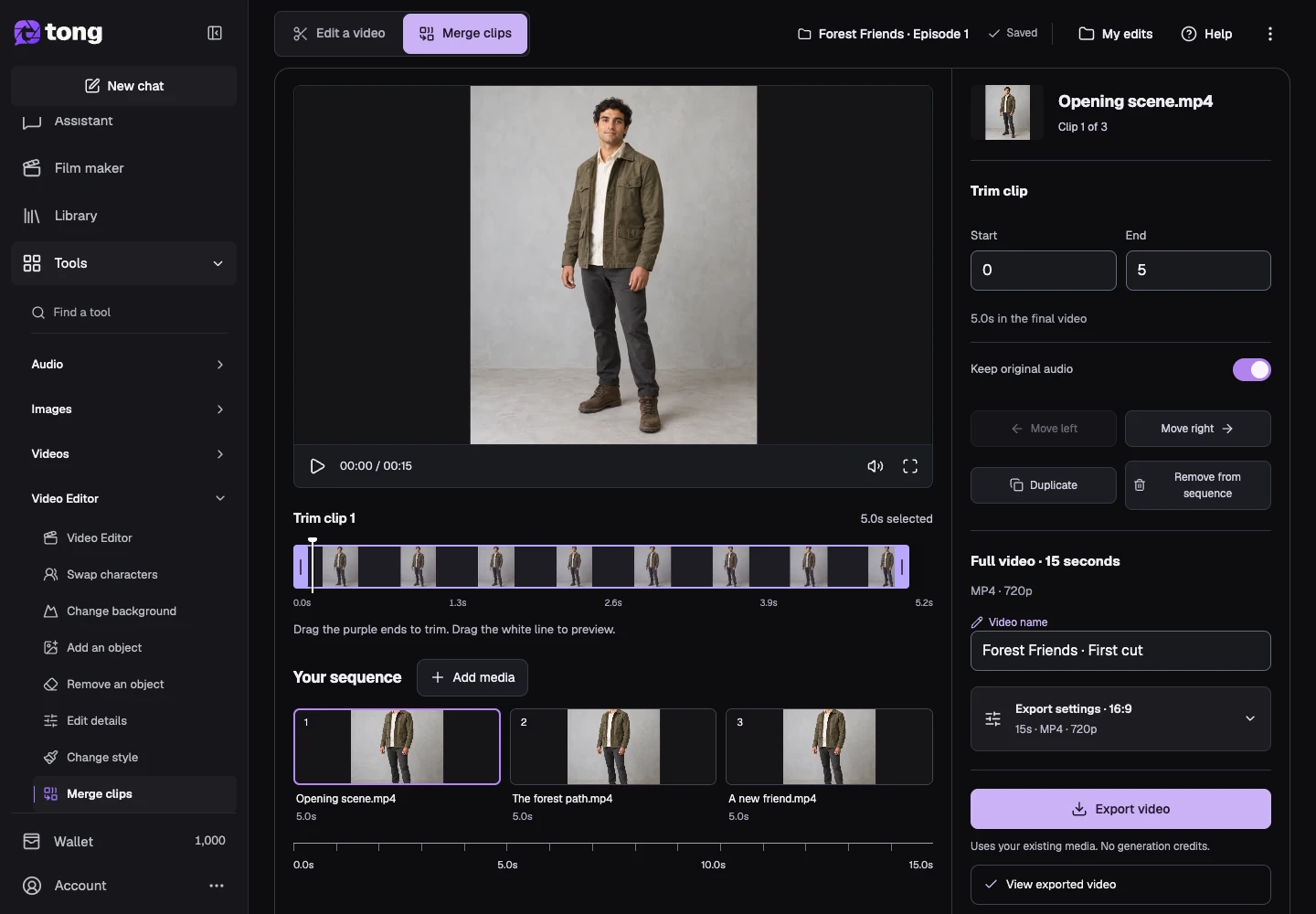
Wait for the edit to save, then select Export video. Review the export dialog and confirm the assembly when ready. You can return to the saved edit if you need to change the cut; creating new AI versions of ready clips is unnecessary for an export retry.
Download the finished video
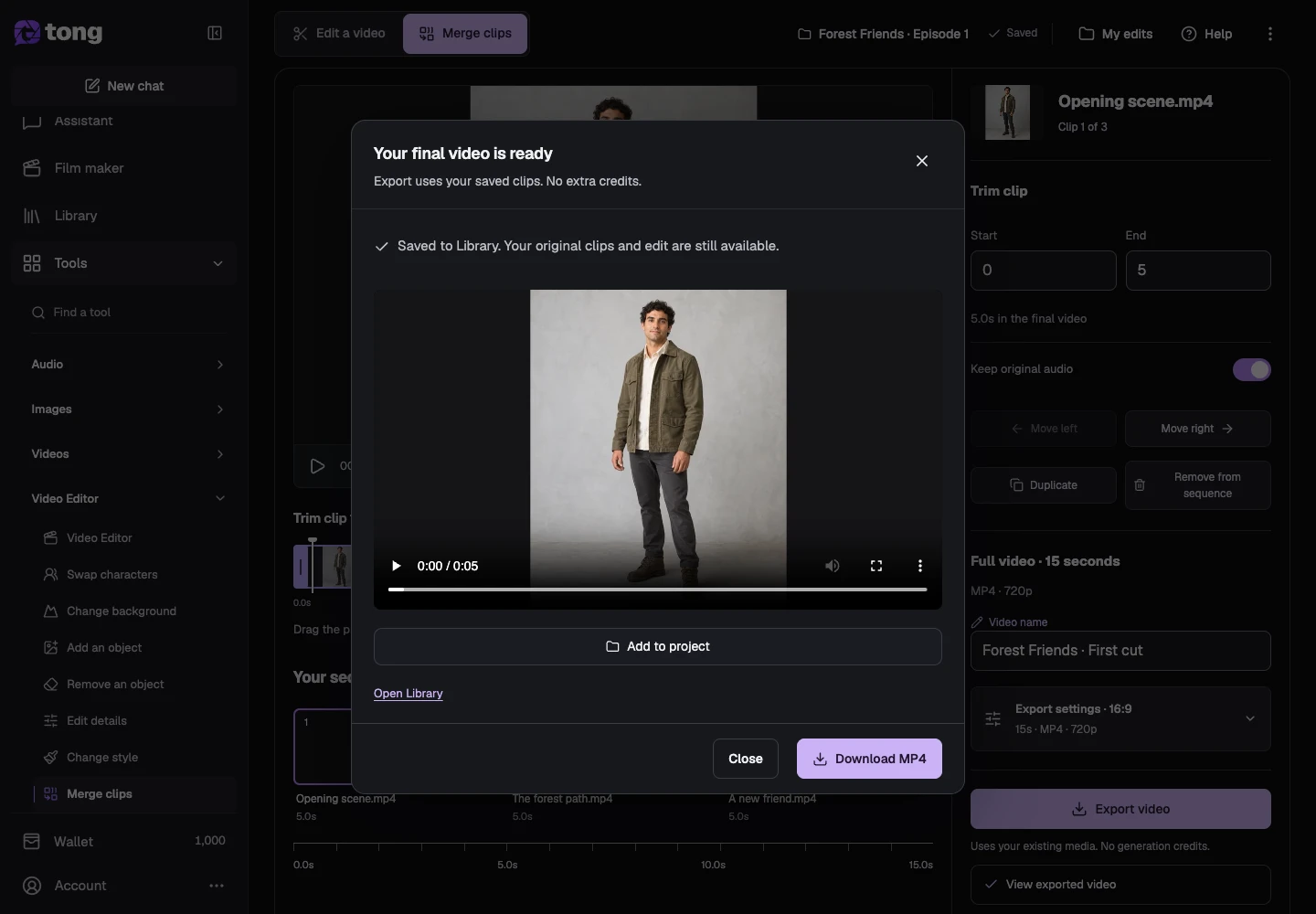
Wait for the export to complete and inspect the final preview, then select Download MP4. The exported file is saved to Library while the original clips and the editable sequence remain available for later revisions.
A useful tip
Give the edit a clear video name and assign its project before exporting. An unknown source duration must finish preparation before trimming can be accurate.
If something goes wrong
If export fails, keep the saved edit and read its recovery action before retrying. If a clip cannot be trimmed, wait for duration preparation; if audio is missing, check the clip's Keep original audio setting and soundtrack volume.
Read first, create when you’re ready
Reading this guide is free. The linked tool shows its own requirements and current credit price. Screenshots use demonstration data; review your own inputs and the quoted cost before submitting paid work.
Reviewed 2026-10-18 · Tong Academy