
Before you begin
- A signed-in account.
- Media belonging to the project you want to organize.
What you’ll achieve:
Model choices
A project can organize media from unrestricted AI image and video workflows alongside other ready files. Project assignment groups your work; it does not change model policy, regenerate a file or require every item to use the same model.
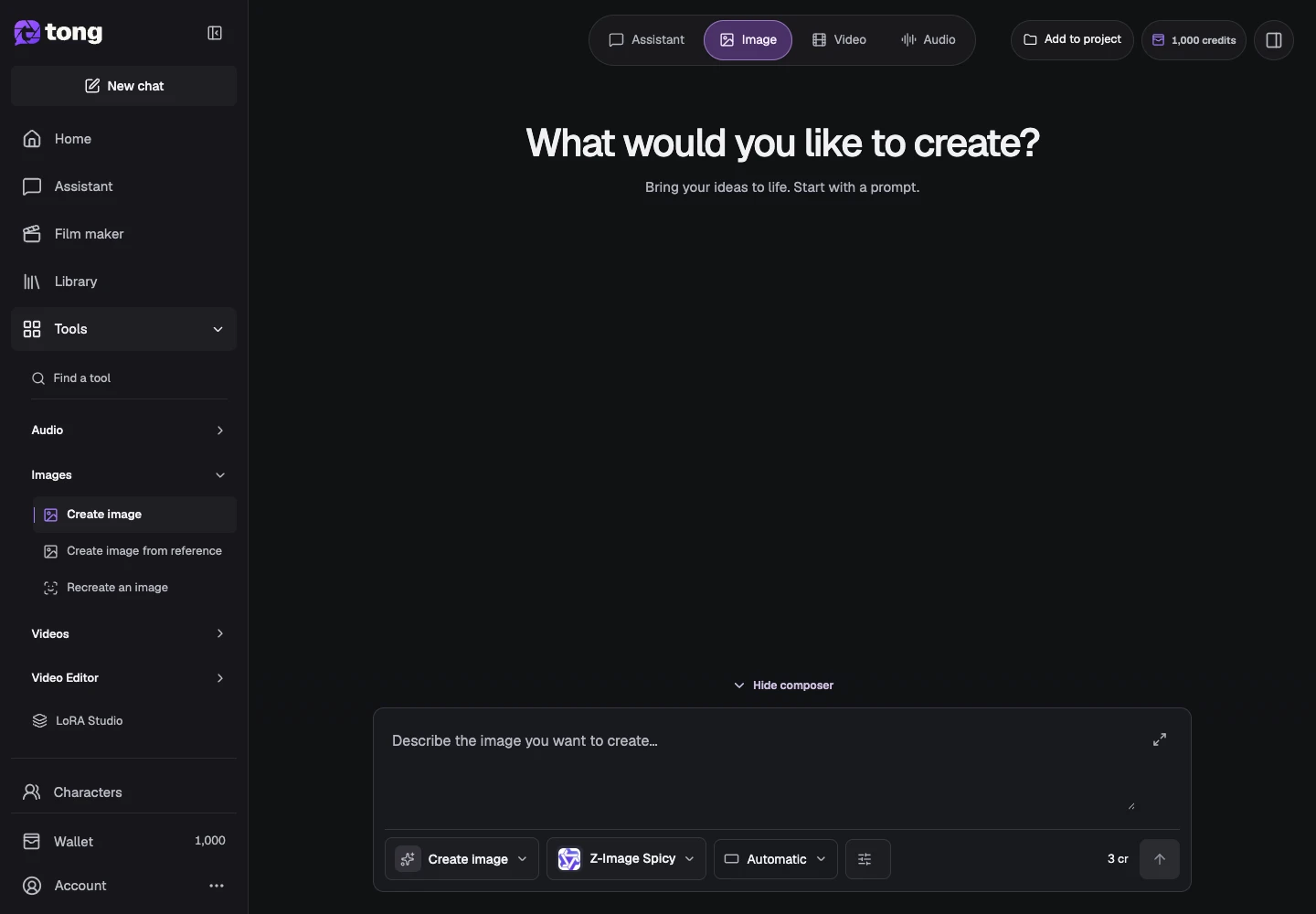
Open the project selector
Use Add to project in Studio or the project controls in Library. Choosing a project groups your work; it does not generate new media or change the model selected for a creation.
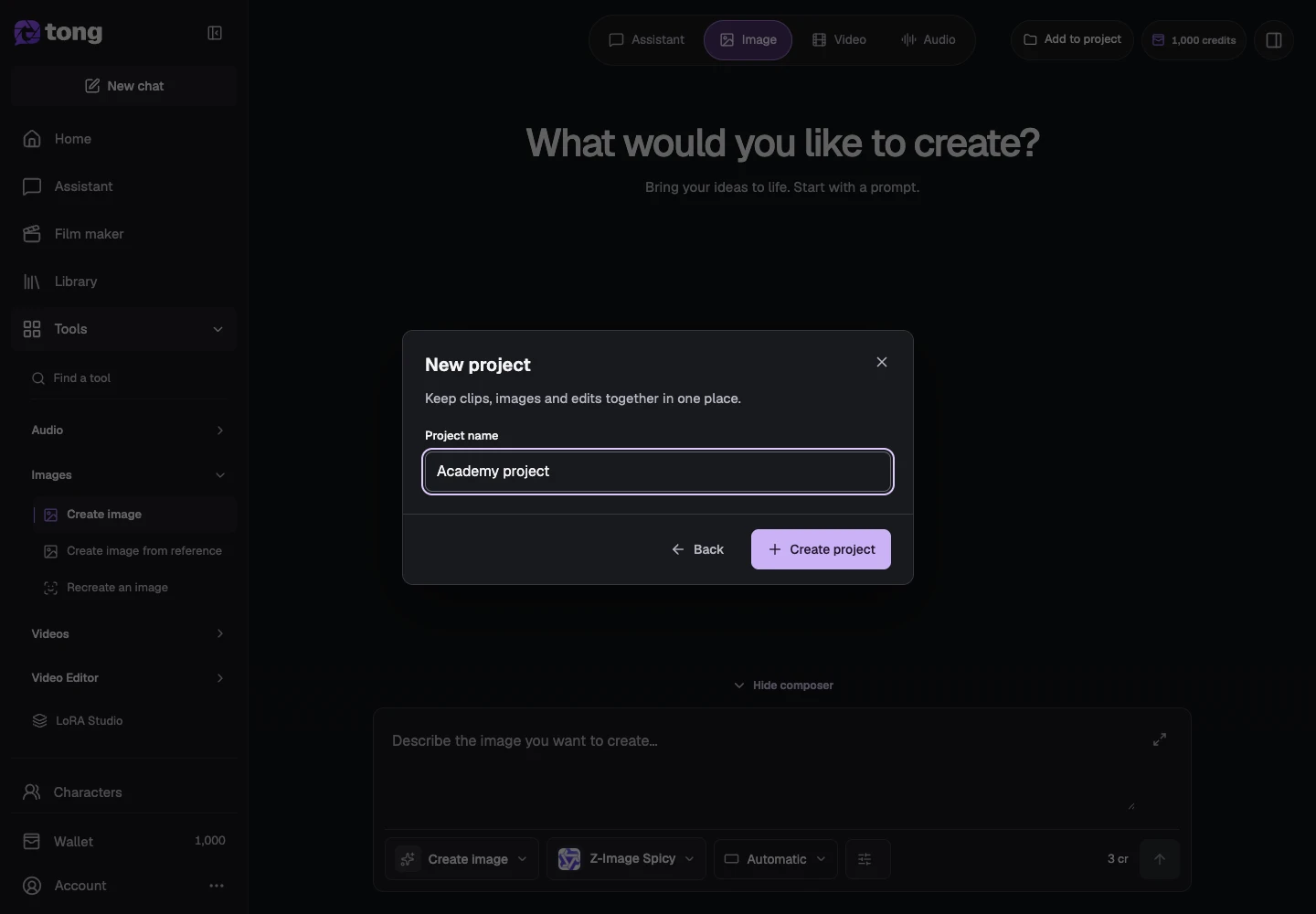
Create or select a project
Choose an existing project, or select New project to open the name form. Enter a descriptive campaign, scene or story name, then select Create project.
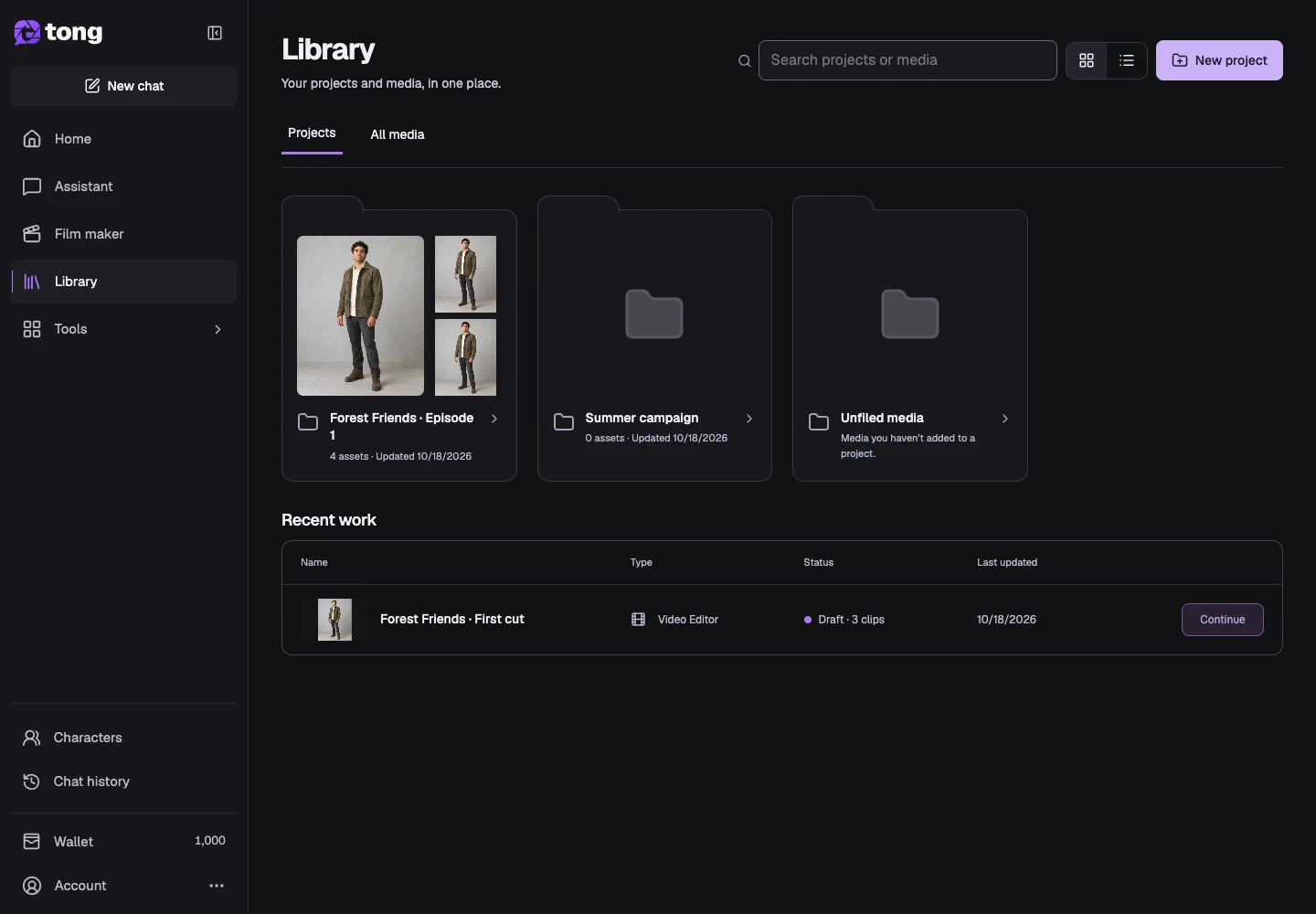
Find your projects in Library
Open Library and select Projects to see your folders. Use Search projects to find a name. Open the intended folder rather than searching only its media when you want to see the whole project.
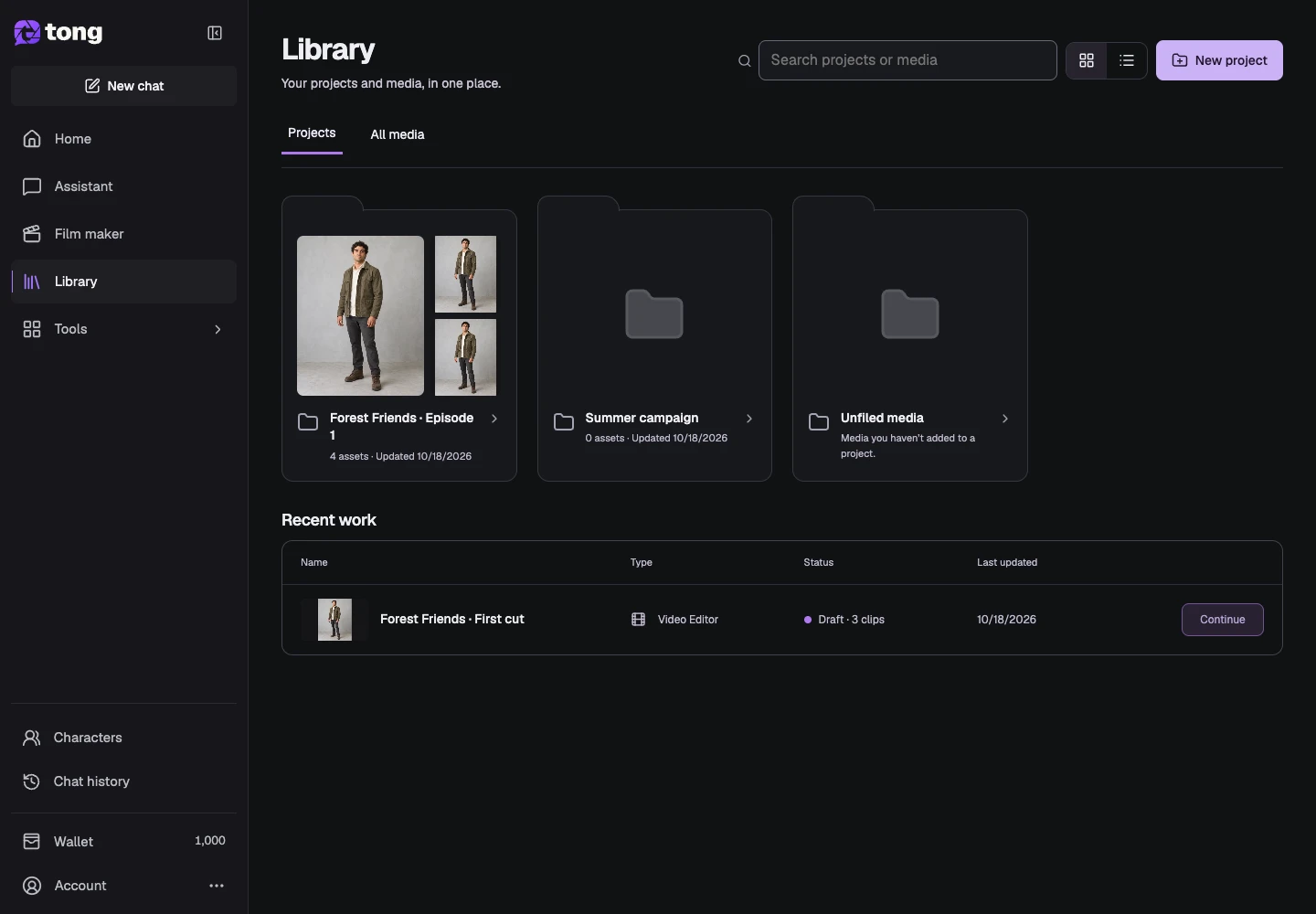
Open the project folder
Select a project folder to see its media and saved clip edits. The header identifies the project you are browsing. Check it before adding files so your creations land in the right place.
Add media or start a creation
Inside the project, use Add media to upload or choose existing files, or New creation to create with the project selected. Adding ready media reuses the saved file instead of generating a new copy.
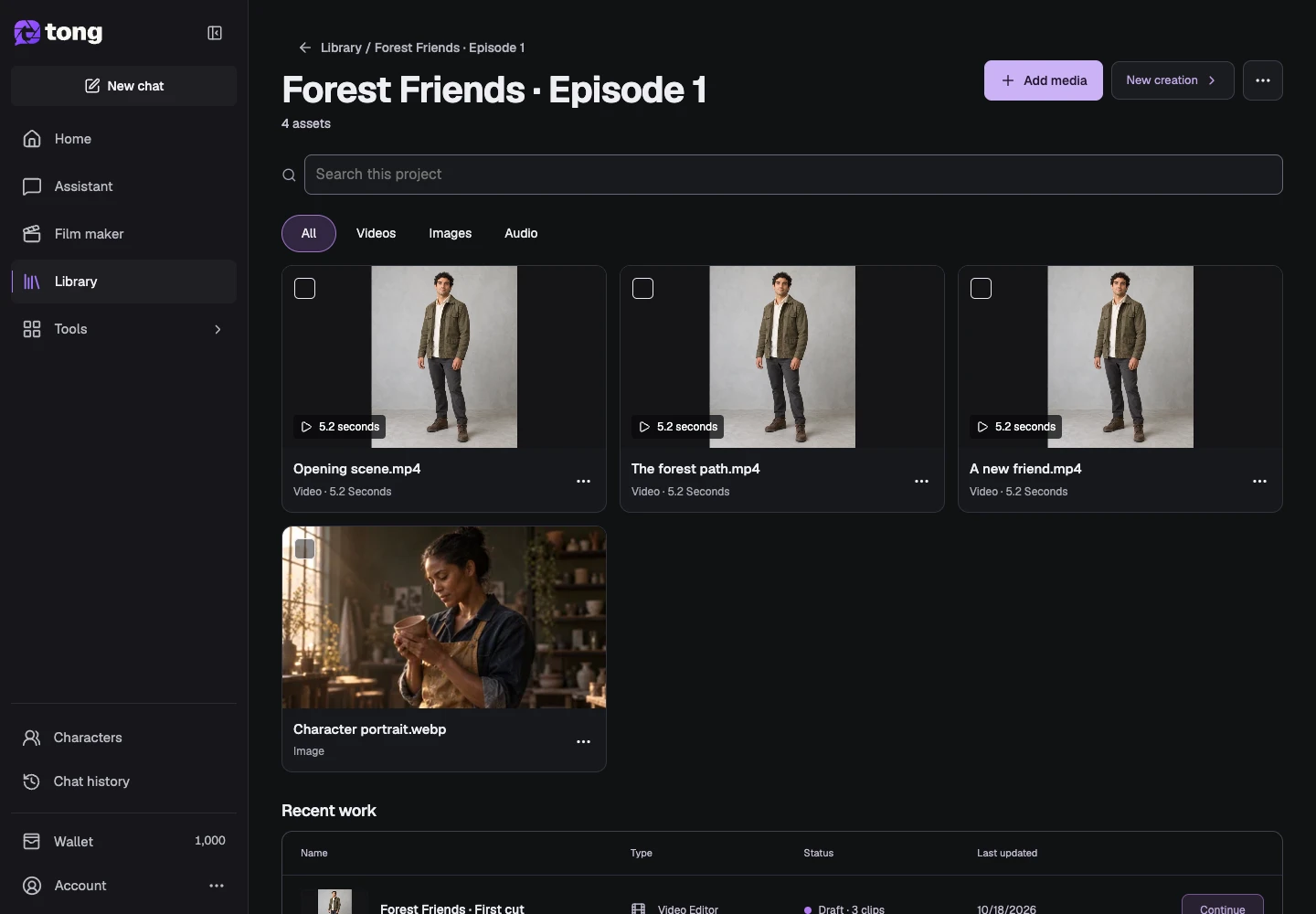
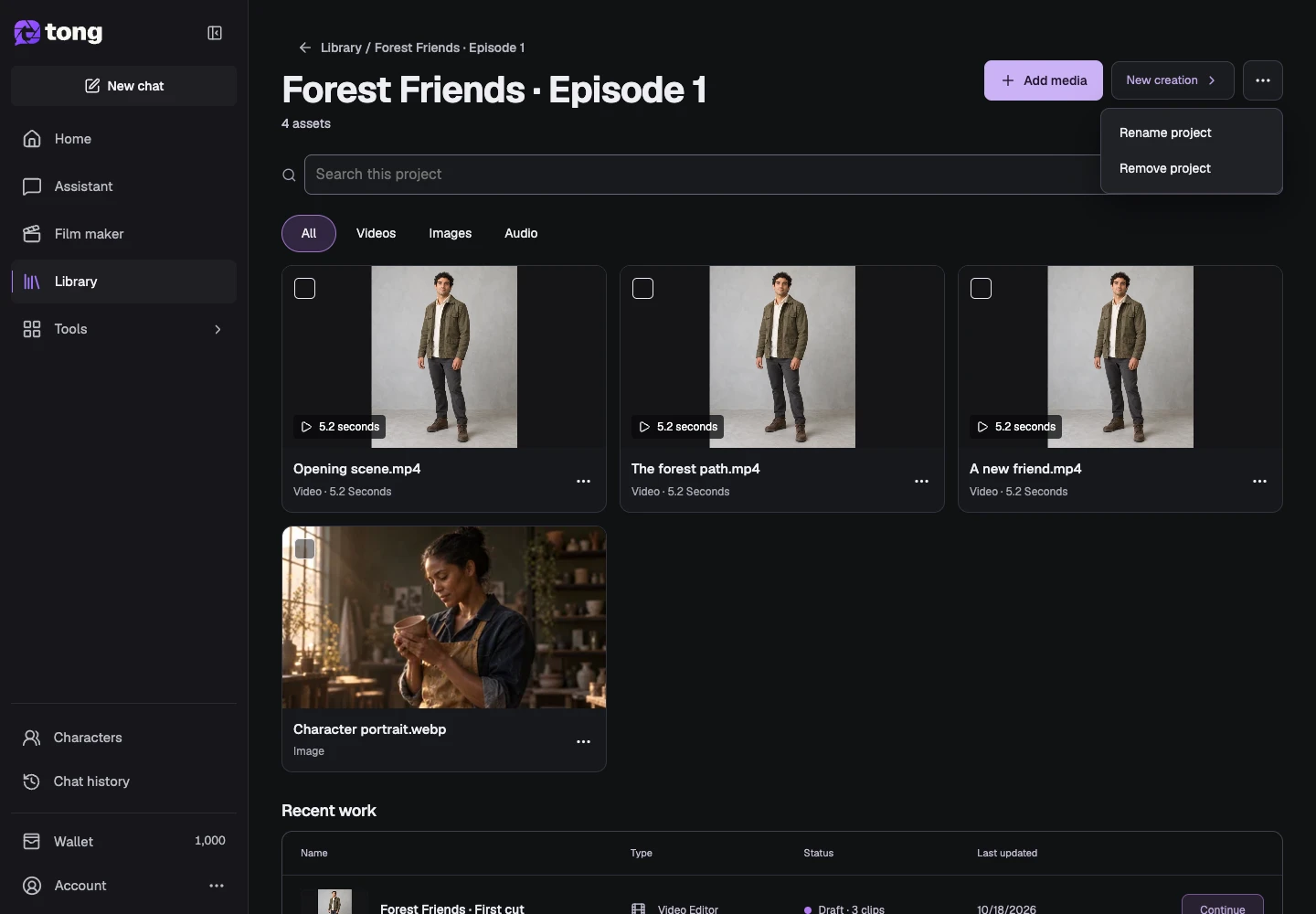
Manage the project name
Open Project actions and choose Rename project to give the folder a clearer name. Remove project has a separate confirmation; read it carefully rather than treating folder removal as an ordinary rename.
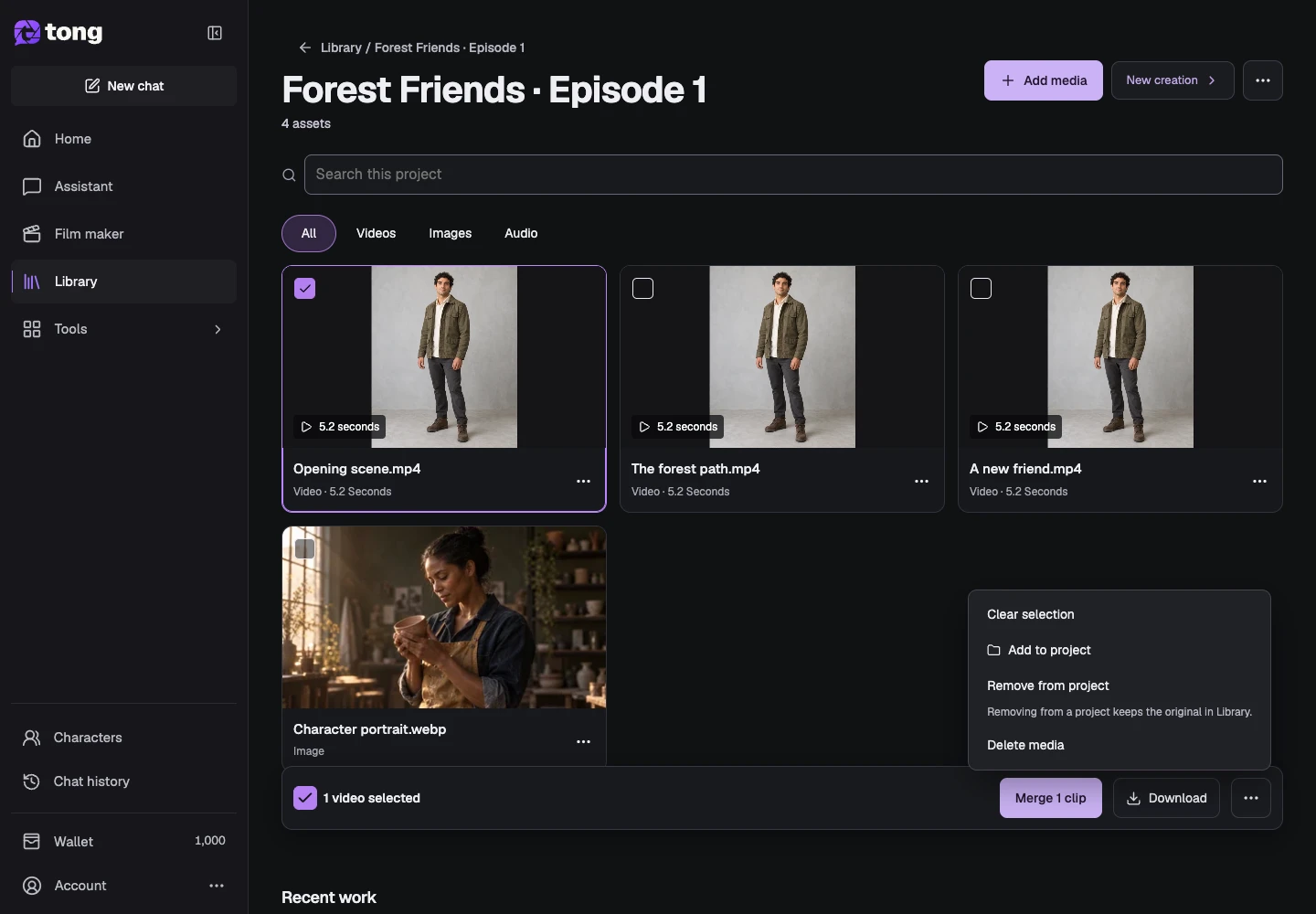
Assign or unfile existing media
Select media in the folder and open Selected media actions. Use Add to project to also include it in another project. Remove from project removes its assignment here while retaining the original in Library. Delete media is a separate action; choose the control for the outcome you intend.
A useful tip
A Film maker conversation develops the story and scenes. A Library project groups existing images, videos and saved edits. Use clear names for both.
If something goes wrong
If a file is missing from the project view, check All media and its project assignment before creating another copy. Removing an item from a project preserves the original; deleting media follows its own confirmation and lifecycle.
Read first, create when you’re ready
Reading this guide is free. The linked tool shows its own requirements and current credit price. Screenshots use demonstration data; review your own inputs and the quoted cost before submitting paid work.
Reviewed 2026-10-18 · Tong Academy