
Before you begin
- A supported source video.
- Reference images when the chosen edit/model requires them.
What you’ll achieve:
Model choices
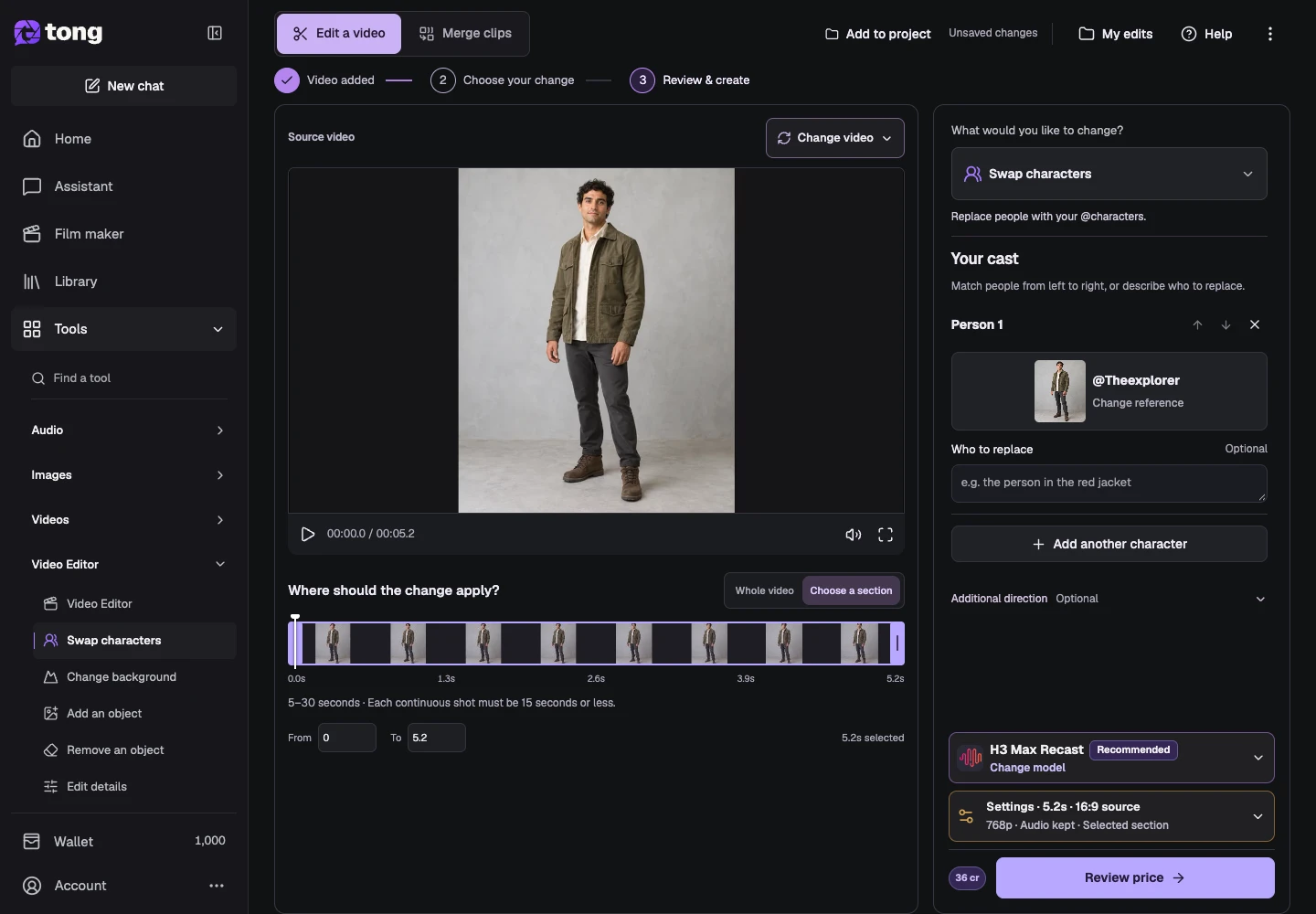
Video Editor offers unrestricted video-editing options through its Less restrictive models, alongside Moderated choices. H3 Max Recast supports reference-guided character replacement; Wan 3.0 Prime Edit supports written scene edits. The selected model determines the controls and limits.
Add a source video
Open Video Editor and upload or choose a saved clip. Wait for its duration to load, then choose the range you intend to change.
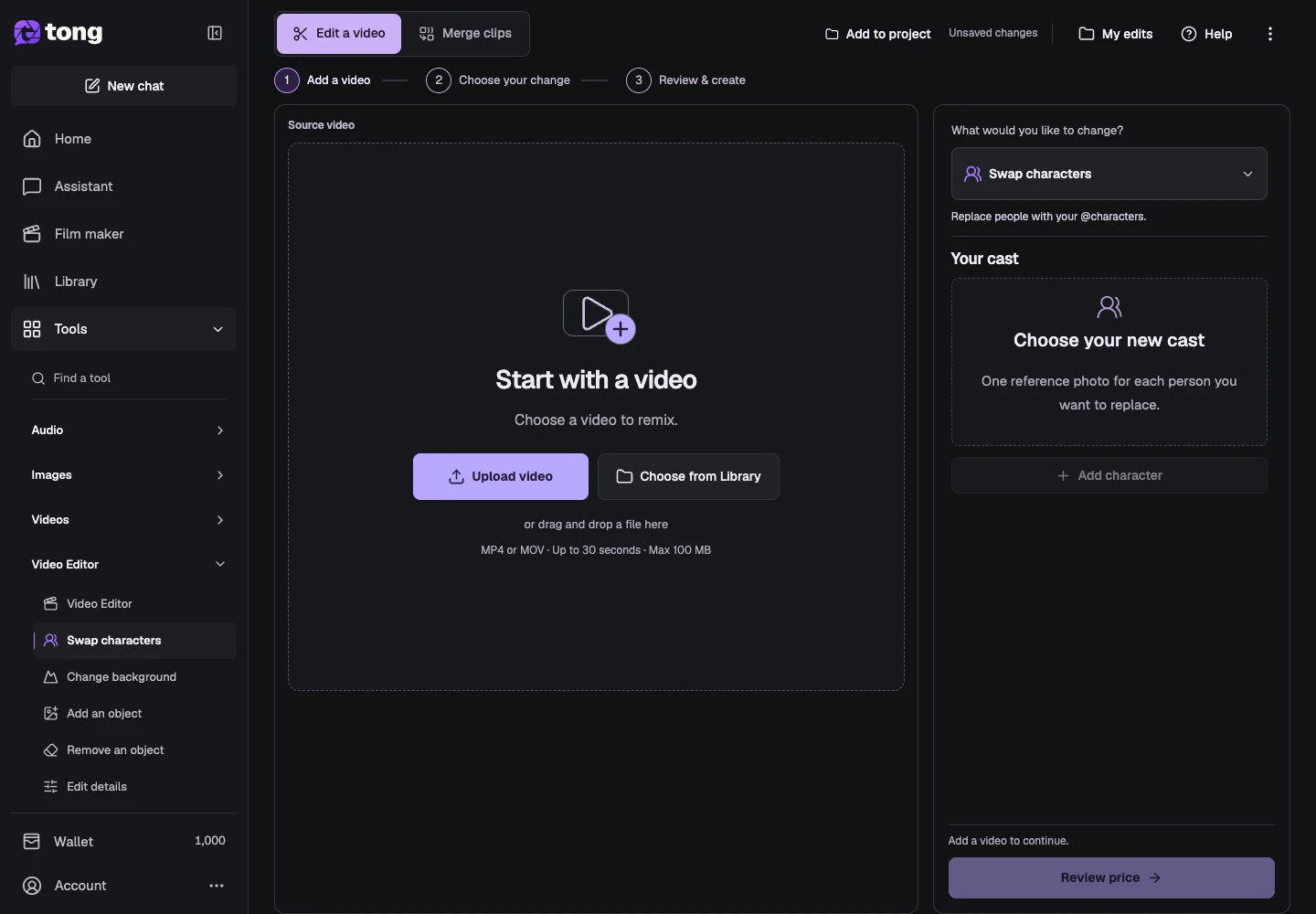
Choose the edit intent
Select the intended change, such as replacing a character, editing details, removing a subject or restyling. The available workflow depends on the edit model.
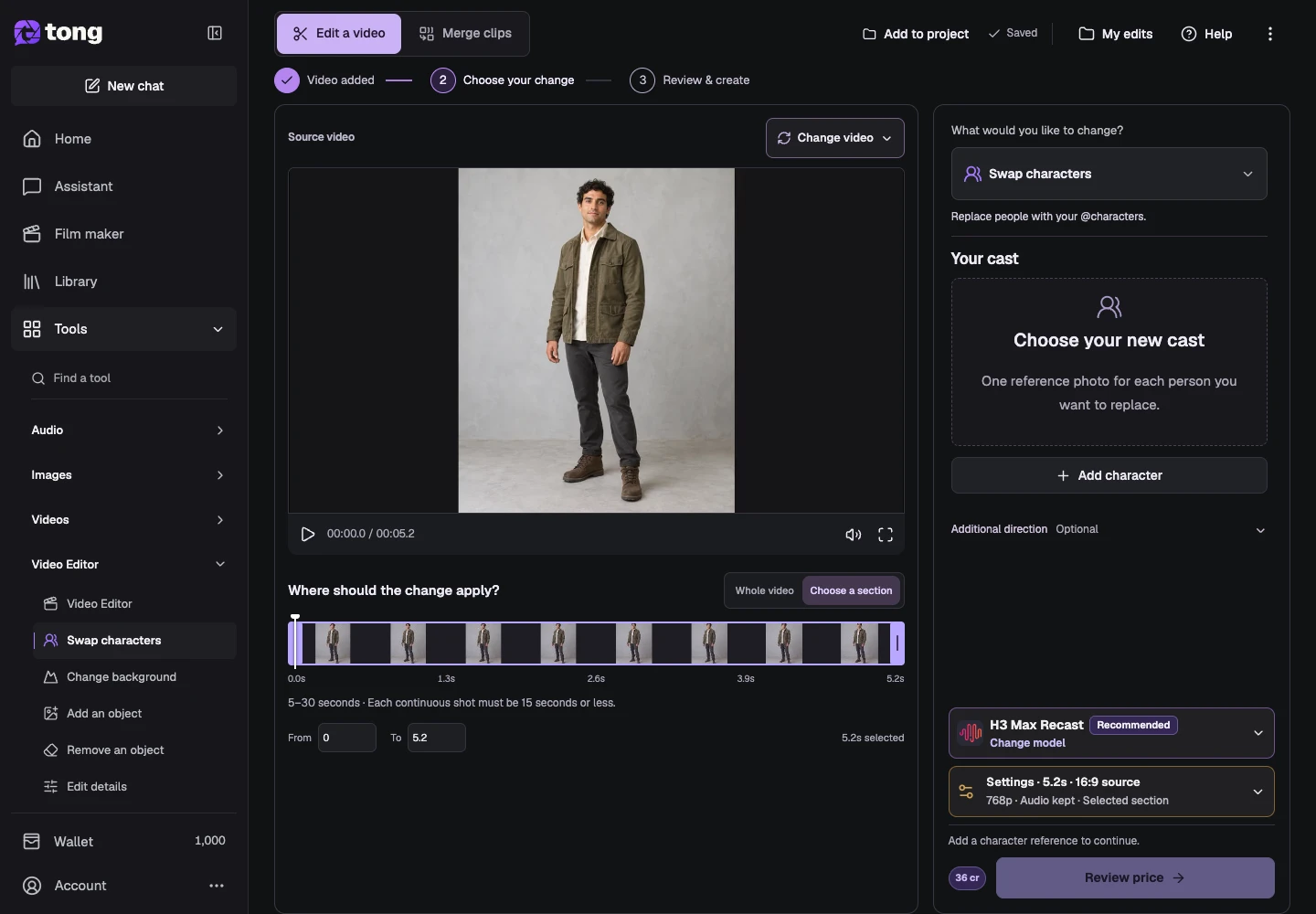
Choose a compatible edit model
Open the model control and compare supported duration, resolution, reference and subject-selection requirements. Native text-directed edits and detected-subject workflows have different controls.
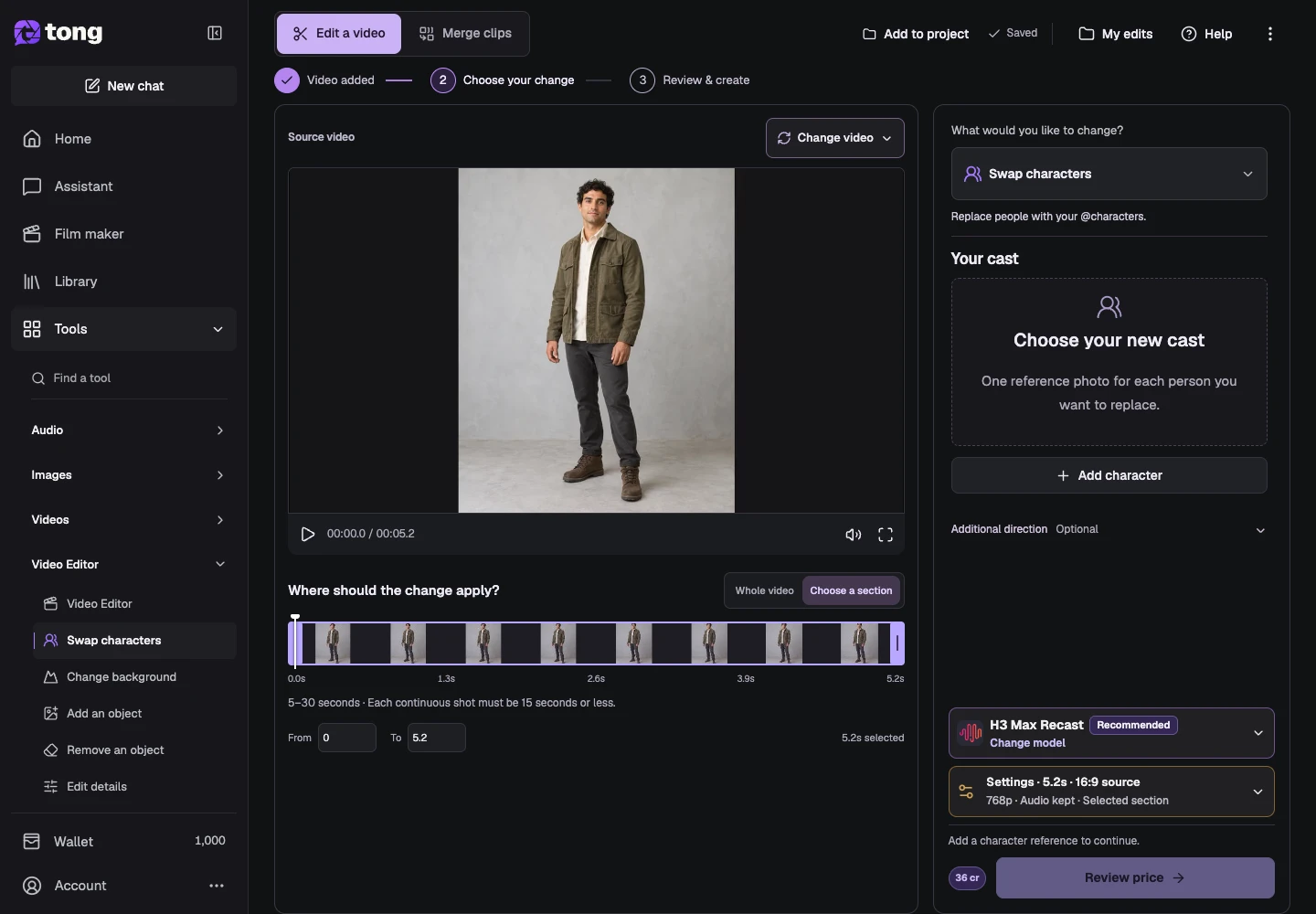
Add selection or reference context
For a selection-based workflow, choose a frame and use Detect before selecting the subject. For a reference-based replacement, add the character references. Write a concrete change description where the chosen workflow asks for one.
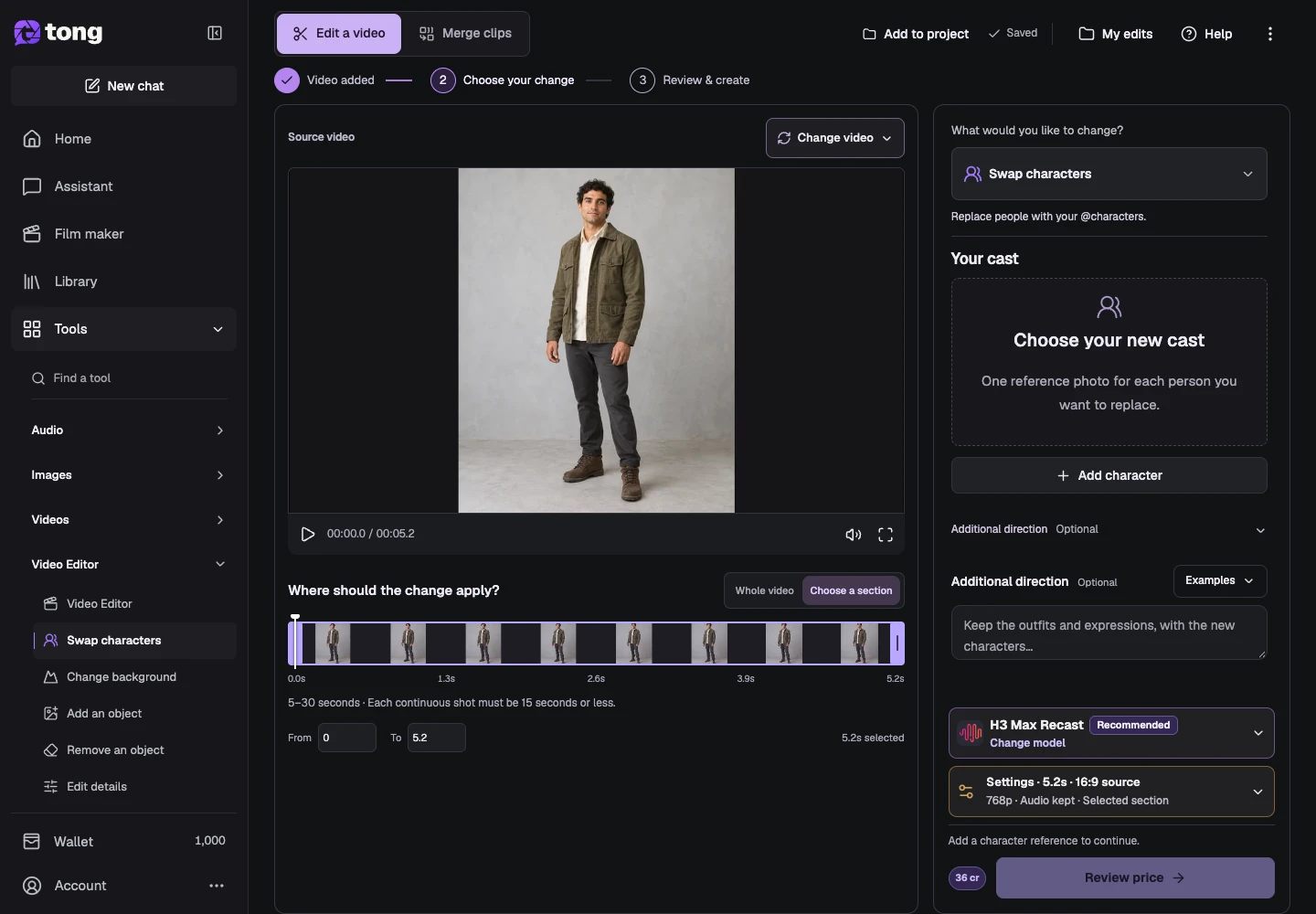
Review settings and the price
Check range, output mode, resolution and audio. Review price before confirming the edit. Completed edits can be inspected and downloaded while the original source remains available.
A useful tip
Start with a short clear range. It is easier to review a specific edit than a long request containing unrelated changes.
If something goes wrong
If generation is disabled, read the missing-input notice and check the model's requirements. An old subject selection may need to be refreshed after changing the source range or model.
Read first, create when you’re ready
Reading this guide is free. The linked tool shows its own requirements and current credit price. Screenshots use demonstration data; review your own inputs and the quoted cost before submitting paid work.
Reviewed 2026-10-18 · Tong Academy