
Before you begin
- A supported performance video.
- A character image and available credits.
What you’ll achieve:
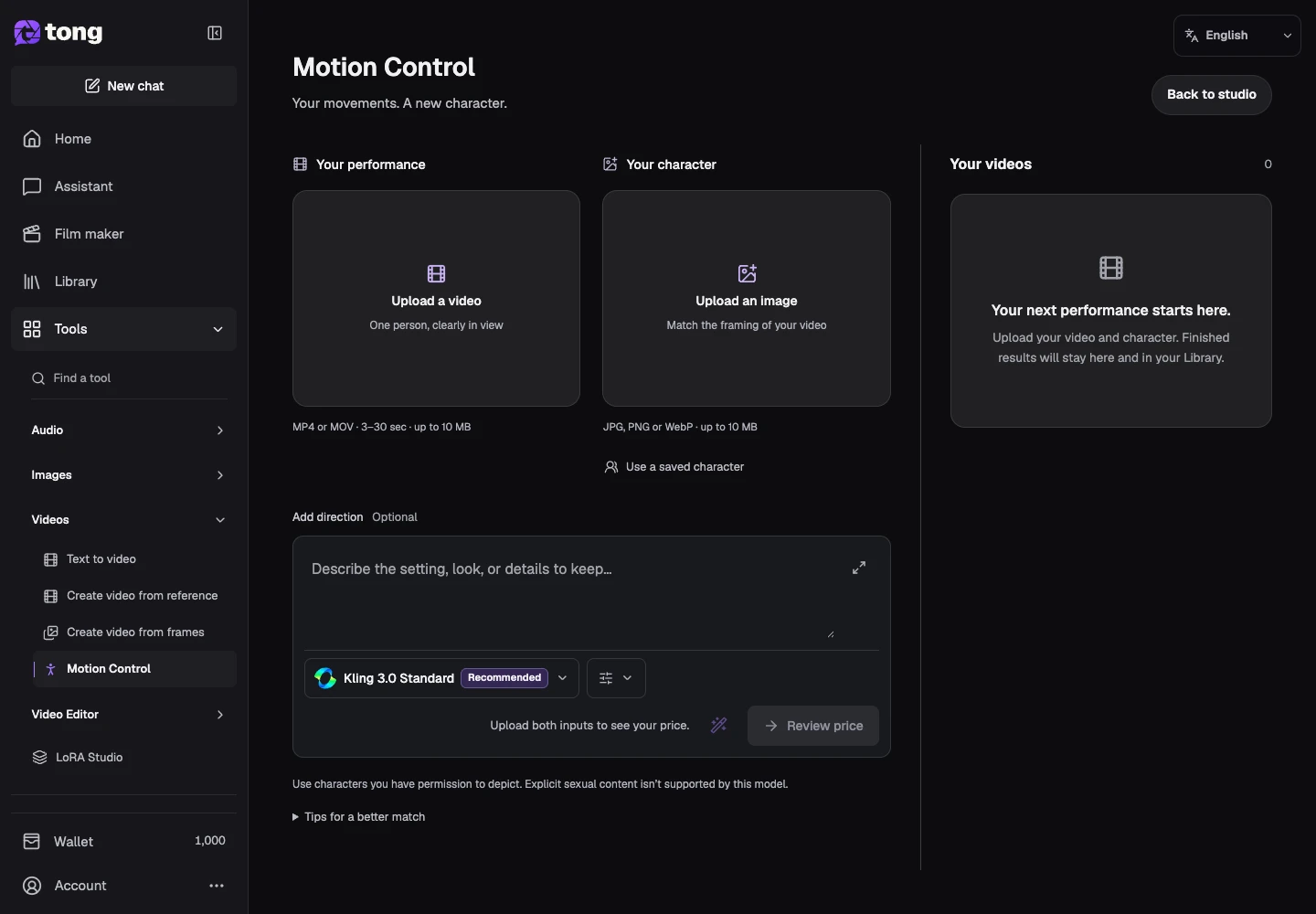
Add the performance video
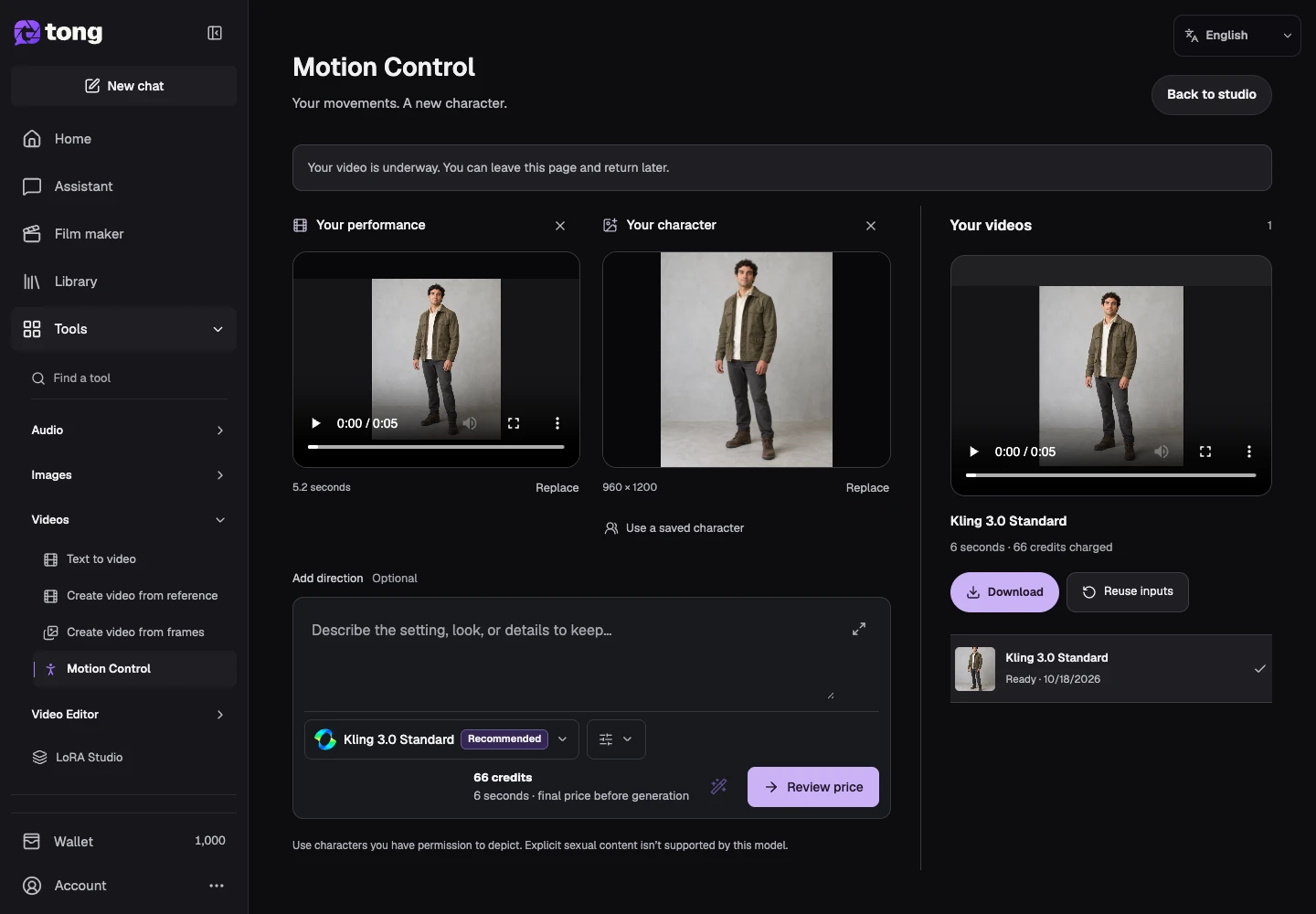
Open Motion Control and use Your performance to upload the movement source. Wait for preparation and inspect its duration before continuing.
Add the character image
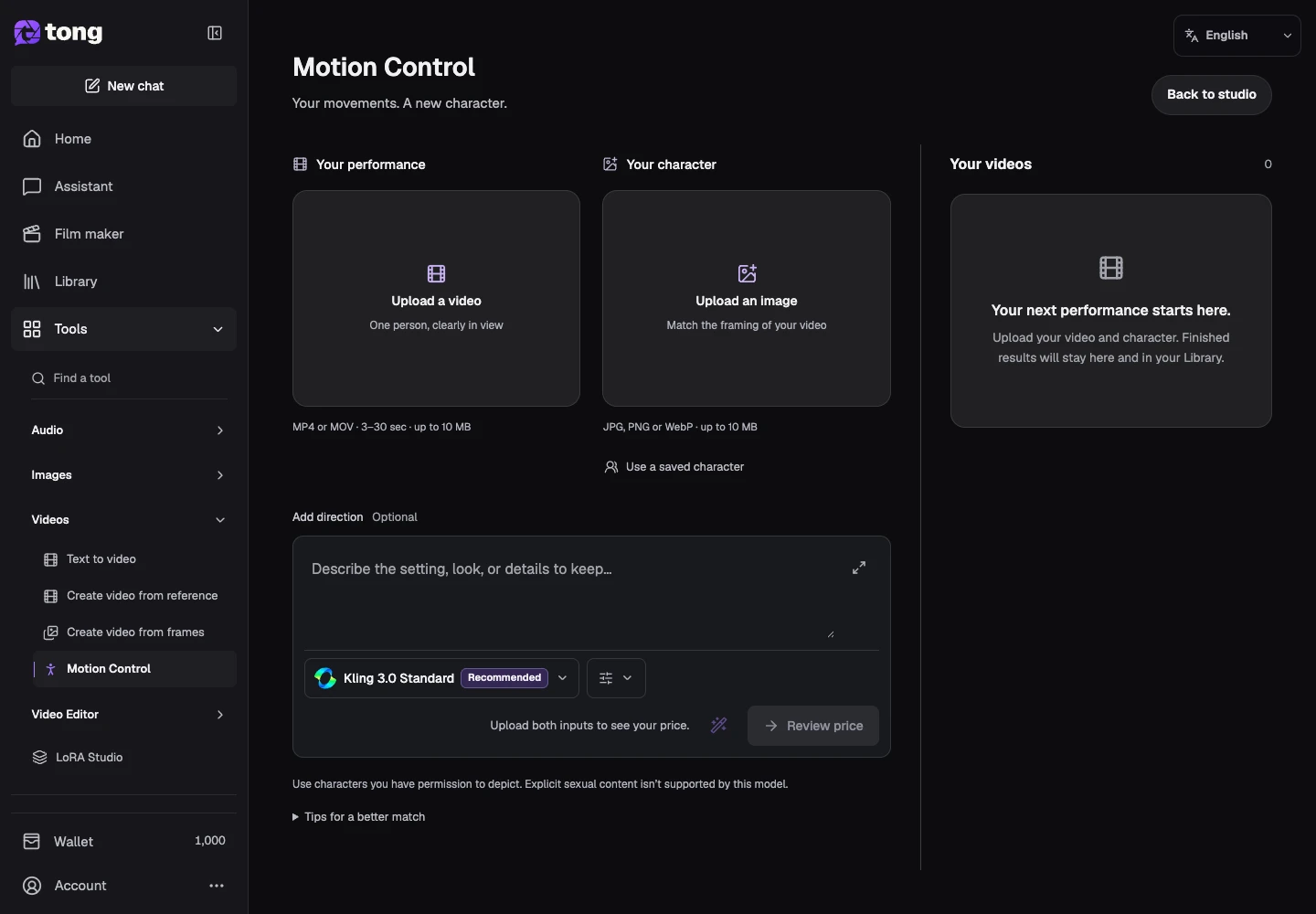
Use the character-image input for the subject that should follow the performance. Keep this source separate from the video; both are required.
Choose the model and settings
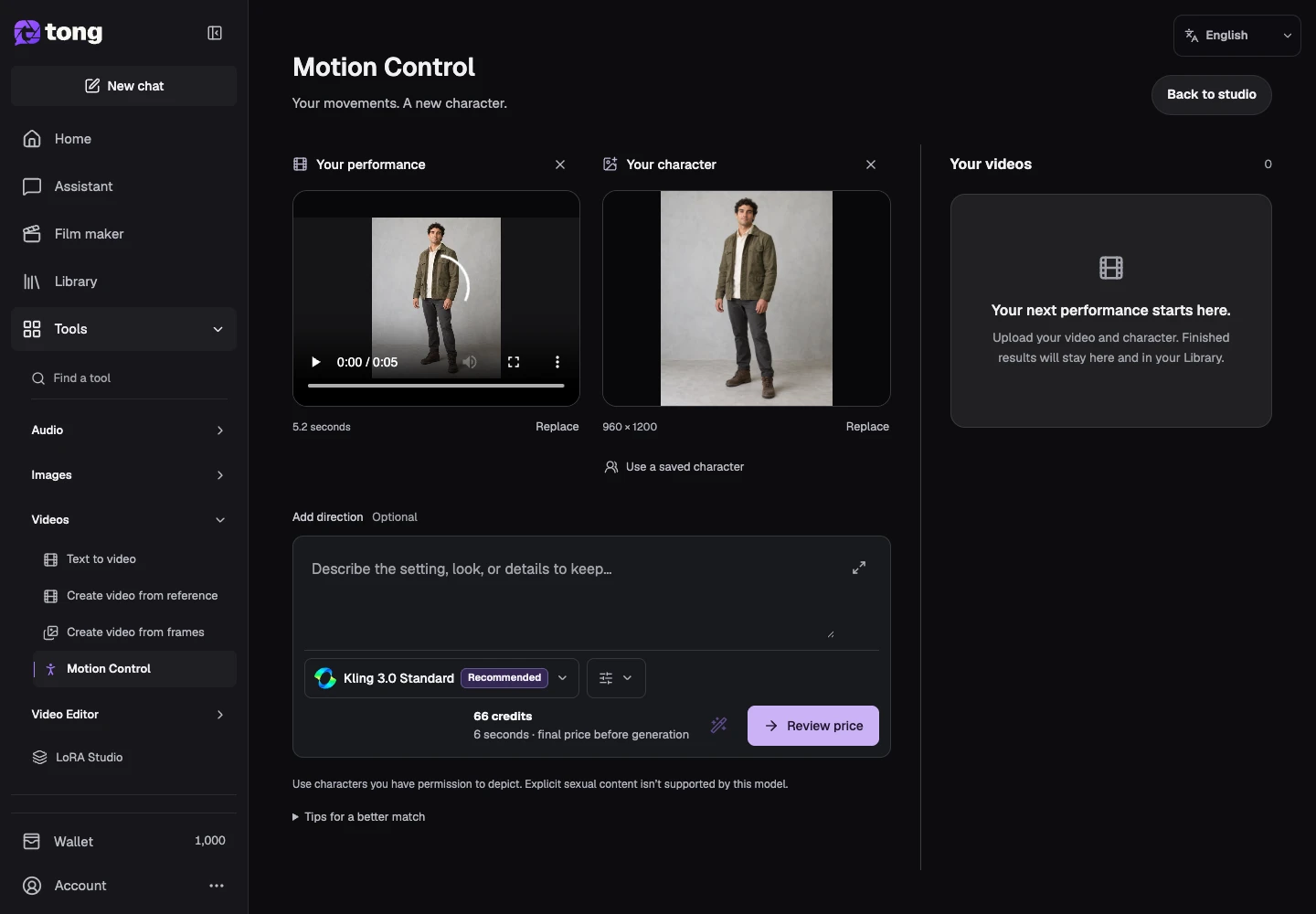
Compare the available models and supported output options. Read the character-orientation and audio choices when shown, and keep the requested clip within the current limits.
Review the price
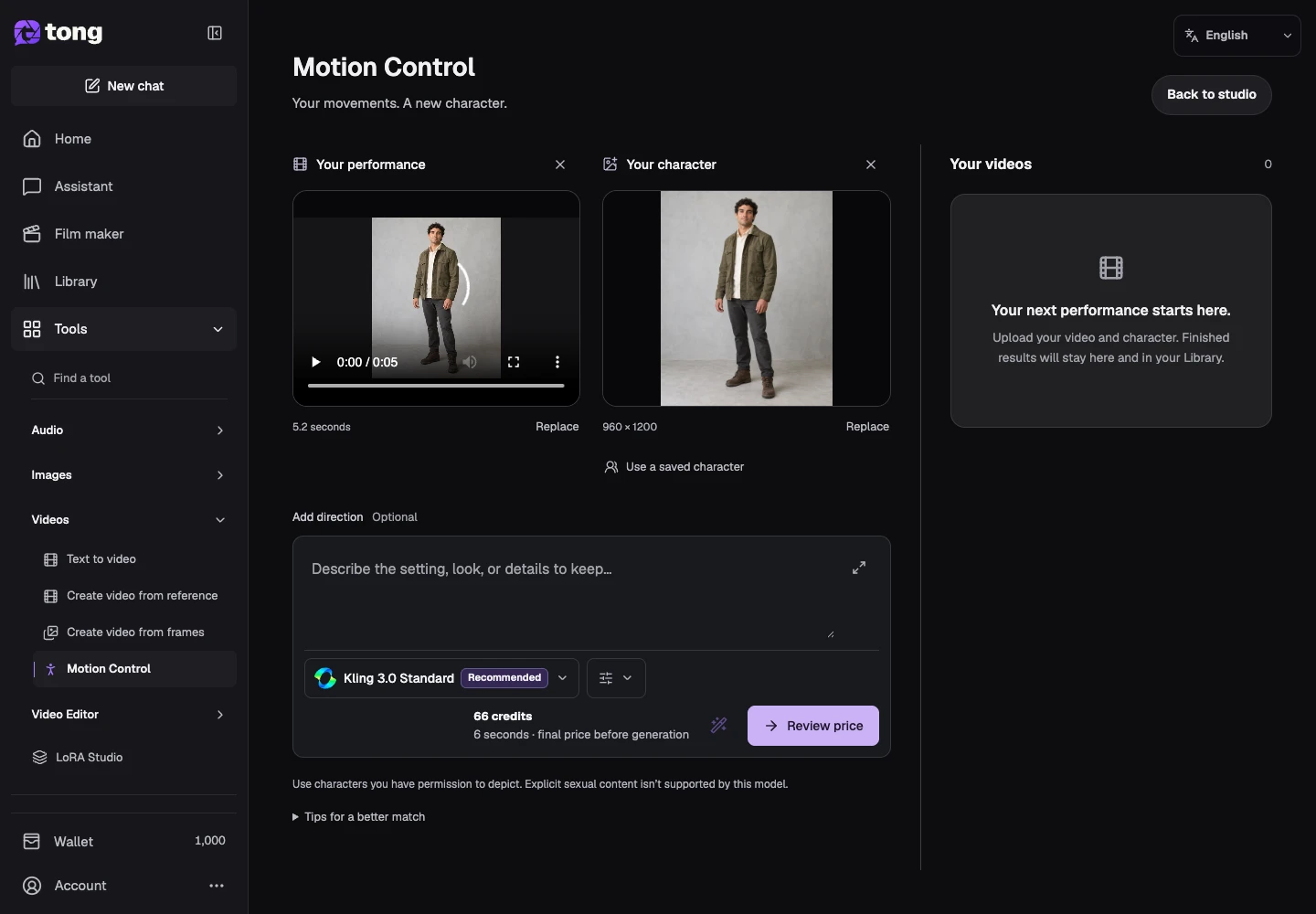
Select Review price after both sources are ready. Read the billable duration and total, then confirm only if they match the request you intend to make.
Check the finished video
Return to Your videos and inspect the completed clip. Compare the motion and character appearance with the inputs; download a useful result or make a specific new request if needed.
A useful tip
Use a clear performance where the subject and movement are easy to see. Large occlusions and incompatible framing can make the task harder.
If something goes wrong
If Review price is disabled, check that both prepared inputs are present. A failed upload and a failed generation have different recovery actions; keep the sources while resolving either.
Read first, create when you’re ready
Reading this guide is free. The linked tool shows its own requirements and current credit price. Screenshots use demonstration data; review your own inputs and the quoted cost before submitting paid work.
Reviewed 2026-10-18 · Tong Academy