
Before you begin
- A signed-in account with available credits.
- Supported reference files you have permission to use.
What you’ll achieve:
Model choices
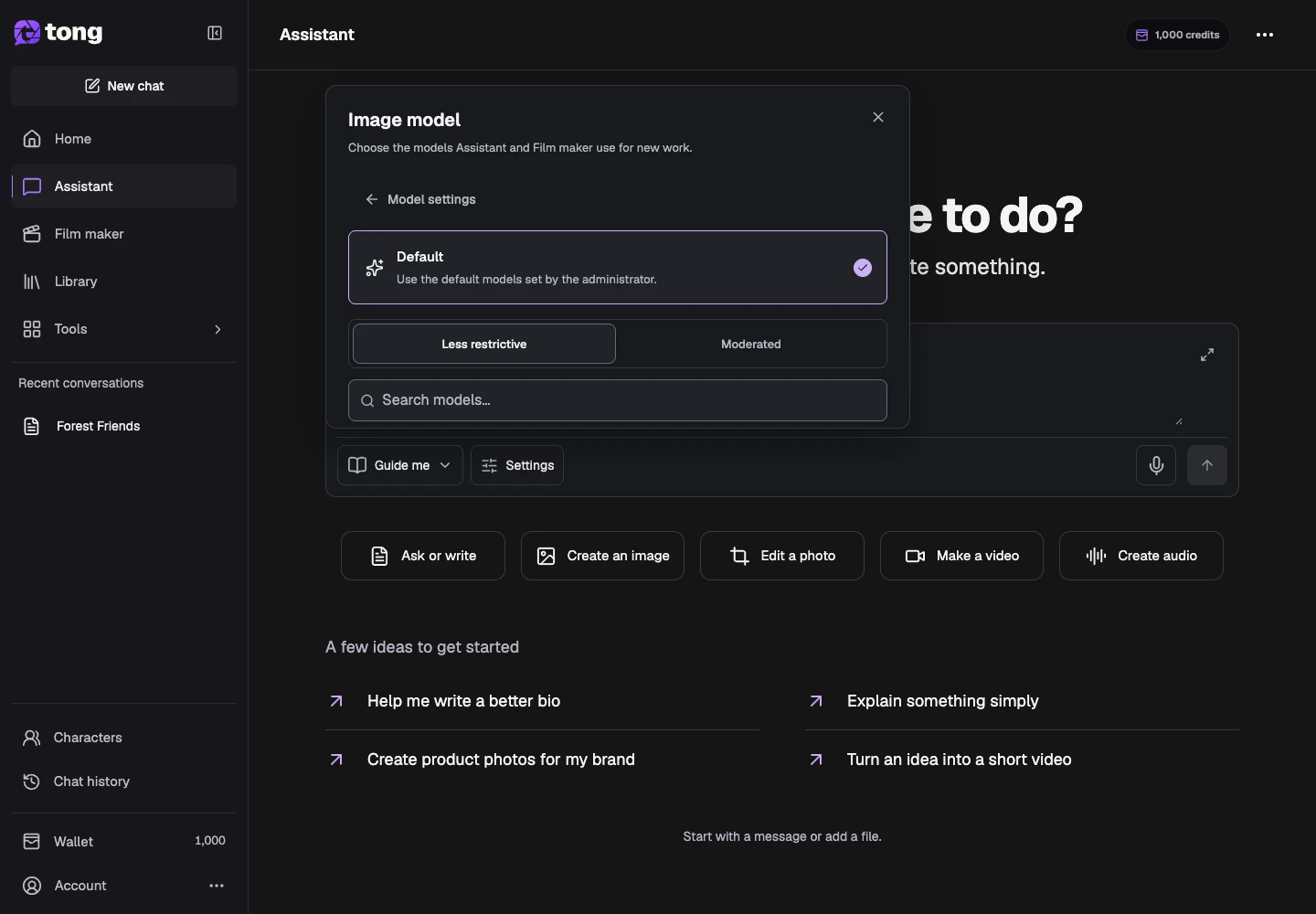
Settings lets you choose image and video models for this conversation. Default follows Tong’s current defaults. Model capabilities, content policies and prices still apply, including for unrestricted workflows.
Open the reference manager
Choose Add references beside the prompt. Upload supported files or choose from Library, then wait for preparation before sending your message.
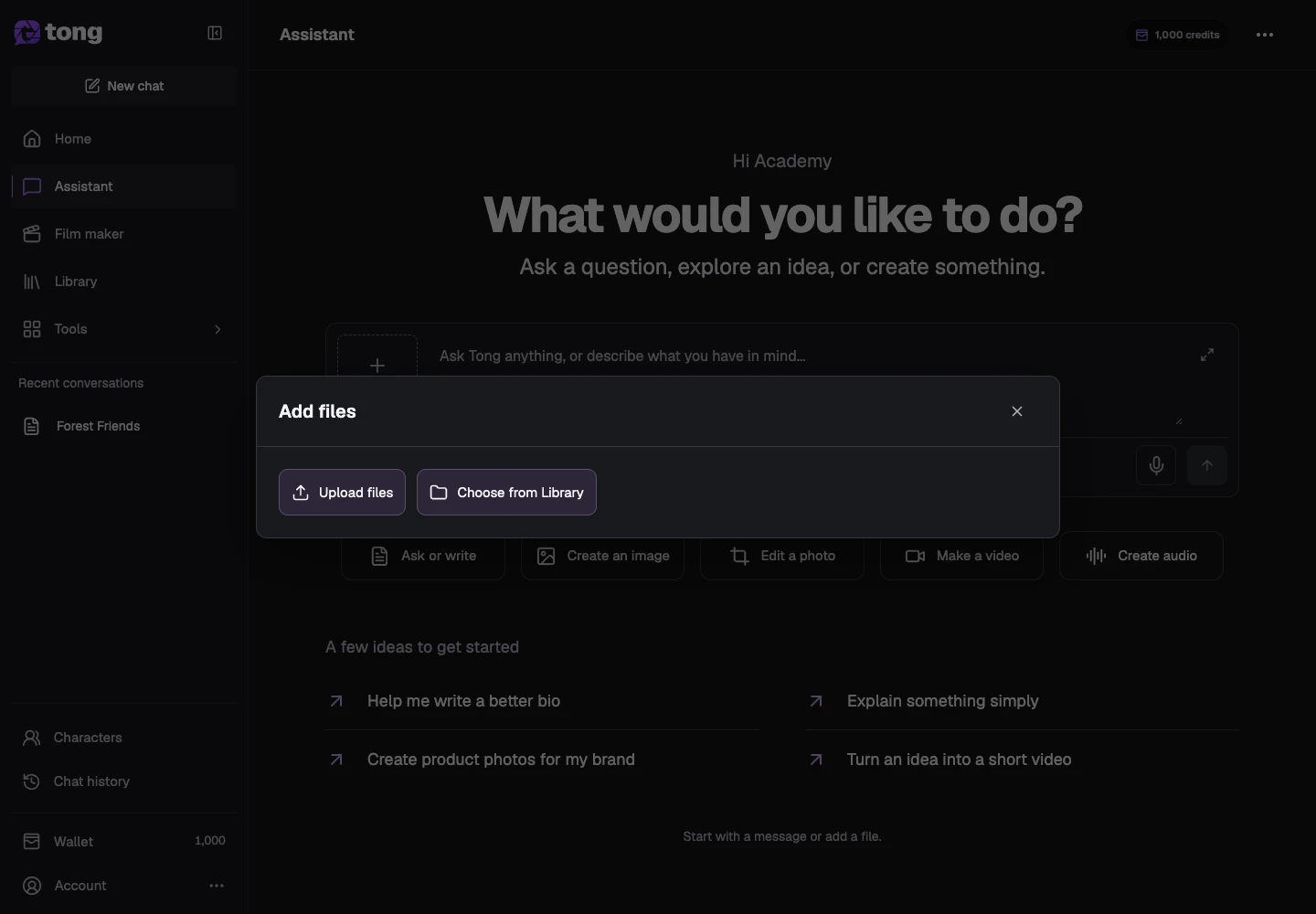
Check the attached files
Use Manage to review names, previews and failed uploads. Explain each reference’s purpose in your message; remove or replace an unwanted file deliberately.
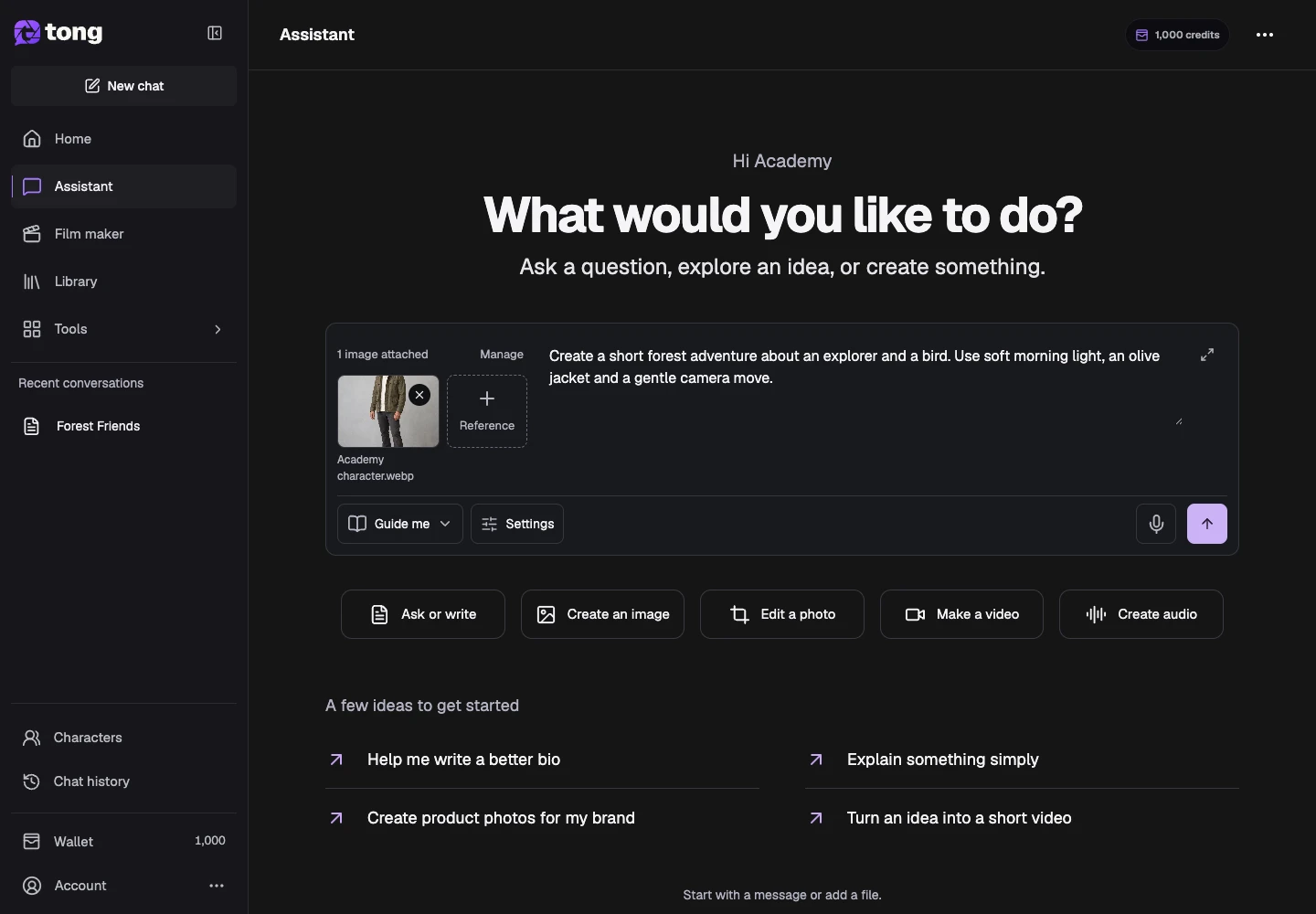
Open model settings
Open Settings beside the review mode. Image model and Video model apply to new work in this conversation; Default inherits the current Tong defaults.

Choose a compatible preference
Open the image or video model row and choose a supported model, or keep Default. If a selected model cannot handle a task, follow the message asking for a compatible choice.
A useful tip
A model change does not alter media already generated. Keep important identity and appearance details in the message as well as in references.
If something goes wrong
If a file fails, retry or replace that file in Manage. If models cannot load, use the panel’s retry action; keep your prompt and references while it recovers.
Read first, create when you’re ready
Reading this guide is free. Assistant and Film maker use credits as they work and pause when your balance is insufficient. Guide me pauses for creative review; Just make it continues automatically.
Reviewed 2026-10-18 · Tong Academy