
Before you begin
- A signed-in account.
- An existing result or a supported local media file.
What you’ll achieve:
Model choices
Library keeps ready media from unrestricted AI image and video workflows as well as your uploaded files. Reusing or downloading a saved item does not change its generation model or require you to generate it again.
Open Library
Select Library in navigation. Saved media is separate from the tool composer, so you can return to files without recreating them.
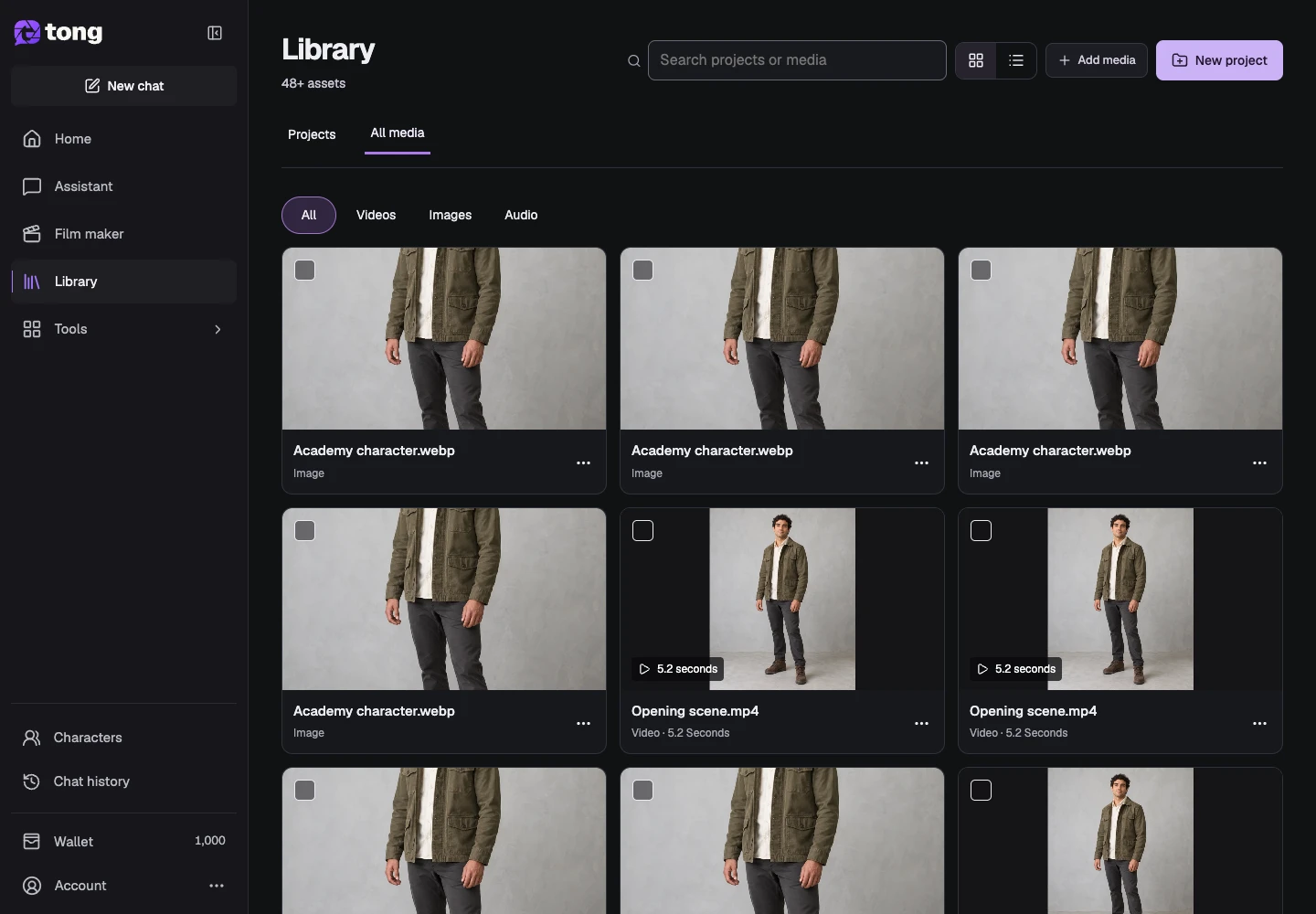
Find the media you need
Use the Library search and media filters to narrow the list. Inspect the file name, thumbnail and type before opening a result or assigning it to another workflow.
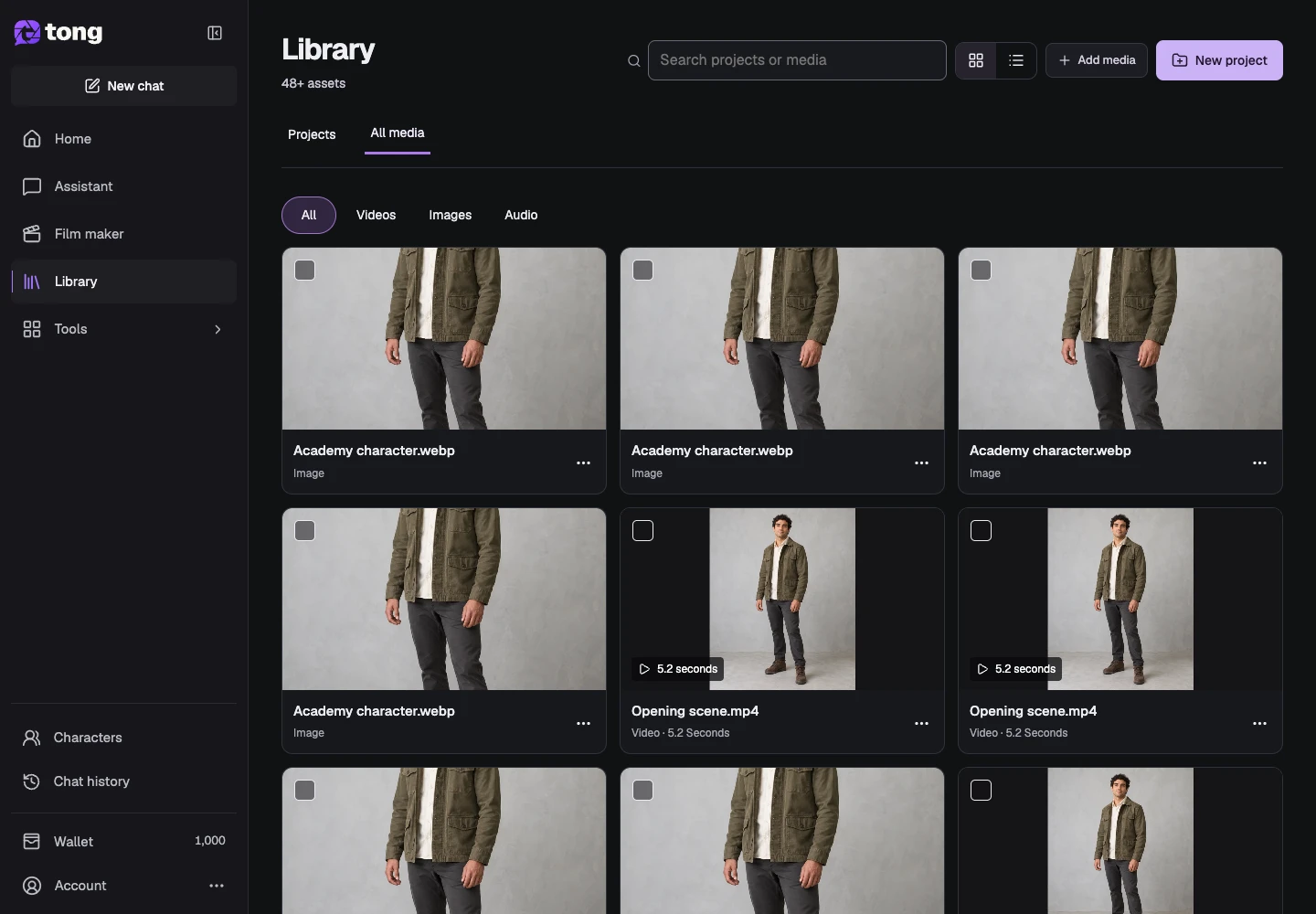
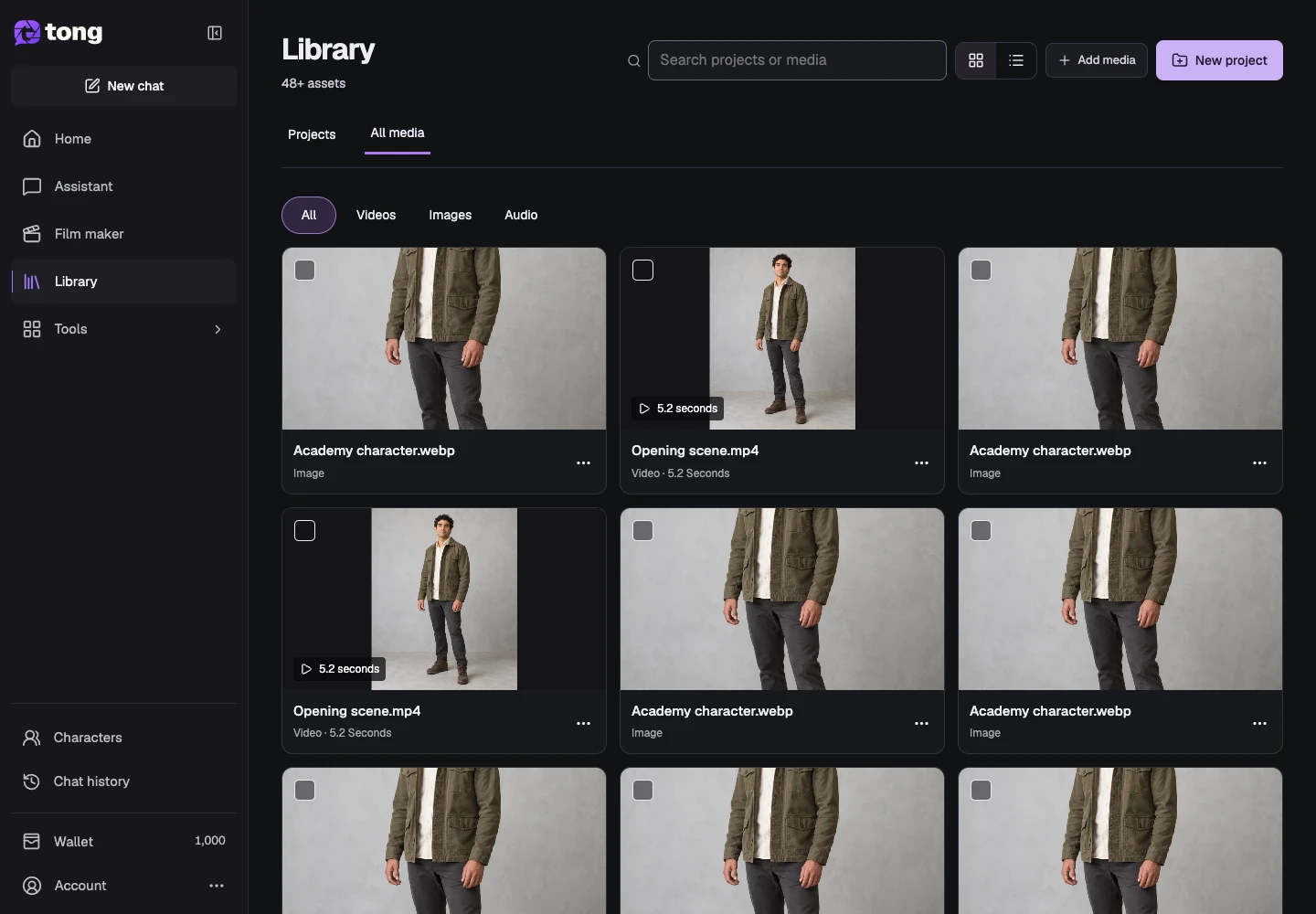
Upload a source file
Use the Library upload control to choose a supported image, video or audio file. Wait for preparation to finish before reusing it; a local preview does not by itself mean the server has saved the file.
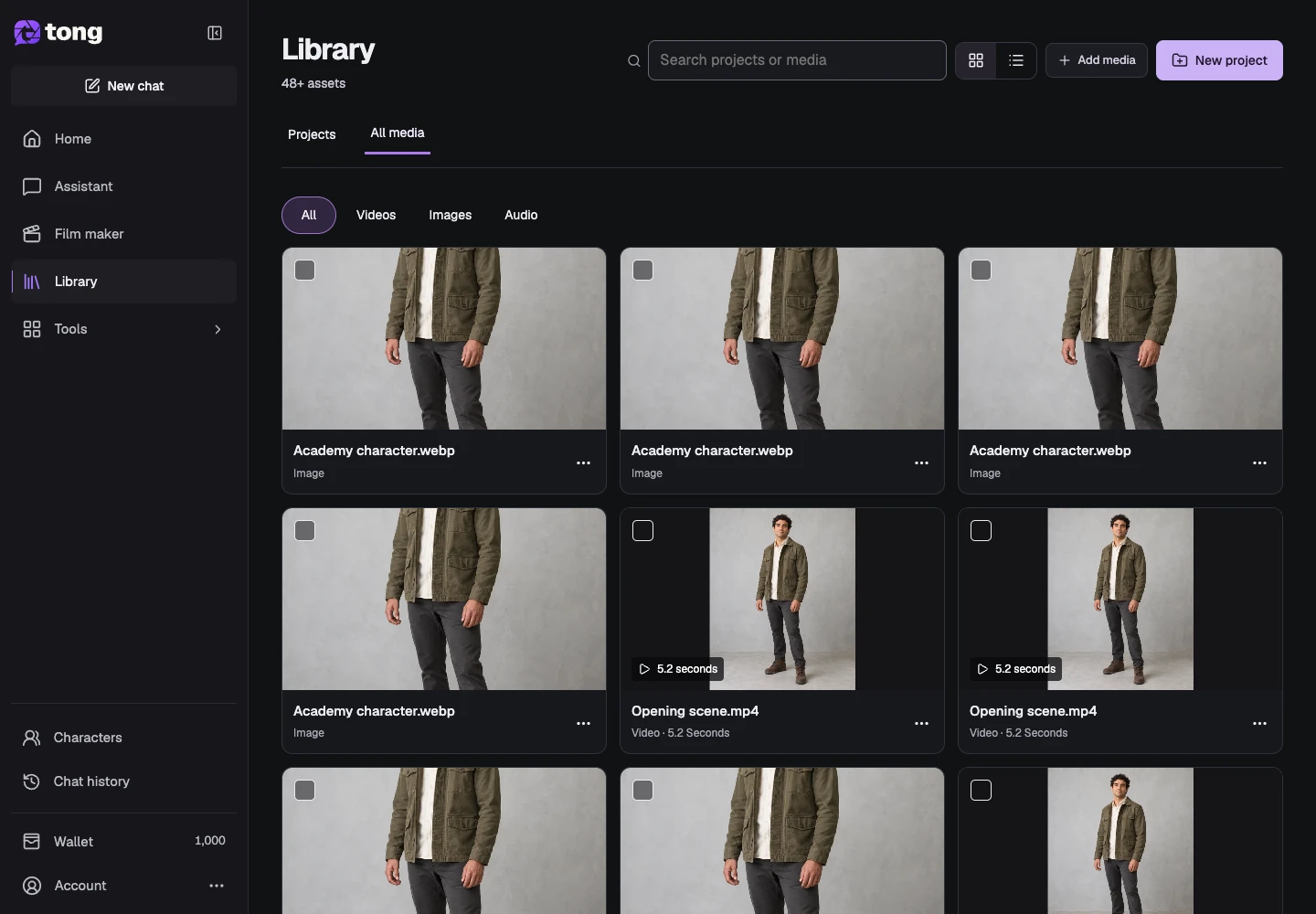
Open or download a result
Open a media item to inspect it and use its download action when available. Saved inputs and completed outputs can be reused without generating them again. Review the confirmation carefully before deleting a file.
A useful tip
Give projects and source files descriptive names so you can distinguish a reference, a draft and a finished export.
If something goes wrong
If a preview is unavailable, let the media finish saving and reload Library. Keep your local source until the upload is complete. Do not submit a new generation just to make an existing download reappear.
Read first, create when you’re ready
Reading this guide is free. The linked tool shows its own requirements and current credit price. Screenshots use demonstration data; review your own inputs and the quoted cost before submitting paid work.
Reviewed 2026-10-18 · Tong Academy