
Before you begin
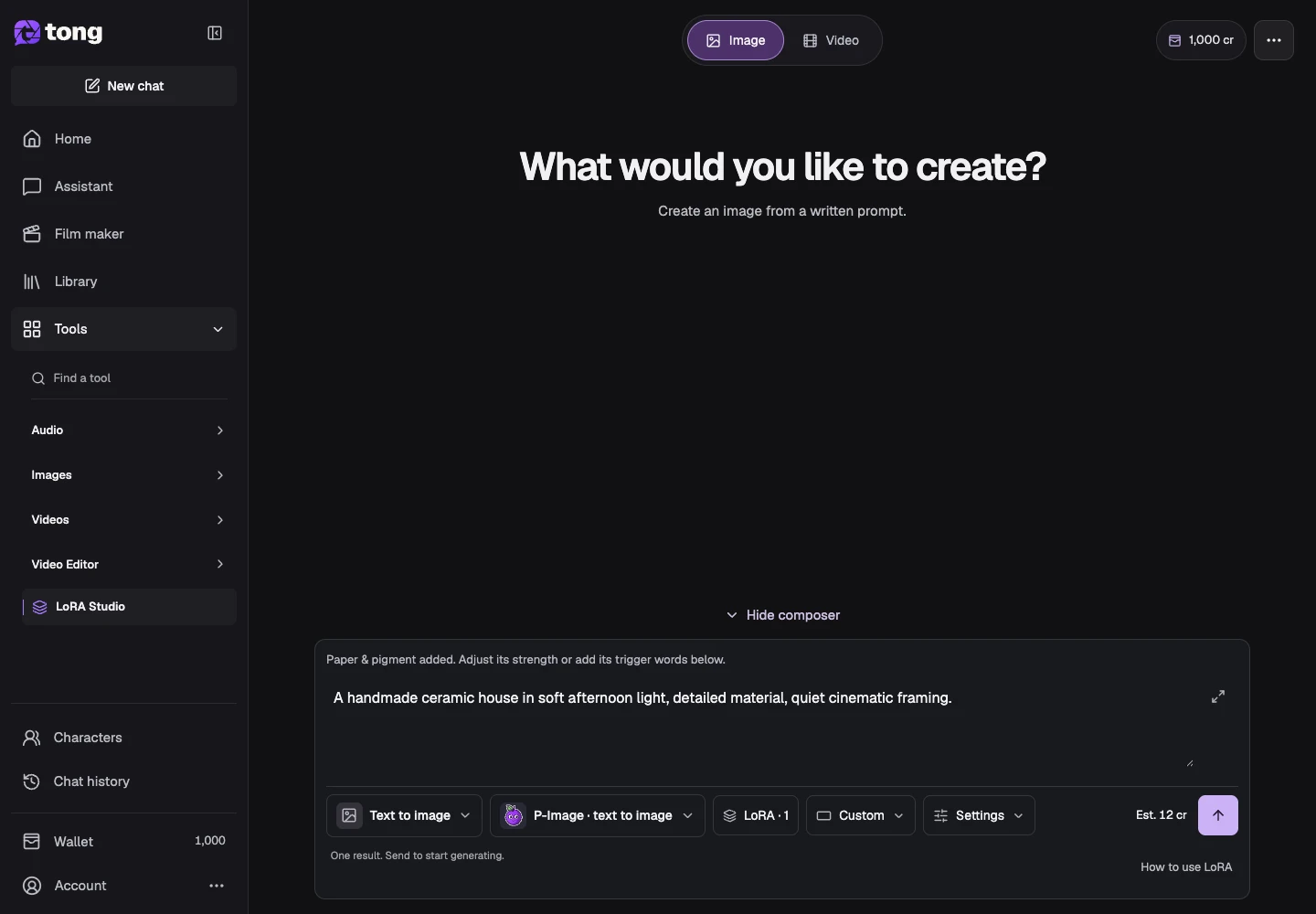
Tool and model controls beside the prompt show the current selection. Select those names to open their menus.
- A signed-in account and credits.
- A compatible LoRA or supported preset for the chosen model.
What you’ll achieve:
Model choices
For unrestricted LoRA image creation, check the base generation model's category and supported LoRA family. A LoRA changes appearance or style; it does not turn a Moderated or Uncategorized base model into an unrestricted one.
Choose the image category
Open LoRA Studio and select Text to image or Reference to image according to your inputs. Category changes retain your references. Check whether they fit the selected model and remove incompatible references explicitly before sending.
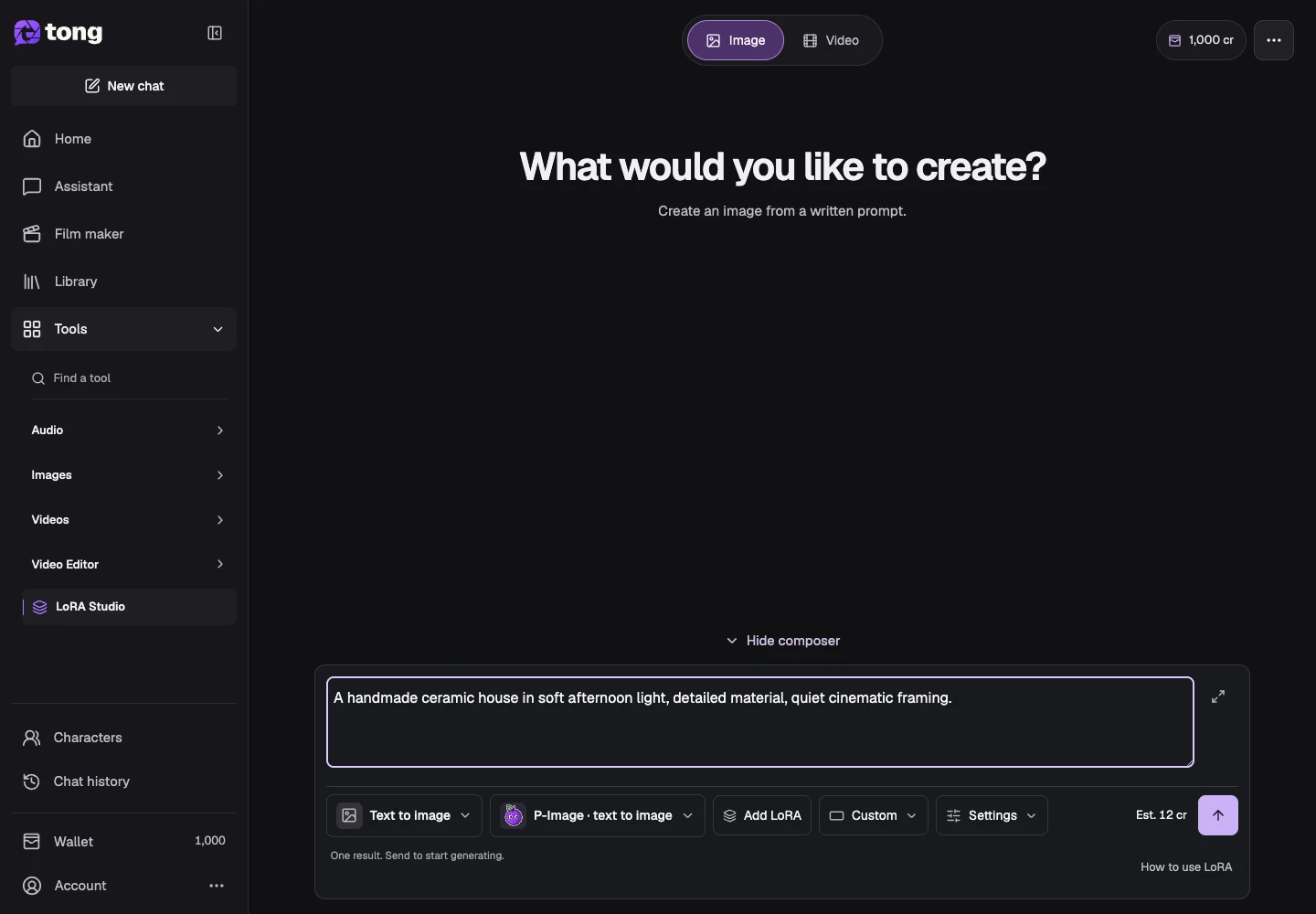
Choose a compatible model
Open Change model and review its input modes and LoRA support. Some models use presets or different LoRA slots; the ordinary Studio image model is not automatically compatible.
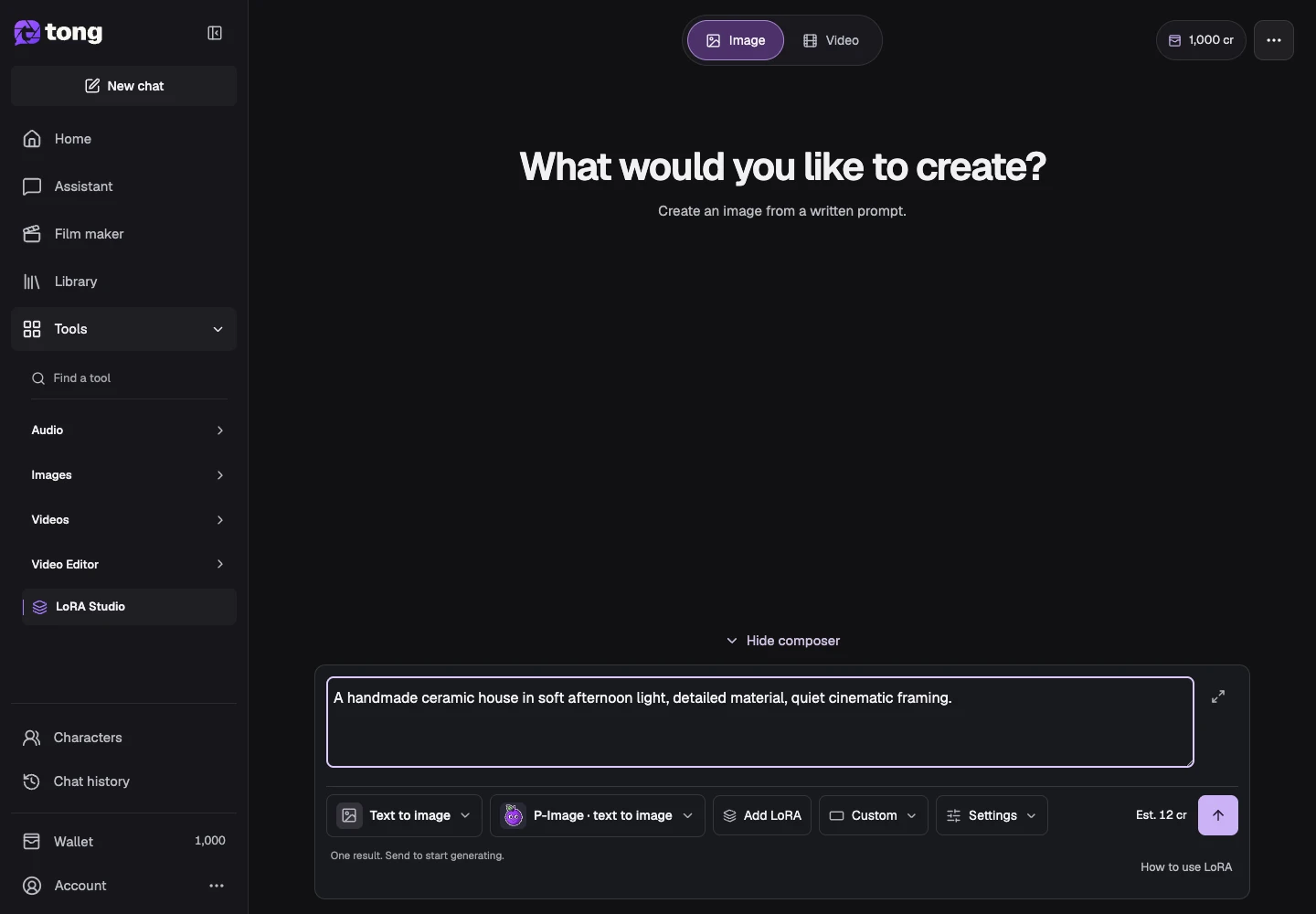
Browse and select a LoRA
Open Browse library, inspect an entry's model compatibility and trigger words, and use Add to prompt when appropriate. Add required trigger words deliberately and keep them in editable text.
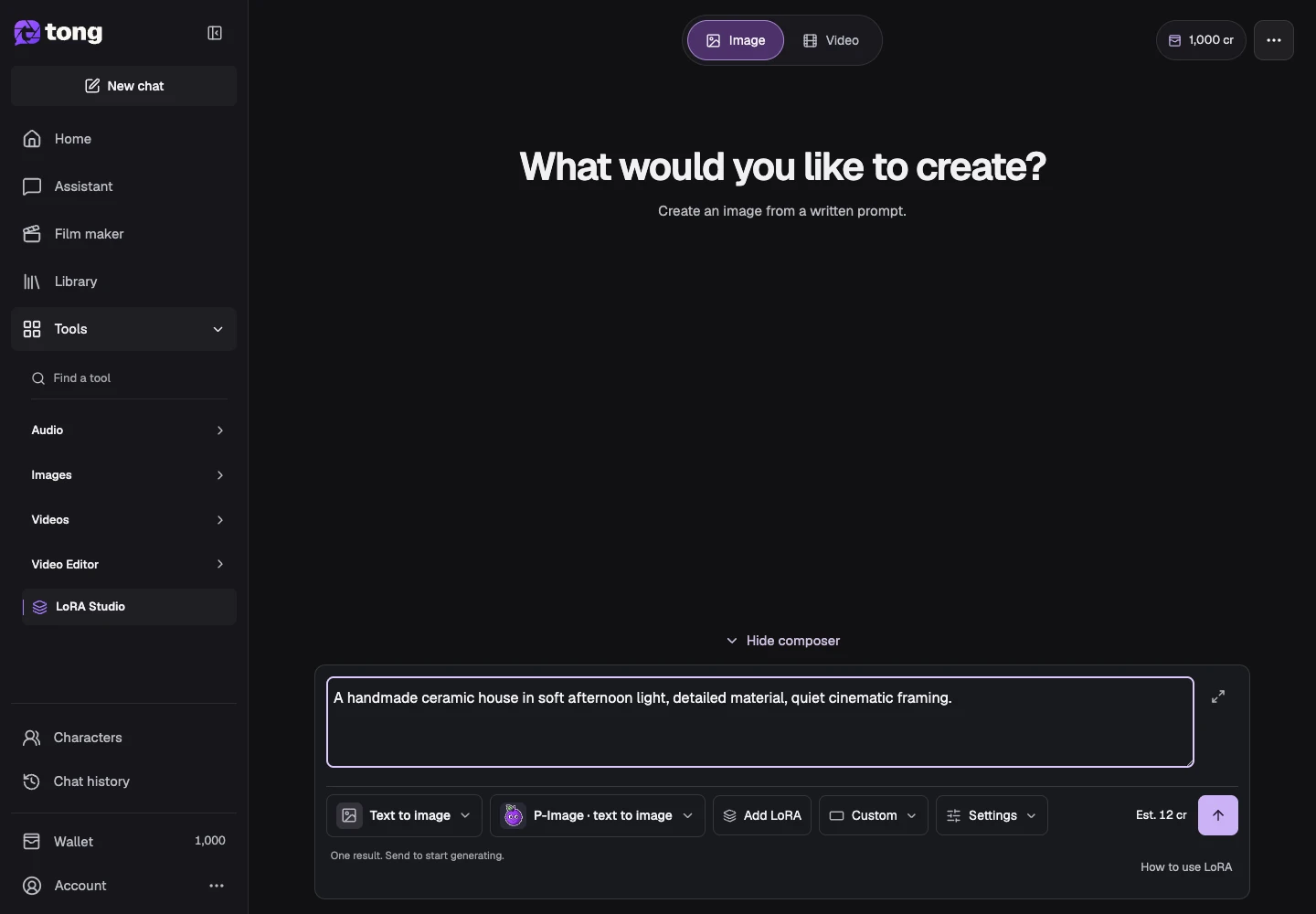
Describe the scene and adjust strength
Write the image you want in the prompt. Adjust a selected LoRA's strength only within the offered range; a stronger value does not automatically mean a better result.
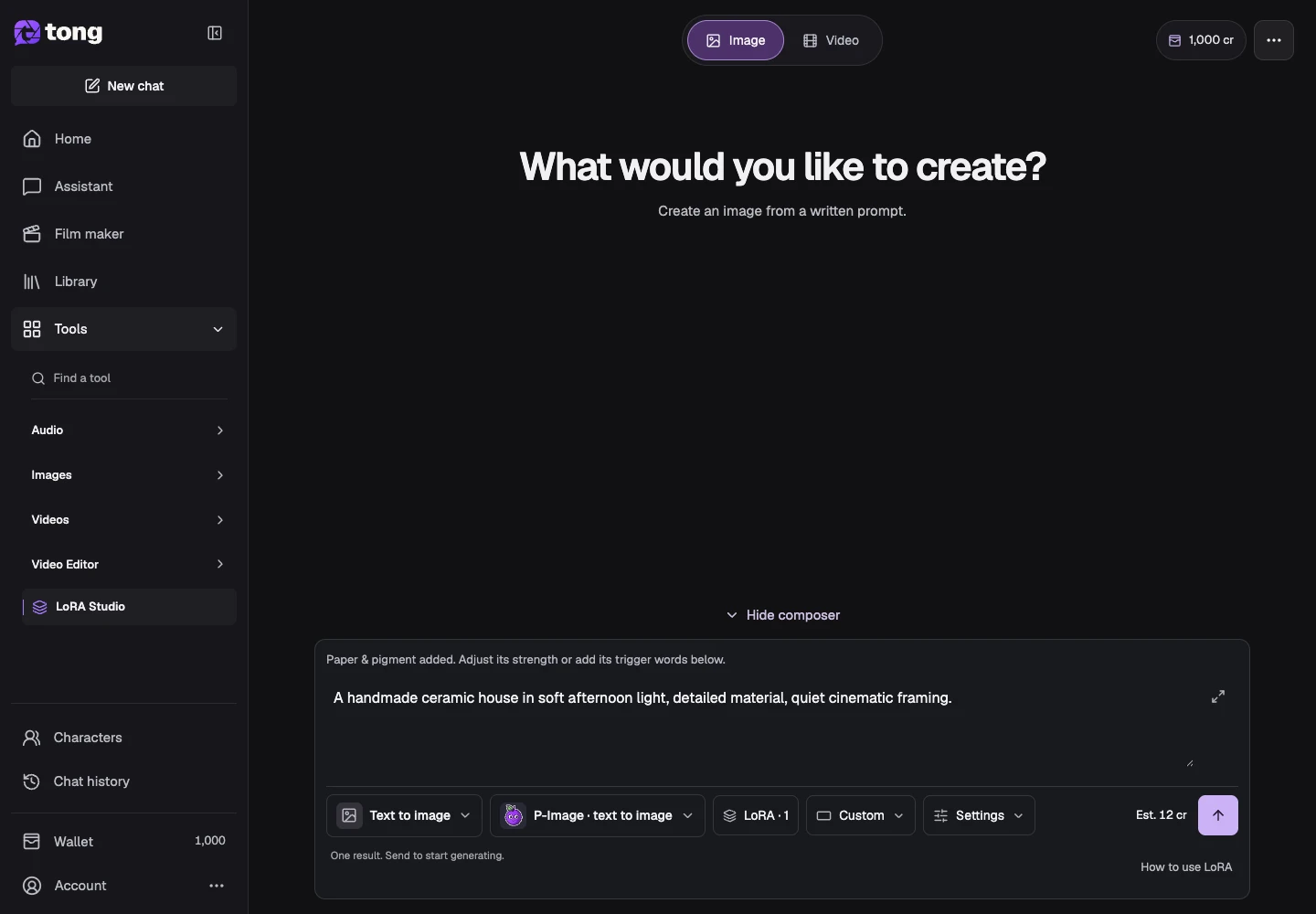
Check settings and current price
Use Settings for supported output options. Read the current price beside the submission action, then send only when the model, references and LoRAs are compatible. Completed work appears in the LoRA results/history.
A useful tip
Begin with one LoRA and a simple prompt so you can see what it changes before blending several.
If something goes wrong
If an entry cannot be added, check its model, mode and slot compatibility. Imported weights and preset support vary by model; changing categories or models may require choosing the LoRA again.
Read first, create when you’re ready
Reading this guide is free. The linked tool shows its own requirements and current credit price. Screenshots use demonstration data; review your own inputs and the quoted cost before submitting paid work.
Reviewed 2026-10-18 · Tong Academy