
Before you begin
- A signed-in account.
- A supported public source link for an import, with permission to use the weights.
What you’ll achieve:
Model choices
An imported LoRA can be used in an unrestricted workflow only when its family and inputs match a compatible Less restrictive base model. Check its license and trigger words separately; importing does not change the model's policy.
Open the LoRA library
Open LoRA Studio's library view. Use Discover or your saved entries, then filter by model/output type rather than relying only on an entry's name.
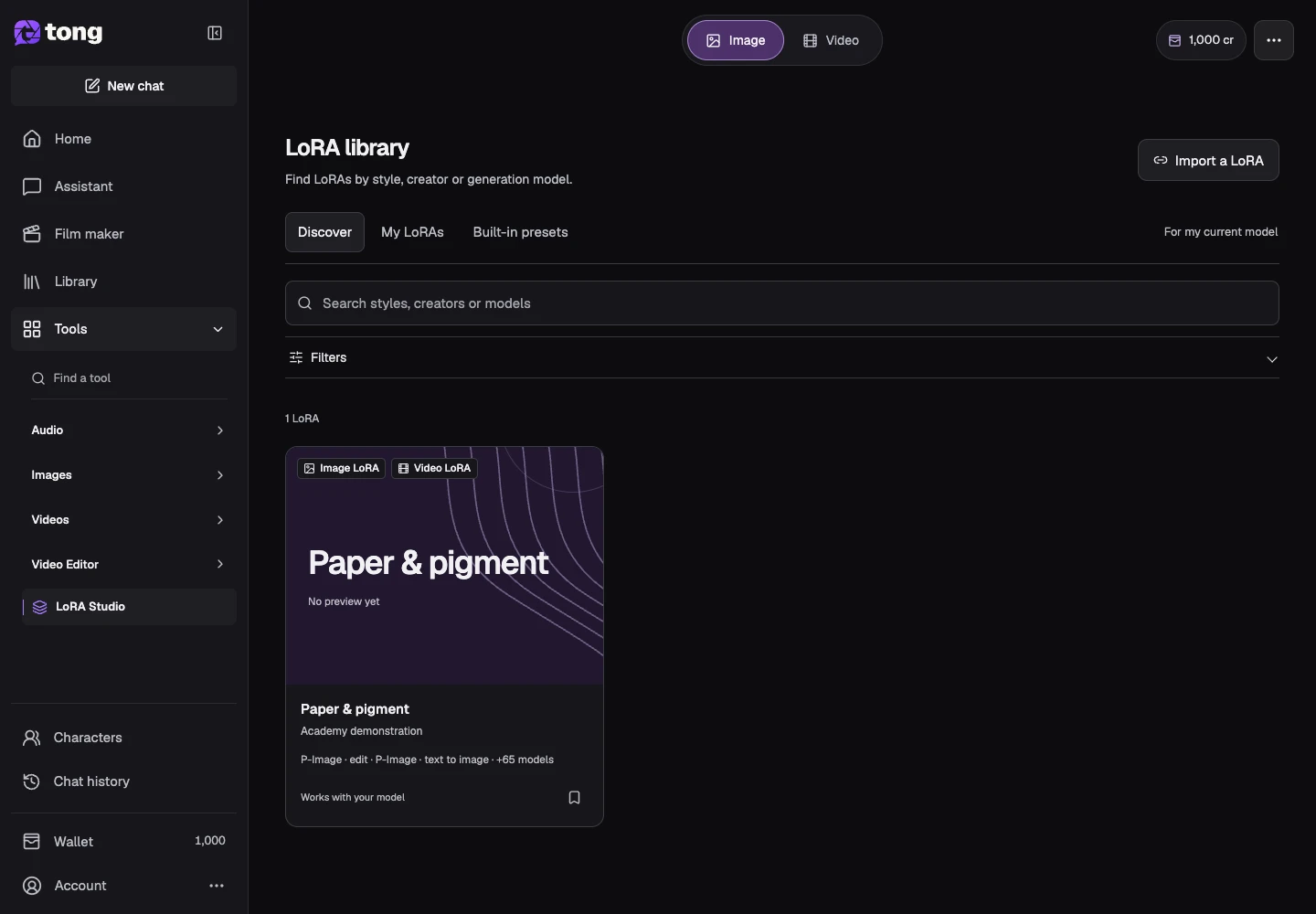
Inspect an entry
Open a LoRA's details and read its supported models, modes, roles and trigger words. Save the entry when you want to find it again.
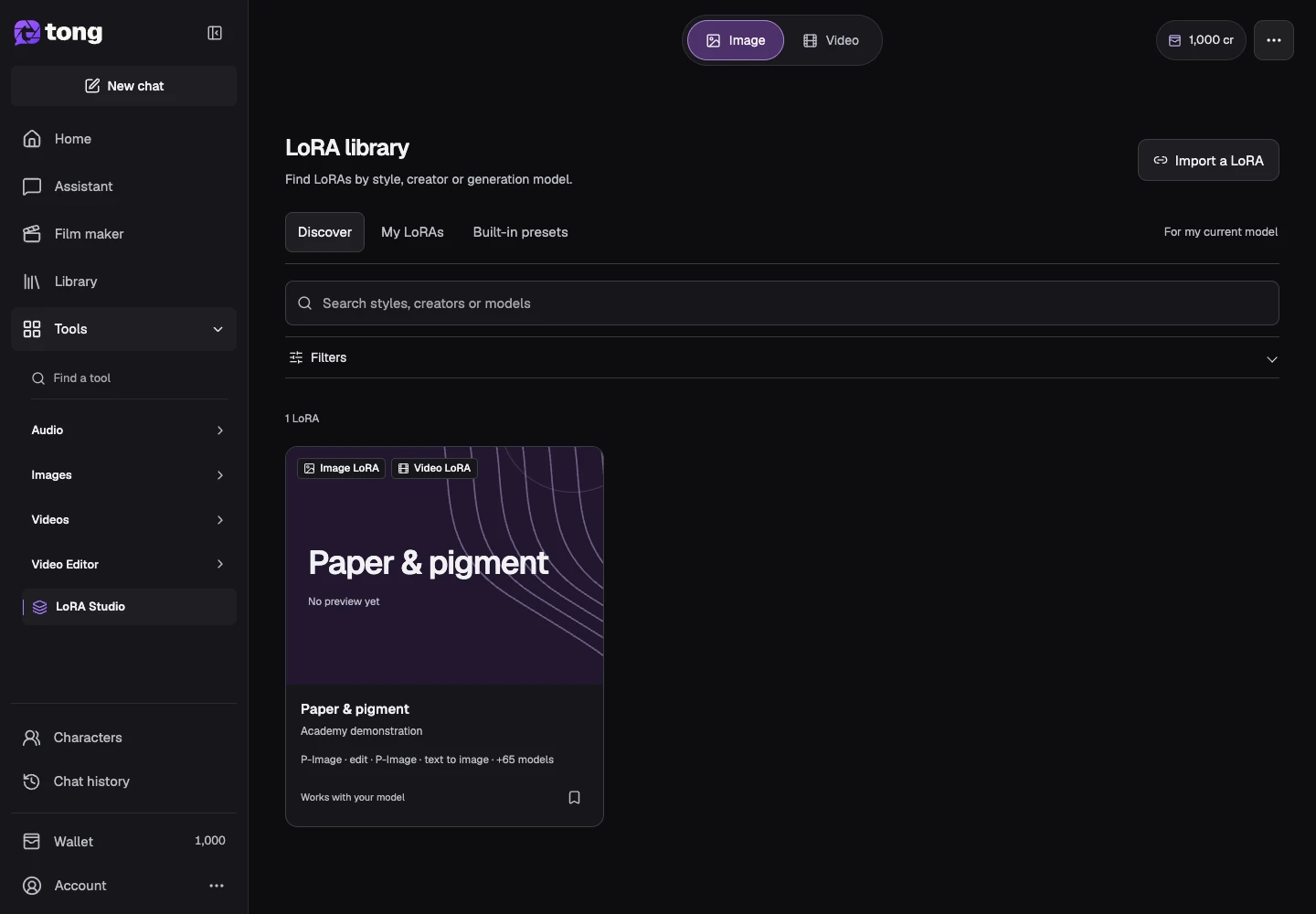
Import a supported source
Use Import a LoRA and follow the source-link requirements shown. Check that the source is publicly readable and identifies the intended version; imports can need preparation or review.
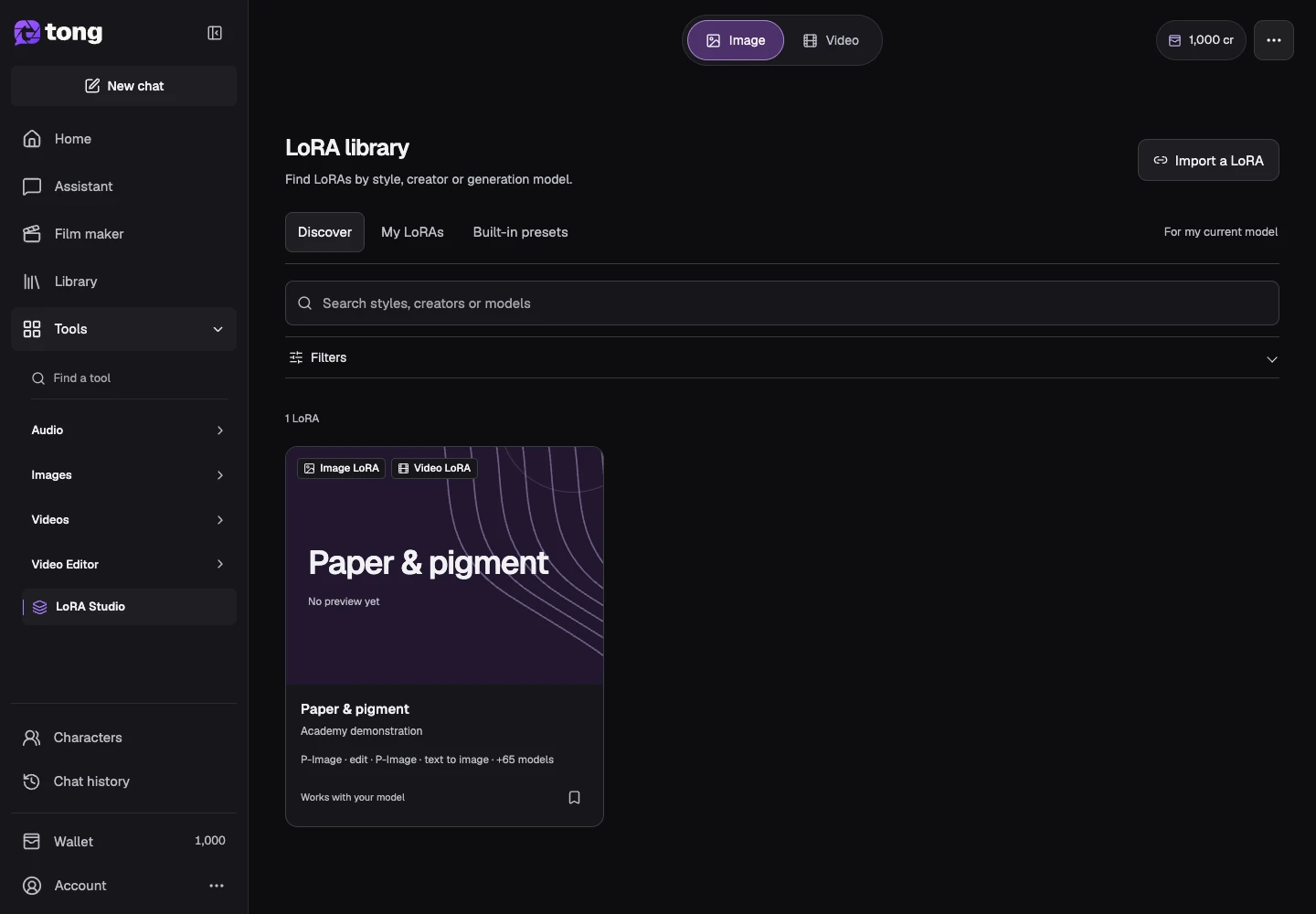
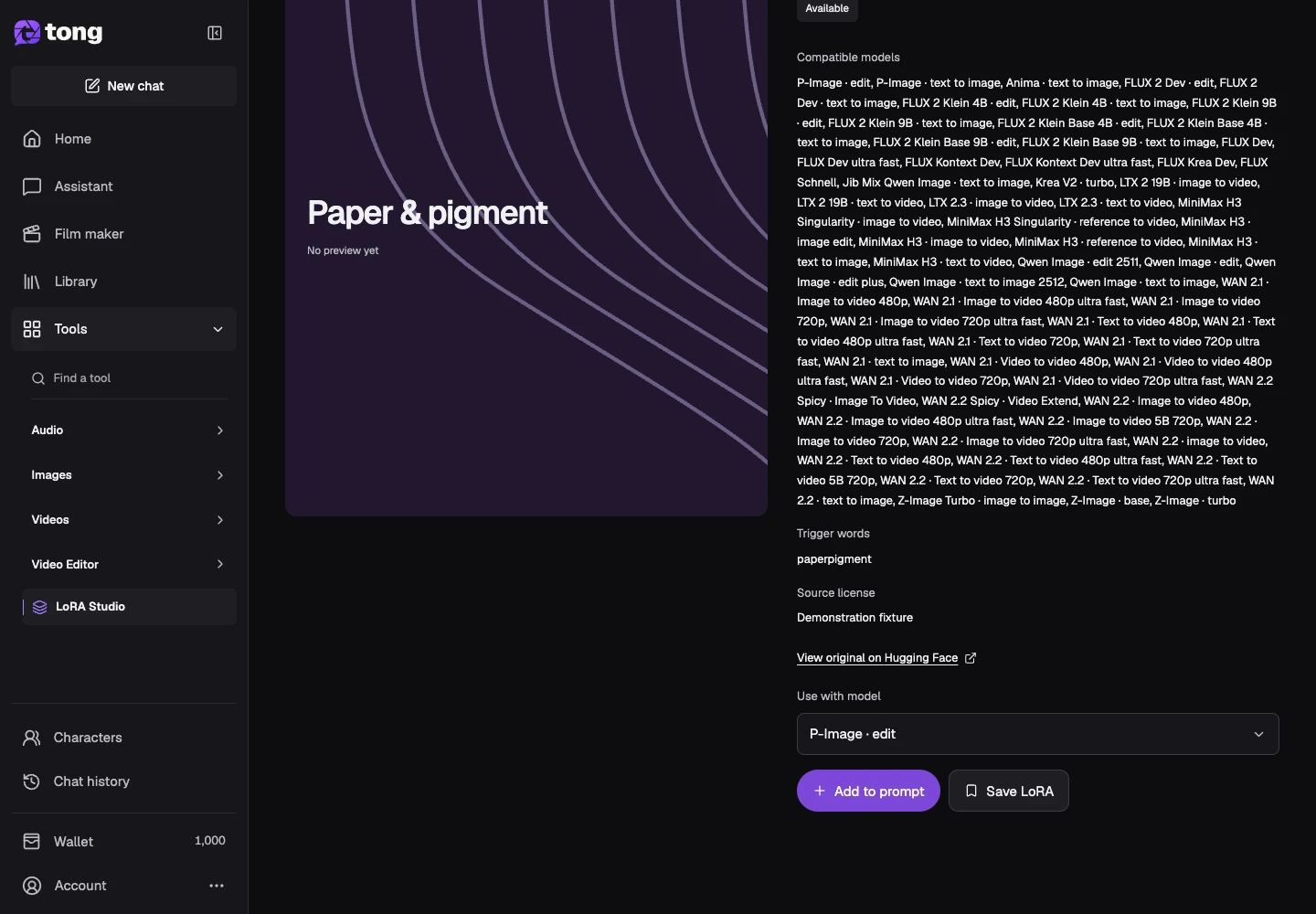
Apply a compatible entry
Choose the model/mode offered in the details and use Add to prompt. Check the selected LoRA's role and strength in the composer before starting an image or video request.
A useful tip
Saved library entries, imported weights and model presets are related but have different compatibility rules.
If something goes wrong
If import fails, check the URL/version requirements and source access. If an entry is not compatible with the current model, choose a compatible model or a different entry instead of forcing it into an unsupported slot.
Read first, create when you’re ready
Reading this guide is free. The linked tool shows its own requirements and current credit price. Screenshots use demonstration data; review your own inputs and the quoted cost before submitting paid work.
Reviewed 2026-10-18 · Tong Academy