
Before you begin
Tool and model controls beside the prompt show the current selection. Select those names to open their menus.
- A clear goal: image, video, character or multi-scene story.
- Any reference files required by that tool.
What you’ll achieve:
Model choices
For unrestricted AI image or video creation, open Change model and compare the Less restrictive choices for your tool. Moderated models remain a separate option. Supported inputs, pricing and provider limits still depend on the model you select.
Choose a creation tool
Open Tools in navigation and choose Images or Videos, or open the selected workflow beside the prompt. Create image starts with text; reference and video workflows have their own input requirements.
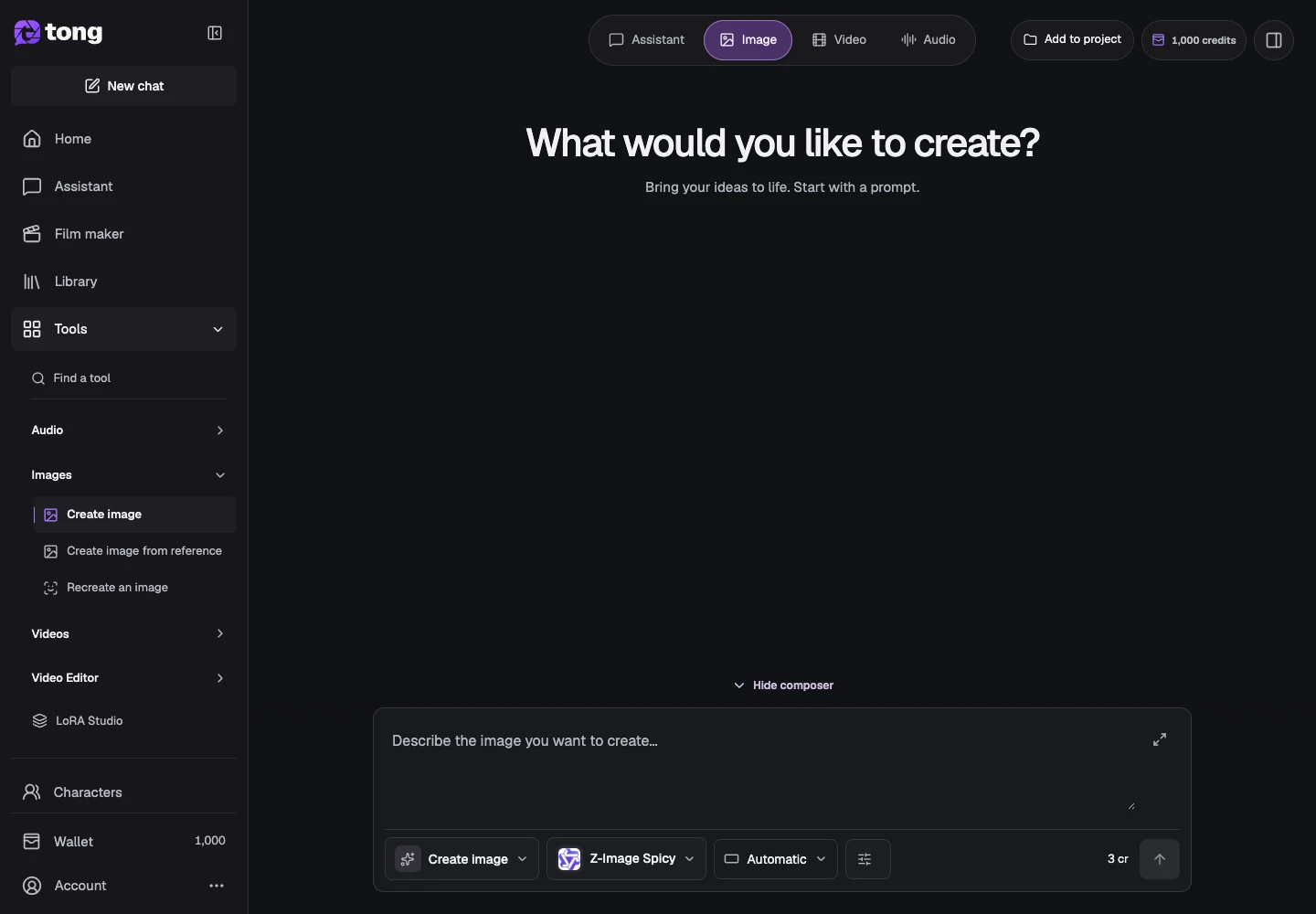
Open the model chooser
Select Change model. Compare the visible descriptions, supported inputs, formats and prices. A model being listed does not mean it supports every kind of reference.
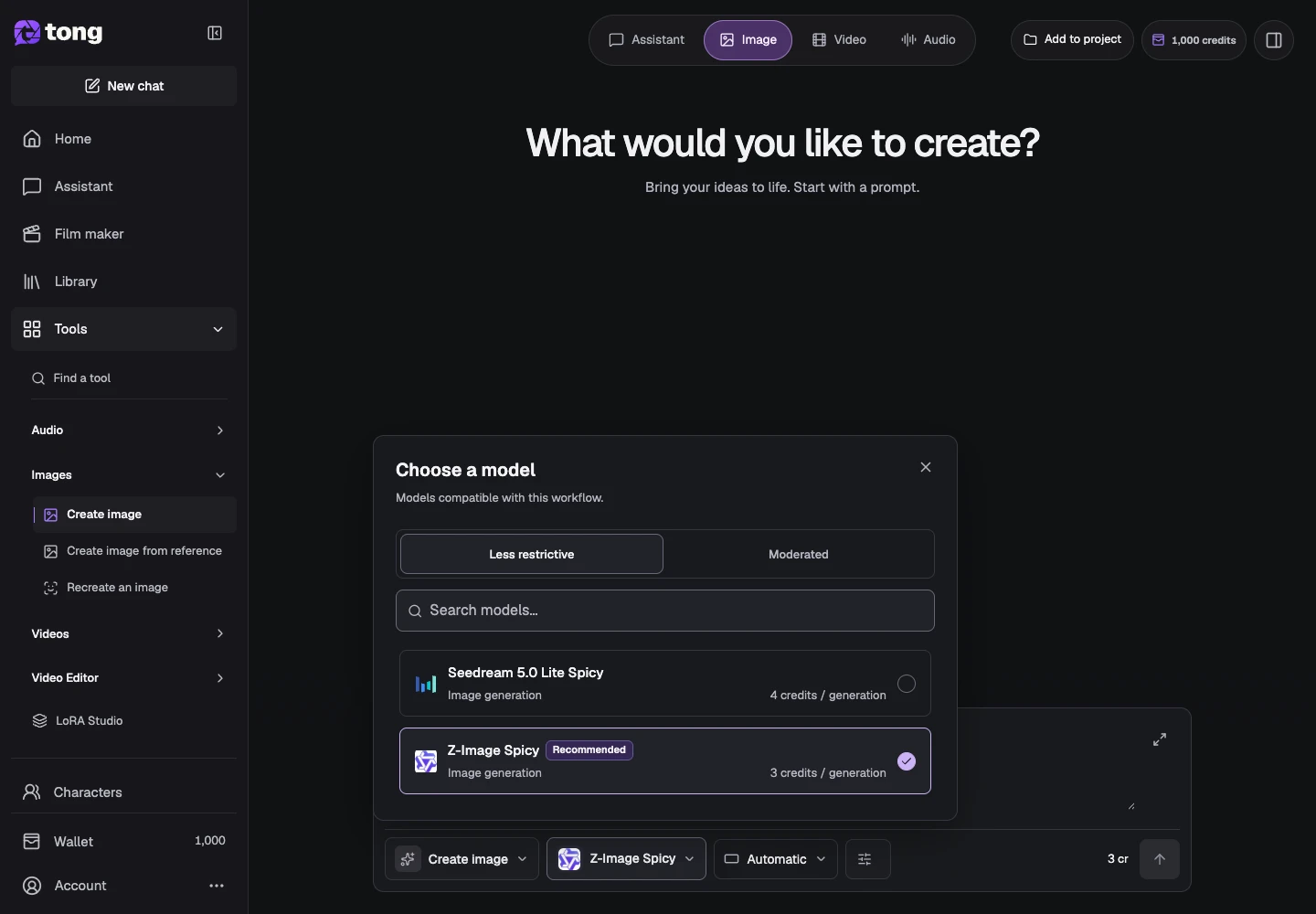
Review the model's capabilities
Choose a supported model and inspect the settings available for that choice. The model controls the supported duration, resolution, reference types and audio options; they can change when you switch models.
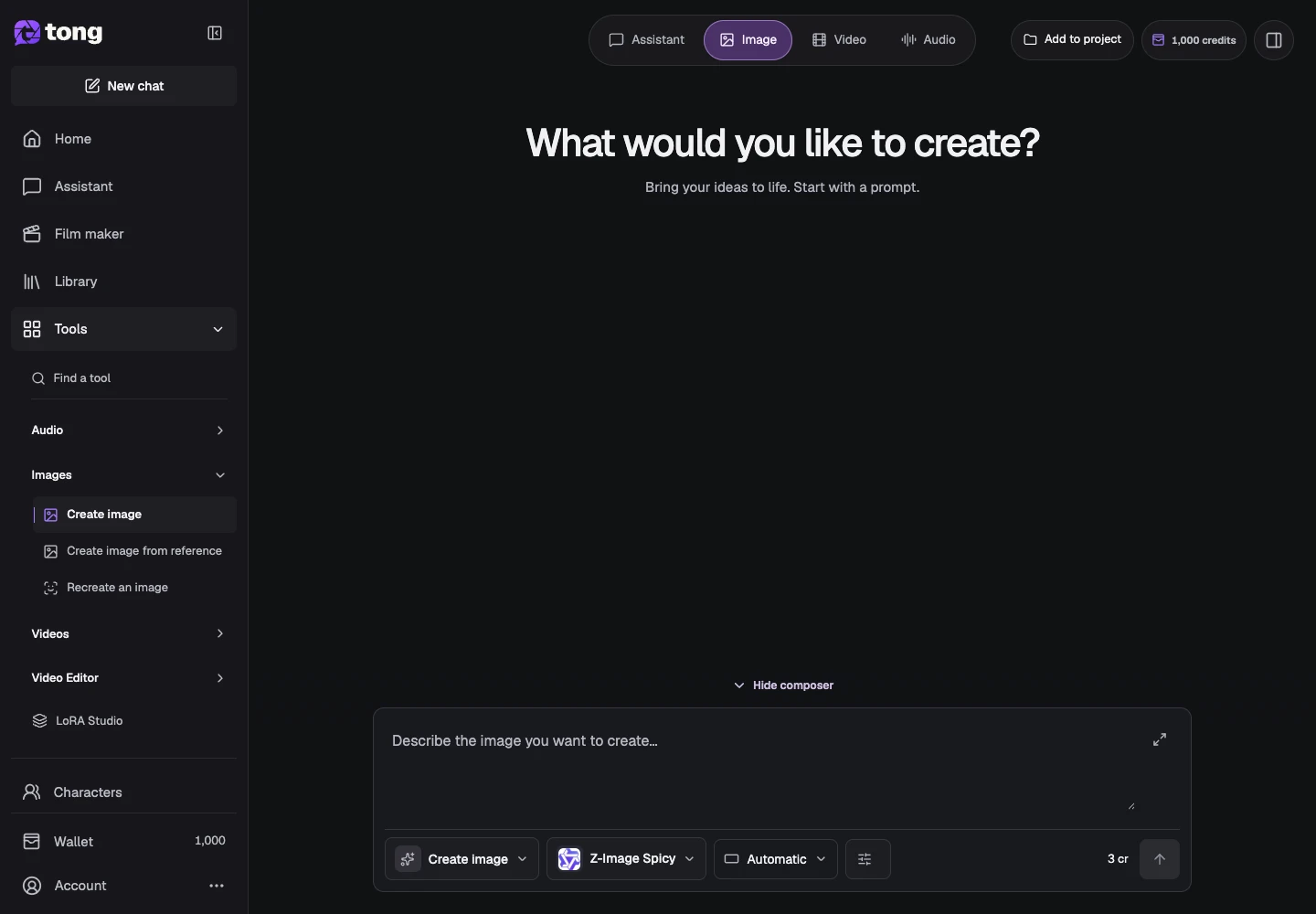
Check the settings and price
Open Settings and check the fields before sending a request. Keep the displayed credit cost in view. Use the public model guides when you need more detail about a particular model.
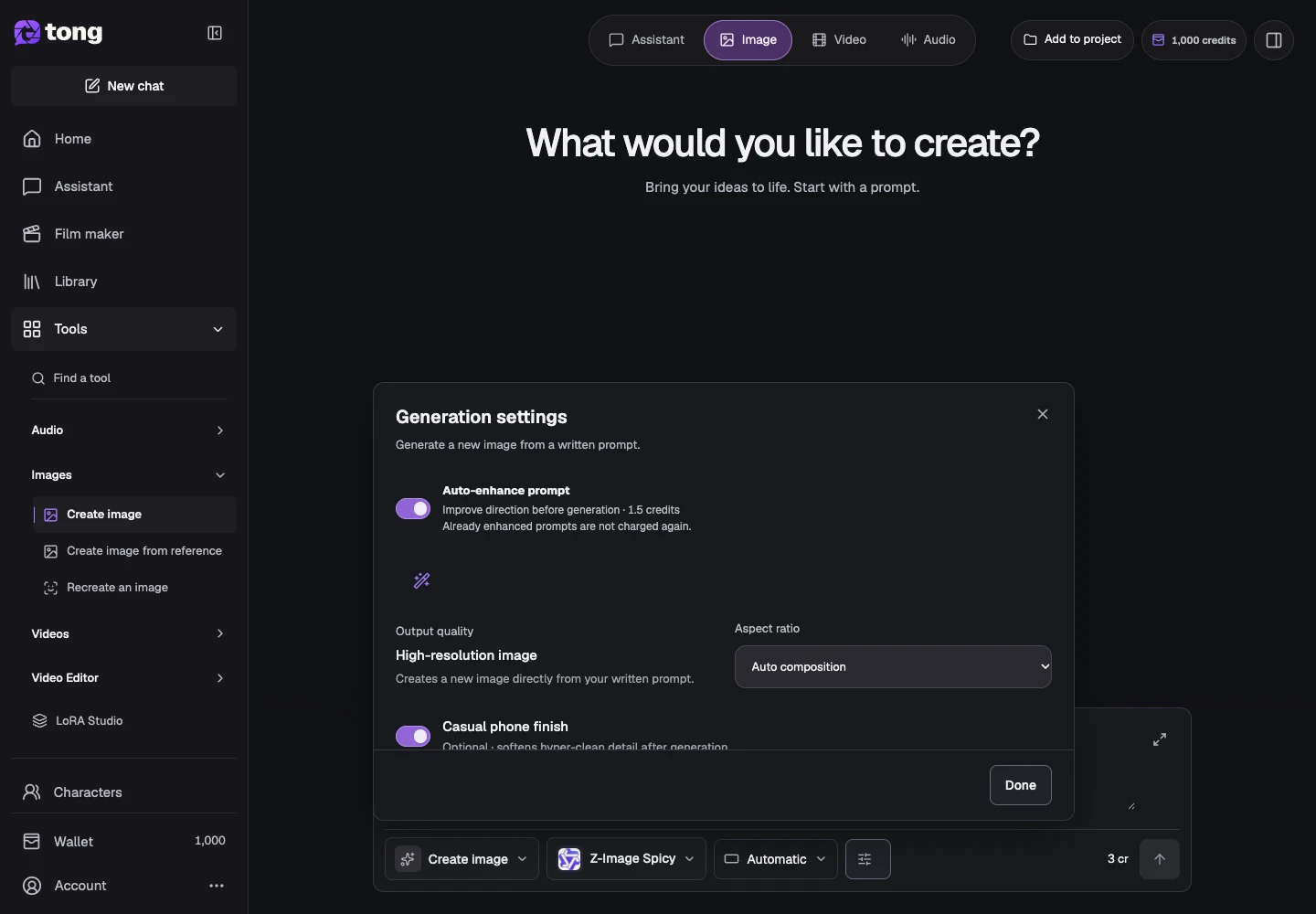
A useful tip
Use Film maker for a story with multiple scenes. Ordinary Studio tools remain available for individual images or clips.
If something goes wrong
If an option disappears after a model change, it may not be supported by that model. Check the requirements and adjust the input rather than forcing settings from a different workflow.
Read first, create when you’re ready
Reading this guide is free. The linked tool shows its own requirements and current credit price. Screenshots use demonstration data; review your own inputs and the quoted cost before submitting paid work.
Reviewed 2026-10-18 · Tong Academy