
Before you begin
- A signed-in account to view your own wallet.
- The workflow and model you intend to use.
What you’ll achieve:
Open your wallet
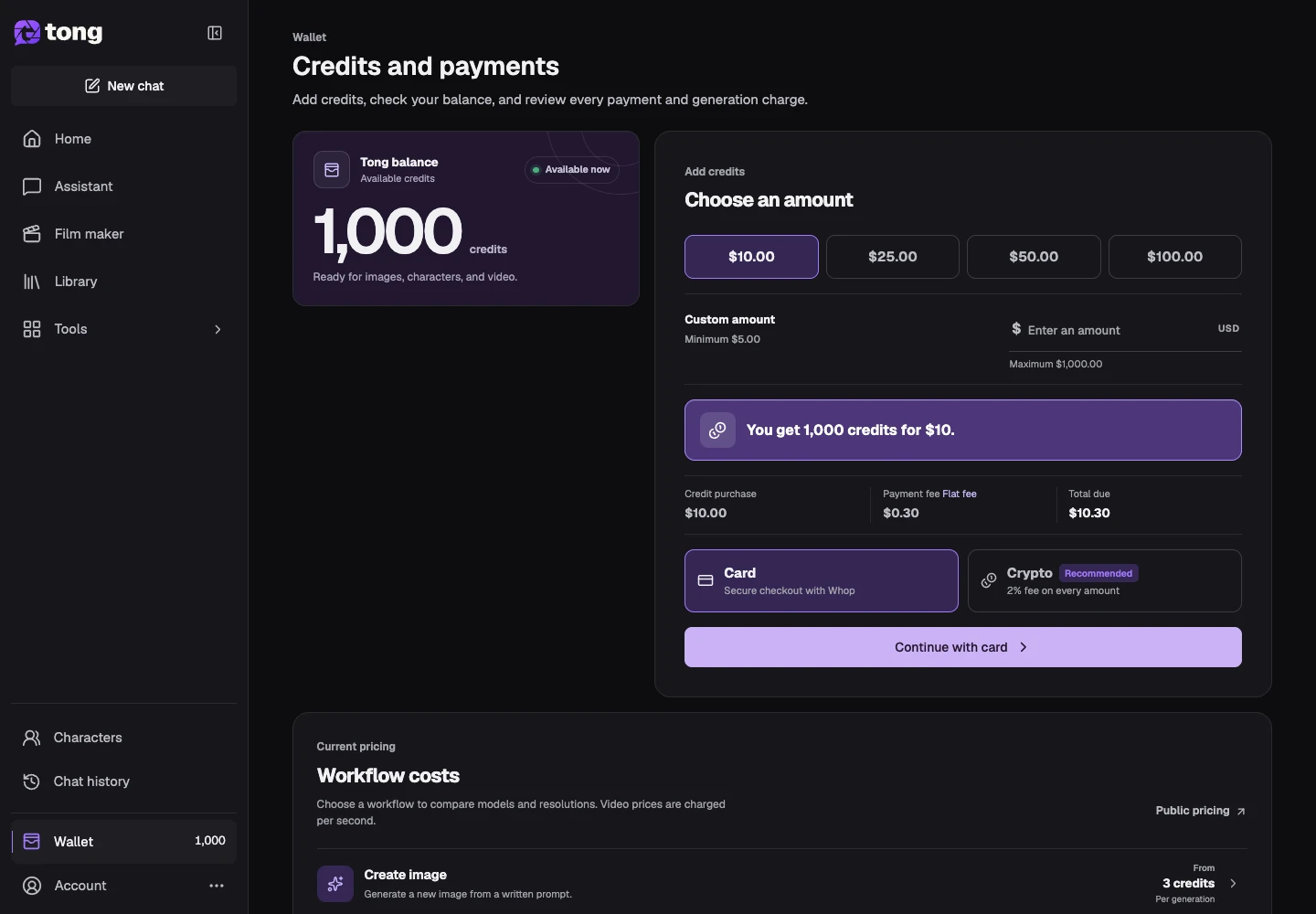
Select Wallet in the navigation. Check available credits before a new request. Your available amount is the balance you can use now; reservations for active work may affect it.
Compare workflow prices
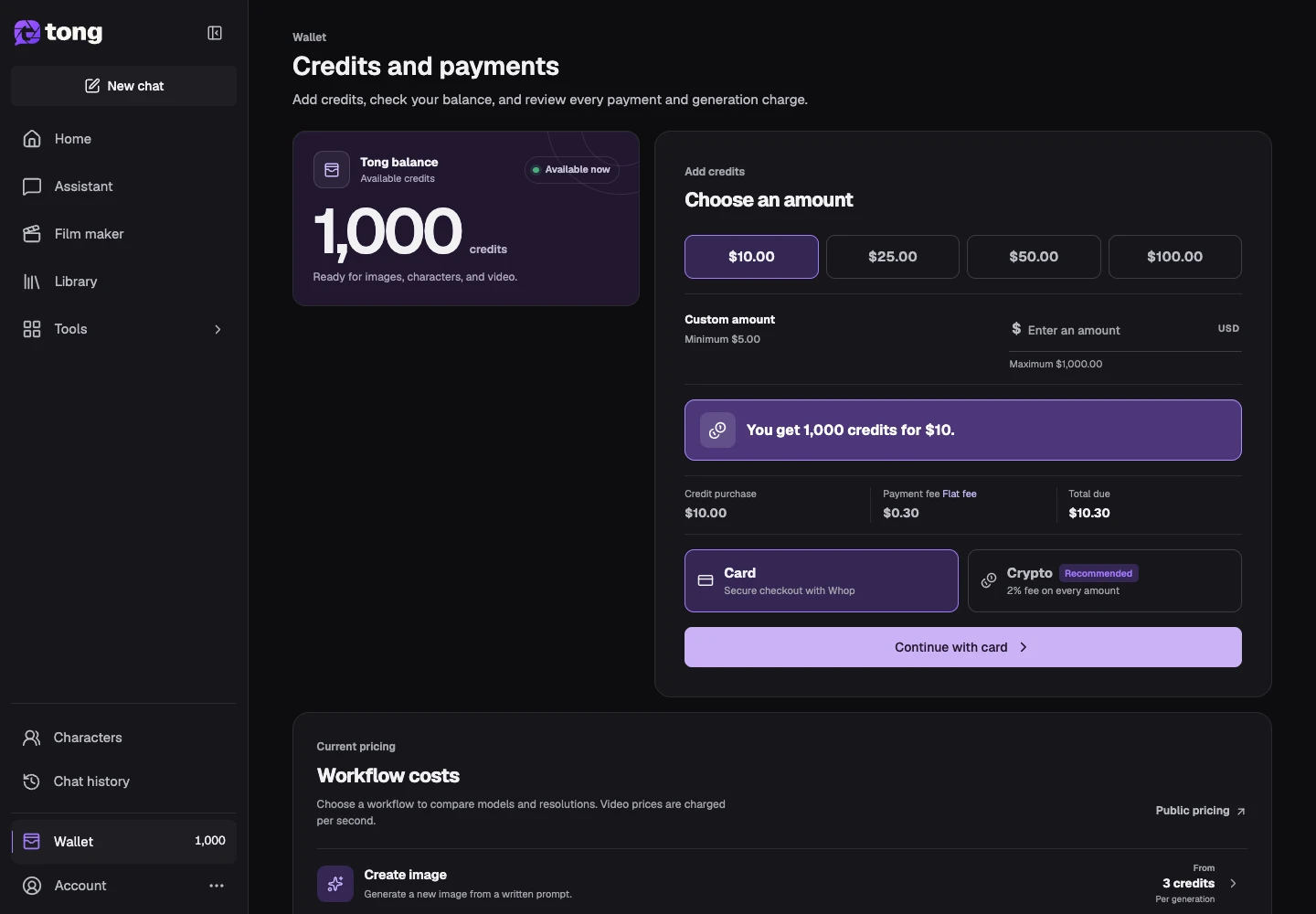
Use Public pricing to compare the workflow, model and supported resolution. Video rates can be per second, so a longer generated clip can cost more than a shorter one.
Choose a top-up amount if needed
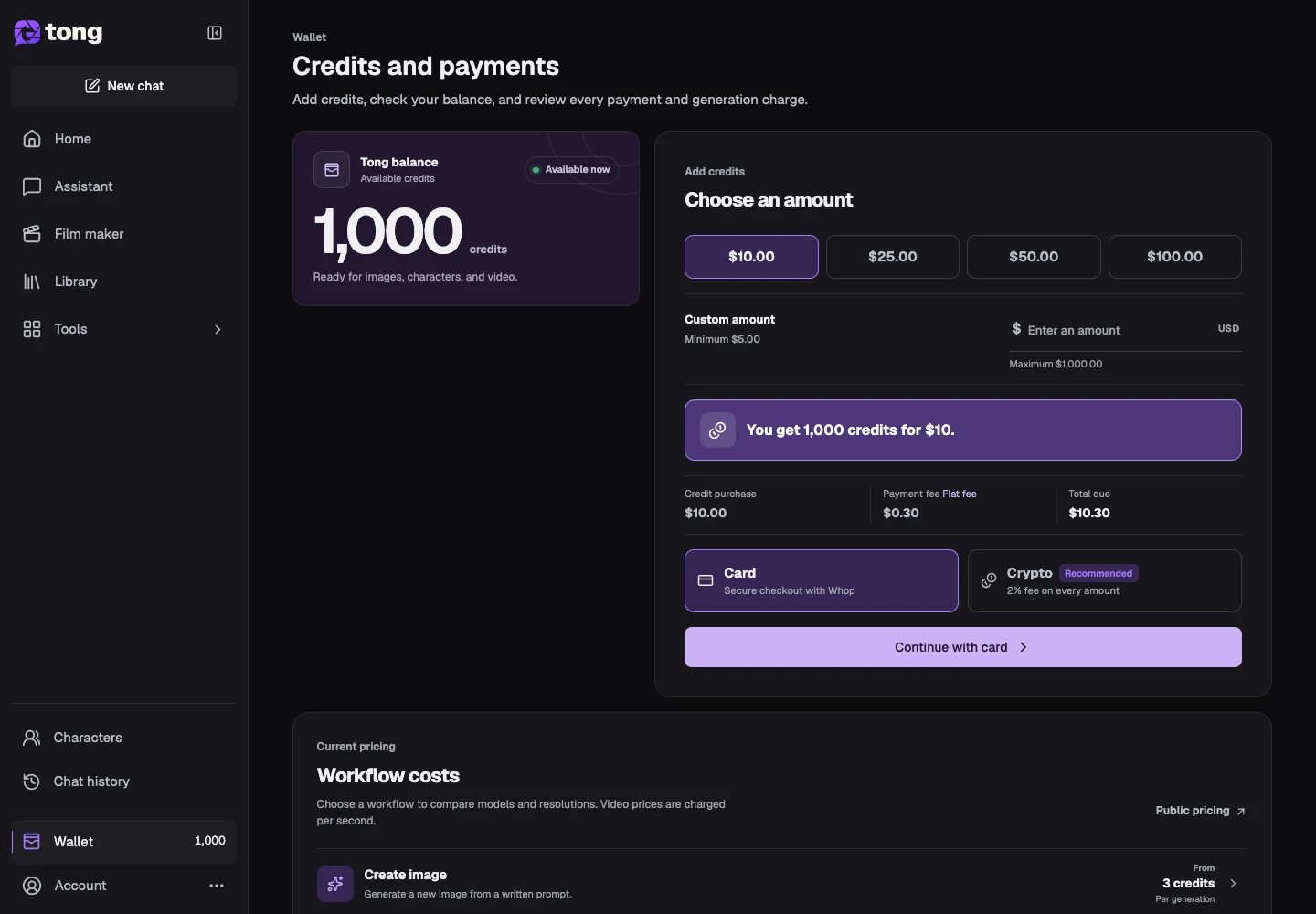
In Add credits, choose an amount or enter a custom amount. Read the current credit total, fees and payment method details shown before continuing. Follow the payment provider's actual instructions on your own account.
Check payment and usage history
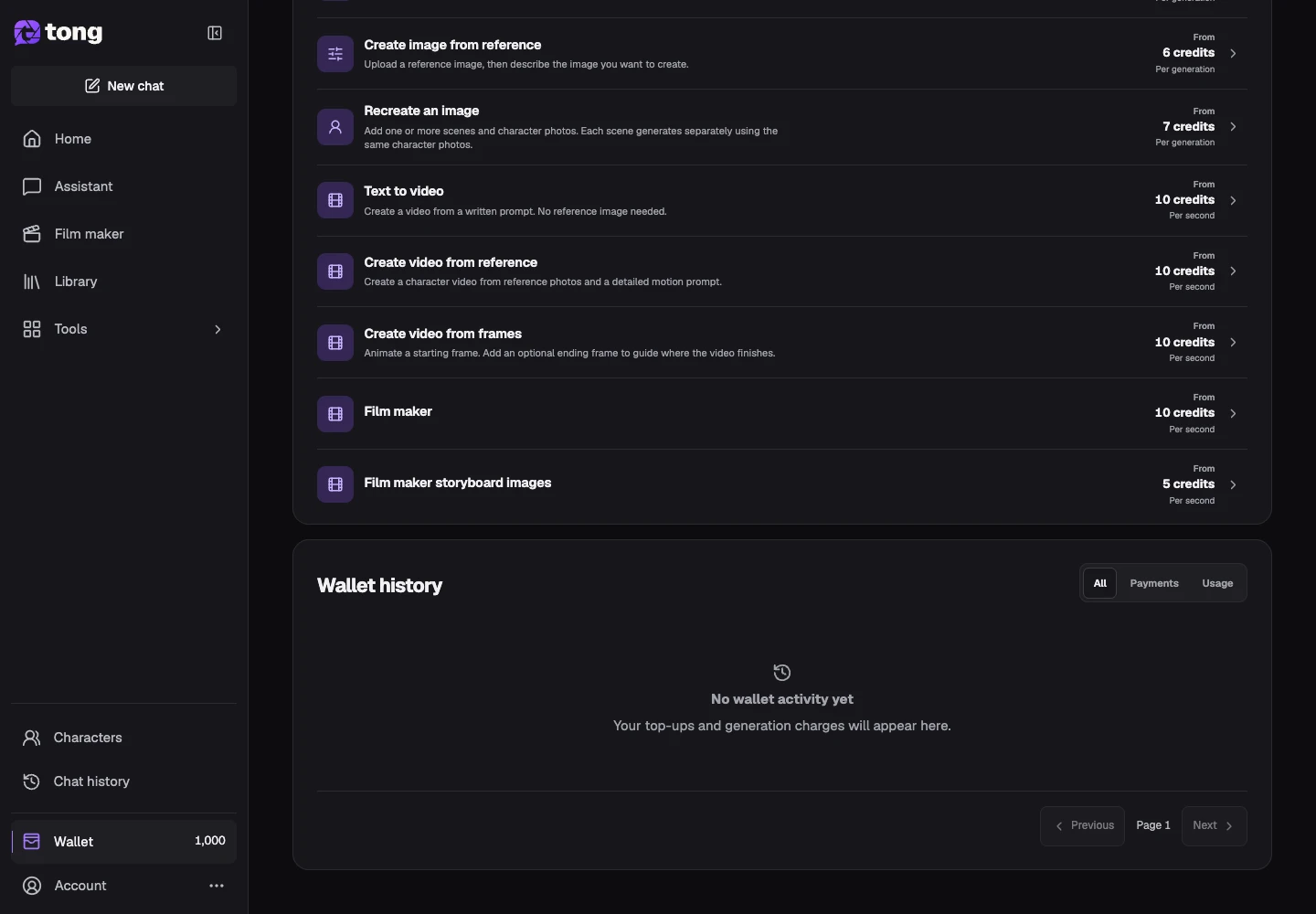
Use Payments or Usage in Wallet history to find the relevant receipt. A paid regeneration makes a new version; it is different from opening or downloading media you already have.
A useful tip
Assistant and Film maker charge as work proceeds. Reordering and assembling existing clips do not create new video generations.
If something goes wrong
If a request fails, inspect its status and wallet history before retrying. A technical retry should not be confused with asking for a new paid version. Contact Support with the saved request details if a charge needs review.
Read first, create when you’re ready
Reading this guide is free. The linked tool shows its own requirements and current credit price. Screenshots use demonstration data; review your own inputs and the quoted cost before submitting paid work.
Reviewed 2026-10-18 · Tong Academy