
Before you begin
Tool and model controls beside the prompt show the current selection. Select those names to open their menus.
- A subject and the result you want to see.
- Credits for any separately priced enhancement you choose.
What you’ll achieve:
Model choices
An unrestricted creative workflow starts with a compatible Less restrictive model, not a special prompt phrase. Choose the model first, then describe the image, movement or edit clearly; prompt enhancement does not change the model's moderation category.
Describe the subject and setting
Write who or what appears, where it is, and what matters most. For example: a blue ceramic house on a pale table, soft afternoon light, an eye-level view. Keep incompatible directions out of the same request.
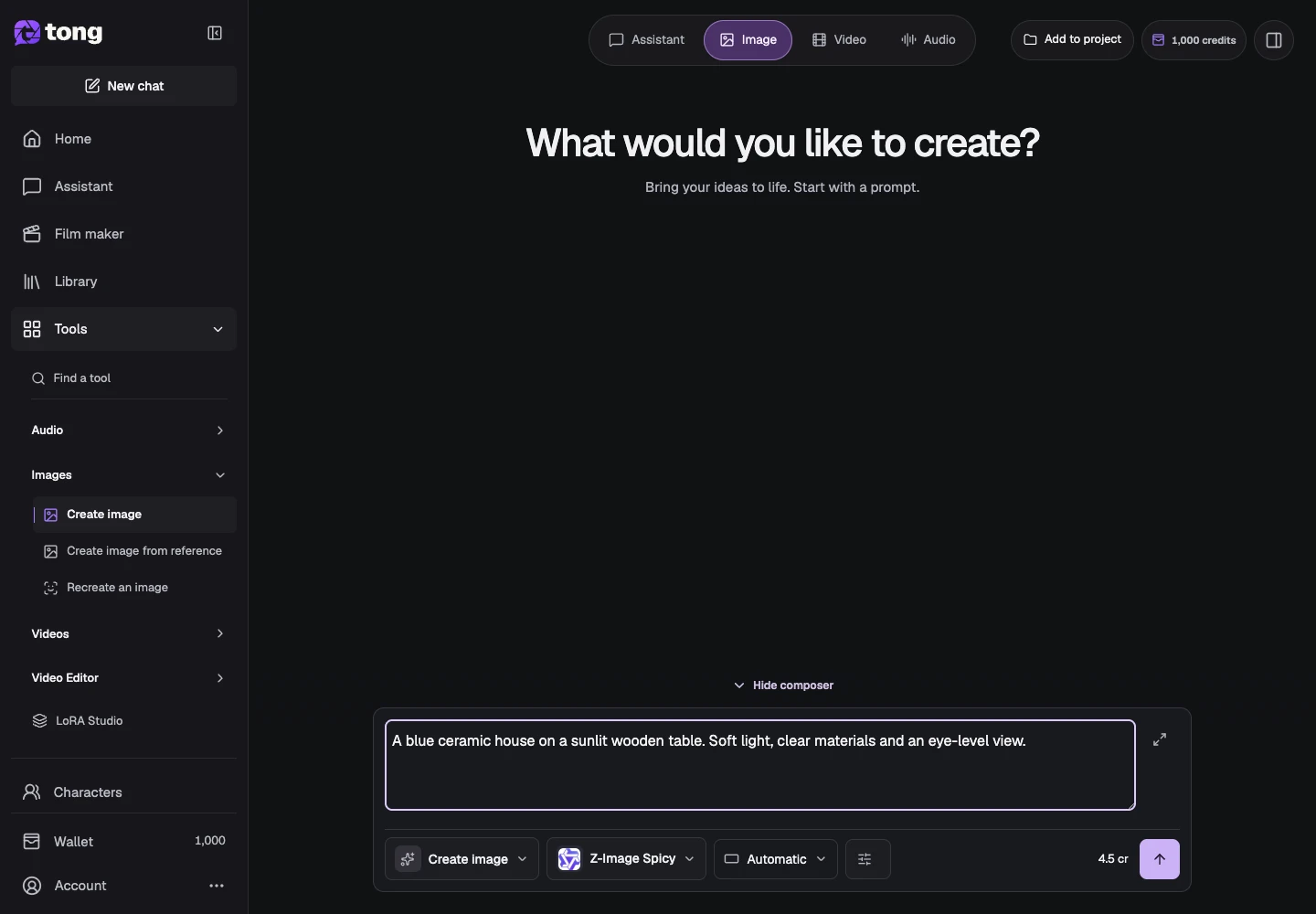
Add visual direction
Use Settings to choose supported image or video options. Put the composition, light and mood in your written direction; a setting is useful only when the selected model exposes it.
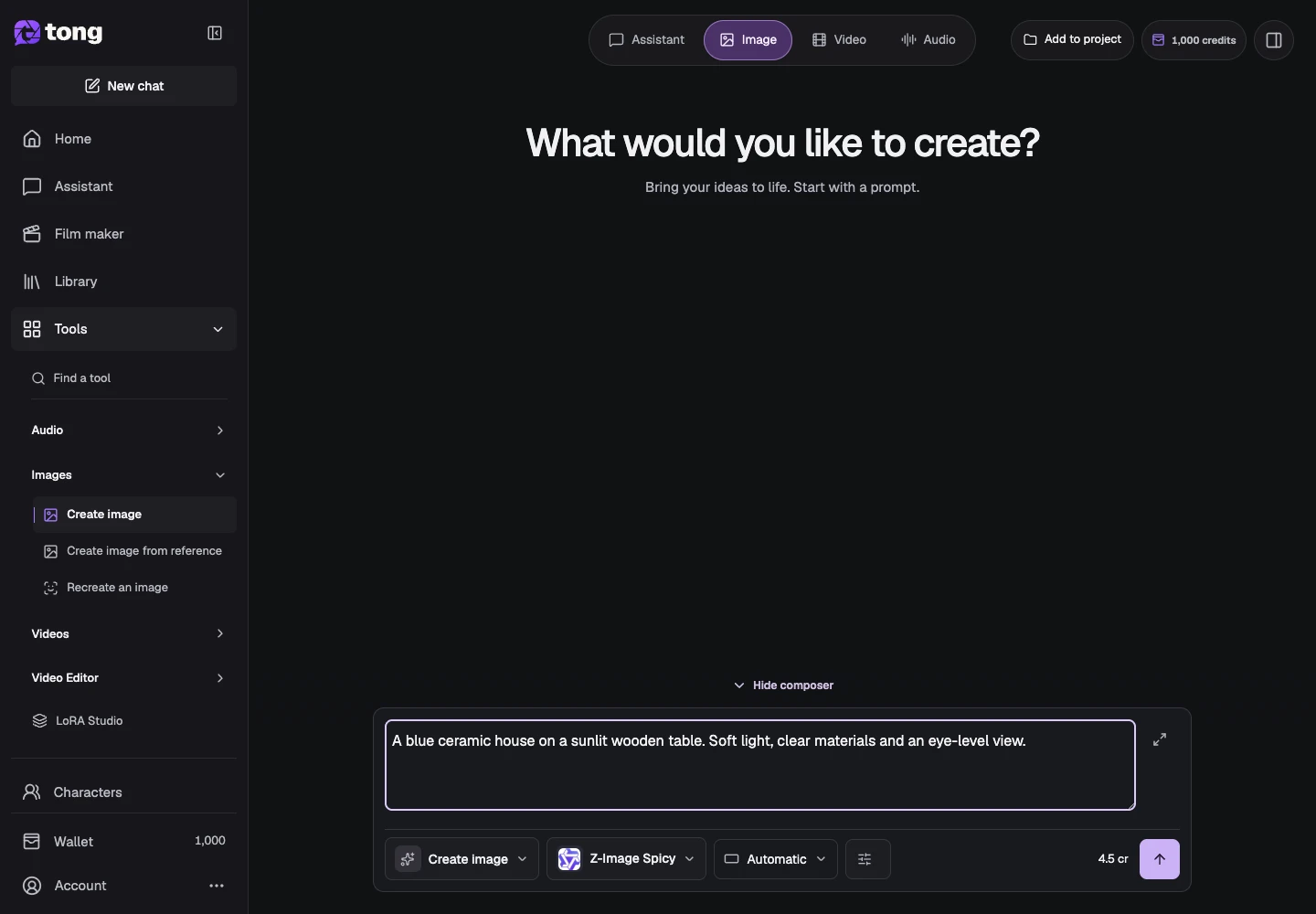
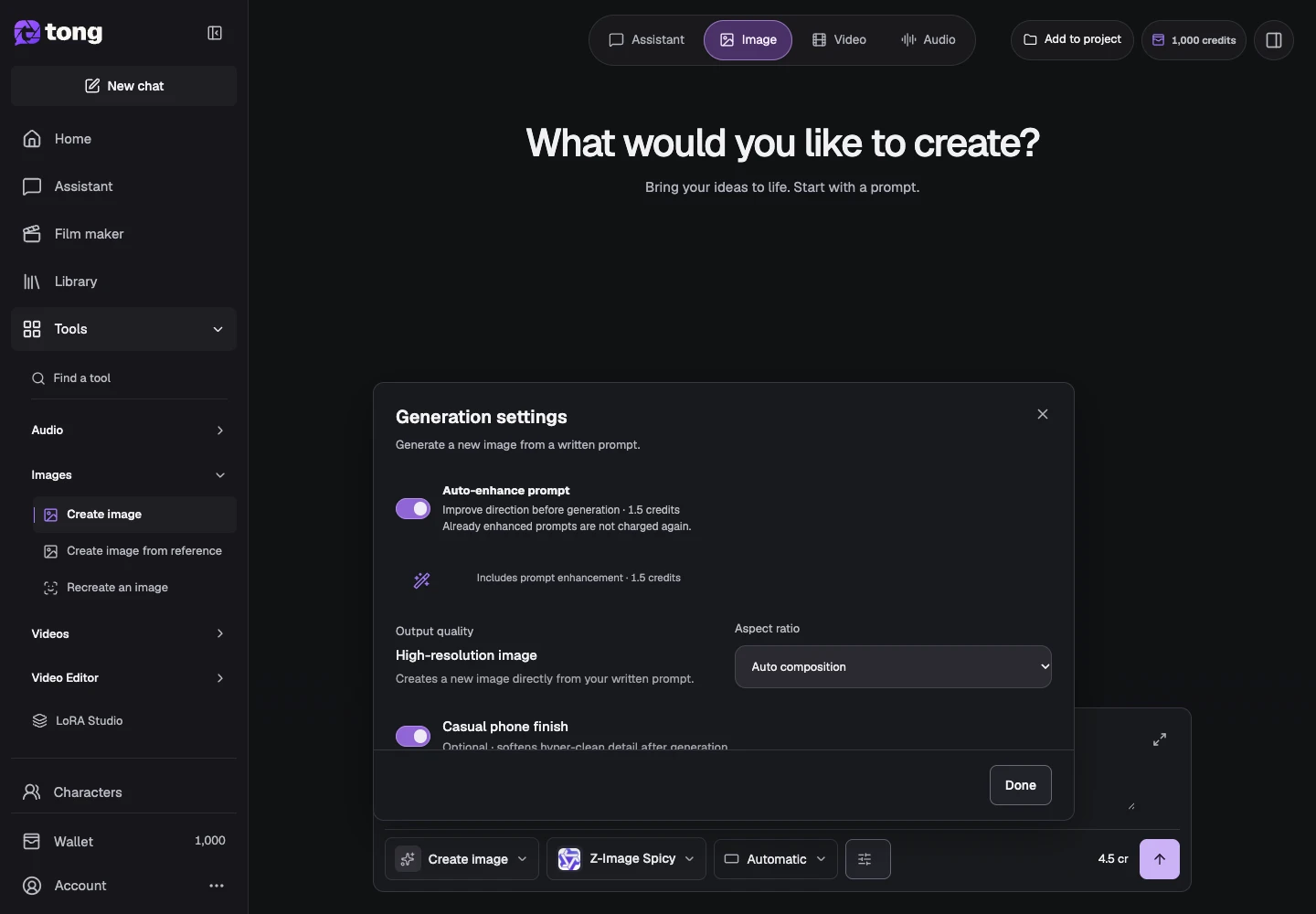
Review optional enhancement
Open Settings to find Enhance prompt and its price. Use it when you want help expanding your direction, then review the resulting text and keep important details explicit.
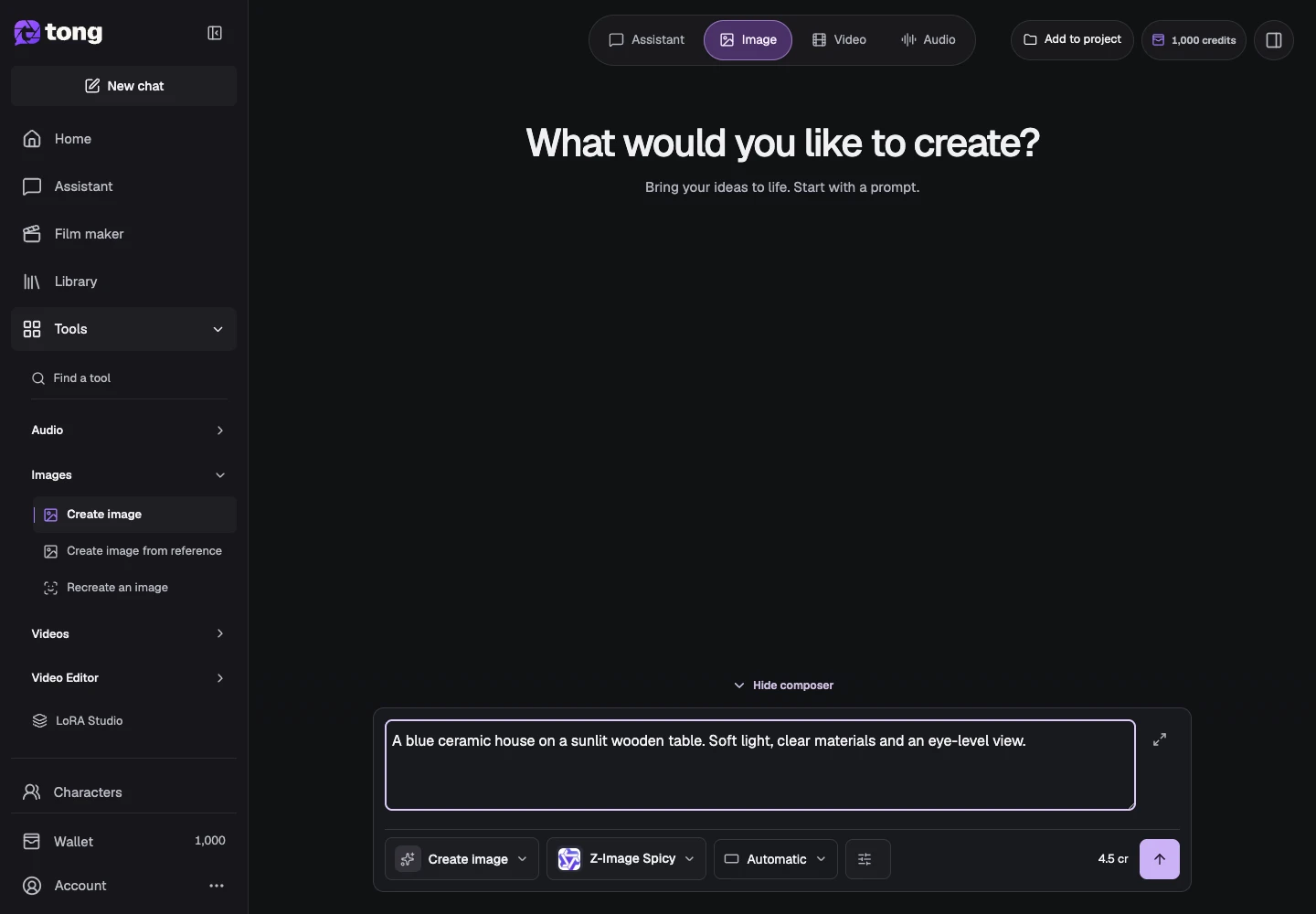
Check the final request
Read the prompt again and check the displayed generation price before Send prompt. If enhancement or pricing fails, keep your text and retry the relevant action instead of submitting duplicate generations.
A useful tip
For movement, describe the action, camera and ending. For an edit, say what changes and which parts should remain consistent.
If something goes wrong
If a result misses your goal, narrow the correction to the most important difference. Prompt guidance can improve direction, but it is not a guarantee that every detail will match.
Read first, create when you’re ready
Reading this guide is free. The linked tool shows its own requirements and current credit price. Screenshots use demonstration data; review your own inputs and the quoted cost before submitting paid work.
Reviewed 2026-10-18 · Tong Academy