
Before you begin
- A supported reference image.
- A precise change and credits for a new image version.
What you’ll achieve:
Model choices
Area comments can guide an unrestricted image-edit workflow when you use a compatible Less restrictive edit model. The numbered marks identify where to change the picture; they do not change the selected model's policy or guarantee a precise result.
Find your source in Library
Open Library and choose All media. Find the saved image you want to correct, or upload a supported source first. Confirm its thumbnail and name before opening the preview.
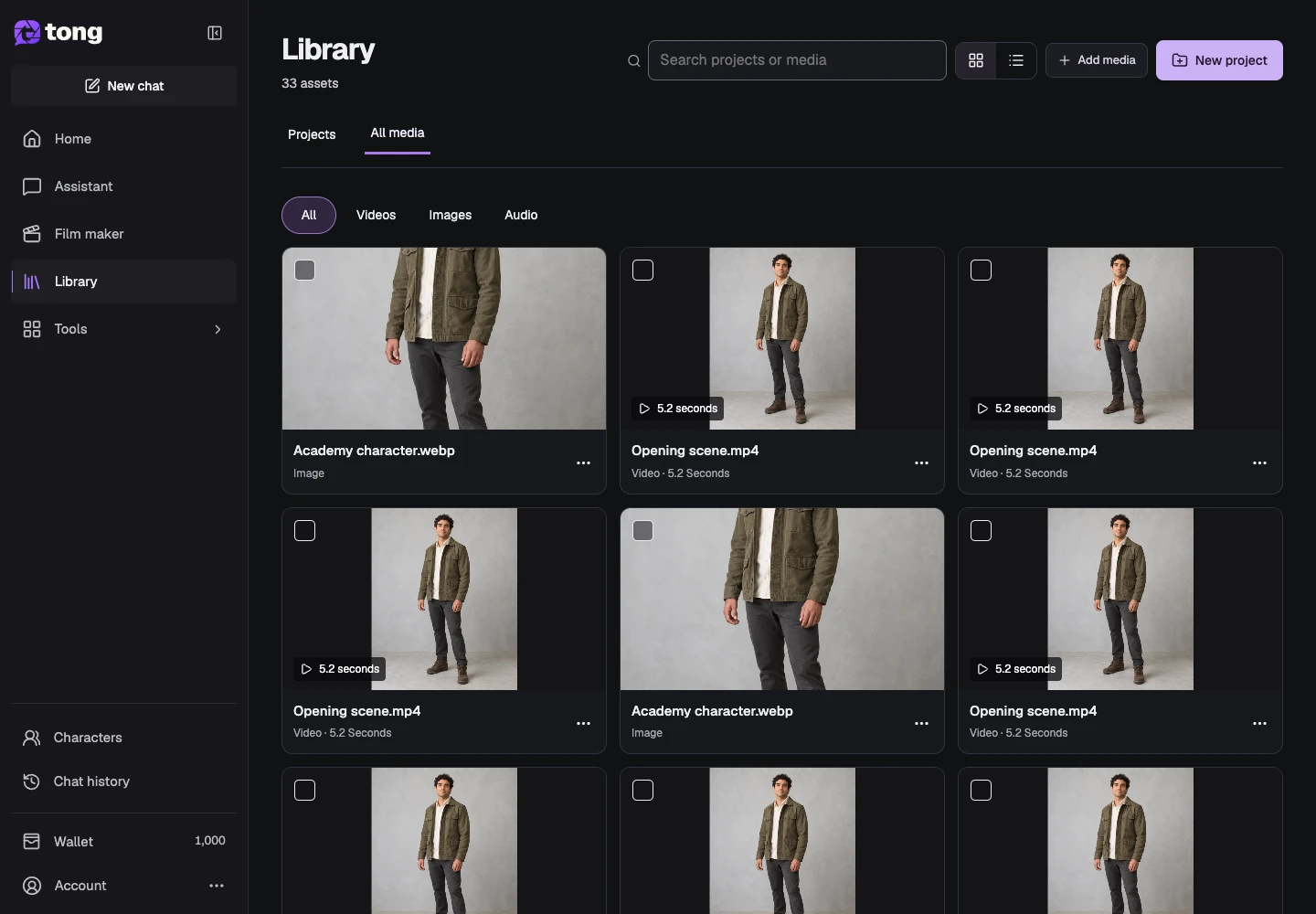
Open the image comment controls
Open the image preview and select Comment. Localized comments are tied to this source image and are separate from your account profile.
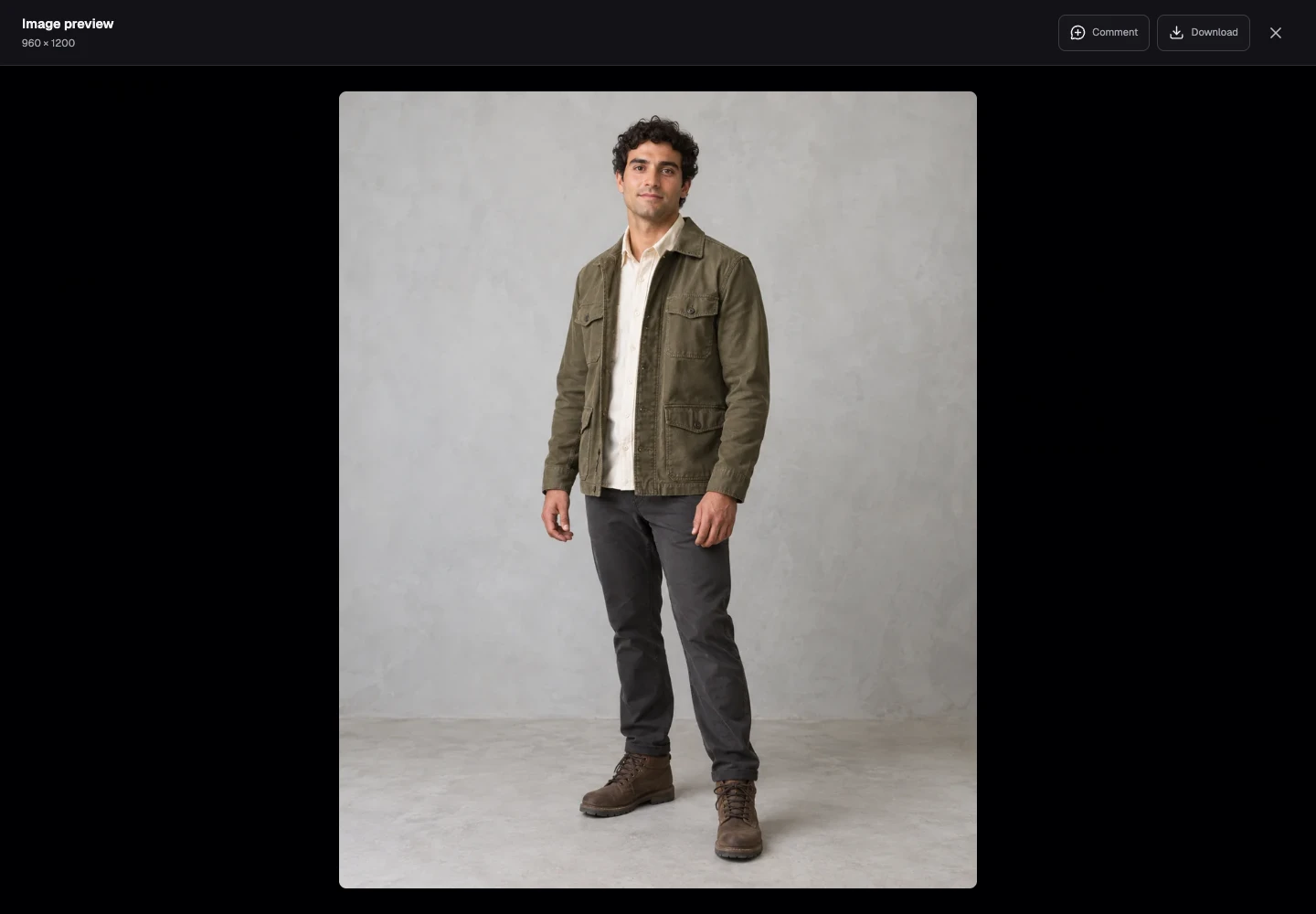
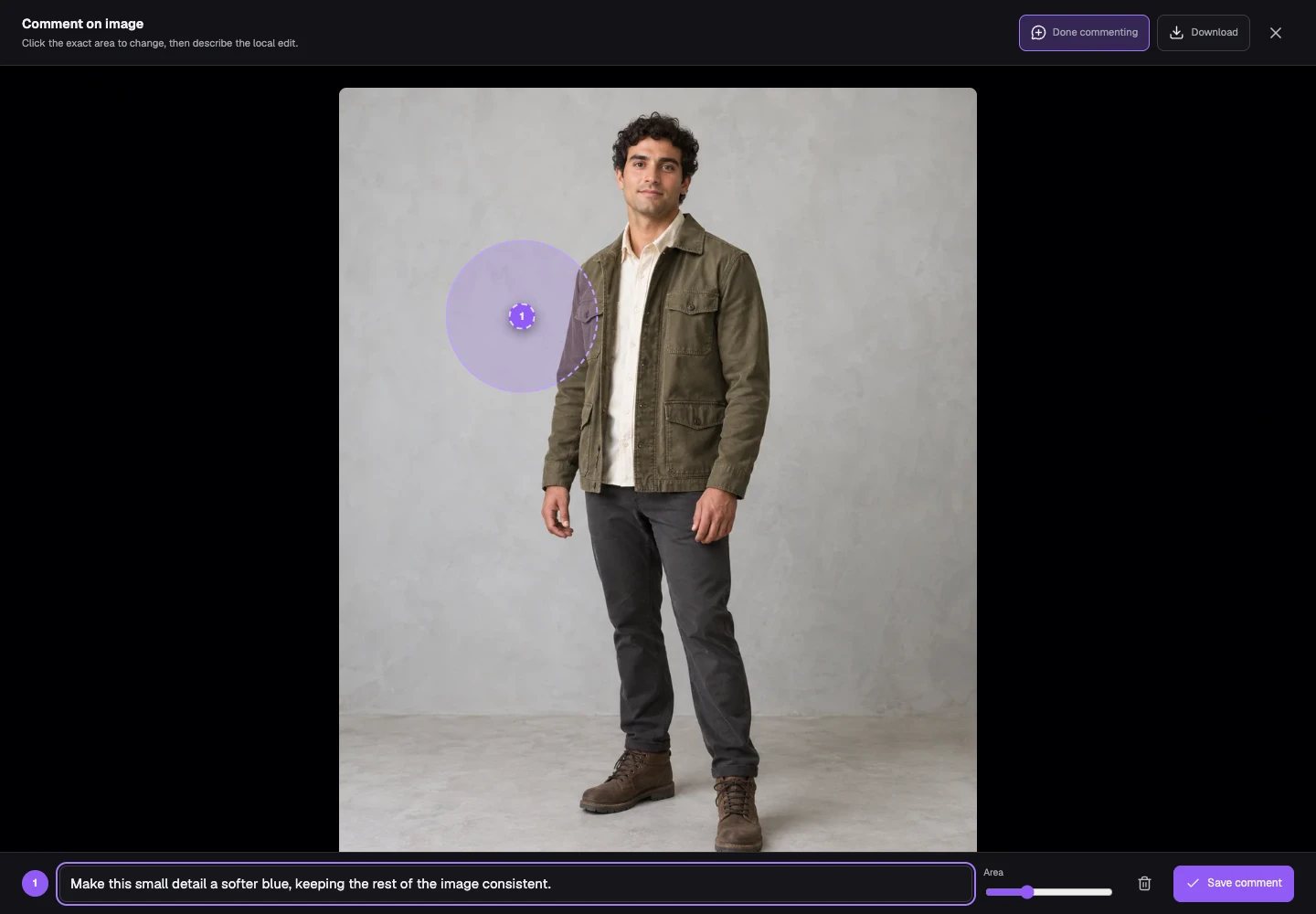
Mark and describe the relevant area
Click the relevant part of the image, write what should change in the local edit field and adjust Area if needed. Select Save comment. A circle alone does not explain the desired result.
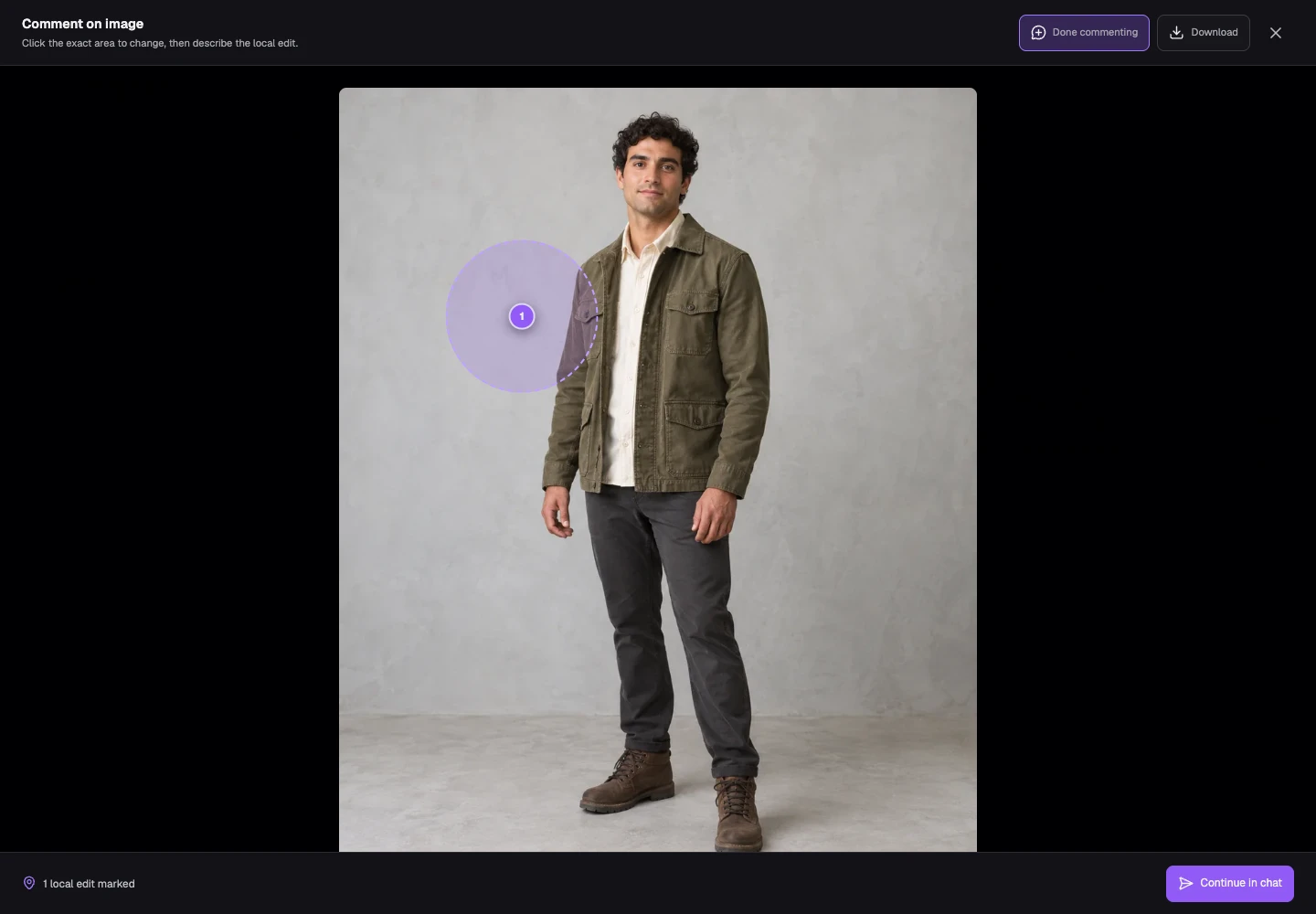
Continue in chat
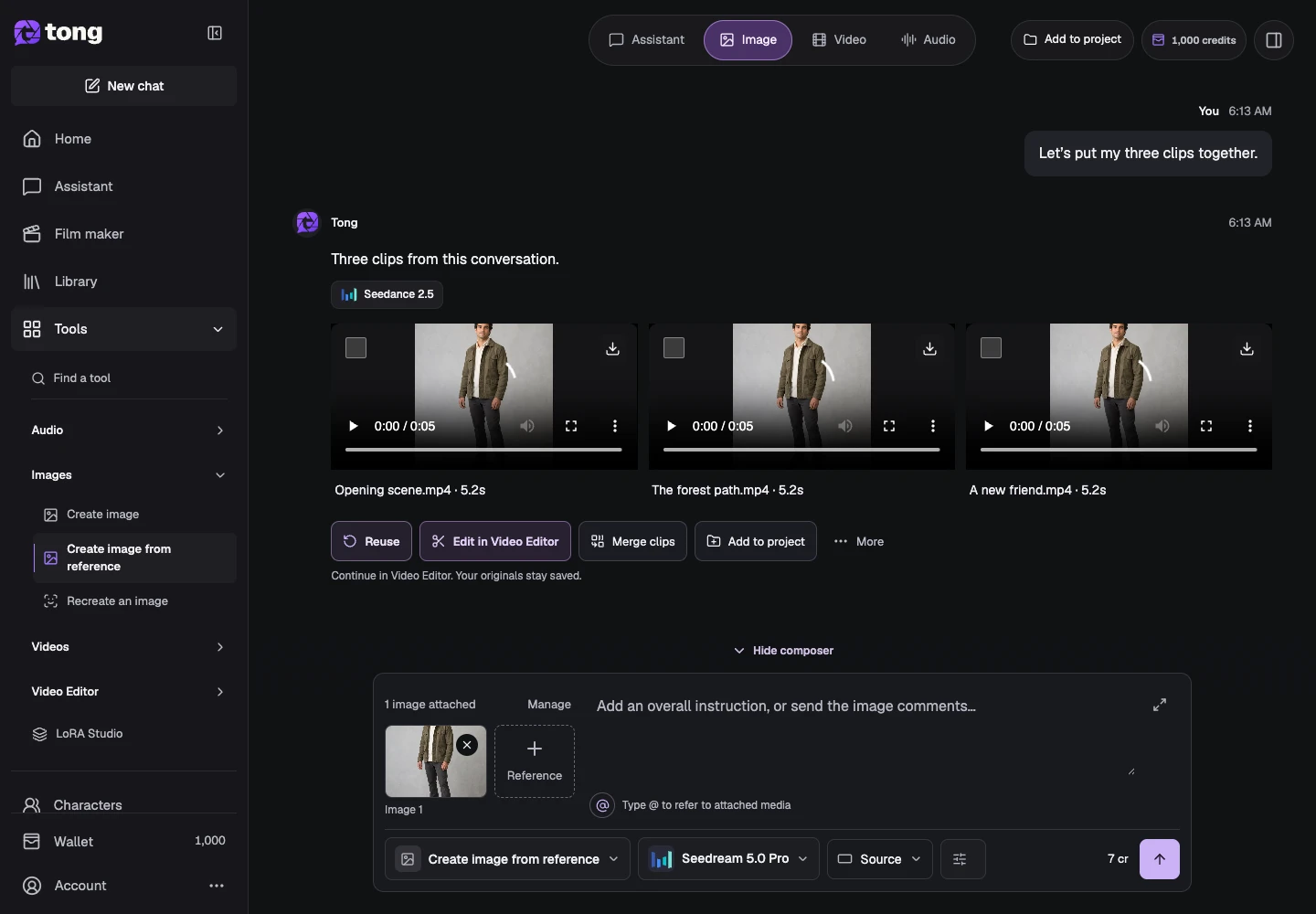
After saving your comments, use Continue in chat. Tong opens the reference-image workflow with the source and marked comments ready to review.
Review and submit the correction
Check the localized comments and any overall direction in the composer. Remove an outdated comment if it conflicts with the change, then review the image price before Send prompt.
A useful tip
A small, specific correction is easier to interpret than several overlapping comments with different goals.
If something goes wrong
If a mark is on the wrong source or region, correct it before generating. Area comments are guidance and do not guarantee pixel-identical preservation outside the marked area.
Read first, create when you’re ready
Reading this guide is free. The linked tool shows its own requirements and current credit price. Screenshots use demonstration data; review your own inputs and the quoted cost before submitting paid work.
Reviewed 2026-10-18 · Tong Academy