
Before you begin
- A source video you can use and available credits.
- A supported clip range; the selected model shows its current limits.
- A clear reference image of each replacement character.
What you’ll achieve:
Model choices
For unrestricted AI video face swap, choose H3 Max Recast or another compatible Less restrictive replacement model. The tool labels this intent Swap characters because an engine may replace the person more broadly than the face. Genjutsu and PixVerse choices are Moderated; changing engines changes both controls and model policy.
Upload your source video
Open Video Editor and choose Upload video or a saved clip. Wait for preparation and duration to finish. Choose a short range with a clear view of the subject so you can judge the change against the original.
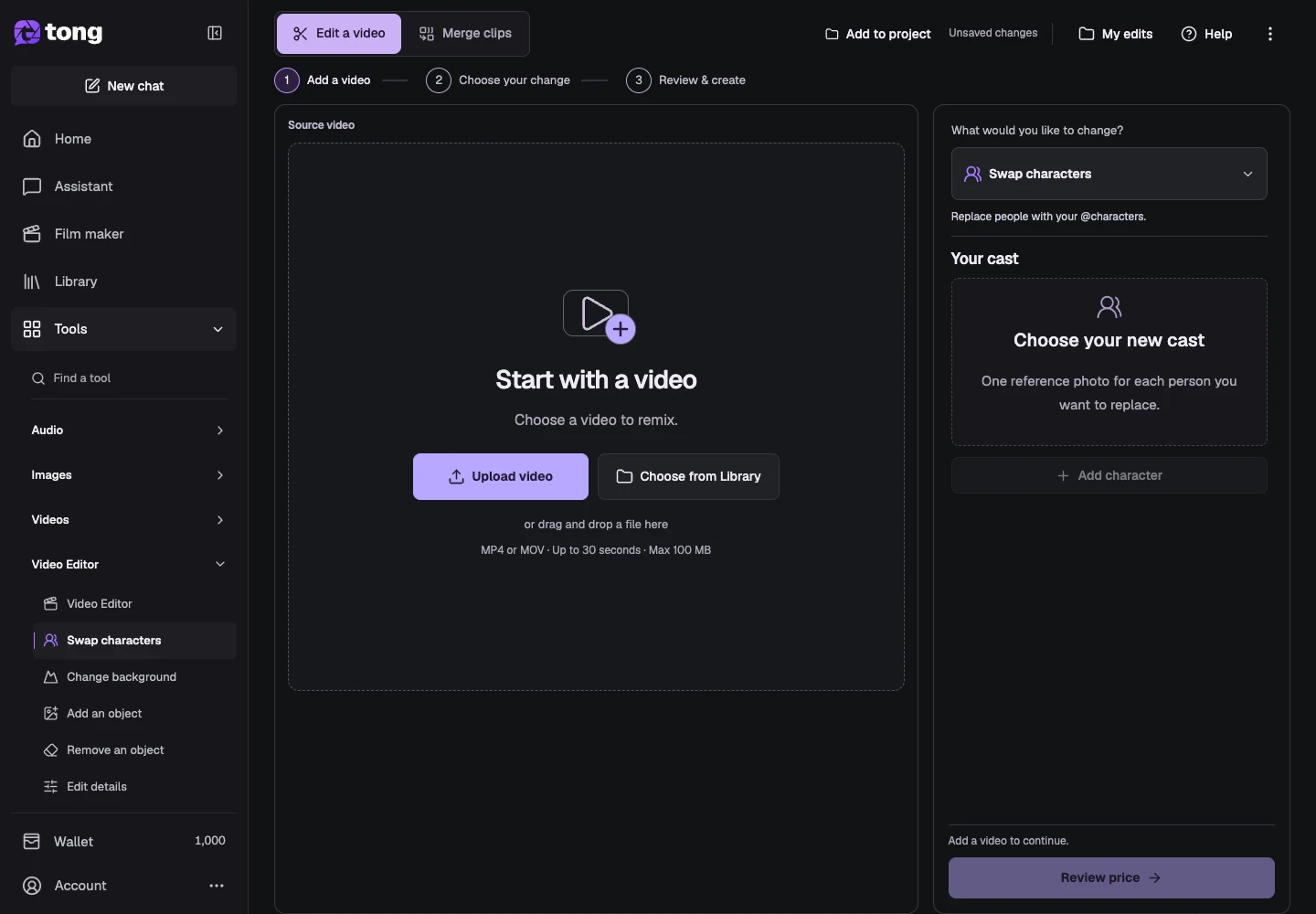
Choose Swap characters
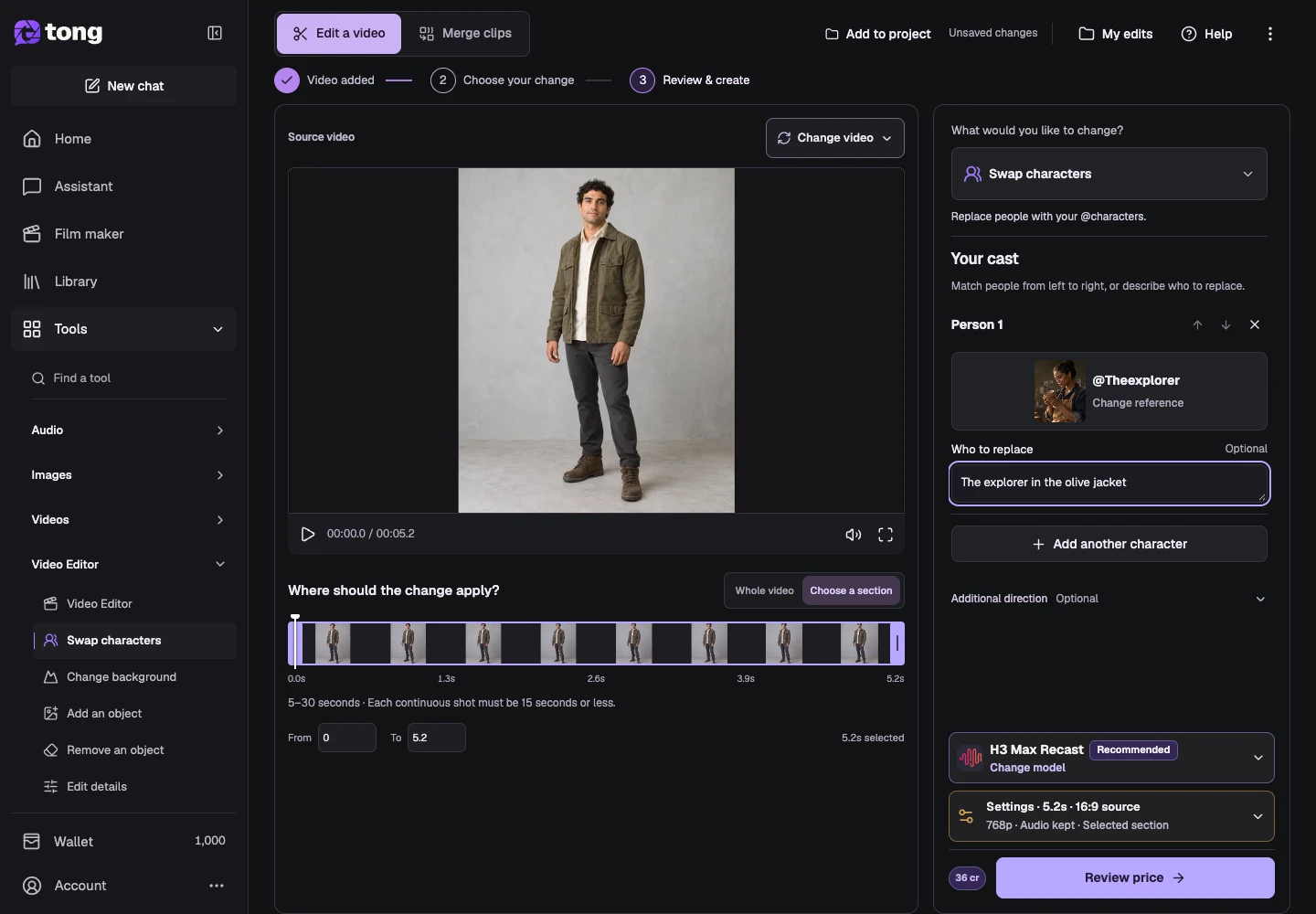
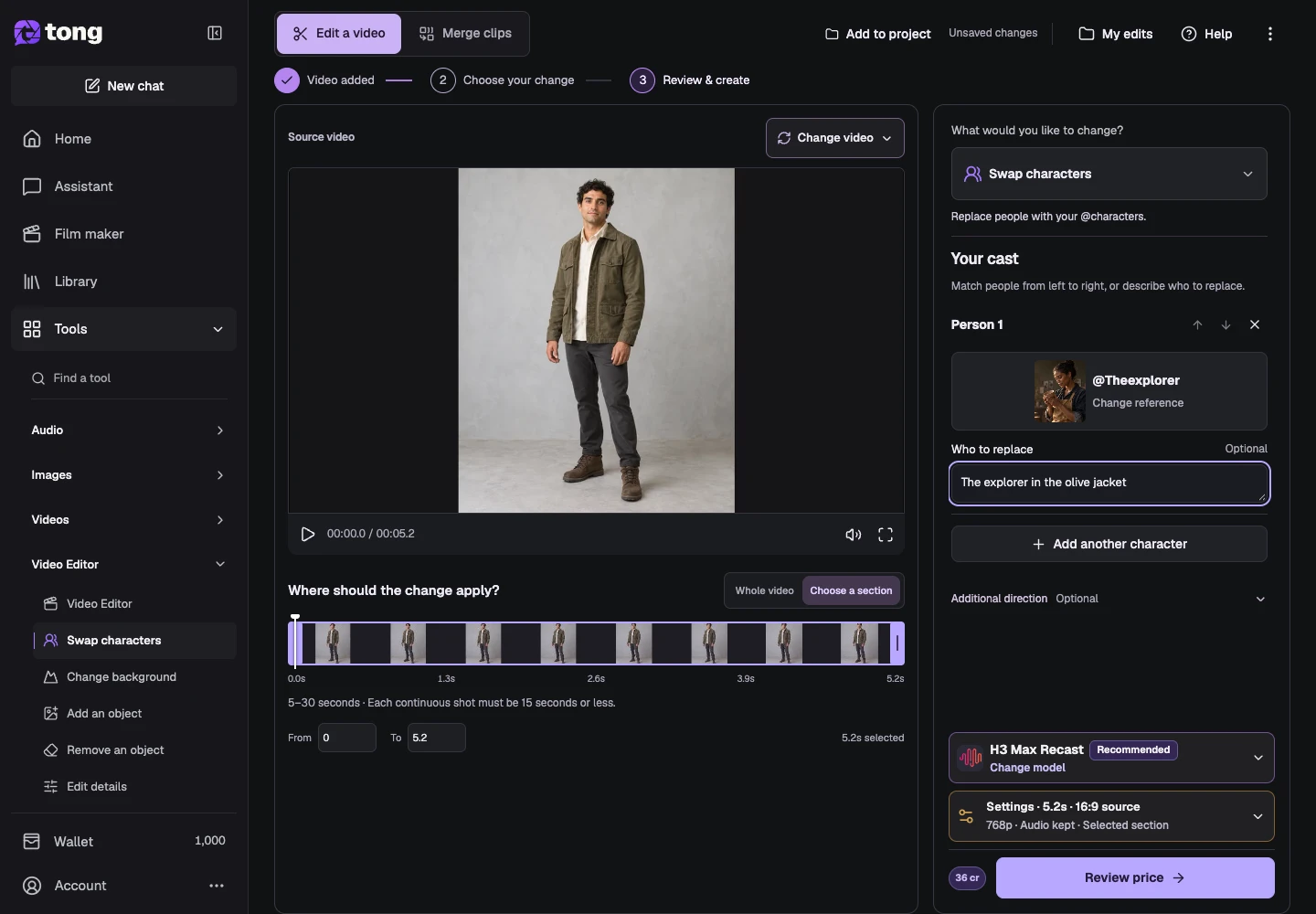
Open the What would you like to change? menu and choose Swap characters. This is the face/character replacement flow. Depending on the engine, the edit can change the person more broadly than the face; inspect the final face, clothing and movement rather than assuming face-only replacement.
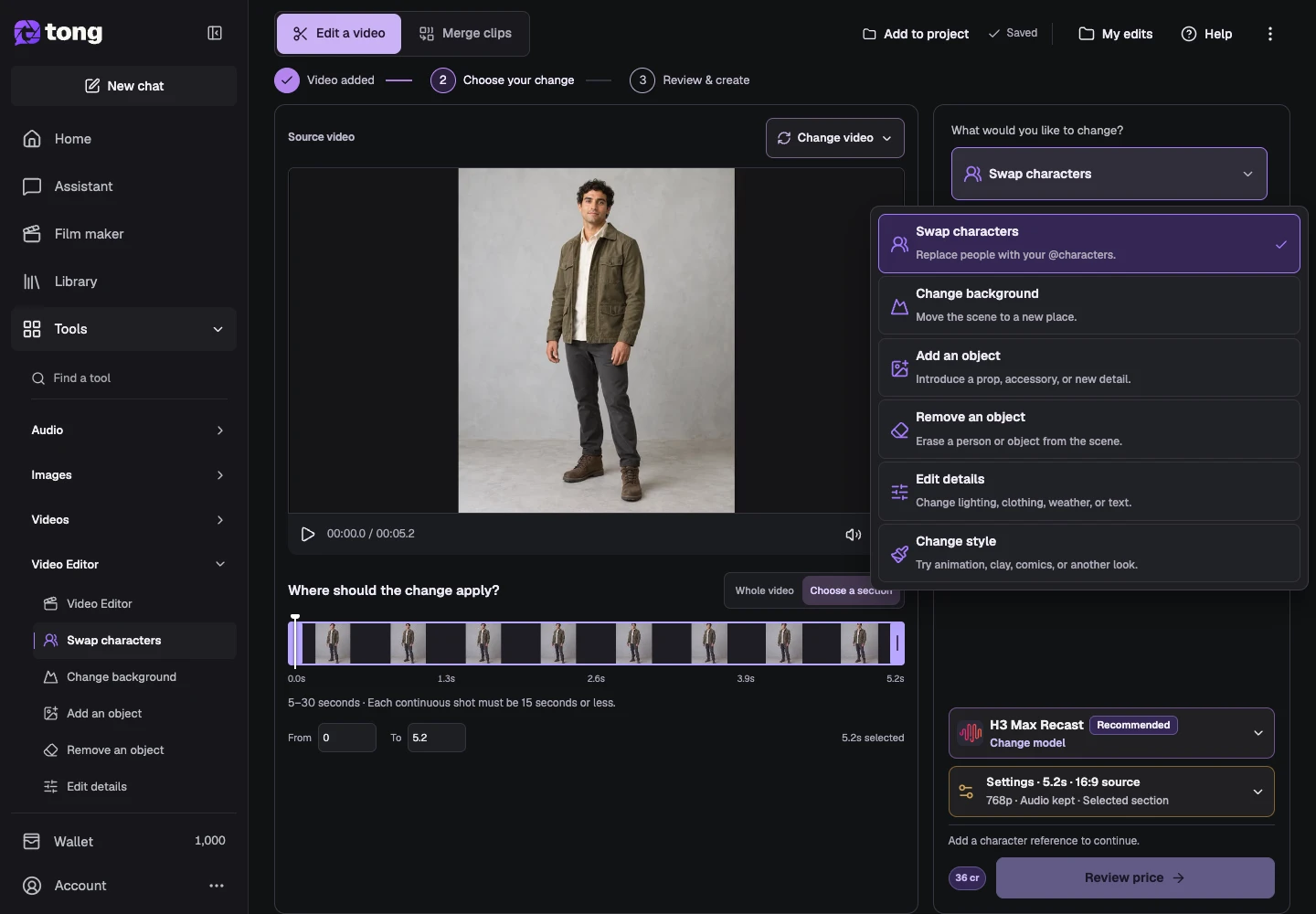
Choose an unrestricted replacement model
Open Change model and compare the Less restrictive options. H3 Max Recast uses character references and written person descriptions. Genjutsu uses references and motion transfer; PixVerse Modify uses detected subjects. Those two choices are Moderated, so switch model type deliberately rather than treating every swap engine as unrestricted.
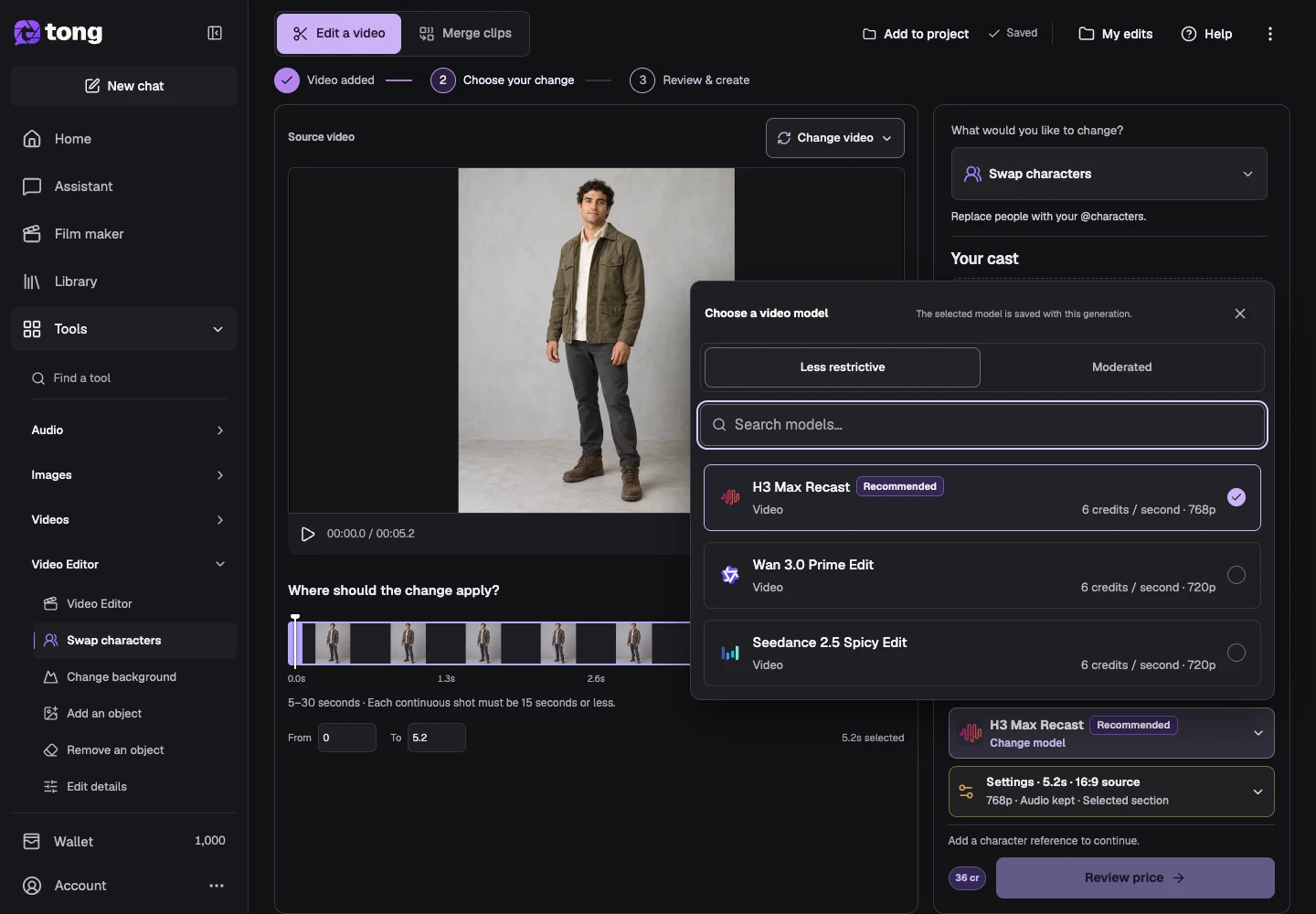
Add your replacement character
With H3 Max Recast selected, choose Add character. Pick a saved character or upload the reference image you want to use. Use a clear face and recognizable appearance. Add separate references when replacing multiple people instead of combining them into one unidentified image.
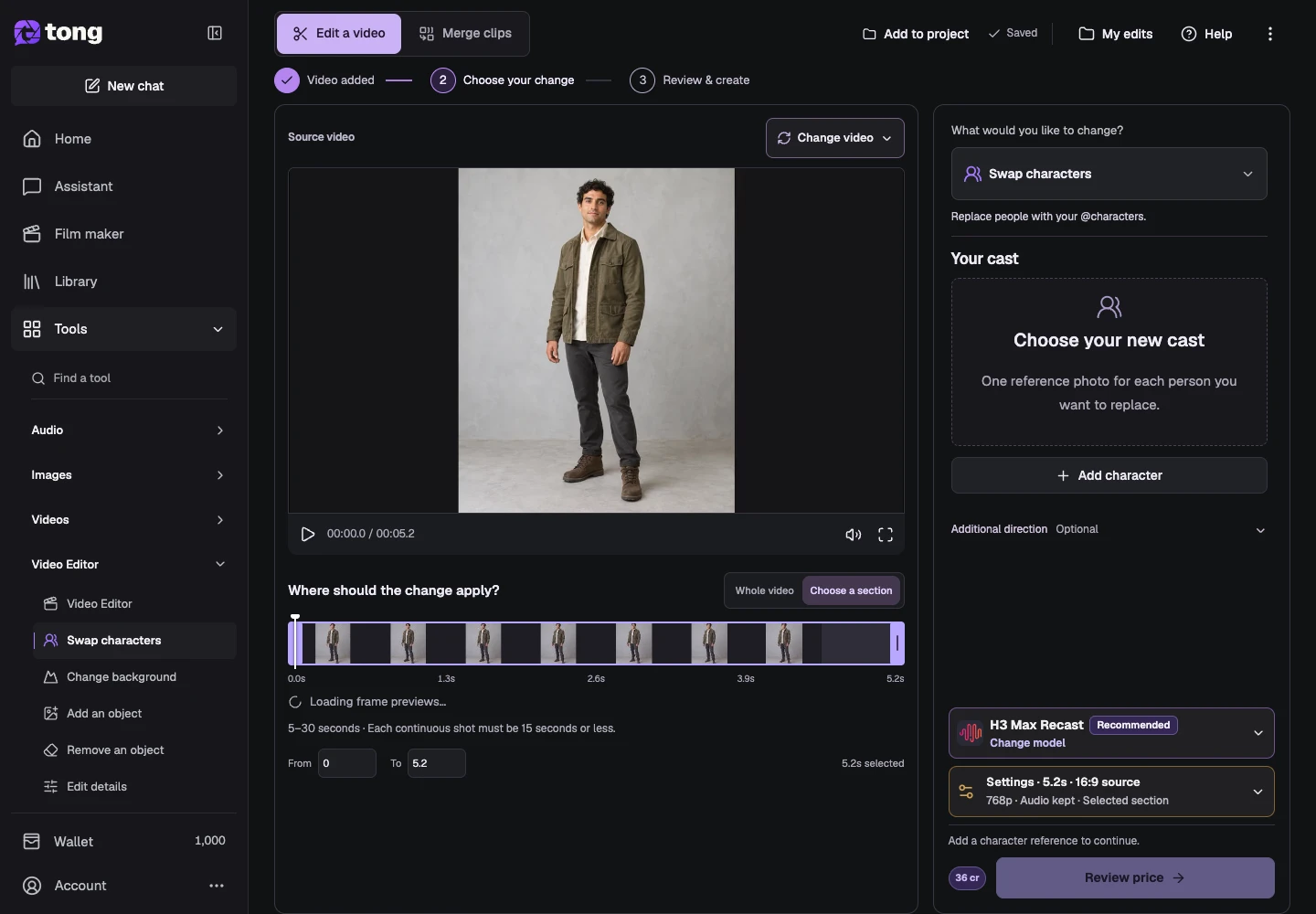
Identify who to replace
Use Who to replace for person 1 to describe the source person, such as the explorer in the olive jacket. Pair each description with the intended replacement reference. H3 Max Recast can handle up to four people; a different engine can have a lower limit or require detected subject selection instead.
Review settings, price and the result
Open Settings to check the selected range, resolution, audio and whether to return the selected section or full video. Close Settings, then select Review price. Confirm the quoted edit when ready; inspect the completed result in My edits and download it while keeping your original source.
A useful tip
A front-facing, well-lit reference and a short source range make the result easier to assess. For face-only intent, say what clothing and movement you want to preserve and review them in the output.
If something goes wrong
If Review price is disabled, check the source duration, replacement reference and Who to replace field. H3 Max Recast requires a range of at least five seconds. After changing engines, review the new selection requirements before submitting.
Read first, create when you’re ready
Reading this guide is free. The linked tool shows its own requirements and current credit price. Screenshots use demonstration data; review your own inputs and the quoted cost before submitting paid work.
Reviewed 2026-10-18 · Tong Academy