
Before you begin
- A source video you can use and available credits.
- A supported clip range; the selected model shows its current limits.
What you’ll achieve:
Model choices
For unrestricted video detail editing, compare Less restrictive scene-edit models. Match the clip duration and resolution to that model, and make the change specific rather than combining several unrelated corrections.
Upload your source video
Open Video Editor and choose Upload video or a saved clip. Wait for preparation and duration to finish. Choose a short range with a clear view of the subject so you can judge the change against the original.
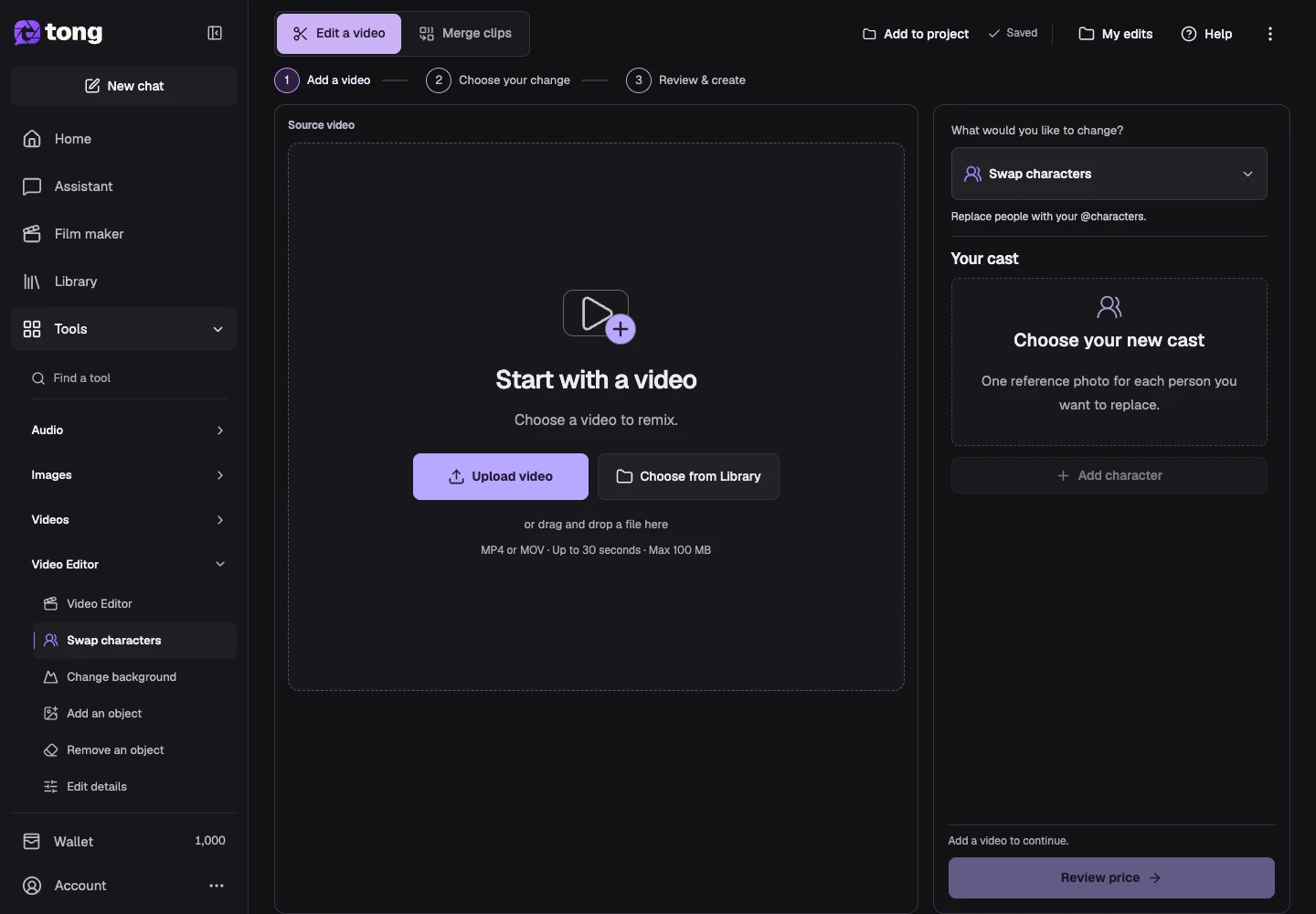
Choose Edit details
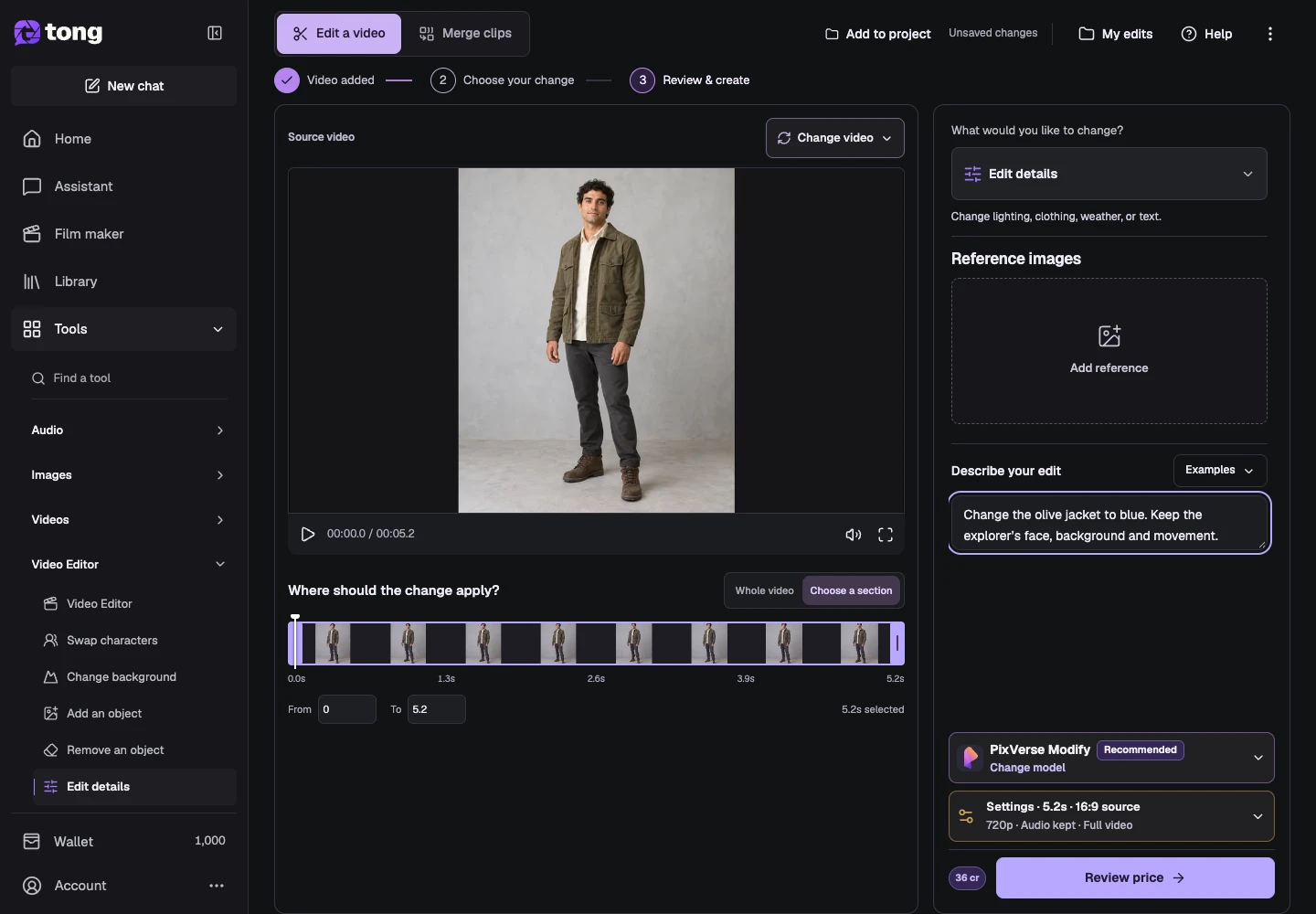
Open What would you like to change? and select Edit details. This written-direction workflow is suited to a targeted change, such as a jacket's color or the light in the scene, and does not require subject detection for a native model.
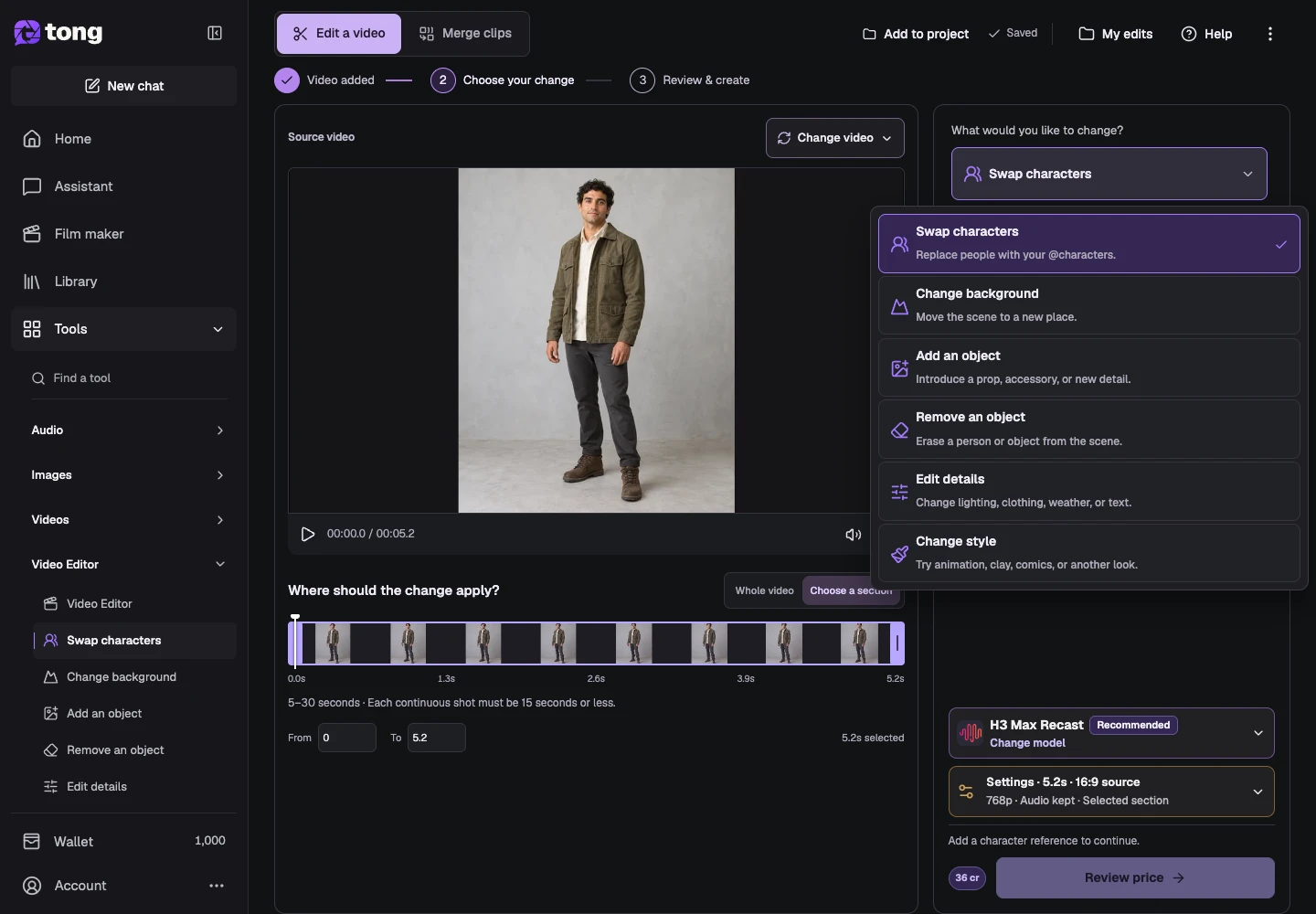
Choose the editing model
Open Change model and compare Less restrictive models for an unrestricted editing workflow, or switch to Moderated if that suits your project. This example uses a native written-direction model. Check reference support, duration and resolution before continuing.
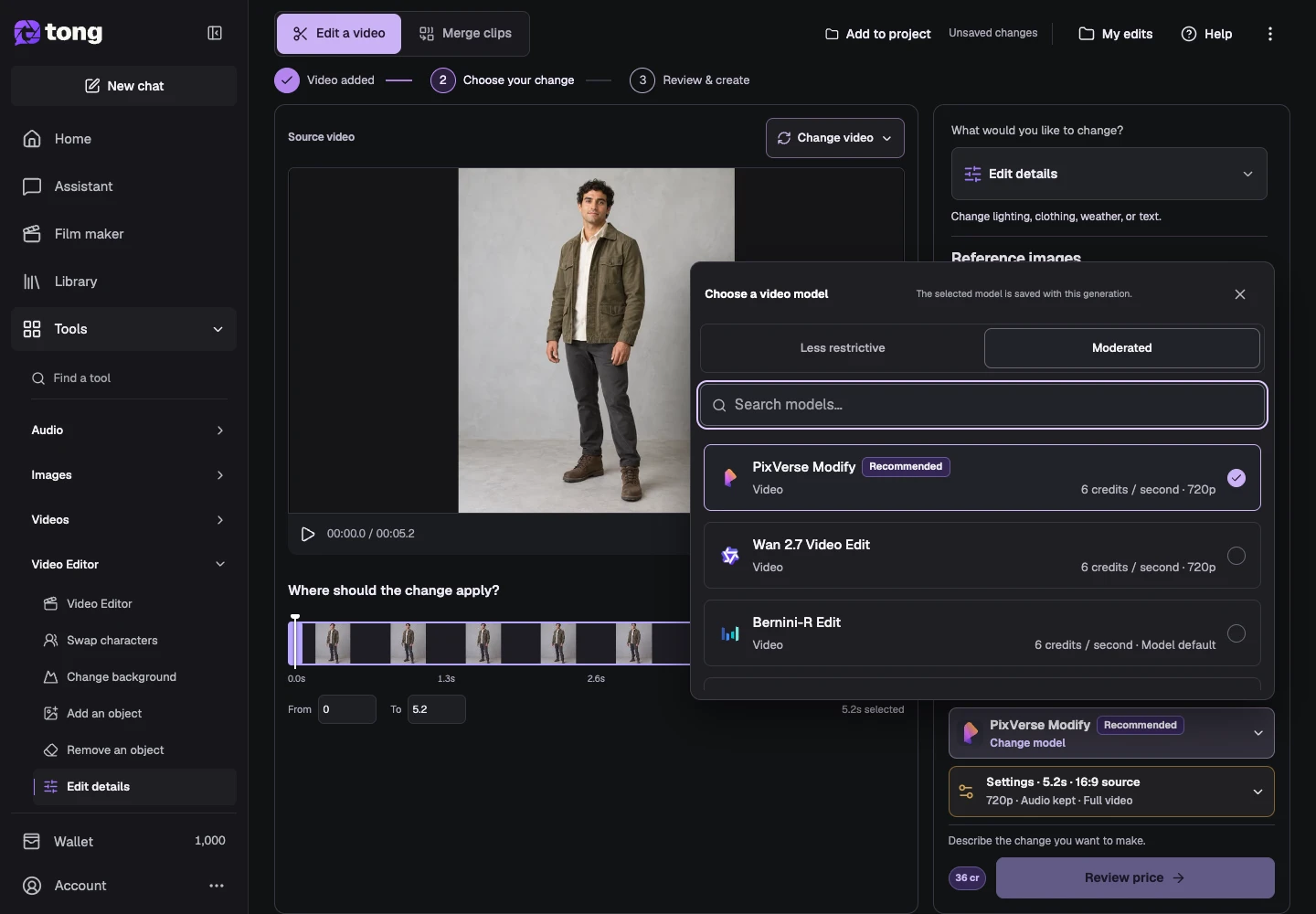
Write one clear correction
Use Describe your edit to specify the change and what stays. For example: change the olive jacket to blue; keep the explorer's face, background and movement. For lighting, specify the desired time or light direction. Check generated lettering closely rather than assuming a text edit will be exact.
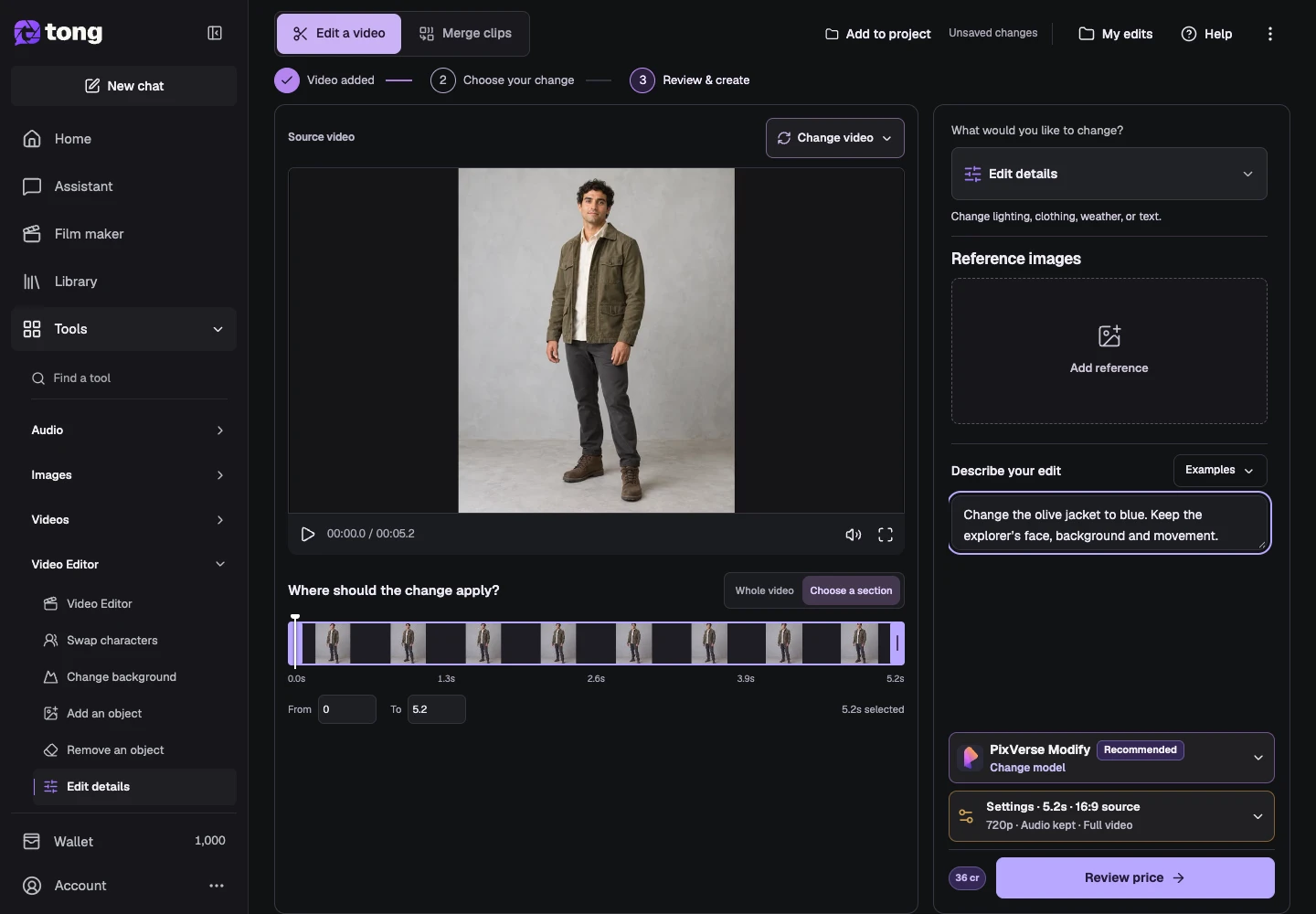
Review settings, price and the result
Open Settings to check the selected range, resolution, audio and whether to return the selected section or full video. Close Settings, then select Review price. Confirm the quoted edit when ready; inspect the completed result in My edits and download it while keeping your original source.
A useful tip
Start with the single detail that matters most. Compare the edited range with the original before requesting unrelated changes.
If something goes wrong
If the edit also changes identity or motion, state those preservation goals explicitly and reduce the requested change. A failed request retains its saved status; read the recovery action before resubmitting the same edit.
Read first, create when you’re ready
Reading this guide is free. The linked tool shows its own requirements and current credit price. Screenshots use demonstration data; review your own inputs and the quoted cost before submitting paid work.
Reviewed 2026-10-18 · Tong Academy