
Before you begin
- A source video you can use and available credits.
- A supported clip range; the selected model shows its current limits.
What you’ll achieve:
Model choices
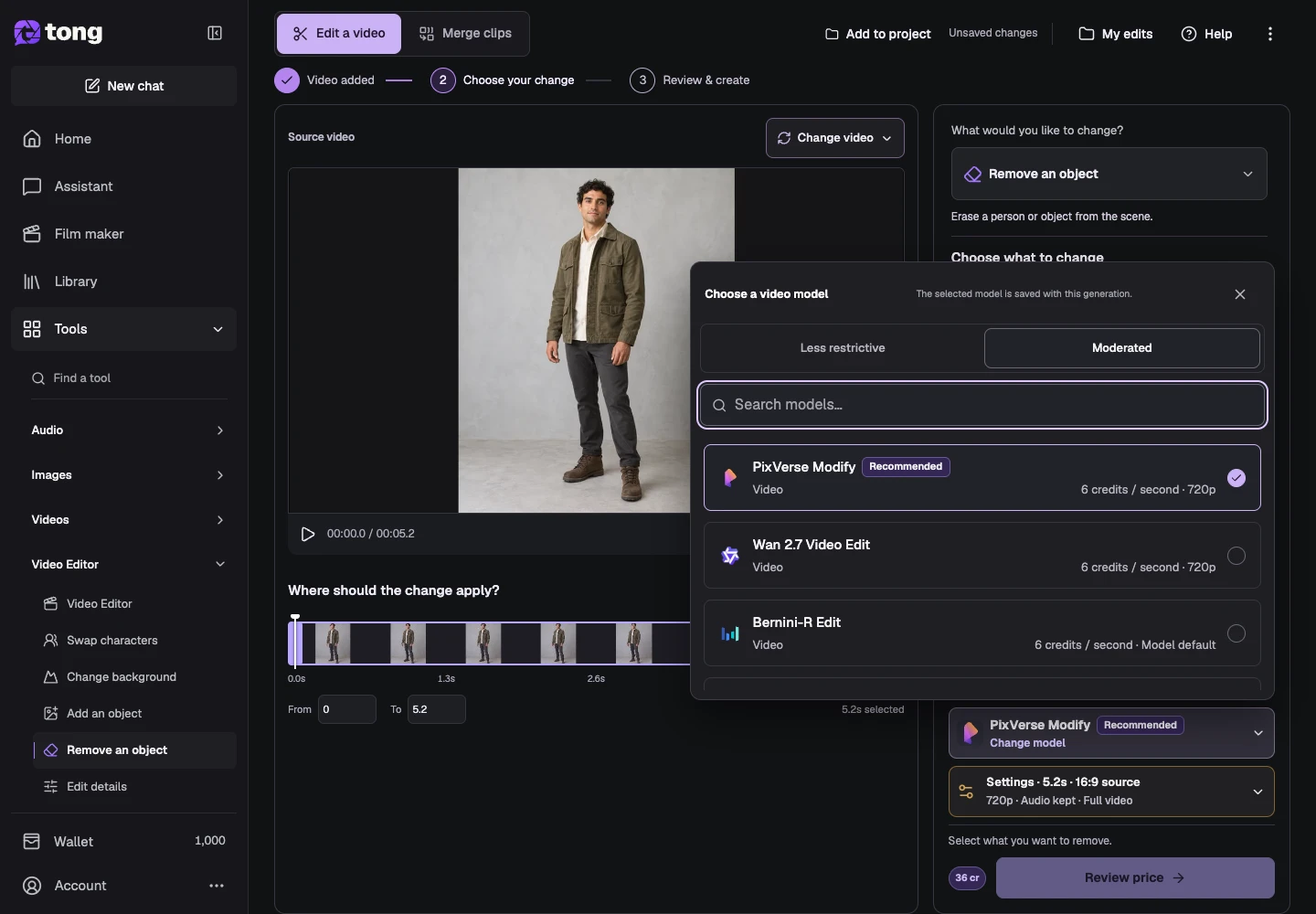
For unrestricted AI video object removal, select a compatible Less restrictive edit model and clearly identify what to erase. A native text-directed model uses your description; PixVerse's Moderated workflow instead uses detected subject selection.
Upload your source video
Open Video Editor and choose Upload video or a saved clip. Wait for preparation and duration to finish. Choose a short range with a clear view of the subject so you can judge the change against the original.
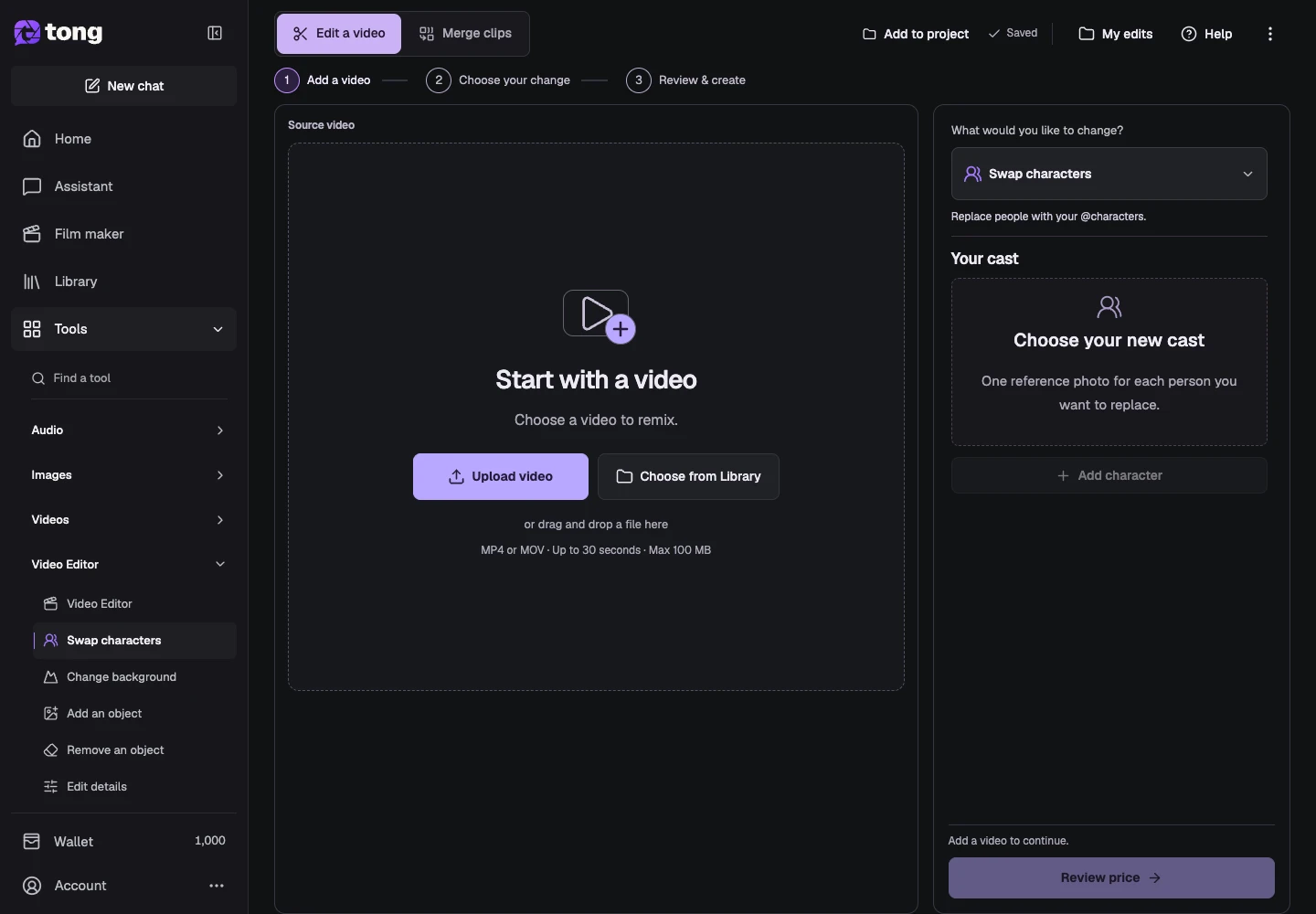
Choose Remove an object
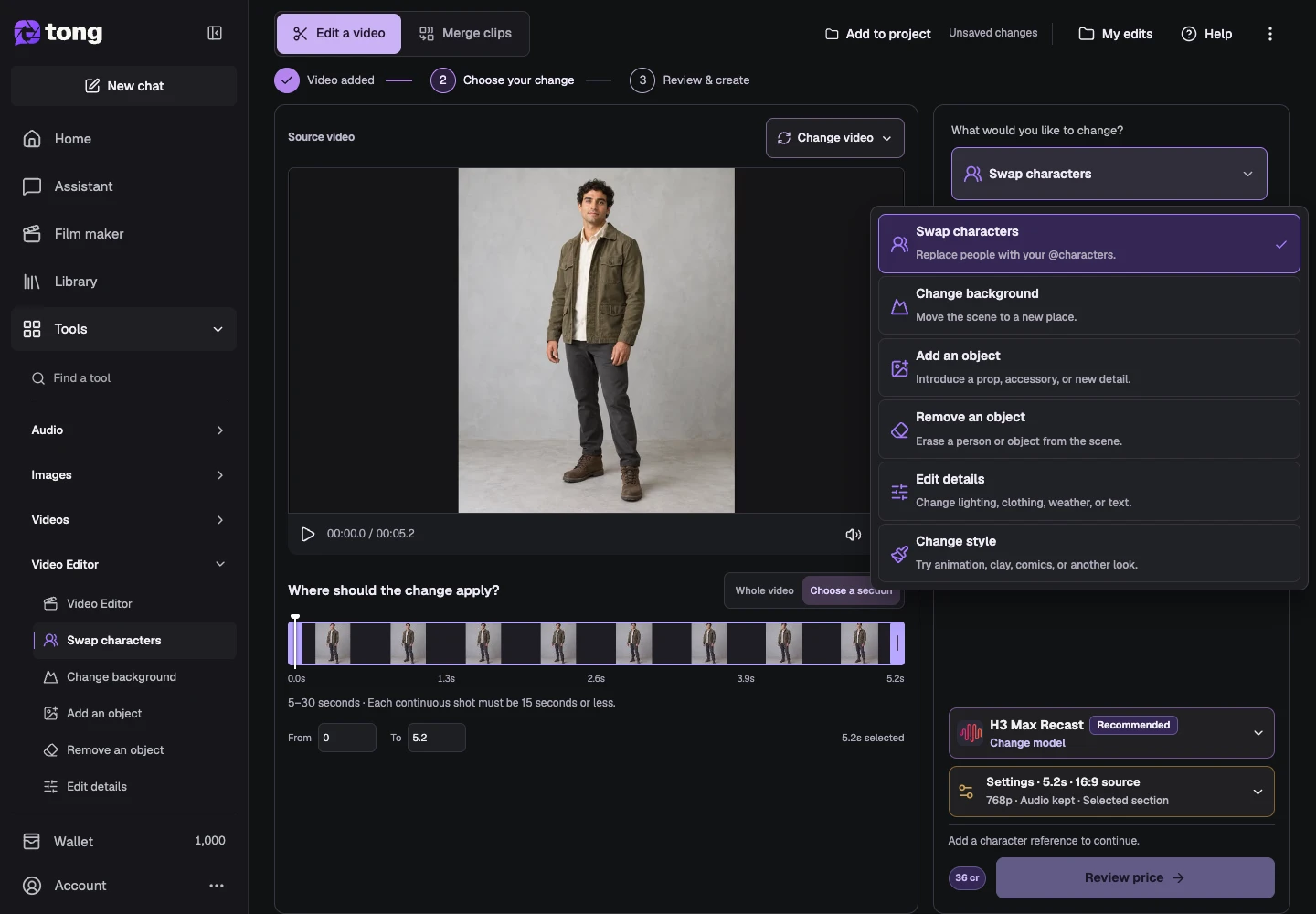
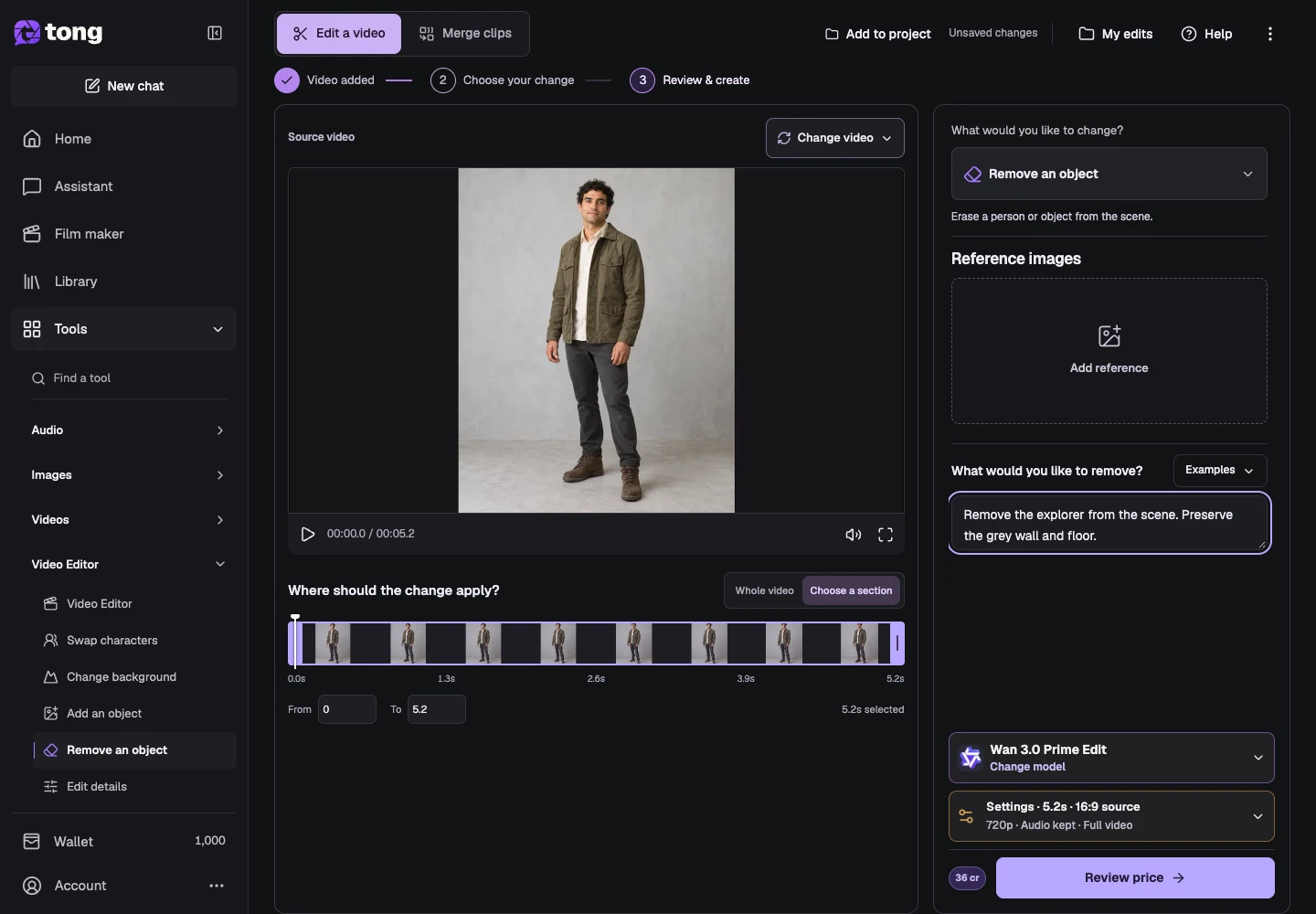
Open What would you like to change? and select Remove an object. The intent can remove a person or an object. Choose a source range where it is easy to identify the unwanted subject and the area behind it.
Choose the editing model
Open Change model and compare Less restrictive models for an unrestricted editing workflow, or switch to Moderated if that suits your project. This example uses a native written-direction model. Check reference support, duration and resolution before continuing.
Identify what to remove
For a native written-direction model, describe the exact unwanted item and what should remain. For example: remove the explorer from the scene; preserve the grey wall and floor. With PixVerse Modify instead, choose a clear frame, use Detect, review its selection price and select the detected person or object before reviewing the video edit.
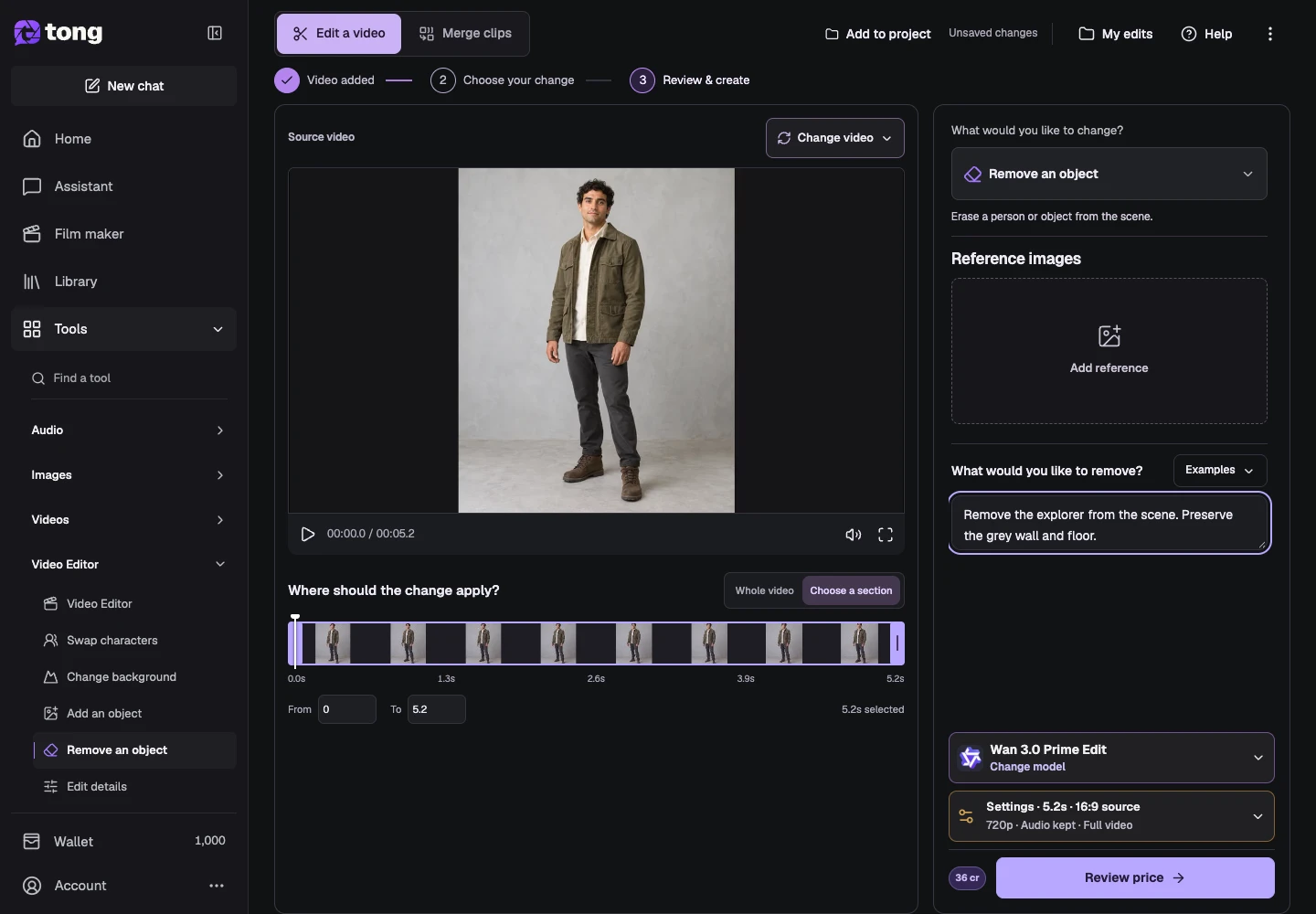
Review settings, price and the result
Open Settings to check the selected range, resolution, audio and whether to return the selected section or full video. Close Settings, then select Review price. Confirm the quoted edit when ready; inspect the completed result in My edits and download it while keeping your original source.
A useful tip
Name a visible distinguishing detail when several similar objects are present. Check the filled background as well as whether the unwanted subject disappeared.
If something goes wrong
If the wrong item disappears, clarify its location or use a clearer range. Detection-based selections become stale after some source/model changes; find subjects again when that engine asks for it.
Read first, create when you’re ready
Reading this guide is free. The linked tool shows its own requirements and current credit price. Screenshots use demonstration data; review your own inputs and the quoted cost before submitting paid work.
Reviewed 2026-10-18 · Tong Academy