
Before you begin
- A source video you can use and available credits.
- A supported clip range; the selected model shows its current limits.
What you’ll achieve:
Model choices
For unrestricted AI video restyling, choose a compatible Less restrictive written-direction model and describe the look. Genjutsu Restyle offers a separate Moderated preset workflow; selecting a visual style does not change the engine's policy.
Upload your source video
Open Video Editor and choose Upload video or a saved clip. Wait for preparation and duration to finish. Choose a short range with a clear view of the subject so you can judge the change against the original.
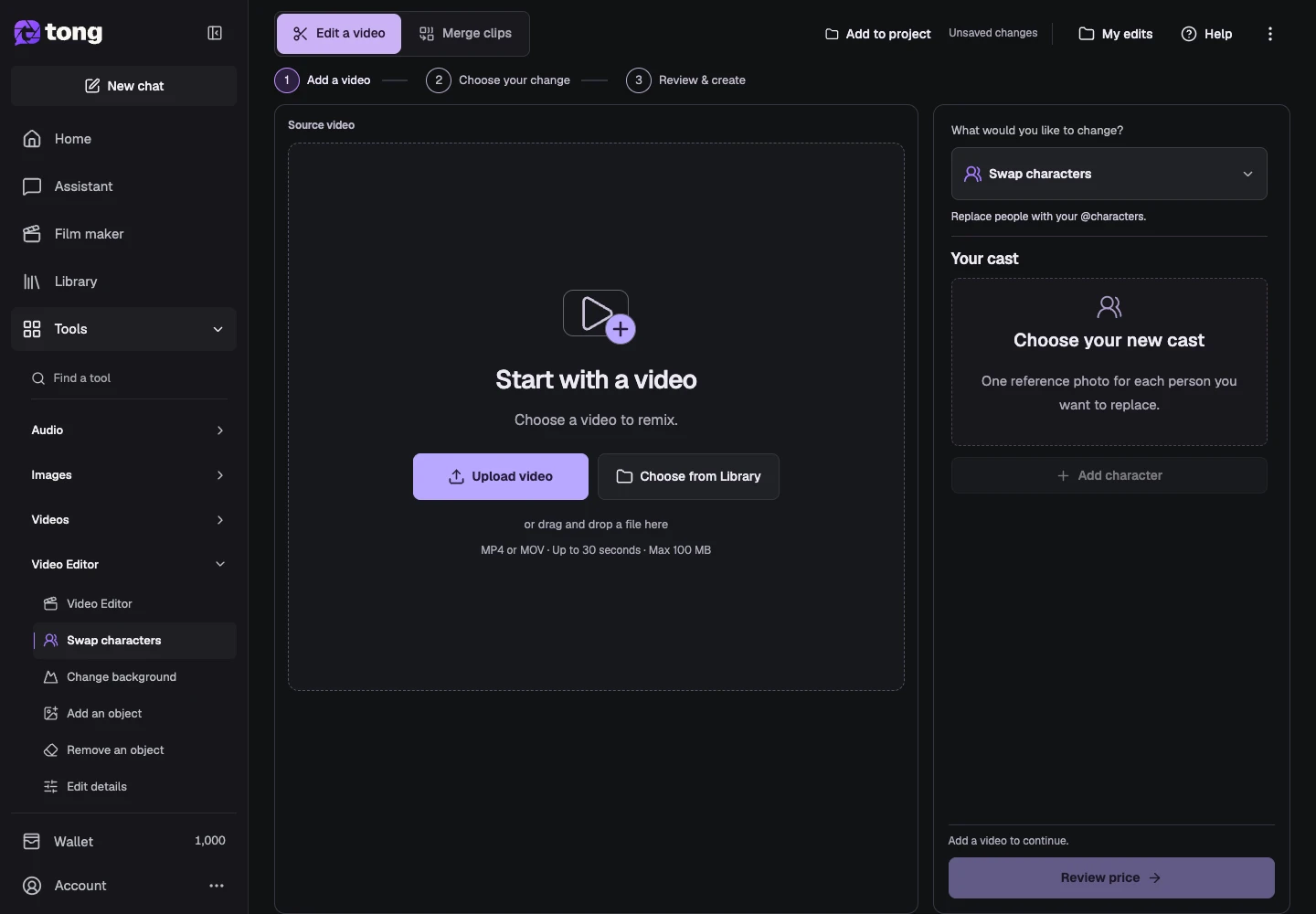
Choose Change style
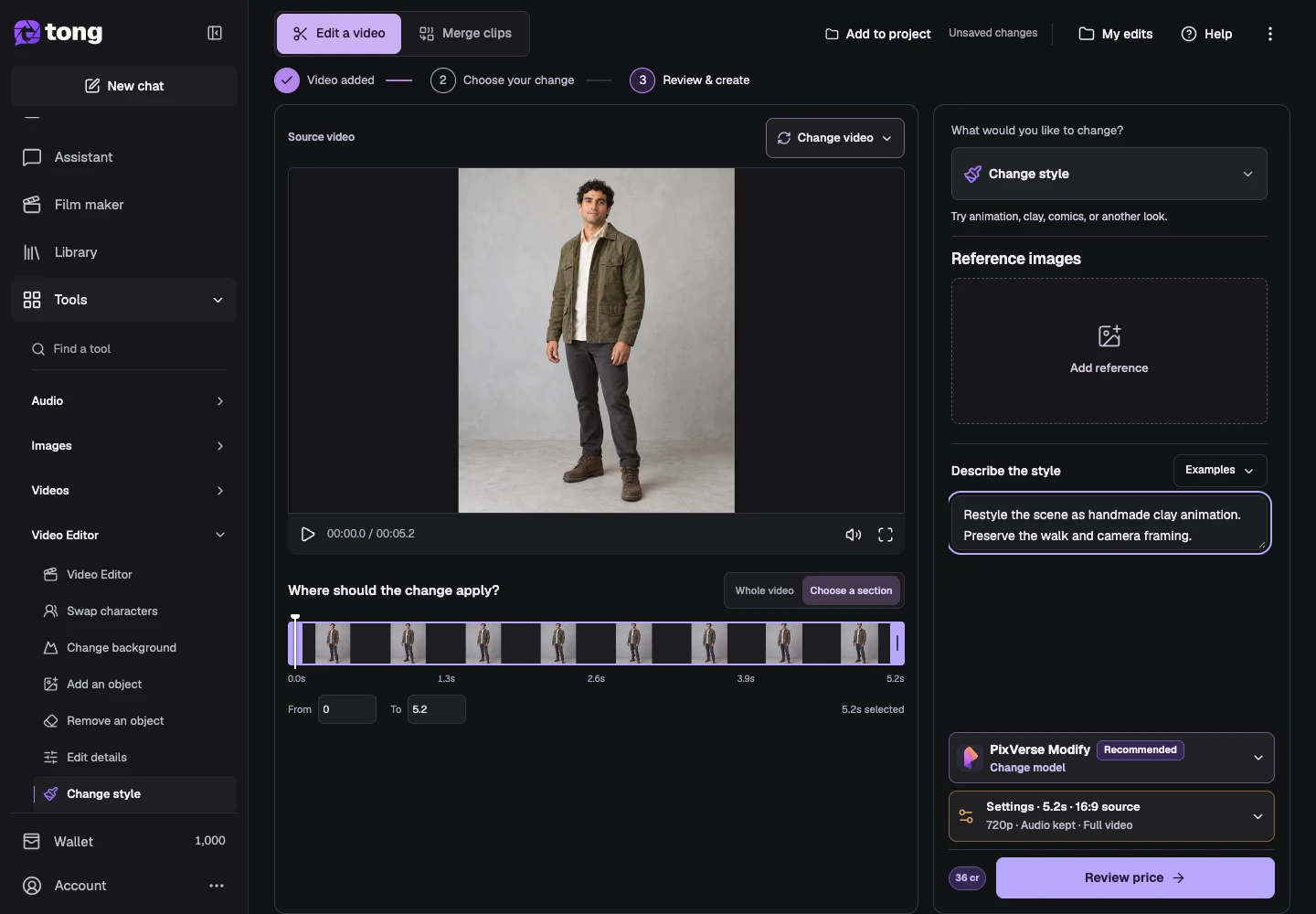
Open What would you like to change? and select Change style. You are changing the look of an existing video, so keep its source range and action in mind. The available style controls depend on the engine you select.
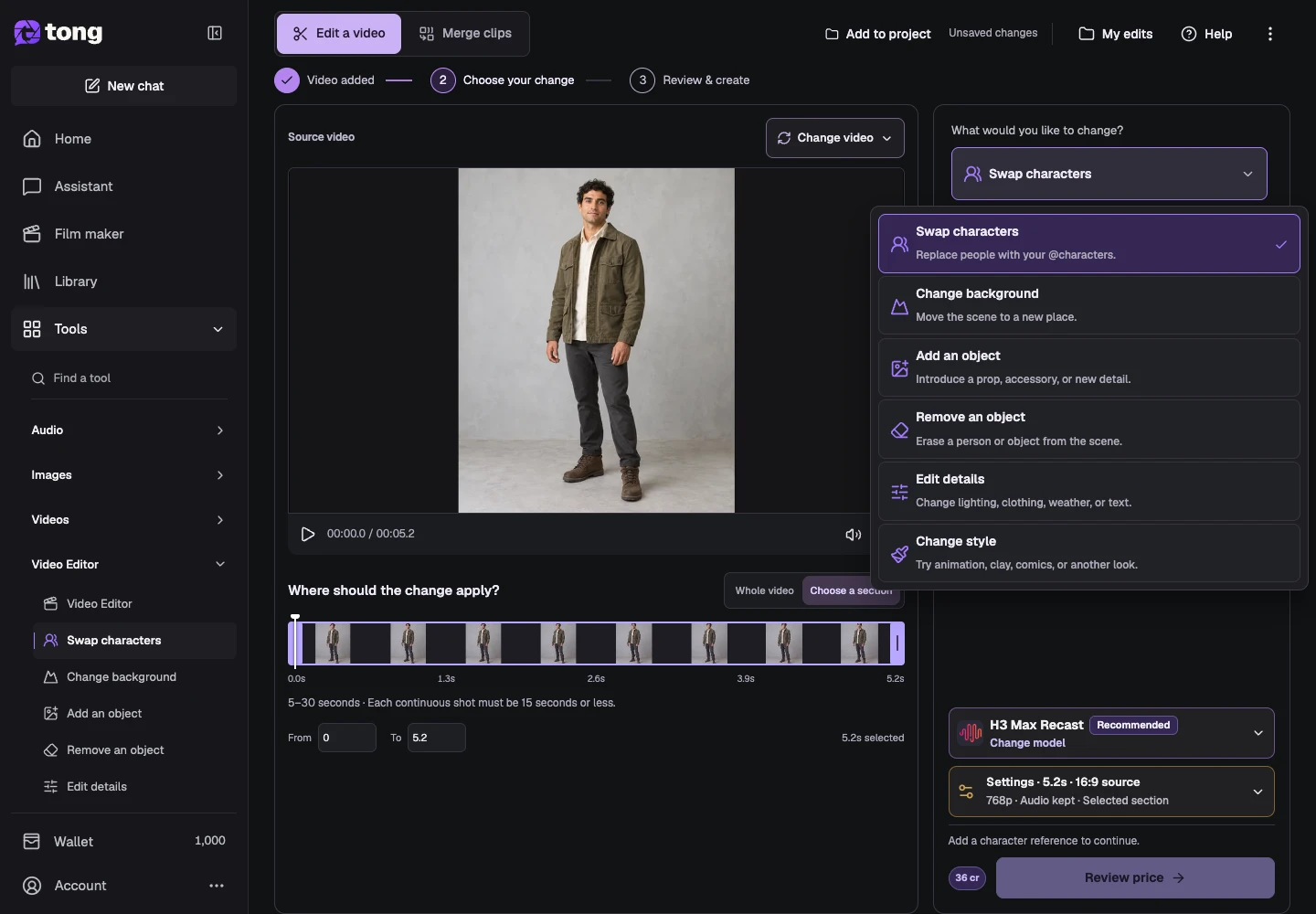
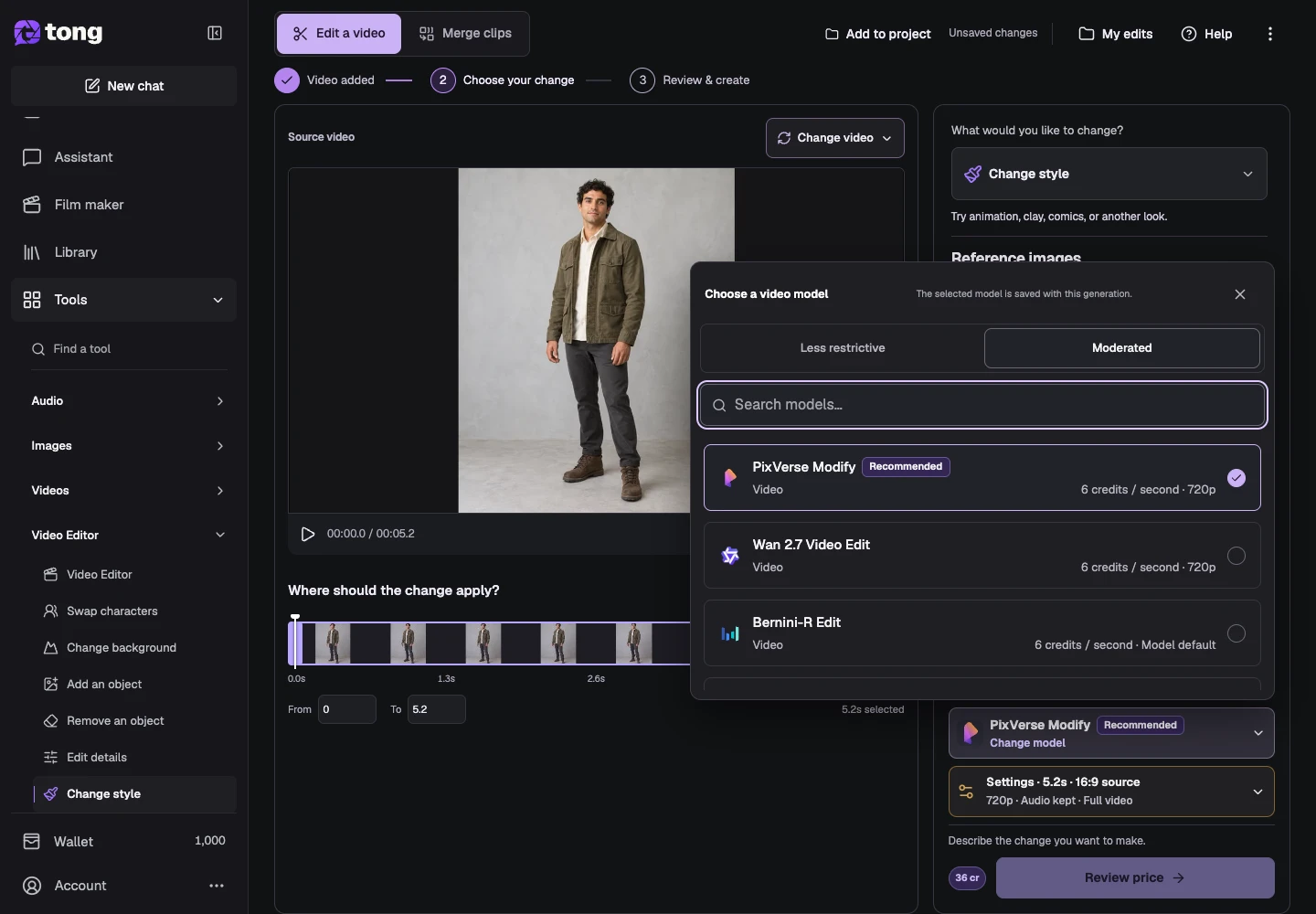
Choose the editing model
Open Change model and compare Less restrictive models for an unrestricted editing workflow, or switch to Moderated if that suits your project. This example uses a native written-direction model. Check reference support, duration and resolution before continuing.
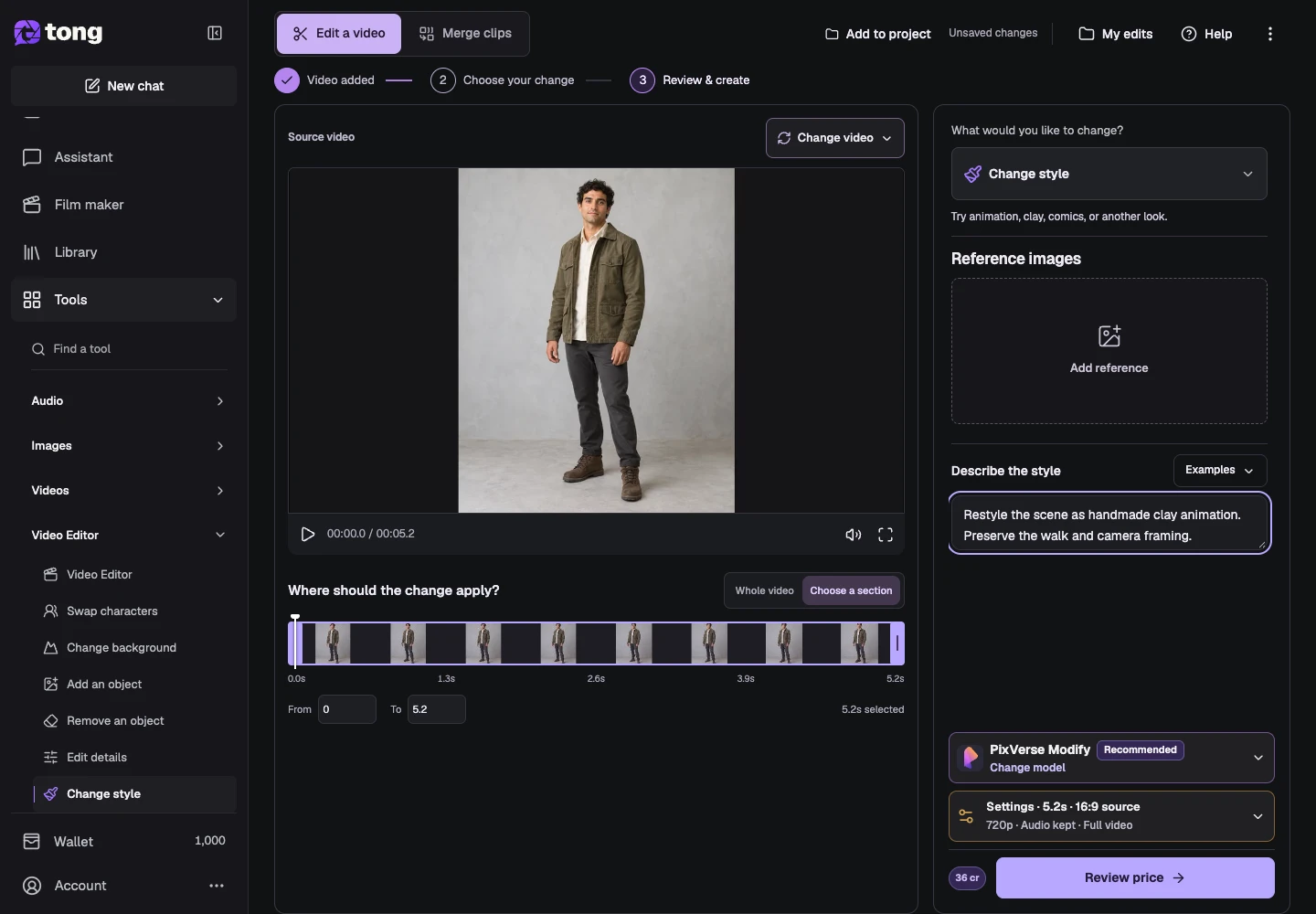
Describe the visual treatment
For a written-direction model, describe the material or rendering style and what motion should stay. For example: restyle the scene as handmade clay animation; preserve the walk and camera framing. Add a style image only when supported. Genjutsu Restyle instead exposes a required preset selection with its own model category.
Review settings, price and the result
Open Settings to check the selected range, resolution, audio and whether to return the selected section or full video. Close Settings, then select Review price. Confirm the quoted edit when ready; inspect the completed result in My edits and download it while keeping your original source.
A useful tip
Name material, edges and lighting rather than only saying make it artistic. Watch the entire edited range to assess whether the style stays consistent in motion.
If something goes wrong
If a preset workflow is disabled, choose a supported preset. If a written-direction model rejects the range or reference count, adjust those inputs rather than carrying settings over from another engine.
Read first, create when you’re ready
Reading this guide is free. The linked tool shows its own requirements and current credit price. Screenshots use demonstration data; review your own inputs and the quoted cost before submitting paid work.
Reviewed 2026-10-18 · Tong Academy