
Before you begin
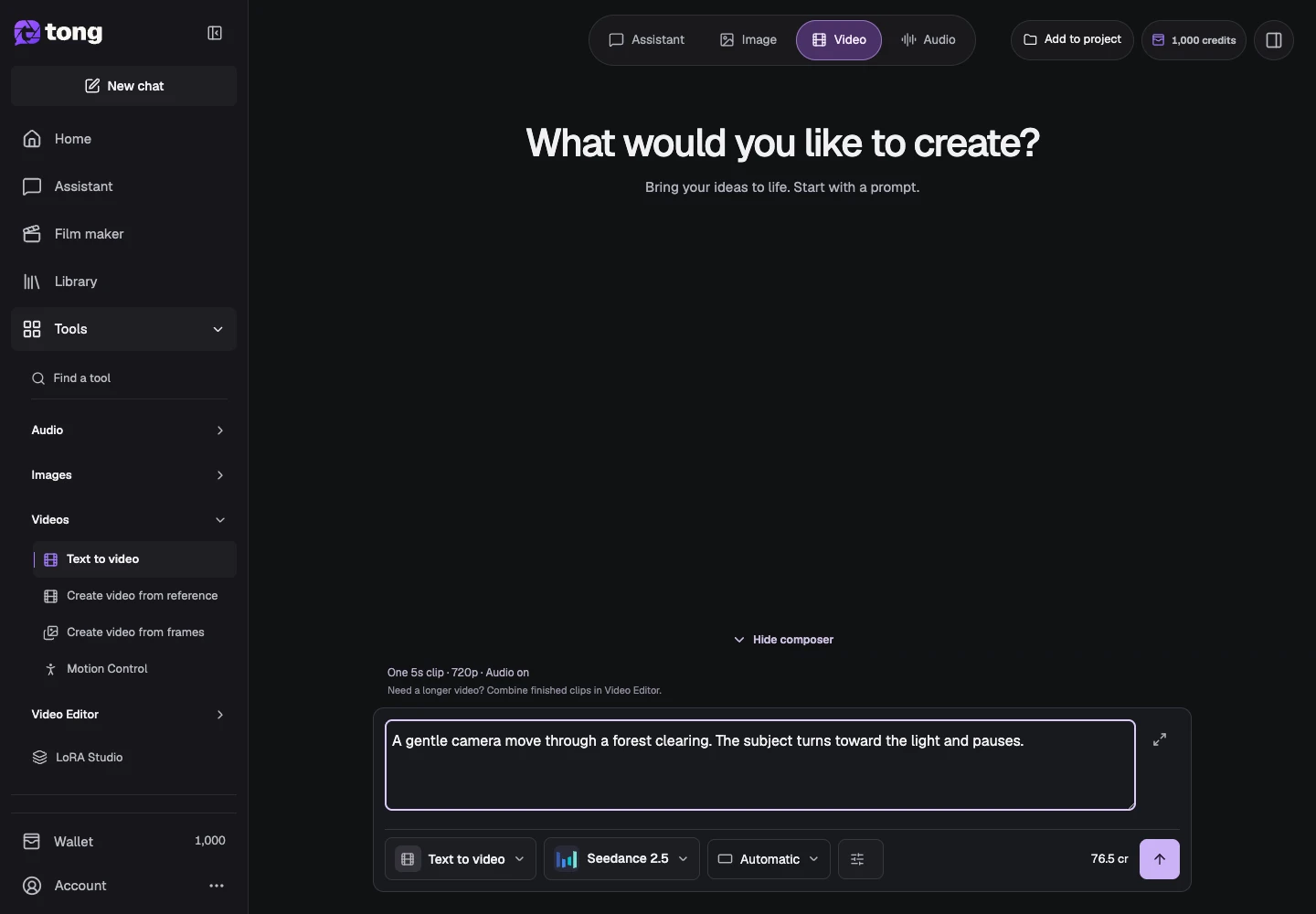
Tool and model controls beside the prompt show the current selection. Select those names to open their menus.
- A written idea including the action you want.
- A signed-in account and credits.
What you’ll achieve:
Model choices
For unrestricted AI video generation from text, compare the Less restrictive choices in Change model. Check duration, resolution and audio for the selected model before you write a shot; those controls are model-specific.
Choose Text to video
Open Text to video from Videos or Change tool. This tool does not require a starting image, making it a useful choice when your idea is still written.
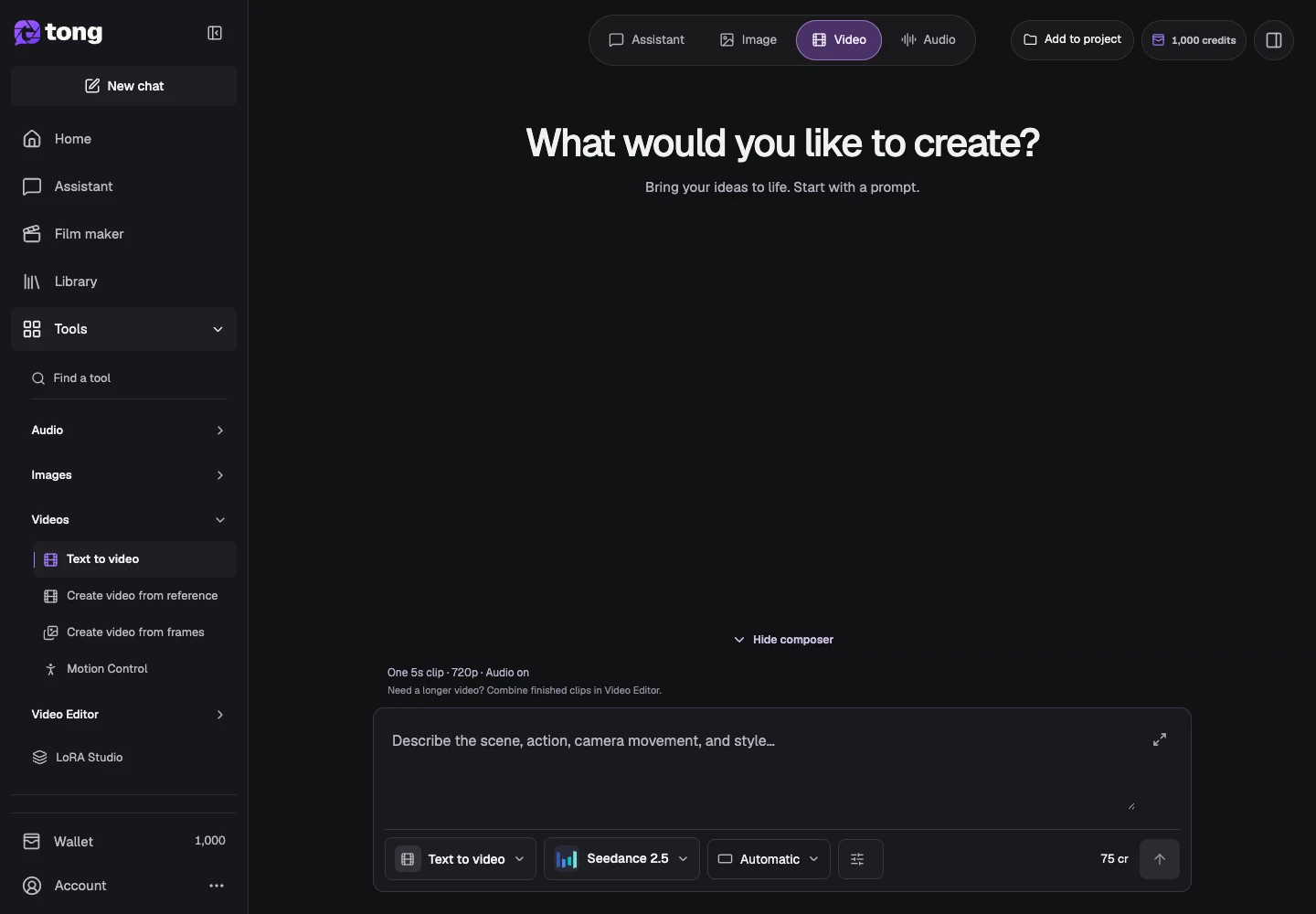
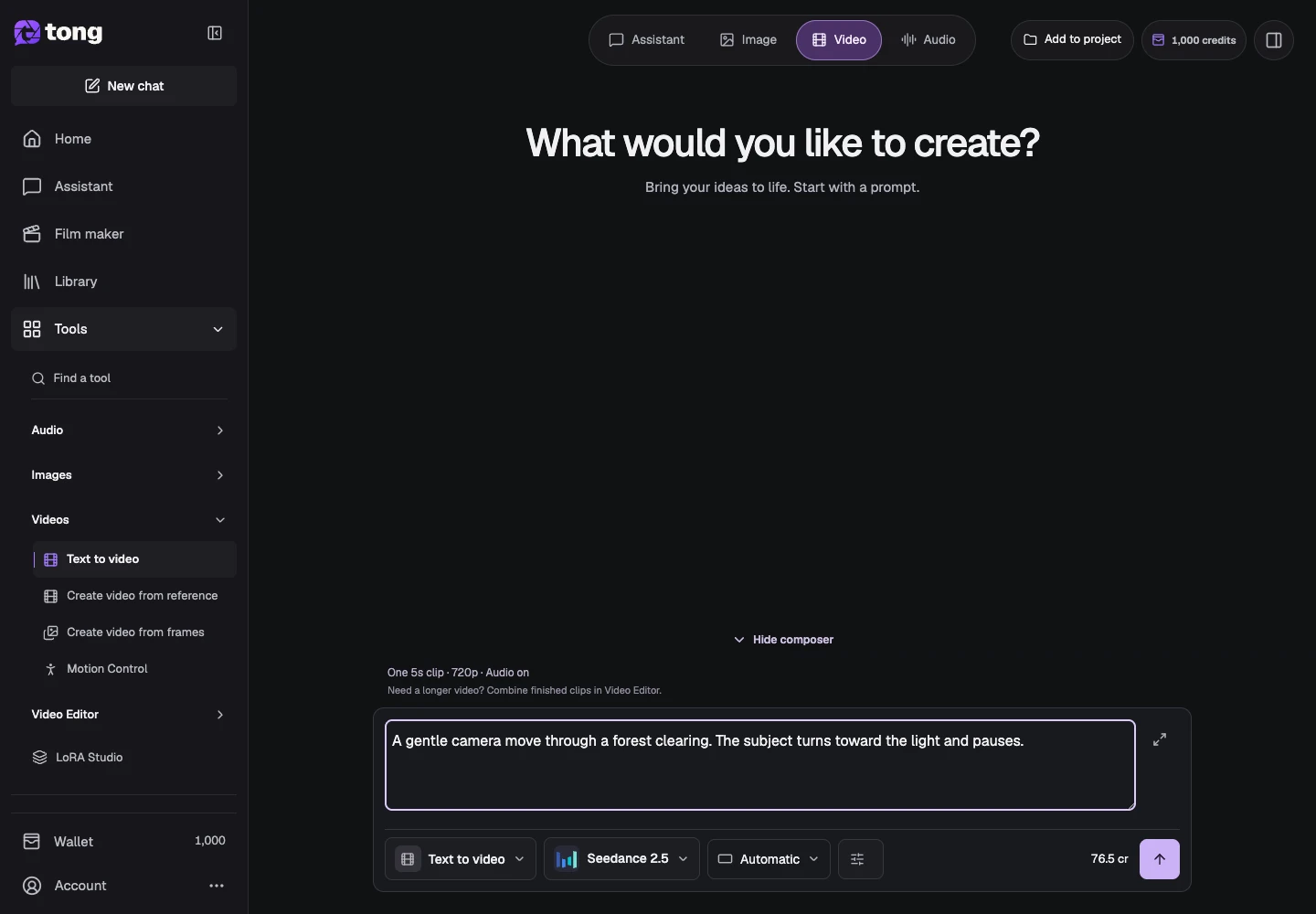
Describe the action
Write the subject, setting, movement and ending. Include camera motion only when it matters. For example: a cyclist moves through a quiet street at dusk, the camera follows gently, and the cyclist slows near a corner.
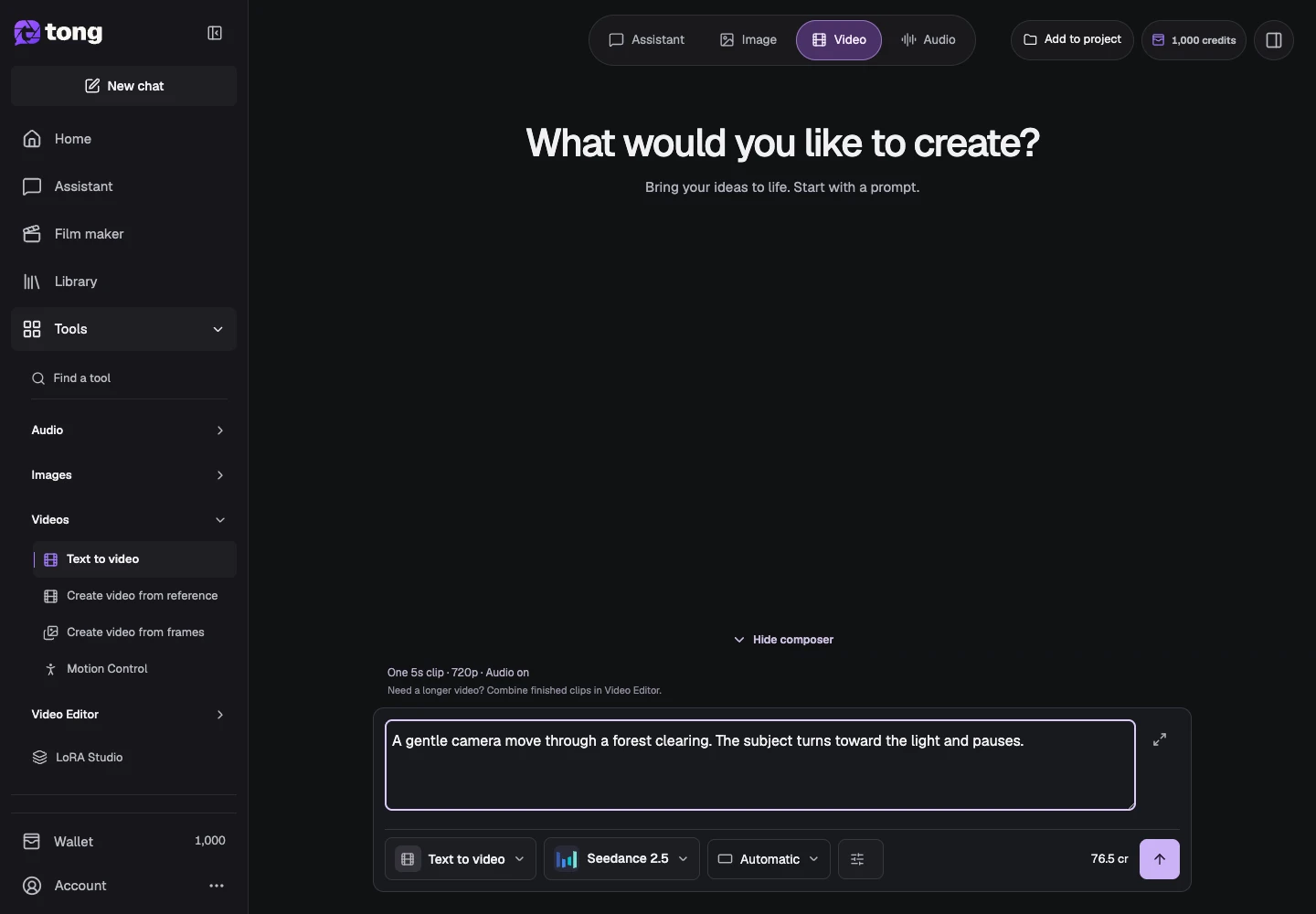
Choose the video model
Open Change model. Compare supported durations, resolution and audio rather than assuming all models offer the same controls.
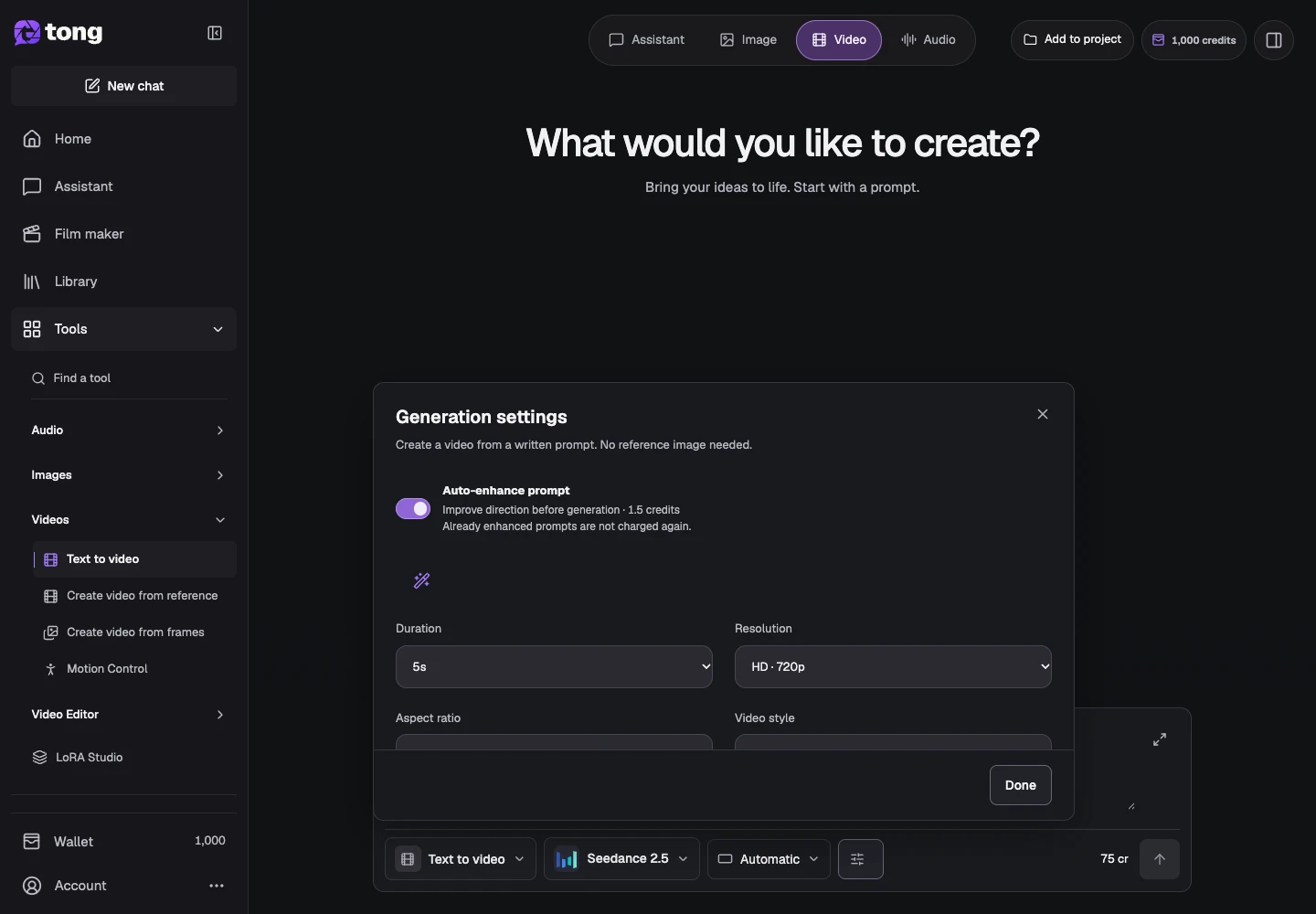
Choose duration and format
Open Settings and choose a supported duration, aspect ratio, resolution and audio option. Select a video style when the model/tool exposes it, then use Done.
Review the video price
Check the price for the actual generated seconds and current settings, then select Send prompt. Wait for the clip to finish and inspect/download it from the saved result.
A useful tip
Ask for one clear continuous action in a short clip. Use Film maker when the story needs several planned scenes.
If something goes wrong
If a requested duration or audio option is unavailable, choose a supported value for the model. A failed request should be reopened and checked before making a new paid submission.
Read first, create when you’re ready
Reading this guide is free. The linked tool shows its own requirements and current credit price. Screenshots use demonstration data; review your own inputs and the quoted cost before submitting paid work.
Reviewed 2026-10-18 · Tong Academy