
Before you begin
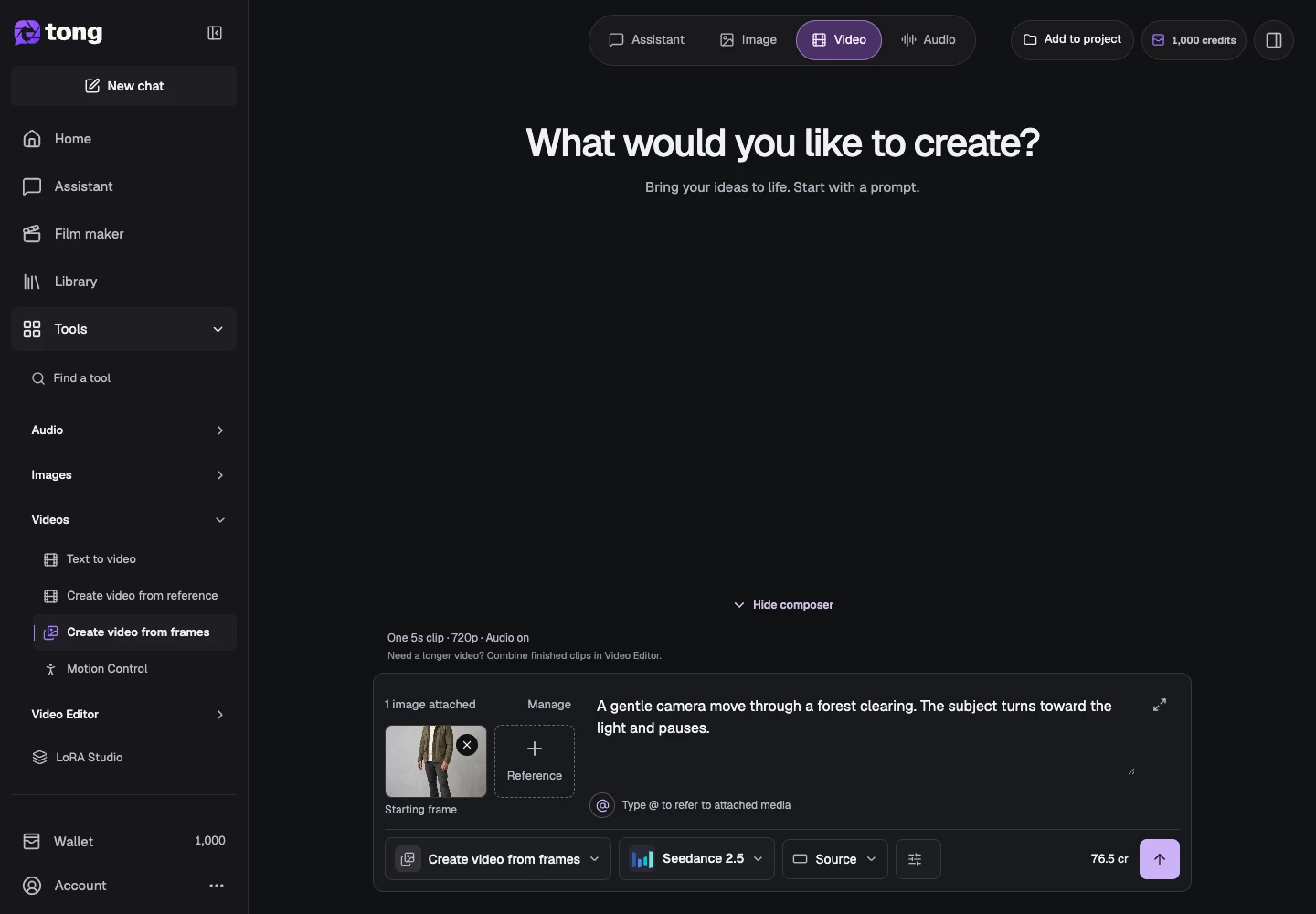
Tool and model controls beside the prompt show the current selection. Select those names to open their menus.
- A supported starting image.
- An optional ending image compatible with your chosen model.
What you’ll achieve:
Model choices
For unrestricted frame-to-video creation, compare Less restrictive models that accept starting and ending frames. Some choices accept only a starting frame; confirm the input support before attaching both images.
Choose Create video from frames
Open Create video from frames. Check its active label so your images are assigned as endpoints instead of generic references.
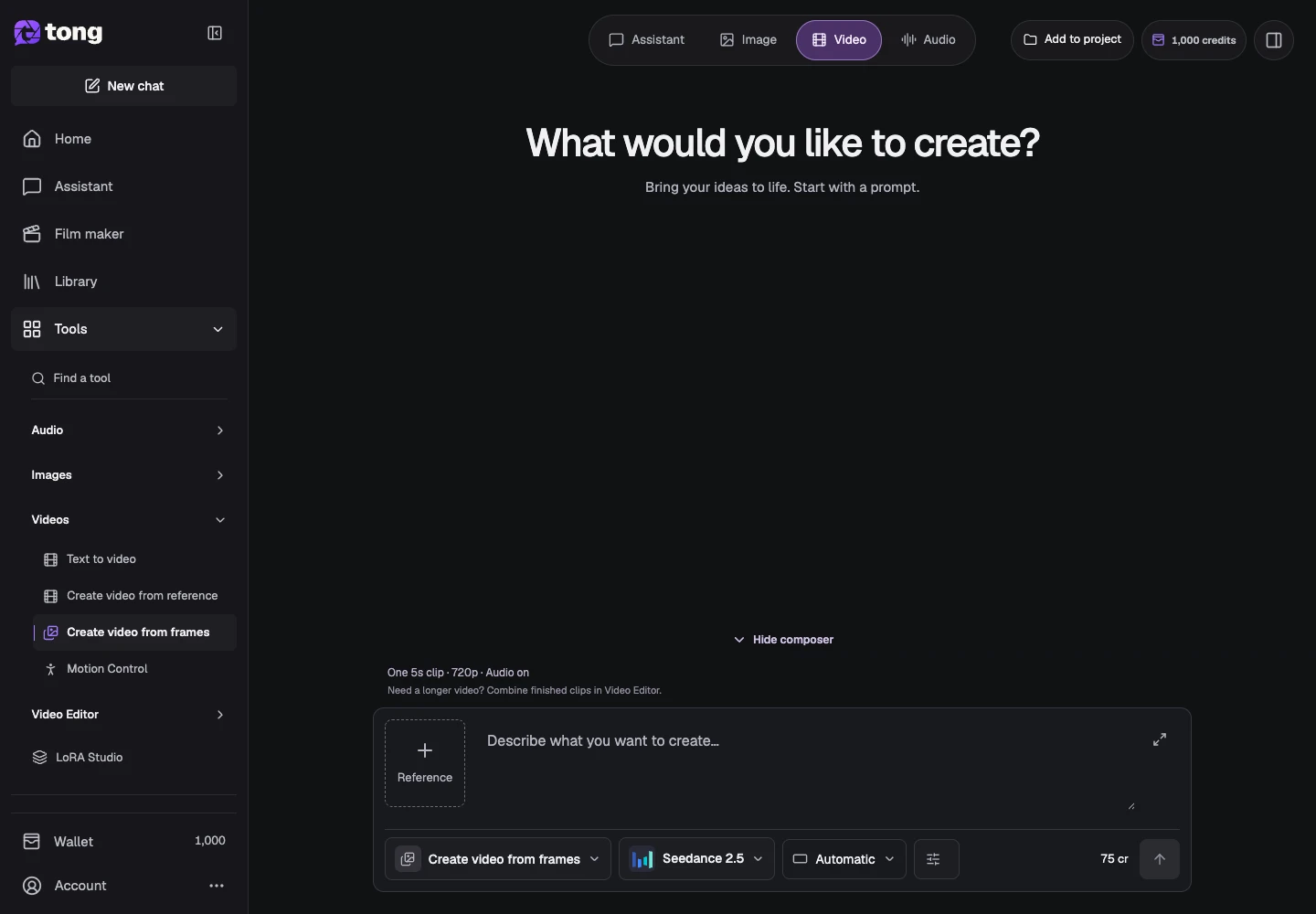
Open the frame inputs
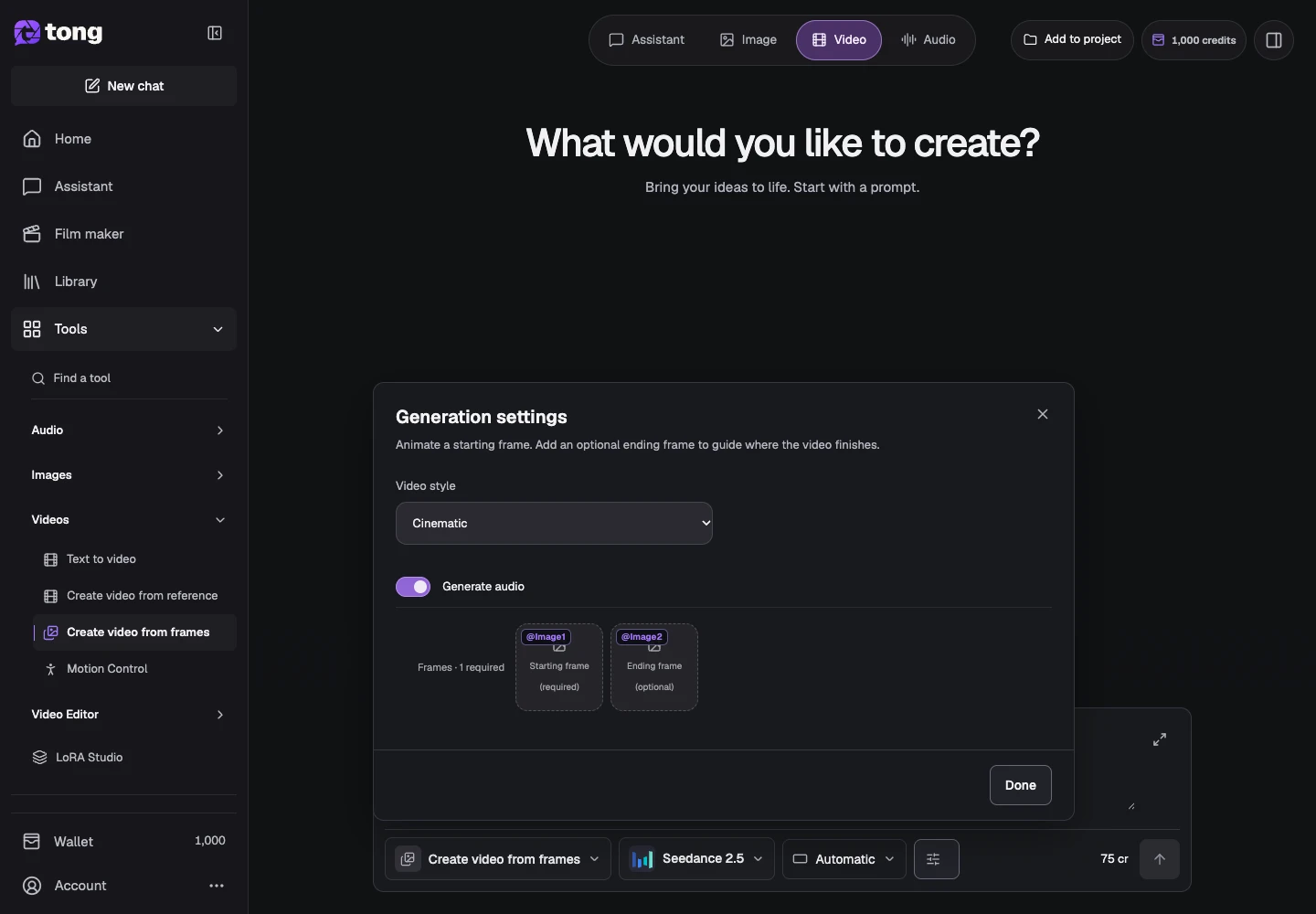
Open Settings to view the starting and ending frame controls. The starting image is required; the ending image is optional when the selected model supports that workflow.
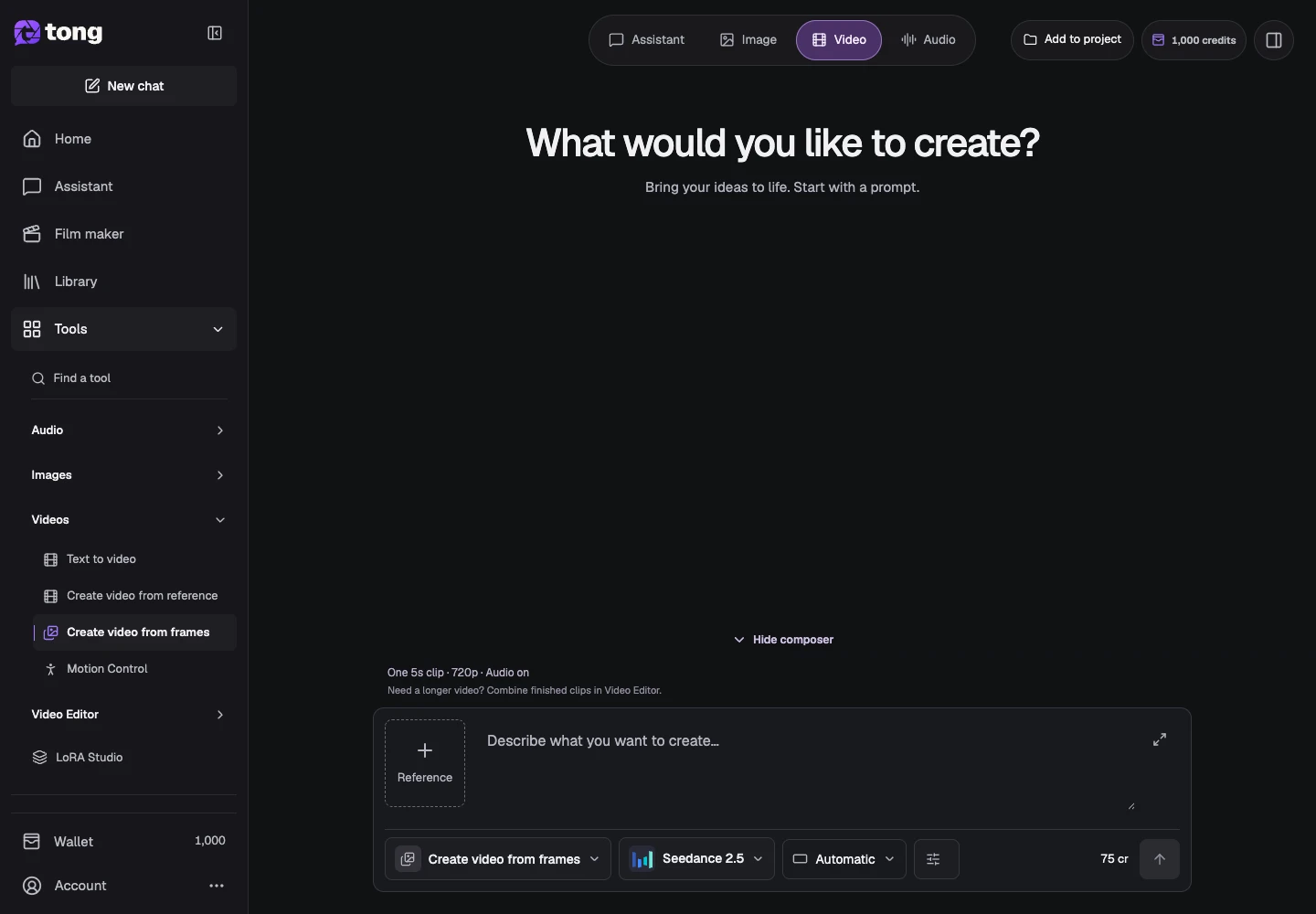
Assign the frames deliberately
Add the starting frame in its first slot and the ending frame in its optional slot. Check the order: swapping them changes what you are asking the motion to connect.
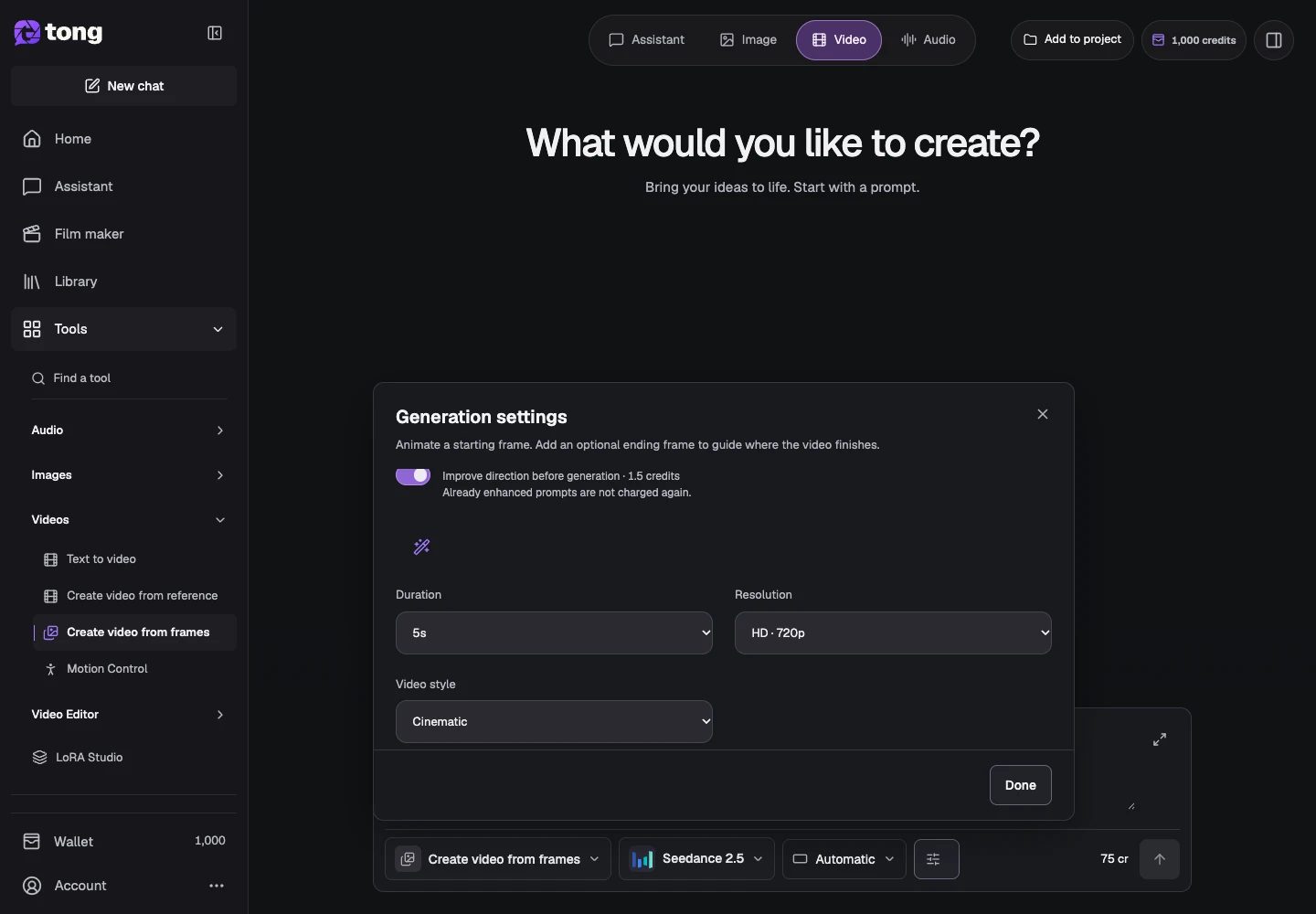
Choose style and describe the transition
Select a supported Video style, duration, ratio and resolution, then describe the movement that connects the two states. Use Done to return to the prompt.
Review the current price
Check the generated duration and credit total before sending. Inspect the clip's beginning, transition and ending rather than judging only its preview thumbnail.
A useful tip
Related endpoint images with compatible subjects and camera views are easier to connect than unrelated scenes.
If something goes wrong
If an ending-frame option is not supported, choose a compatible model or animate only the starting image. A transition request is guidance, not a guarantee of an exact final frame.
Read first, create when you’re ready
Reading this guide is free. The linked tool shows its own requirements and current credit price. Screenshots use demonstration data; review your own inputs and the quoted cost before submitting paid work.
Reviewed 2026-10-18 · Tong Academy