
Before you begin
Tool and model controls beside the prompt show the current selection. Select those names to open their menus.
- An eligible adult account and rights/consent for your reference media.
- Suitable character references and credits.
What you’ll achieve:
Model choices
For unrestricted scene creation, compare the compatible Less restrictive reference models. Keep who appears and what changes explicit, and review the model's reference support and current price before sending.
Choose the scene workflow
Open Recreate an image from Tools, then Images. Add scene images and shared character references in Settings, then choose a compatible Less restrictive model. Check the current requirements and linked Acceptable Use Policy before sending.
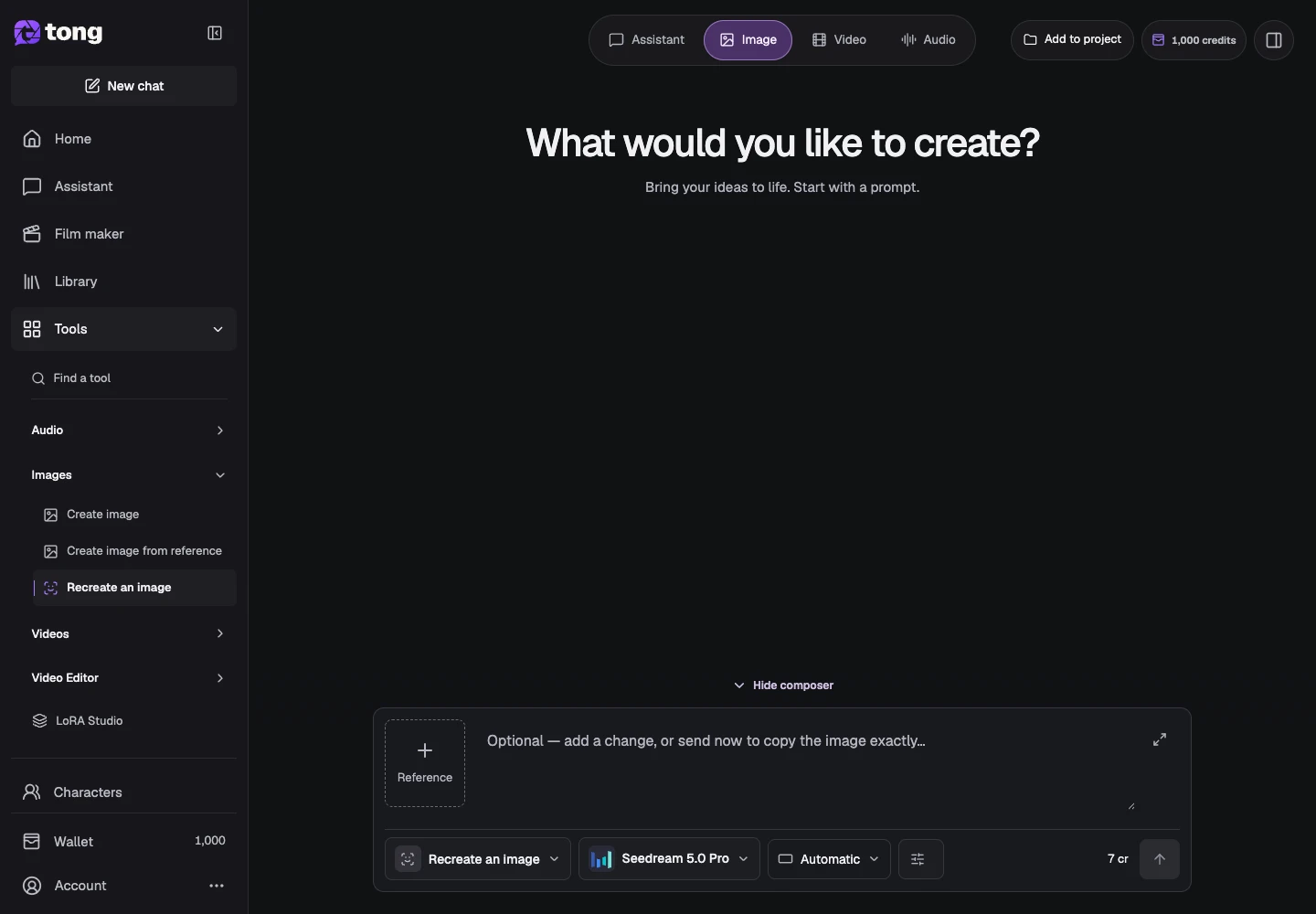
Open the scene references
Use Settings to inspect the required character reference slots. Different reference roles support different details; a generic image attachment is not necessarily a substitute.
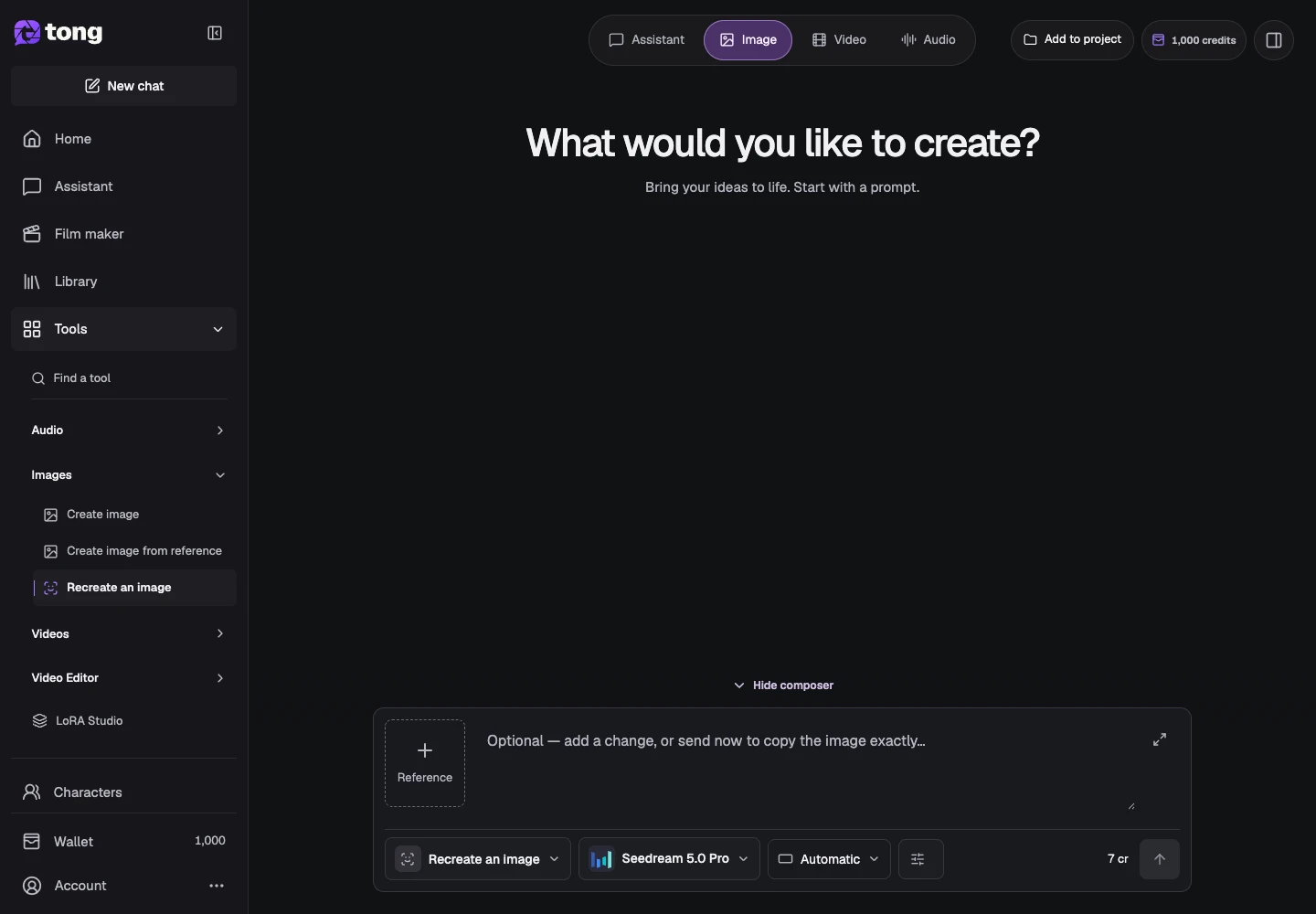
Assign consistent character context
Add the necessary saved reference images in their intended roles. Review the thumbnails and remove conflicting subjects before continuing.
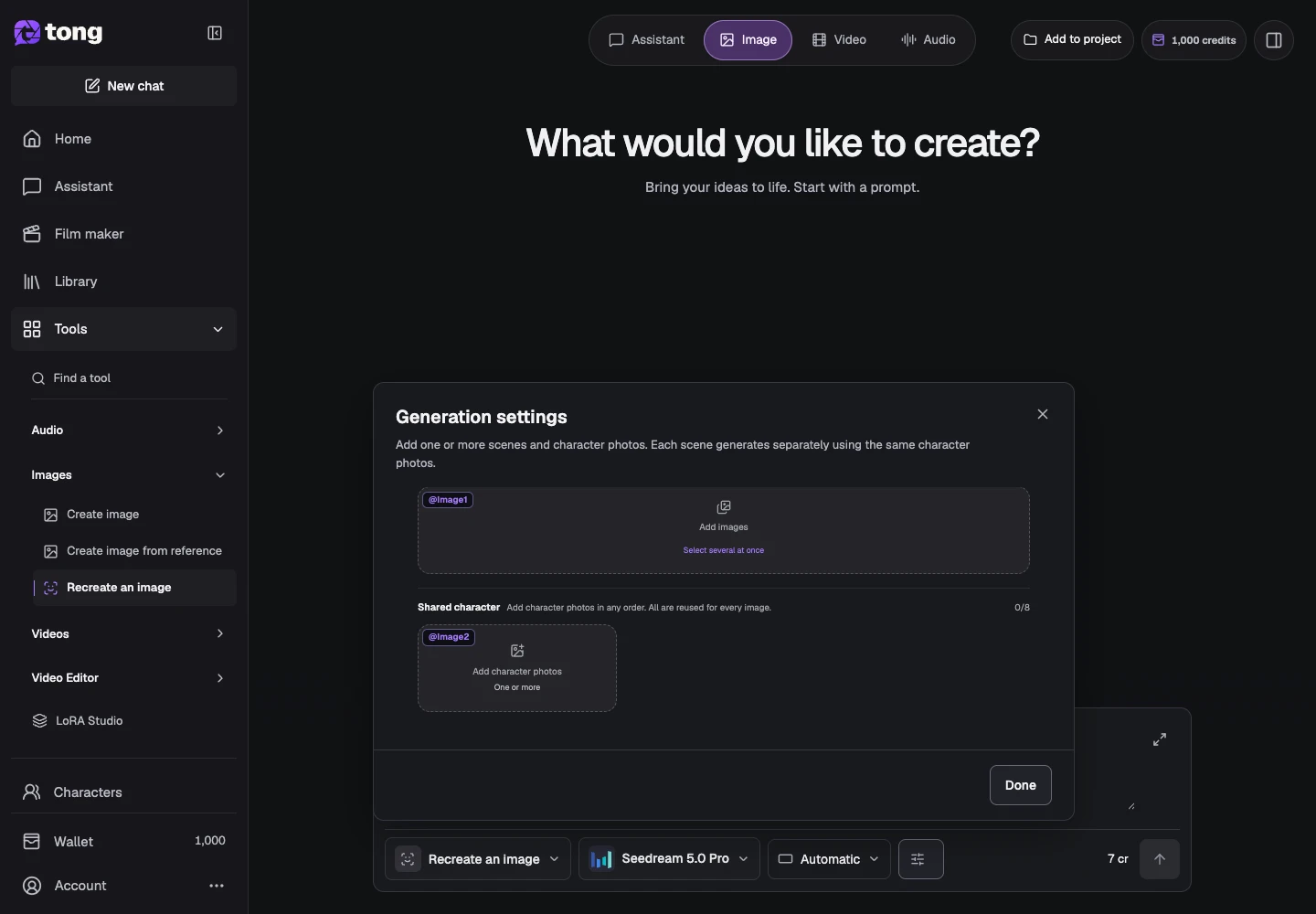
Describe the scene and check price
Write the intended composition and action within the applicable requirements, then use Done and review the current total before Send prompt. Keep the saved result and source references for future corrections.
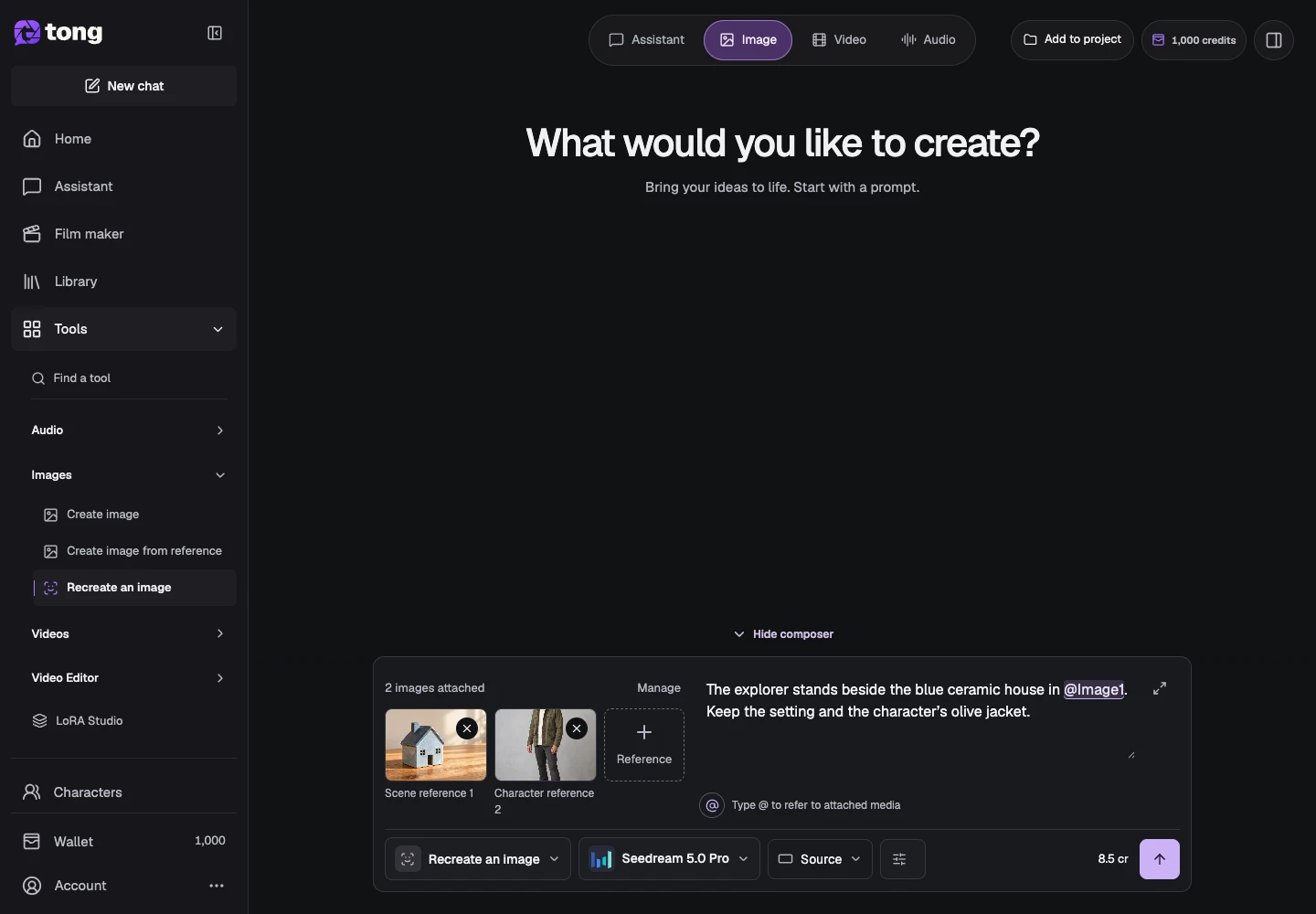
A useful tip
Reference requirements, provider policies and available model choices remain visible in the actual tool; check them for the current request.
If something goes wrong
If the action is disabled, inspect the missing-input message and required roles. Do not replace required source references with unsupported media just to enable the button.
Read first, create when you’re ready
Reading this guide is free. The linked tool shows its own requirements and current credit price. Screenshots use demonstration data; review your own inputs and the quoted cost before submitting paid work.
Reviewed 2026-10-18 · Tong Academy