
Before you begin
Tool and model controls beside the prompt show the current selection. Select those names to open their menus.
- A saved character profile or ready reference images.
- A workflow and model that support those references.
What you’ll achieve:
Model choices
For unrestricted character-reference creation, choose a compatible Less restrictive model before attaching your references. Reusing a profile does not guarantee identical faces or change the destination model's moderation category.
Choose the matching workflow
Open Recreate an image for a scene recreation, or the reference-video tool for movement. Do not attach a character photo to a text-only tool and assume it will be used.
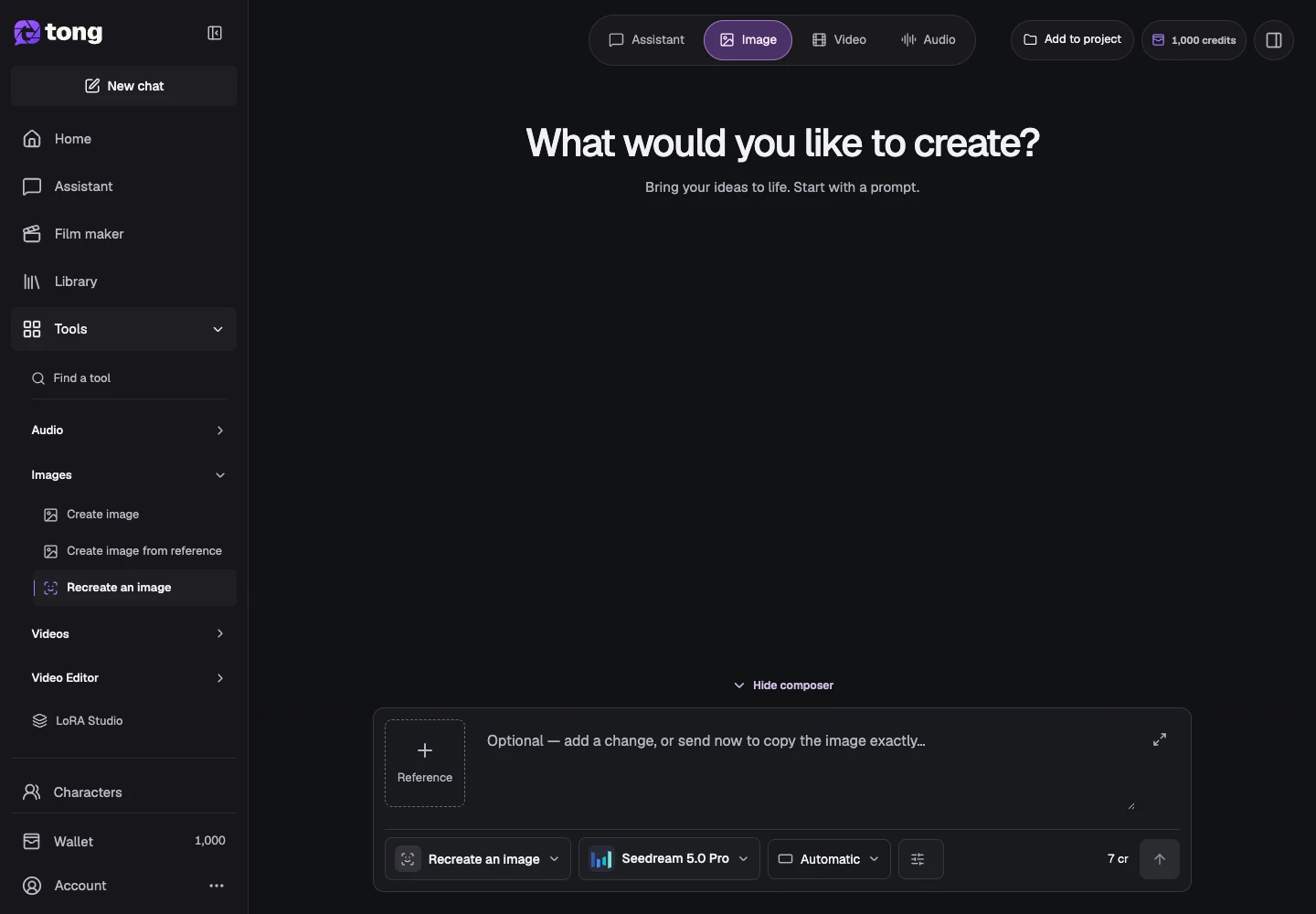
Open the character input controls
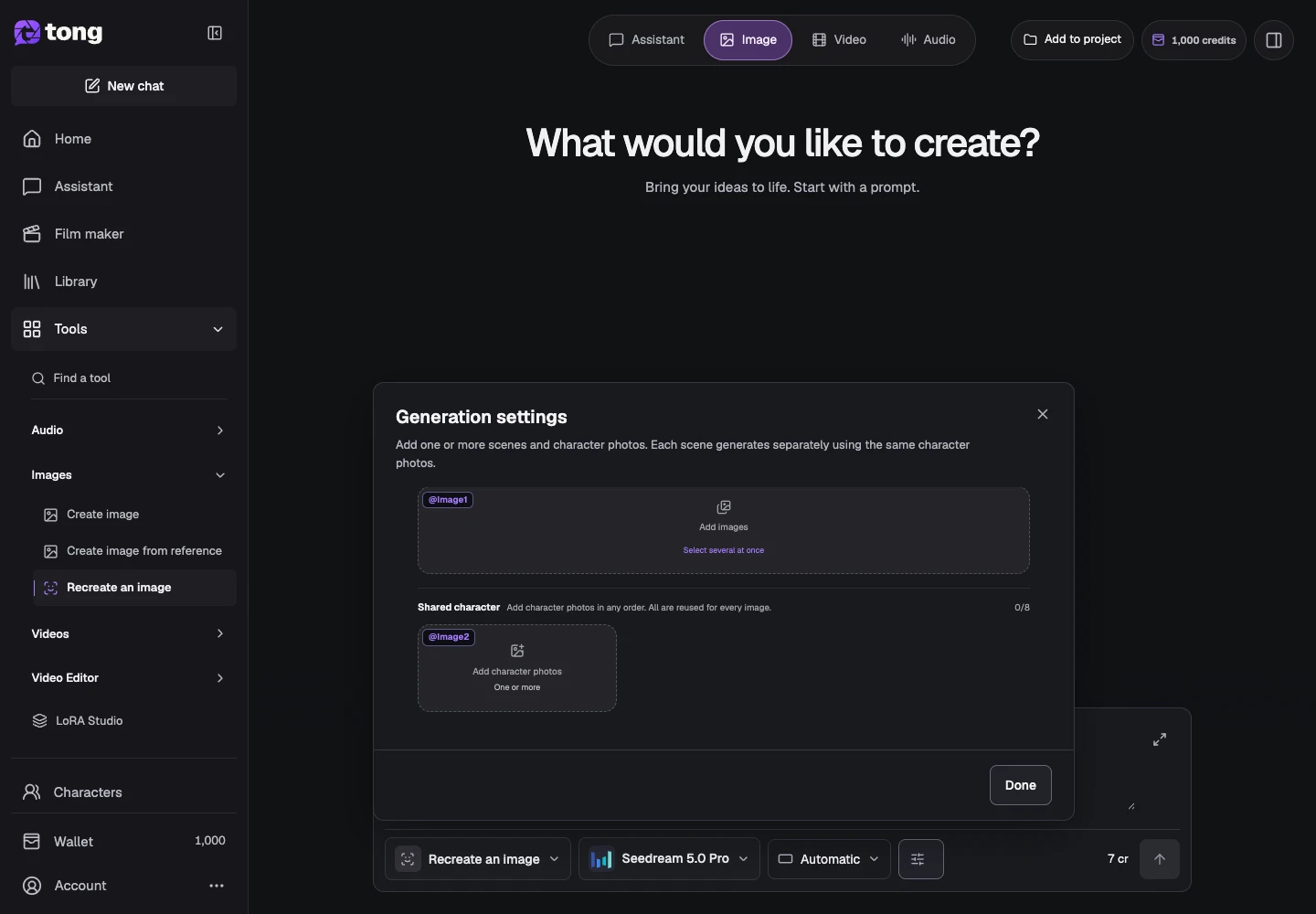
Use Settings to see the character/reference requirements for the current workflow. Select a saved character when that selector is available, or add its saved images in the correct roles.
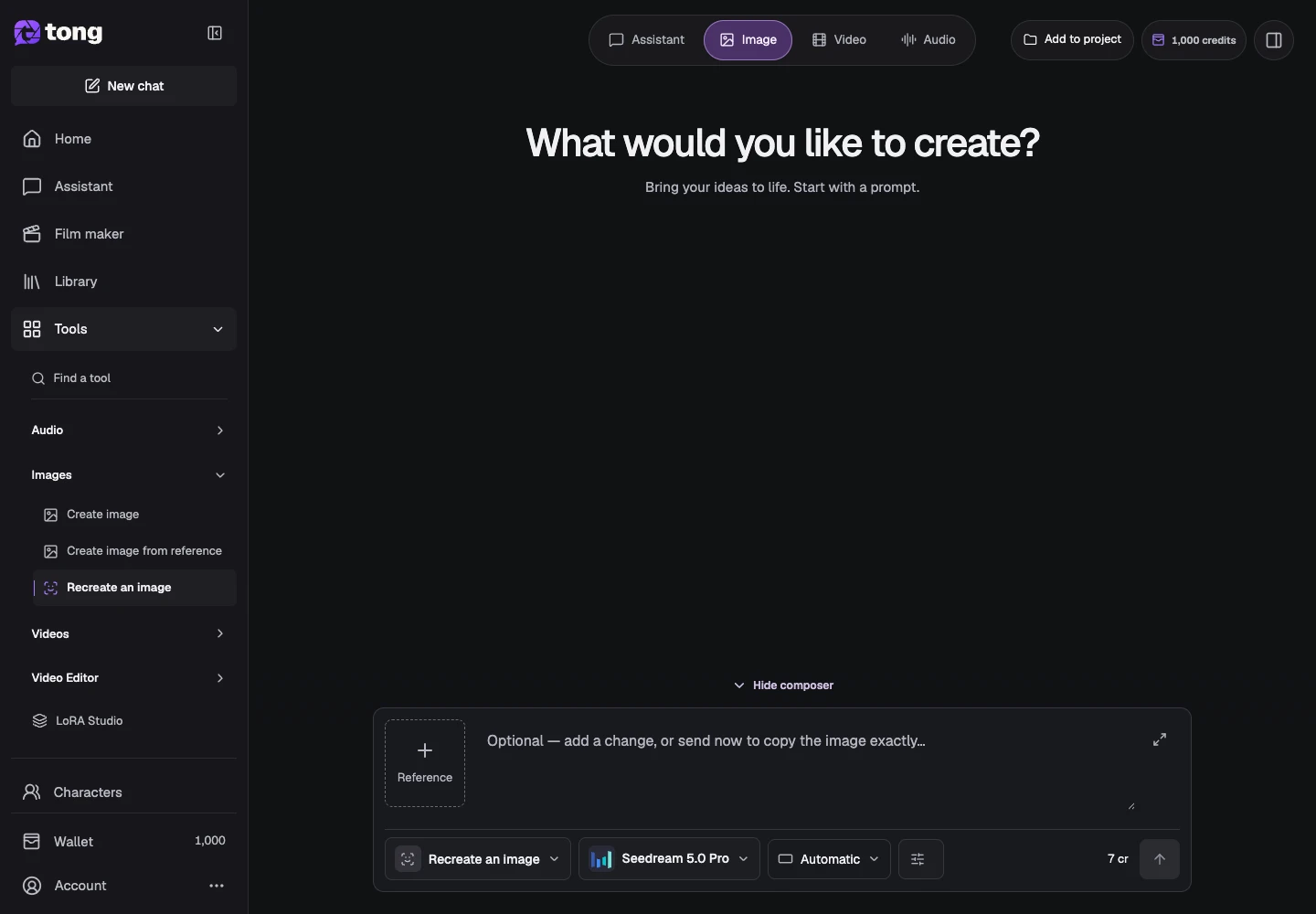
Review the assigned references
Check the scene images and Shared character references independently. Use images with a consistent appearance and remove references that describe a different subject.
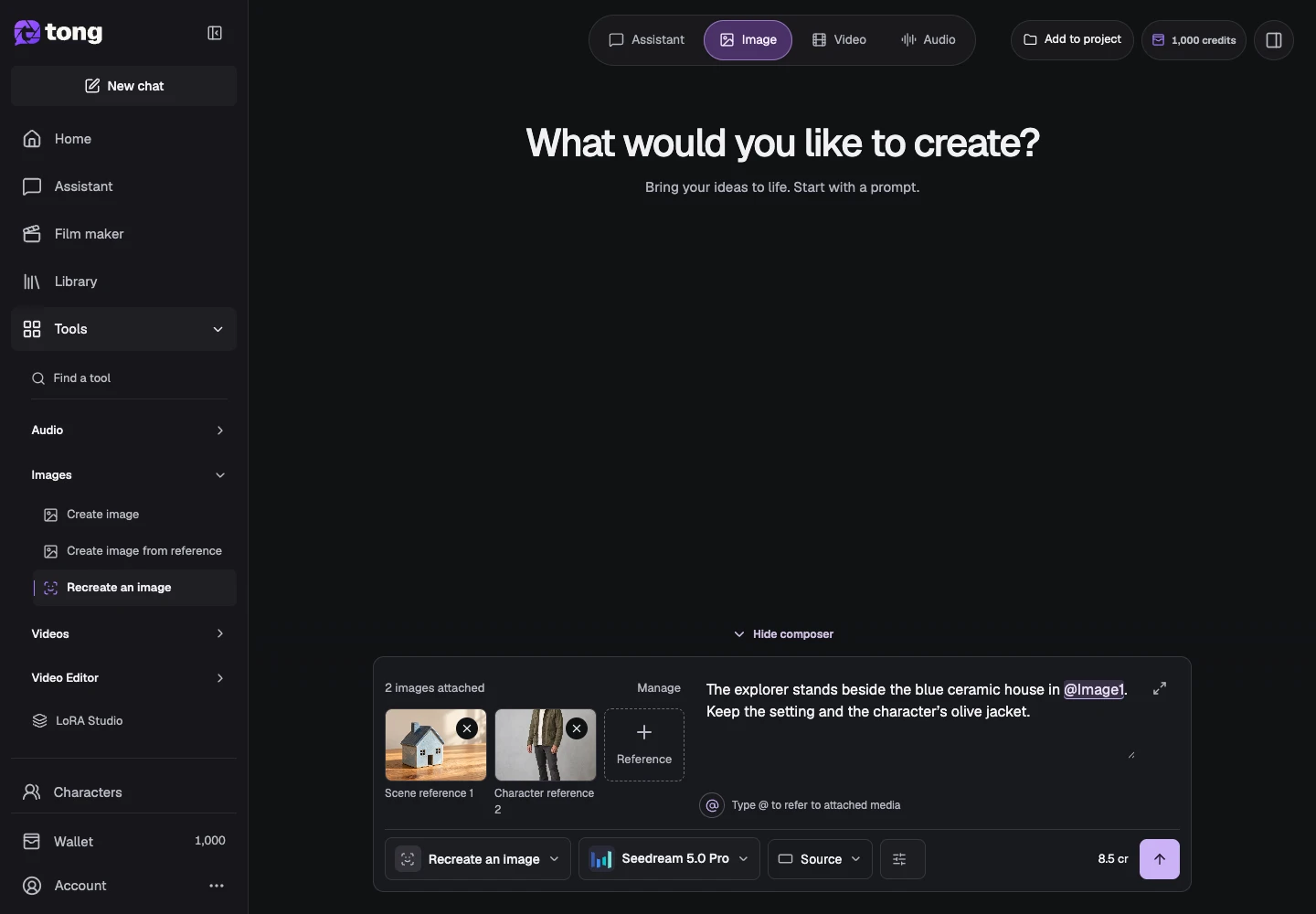
Write scene-specific direction
Describe what happens in the new scene while keeping the character's important traits clear. Review inputs and the current price before sending a new request.
A useful tip
Reuse saved asset references when possible instead of paying to regenerate a portrait just to attach it again.
If something goes wrong
If a result's identity drifts, compare the references and prompt for conflicting appearances. Continuity is model-dependent; inspect each scene instead of treating references as a guarantee.
Read first, create when you’re ready
Reading this guide is free. The linked tool shows its own requirements and current credit price. Screenshots use demonstration data; review your own inputs and the quoted cost before submitting paid work.
Reviewed 2026-10-18 · Tong Academy