
Before you begin
- Character images you have permission to use.
- A signed-in account.
What you’ll achieve:
Model choices
A saved character can supply references to an unrestricted AI image or video workflow when the destination has a compatible Less restrictive model. Saving the profile organizes your references; the generation model determines the output and policy.
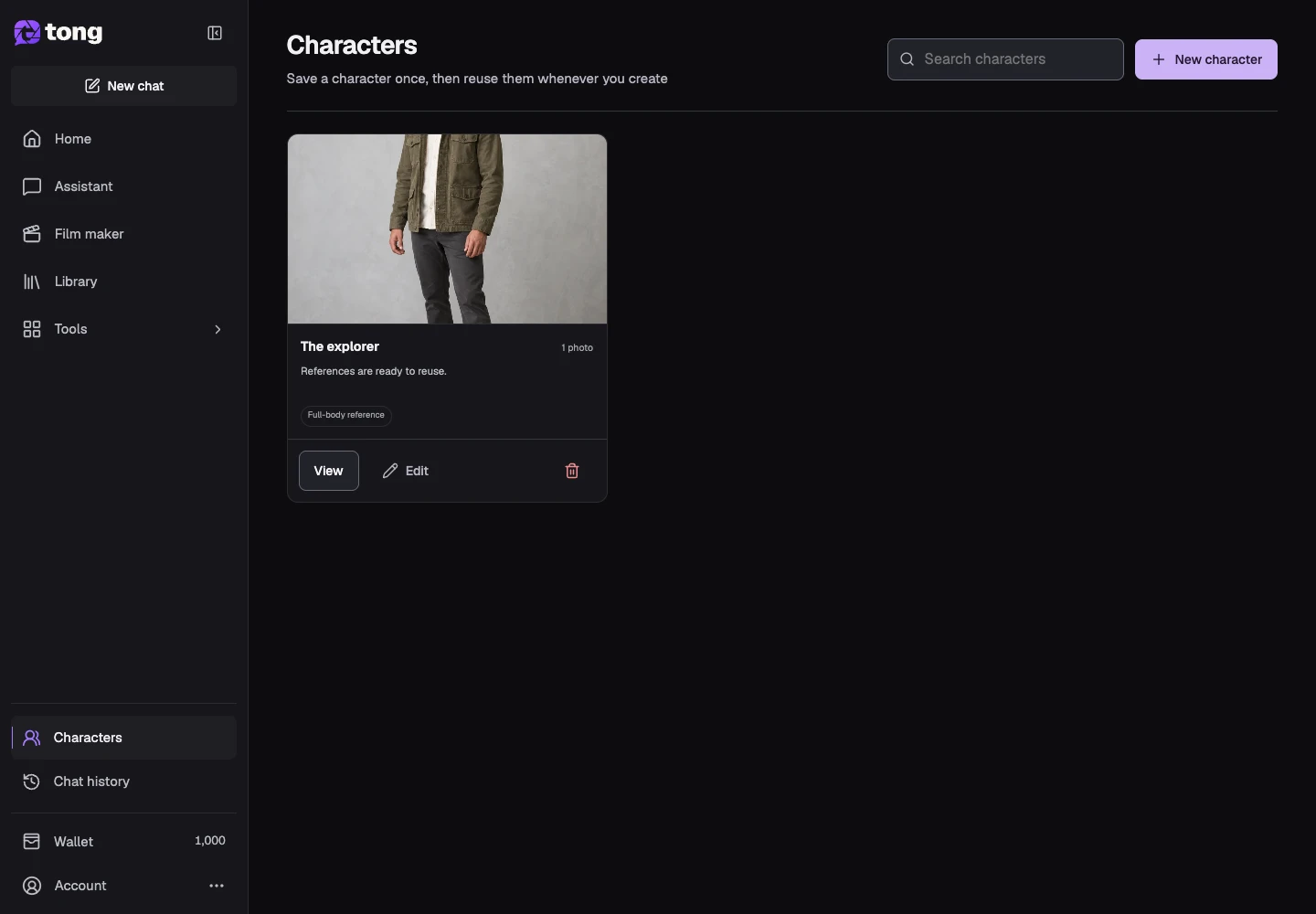
Open Characters
Select Characters under Your workspace. Character profiles organize saved reference media; they are separate from your public account profile.
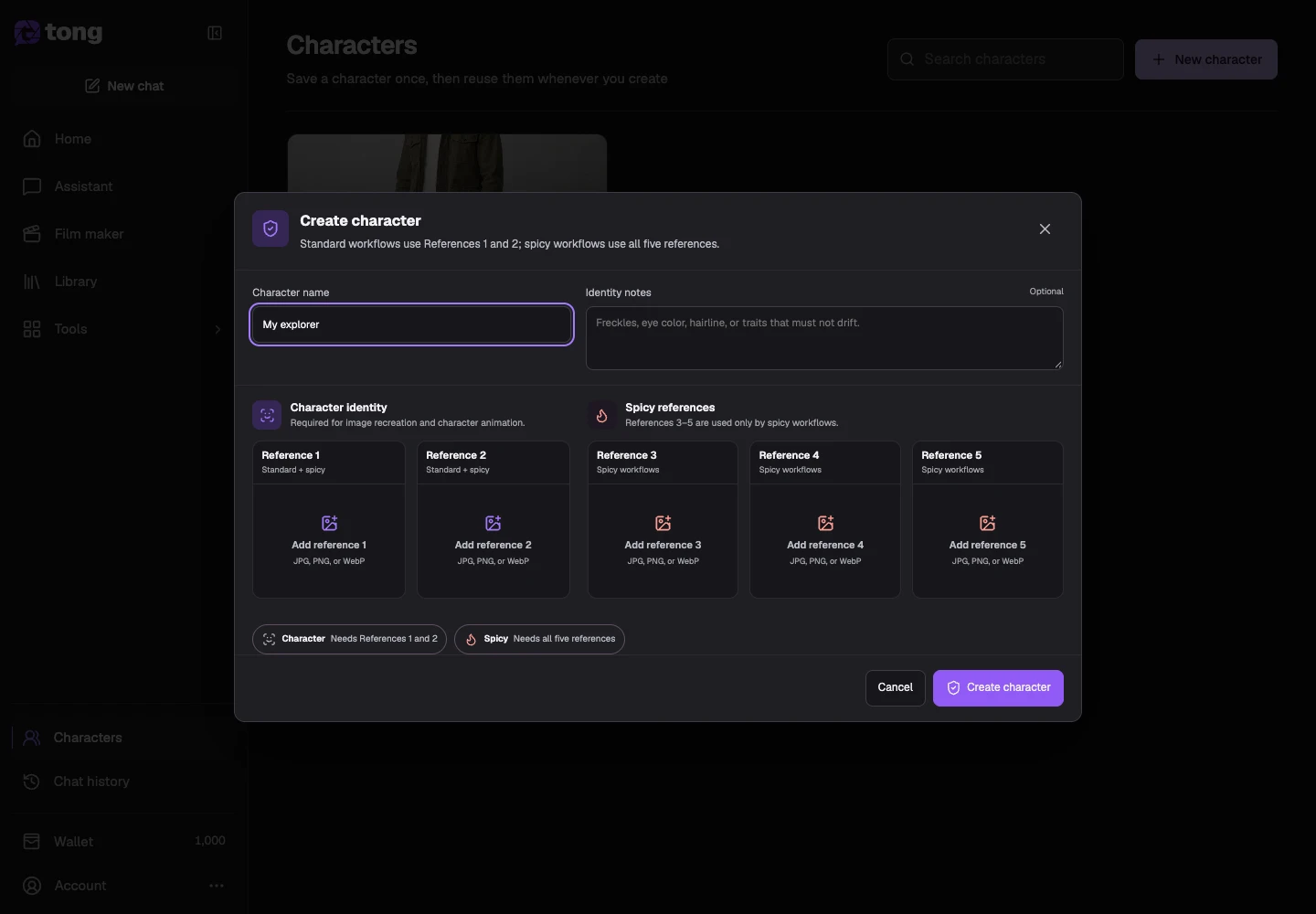
Name the character
Use the new-character action and enter a recognizable name. Add identity notes that describe the appearance details you want to keep in mind.
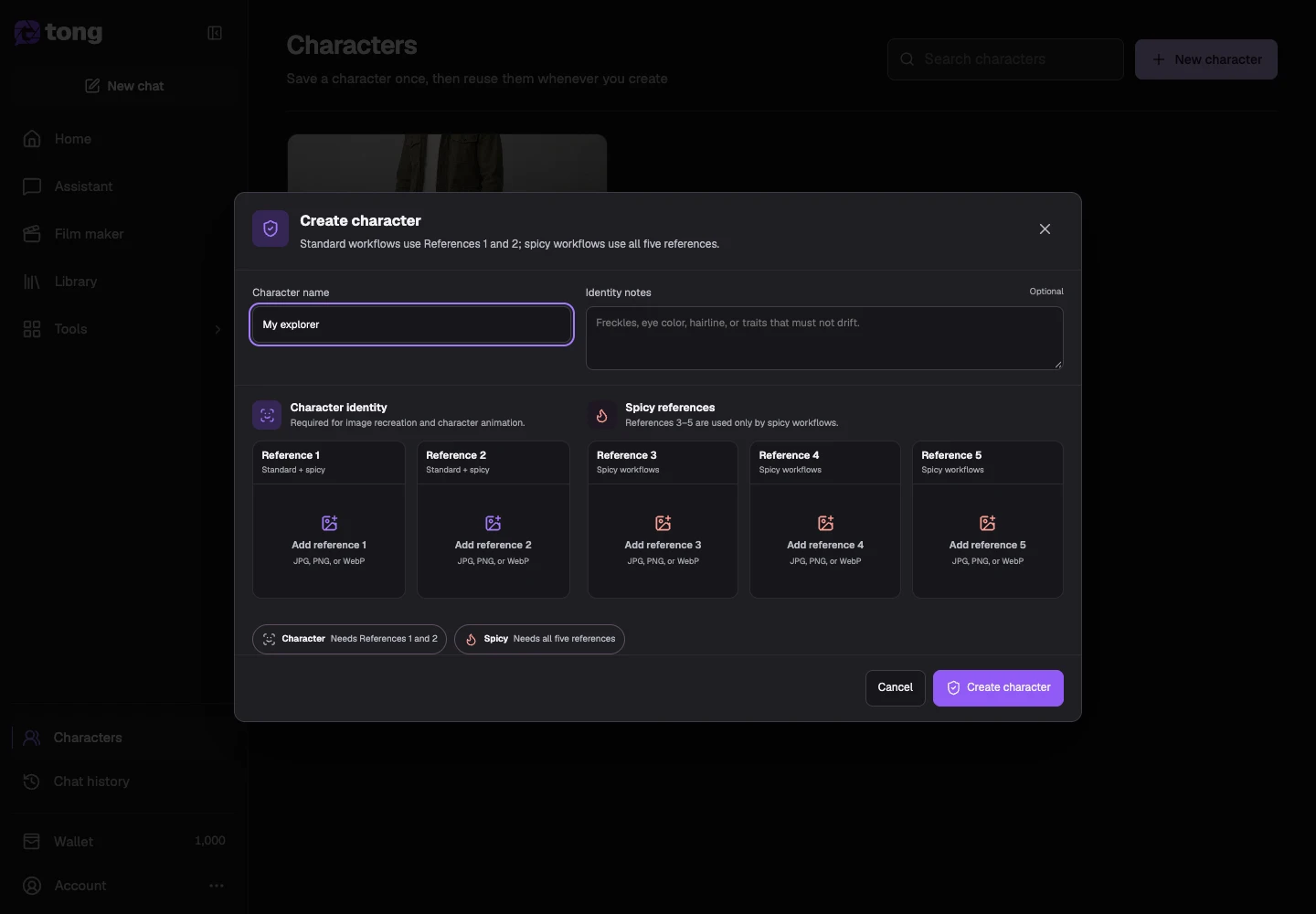
Assign reference images
Use the reference slots in the profile dialog to add the available images. Choose clear face/body views and avoid mixing conflicting appearances. Optional extra reference roles depend on the intended workflow.
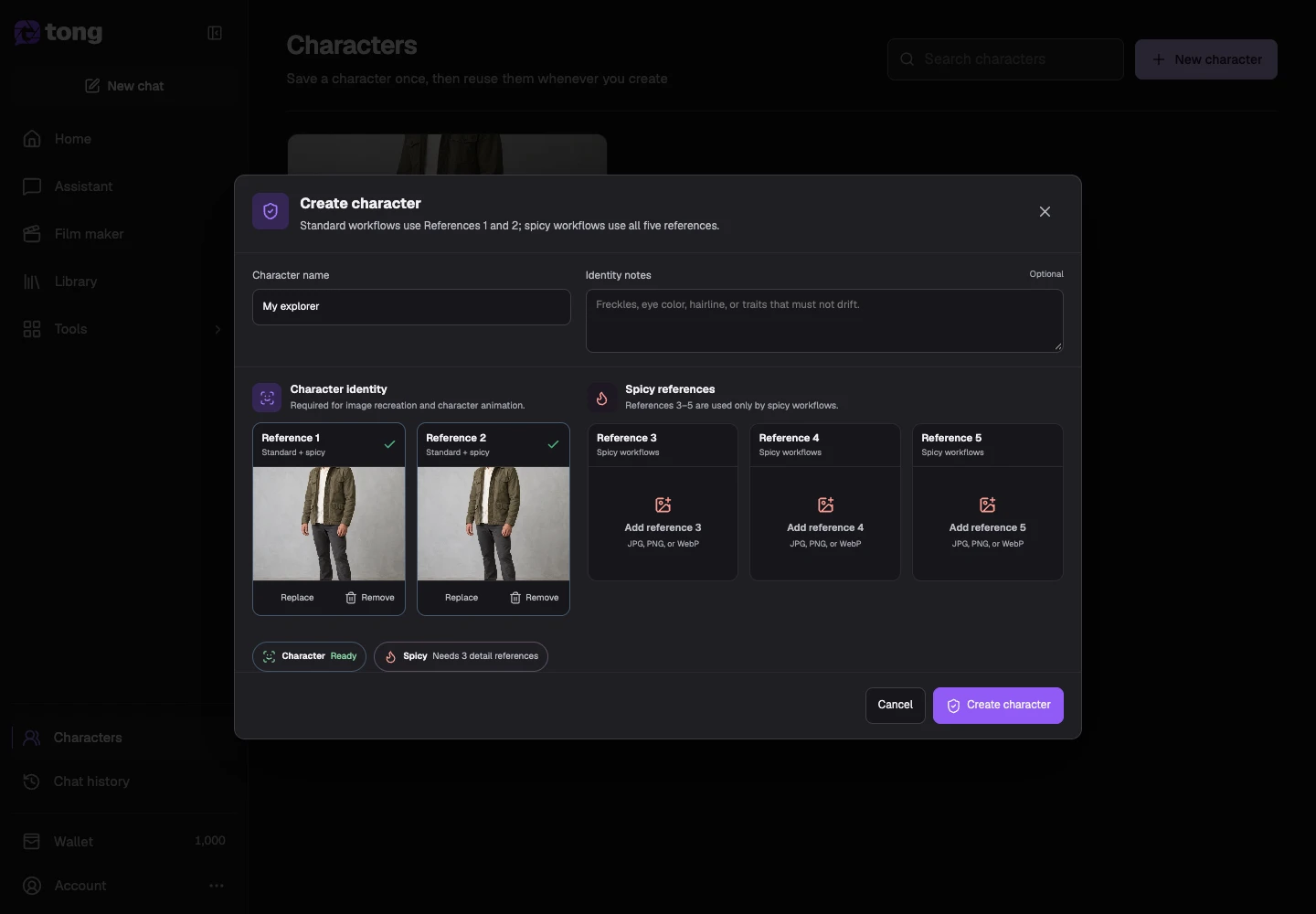
Save the profile
Review the name and references, then save. Open the profile again to confirm the references are available before using it in a creation tool.
A useful tip
A short descriptive name helps you distinguish the same character from a different model or style experiment.
If something goes wrong
If a required reference is unavailable, replace it or upload it again before using the profile. Saving reference media guides future requests but does not guarantee exact identity consistency.
Read first, create when you’re ready
Reading this guide is free. The linked tool shows its own requirements and current credit price. Screenshots use demonstration data; review your own inputs and the quoted cost before submitting paid work.
Reviewed 2026-10-18 · Tong Academy