
Before you begin
- A signed-in account with available credits.
- A story brief, script or saved film conversation.
What you’ll achieve:
Model choices
Settings lets you choose image and video models for this conversation. Default follows Tong’s current defaults. Model capabilities, content policies and prices still apply, including for unrestricted workflows.
Add your character references
Use Add references to upload portraits or choose saved media. Tell Film maker each character’s name and the appearance details you want to preserve.
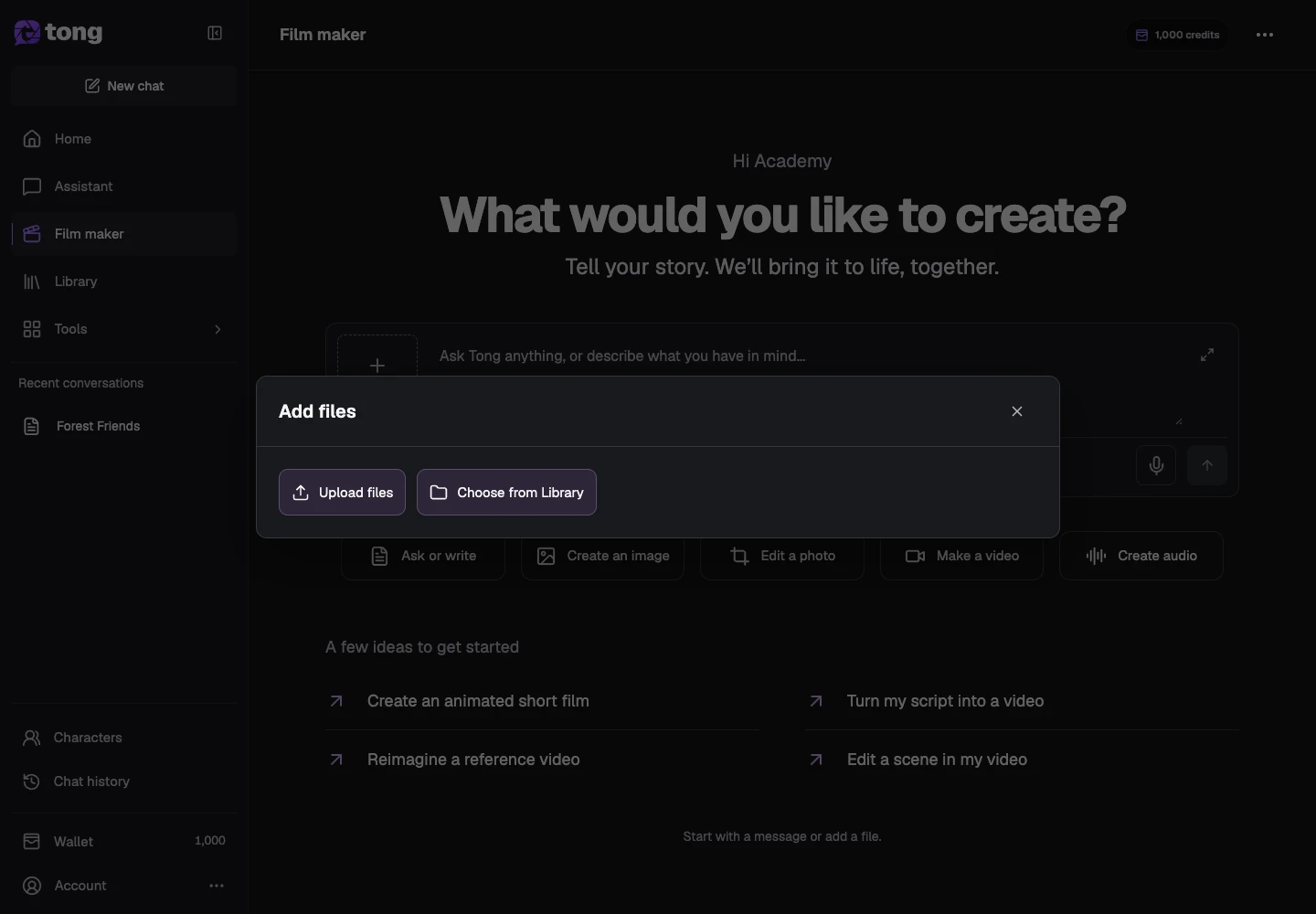
Describe the cast in chat
Ask Film maker to prepare the recurring cast from your script. Say which scenes include each person; a saved reference does not imply that everyone appears in every scene.
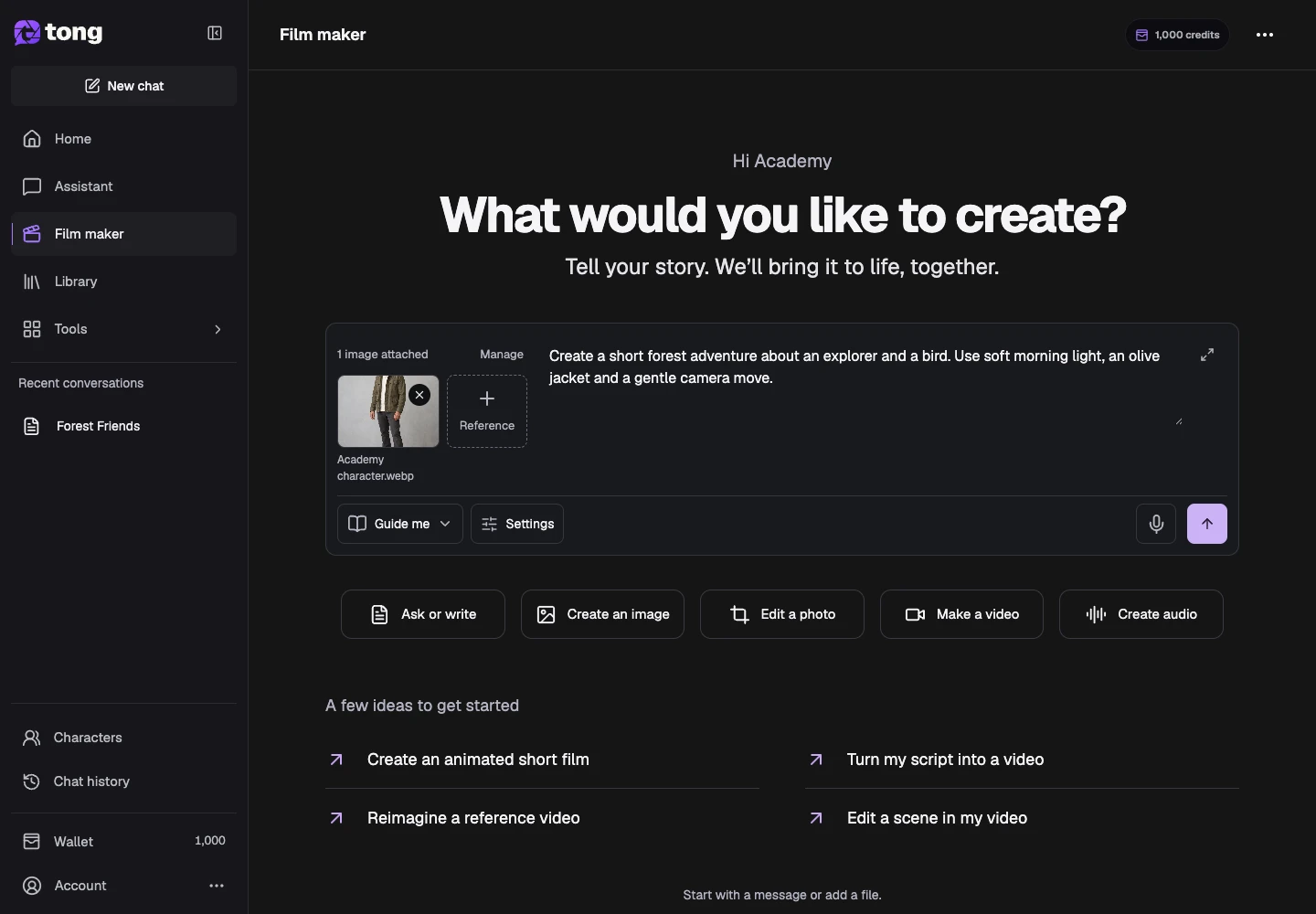
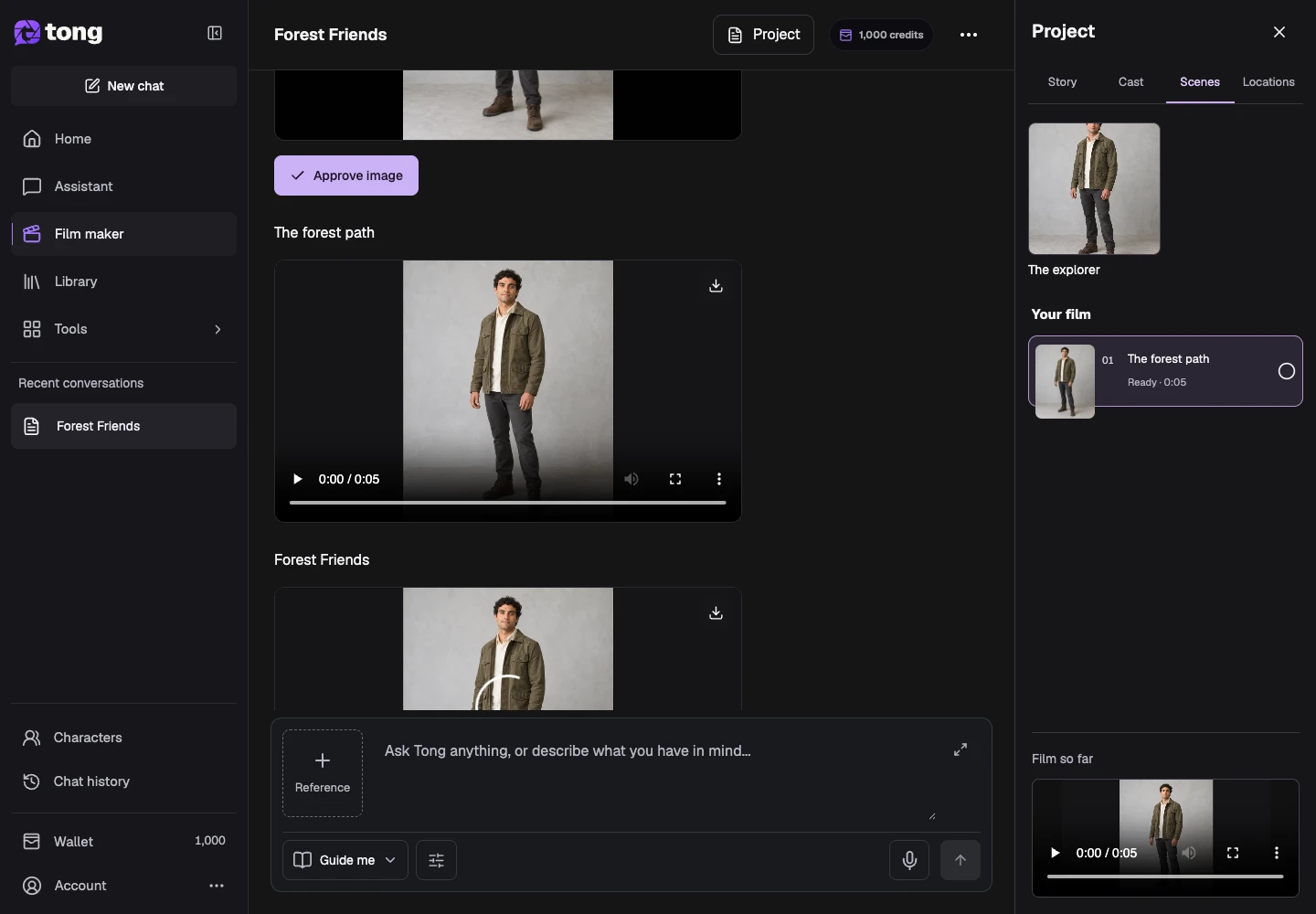
Review the characters
Open Project (View project on phones) to inspect the cast and scene summary. Ask for a focused portrait correction in chat and review the new output when it is ready.
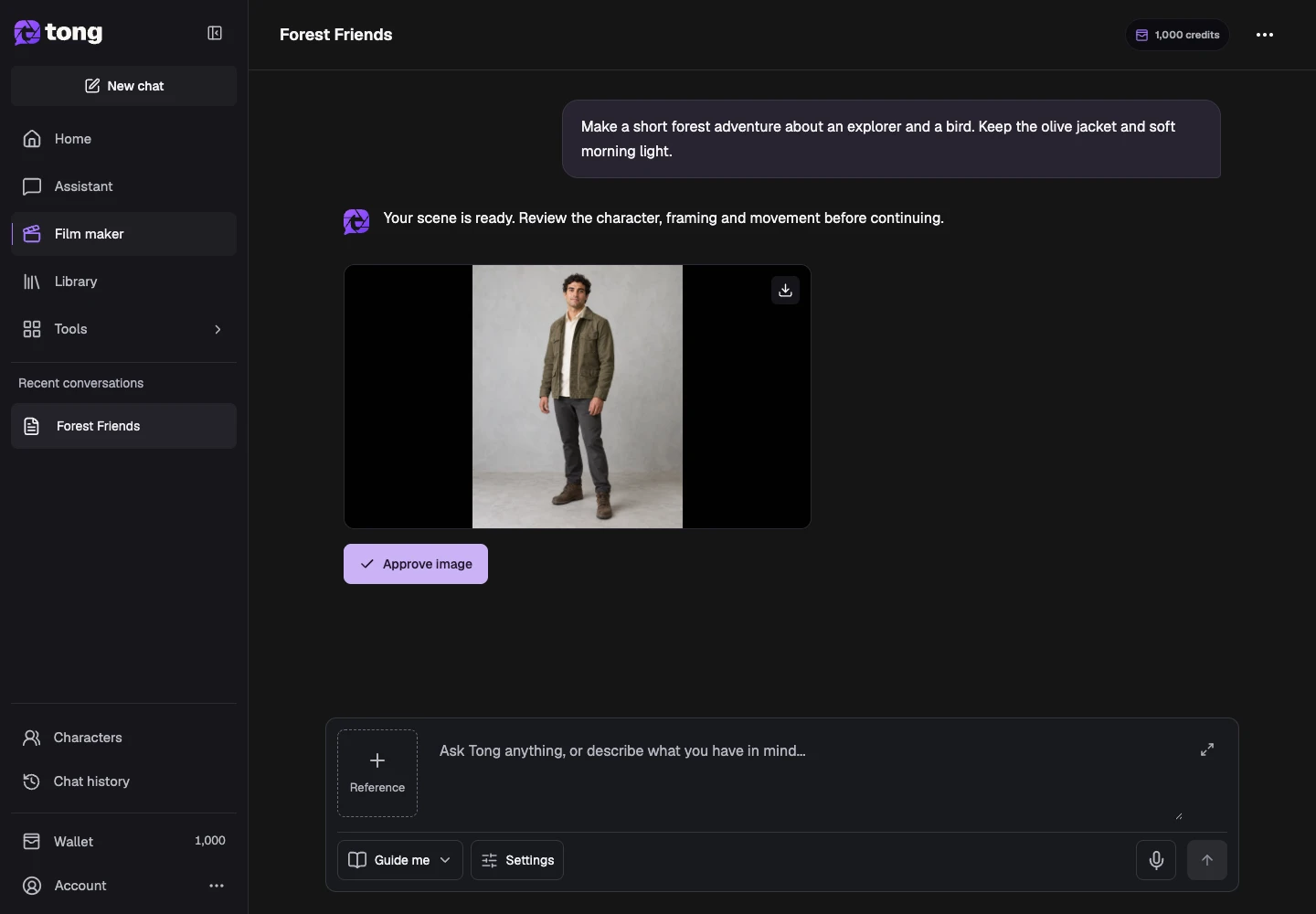
Approve the intended portrait
Inspect the portrait and approve that result in guided mode. Keep earlier outputs; ask in chat to reuse a specific portrait for later scenes.
A useful tip
Clear portraits and explicit names help distinguish characters. Reference guidance cannot guarantee identical appearance in every generated frame.
If something goes wrong
Reopen the saved conversation and read its status before sending again. Let active work finish; an unavailable preview or connection does not mean a new generation is needed.
Read first, create when you’re ready
Reading this guide is free. Assistant and Film maker use credits as they work and pause when your balance is insufficient. Guide me pauses for creative review; Just make it continues automatically.
Reviewed 2026-10-18 · Tong Academy