
Before you begin
Tool and model controls beside the prompt show the current selection. Select those names to open their menus.
- A signed-in account and available credits.
- A written description; a reference image is not required for this tool.
What you’ll achieve:
Model choices
To explore unrestricted AI image generation, open Change model and choose from Less restrictive. Compare its supported formats and price before sending. Switching to a Moderated model changes the model policy as well as its image capabilities.
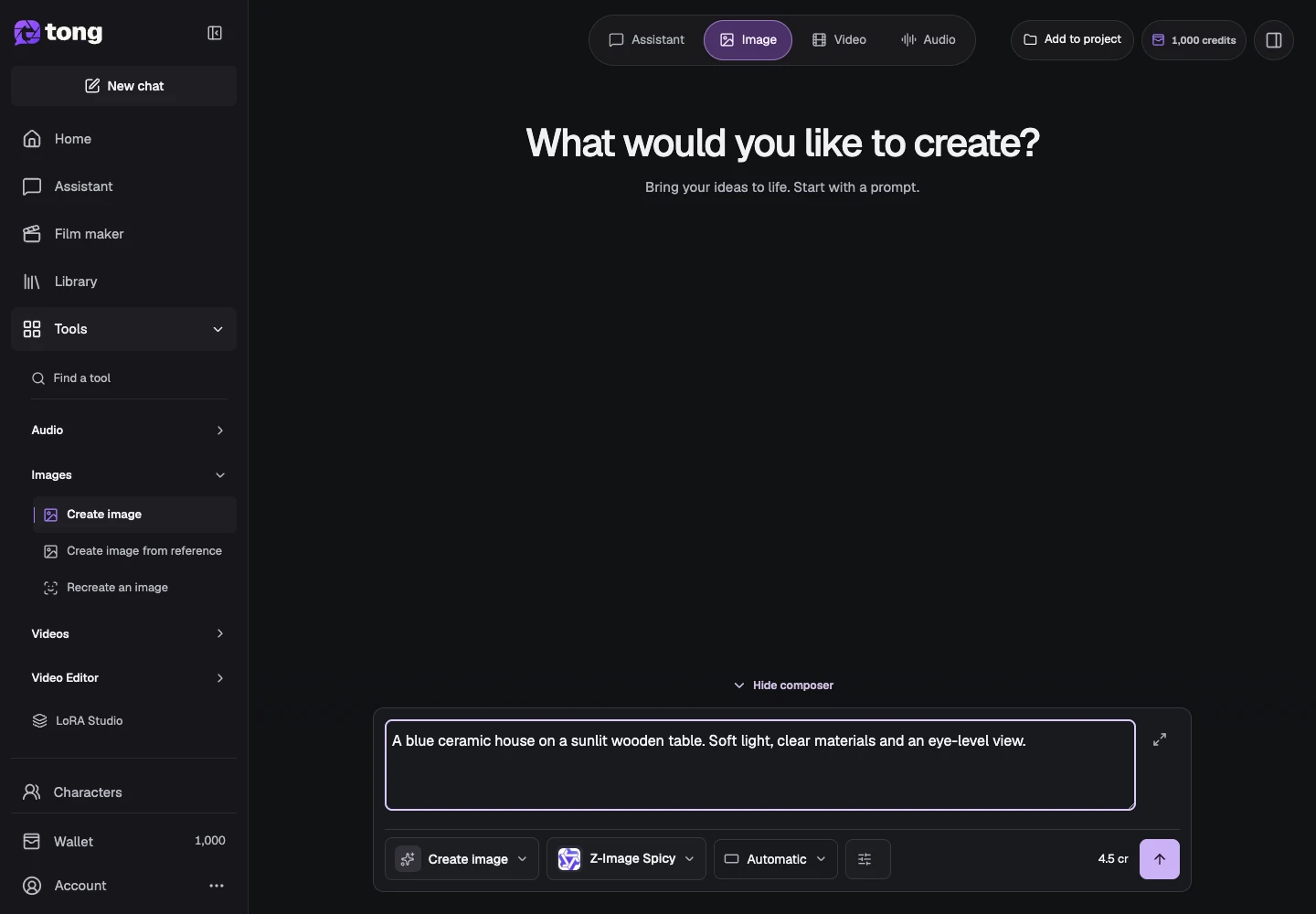
Choose Create image
Open Create image from the Images group or Change tool. Check the active tool label before entering your prompt so you do not accidentally start a reference-edit workflow.
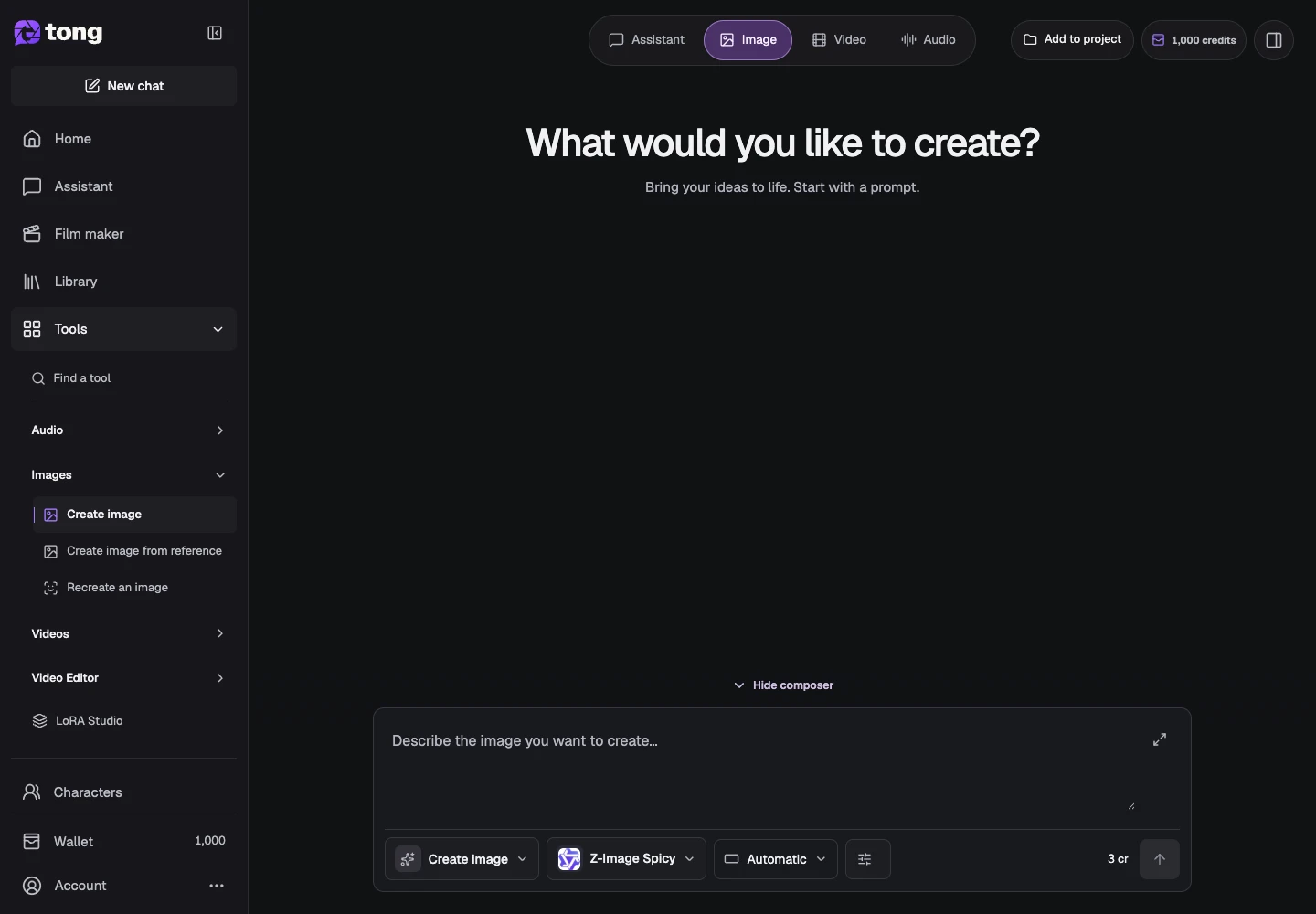
Describe the image
Write the subject, composition, environment and light in the prompt field. A useful example is: a blue ceramic house on a pale wooden table, soft afternoon light, eye-level view.
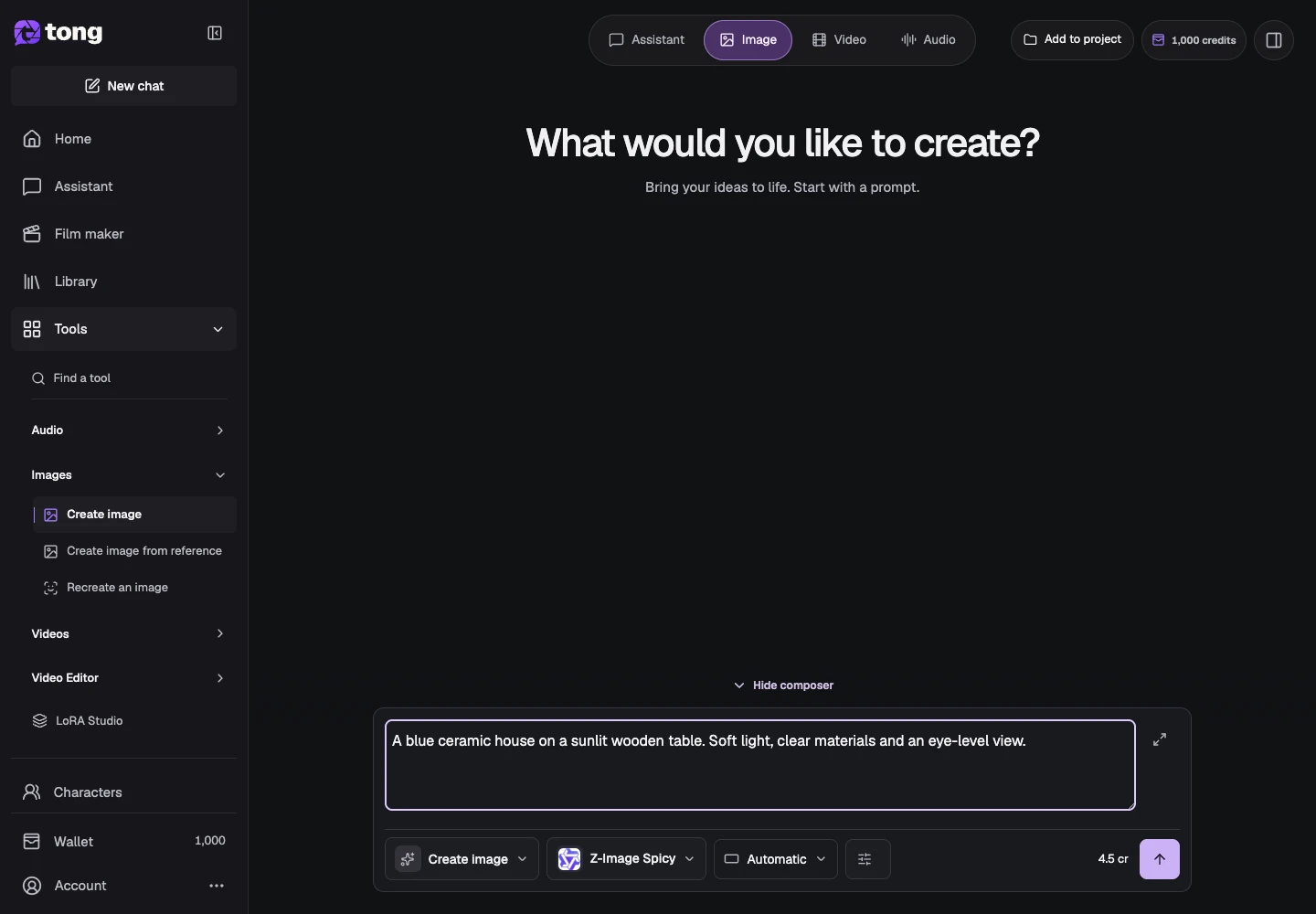
Choose the image model
Use Change model to compare the current image choices. Select one that suits your intended image and check the price shown for that model.
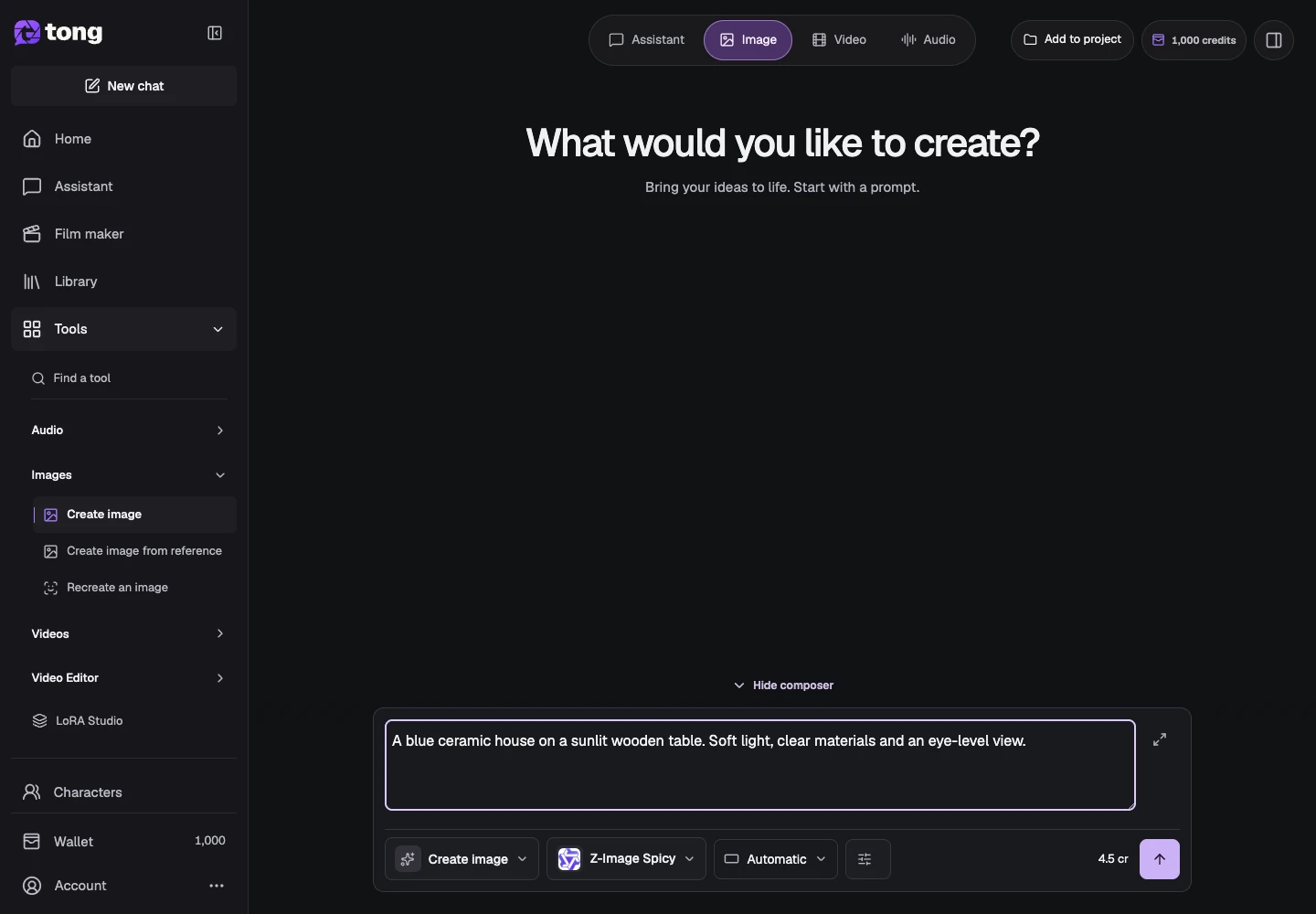
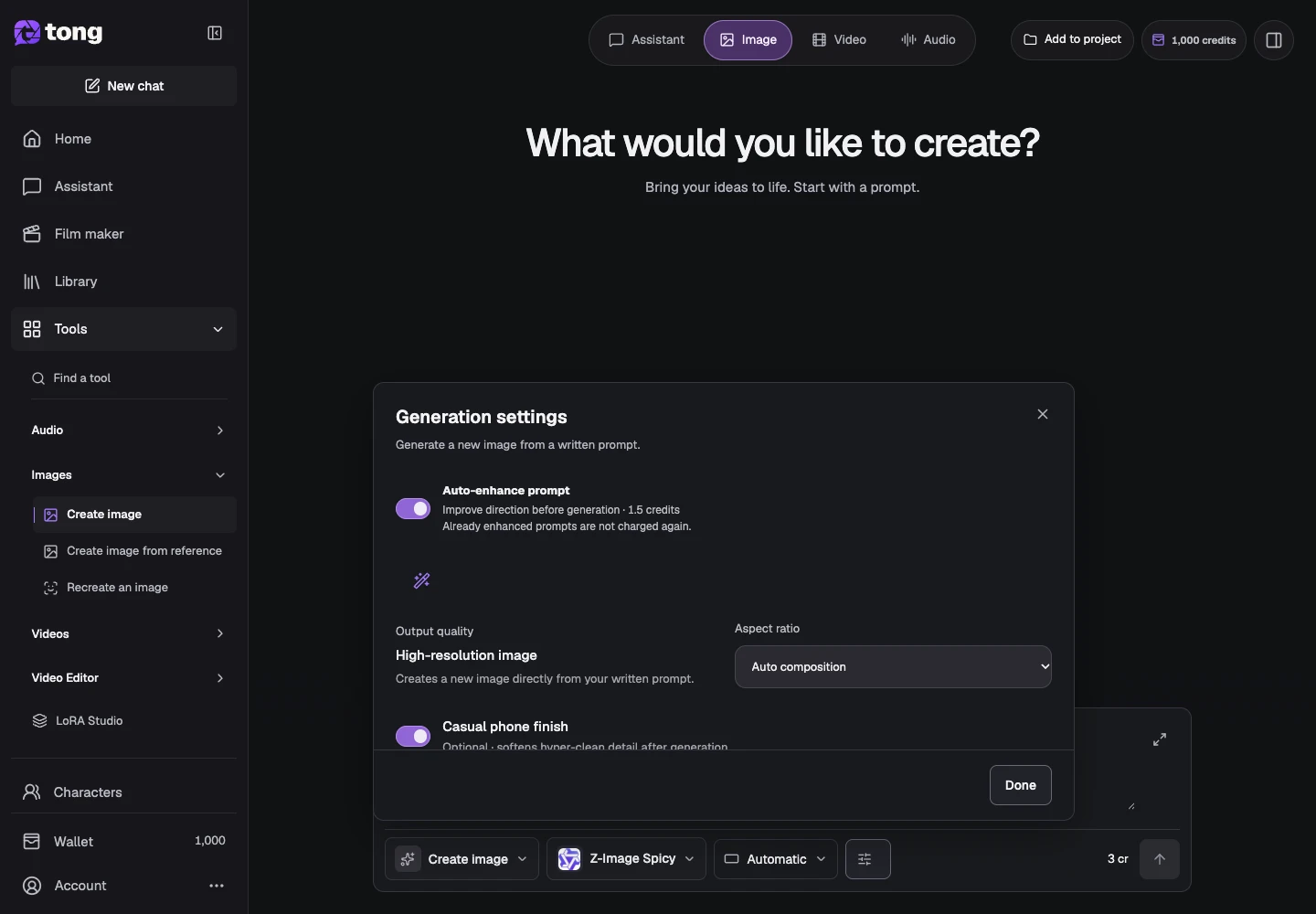
Set the image format
Open Settings and select a supported aspect ratio and any relevant image options. Keep optional controls at their defaults until you have a reason to change them, then select Done.
Check the price and send
Review the visible credit price and the final prompt, then select Send prompt when ready. Wait for the result rather than sending the same request repeatedly. Open the image to inspect it and save/download it from the result or Library.
A useful tip
For a product photo, specify the material, shape, surface, light and camera view. Brand lettering can require additional editing and should be checked carefully.
If something goes wrong
If the output misses a detail, make a specific new request or use the reference-edit tool on the saved result. If generation fails, inspect its saved status and recovery action before resubmitting.
Read first, create when you’re ready
Reading this guide is free. The linked tool shows its own requirements and current credit price. Screenshots use demonstration data; review your own inputs and the quoted cost before submitting paid work.
Reviewed 2026-10-18 · Tong Academy