

Before you begin
Tool and model controls beside the prompt show the current selection. Select those names to open their menus.
- A supported source image you have permission to use.
- A signed-in account and credits.
What you’ll achieve:
Model choices
For unrestricted AI image editing, compare compatible Less restrictive reference-edit models. Choose a model that supports your image and intended change; an unrestricted text-to-image model is not automatically an image editor.
Choose the reference-image tool
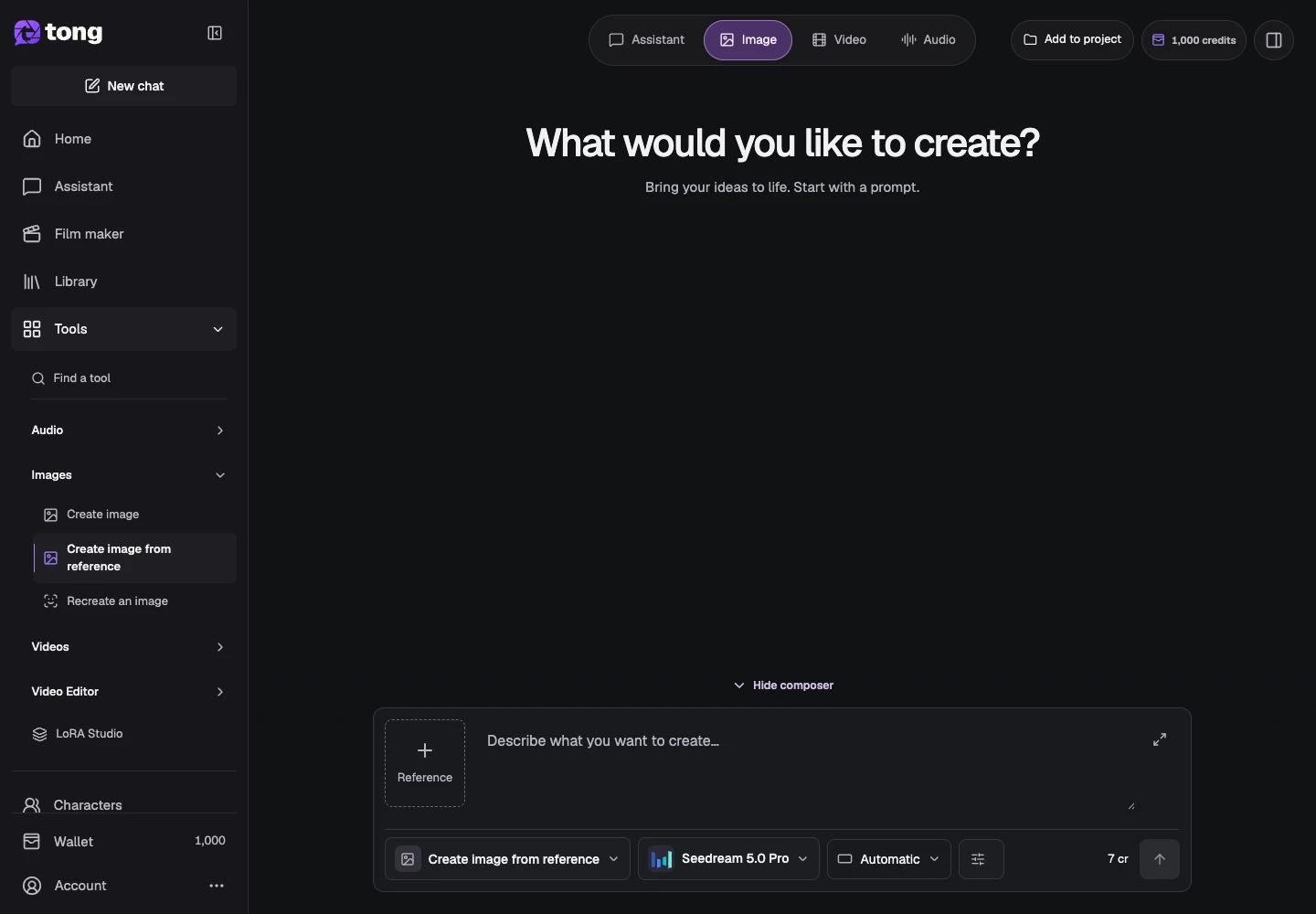
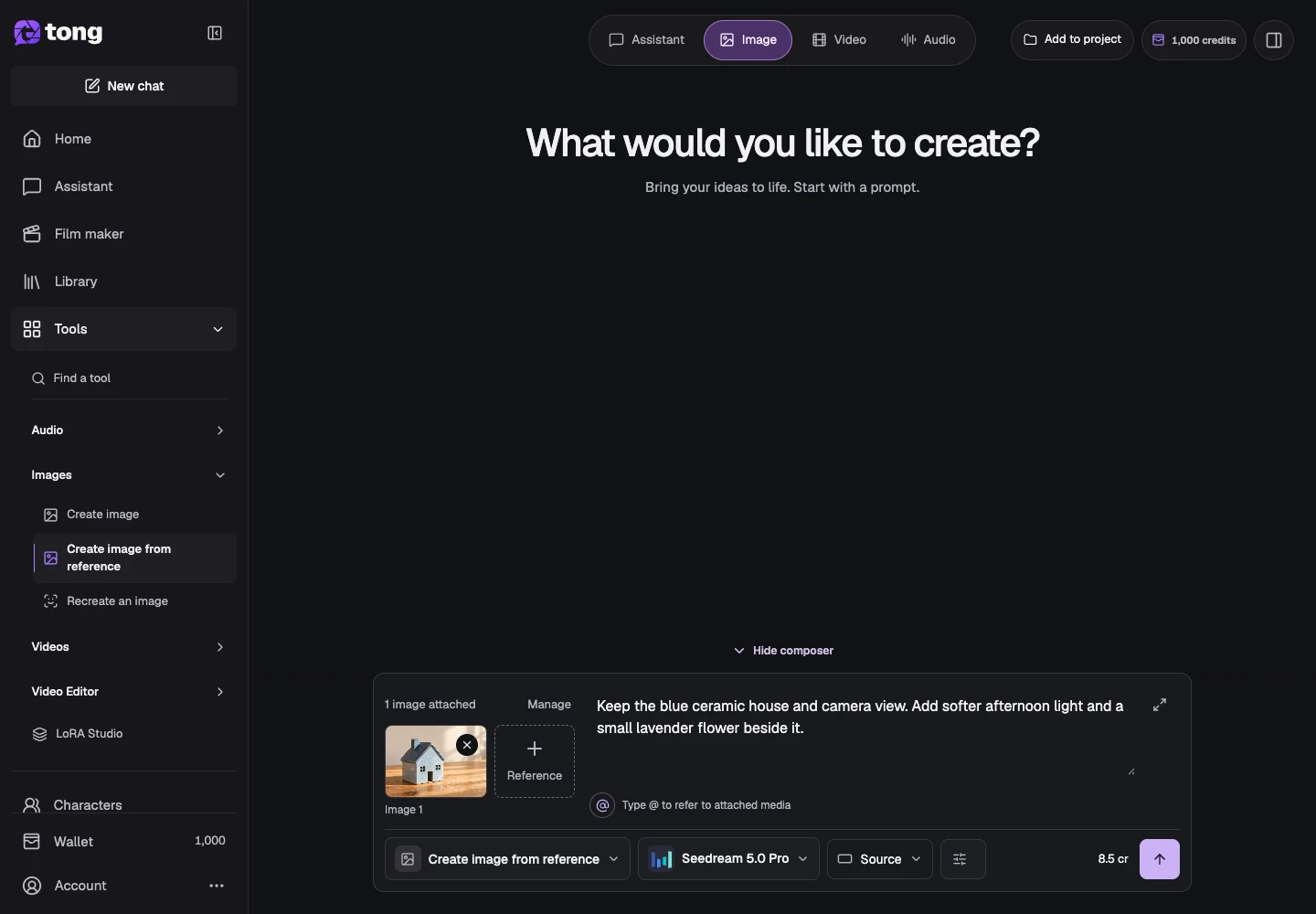
Open Create image from reference. This workflow starts with an image; the text-only Create image tool has a different input contract.
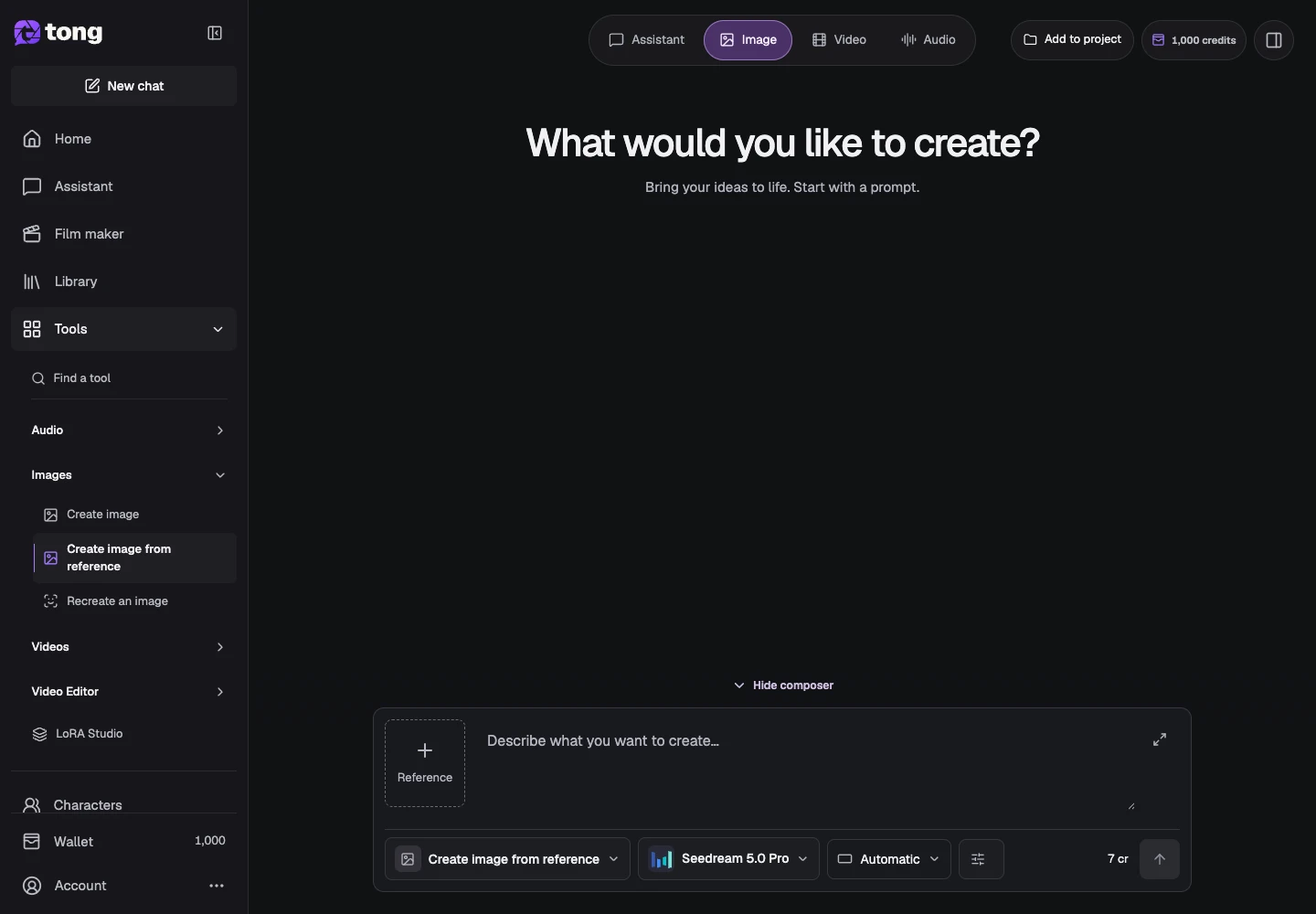
Add the reference image
Choose Add references beside the prompt, then Add reference in the reference panel. Wait for the file to finish preparing and check its thumbnail before sending.
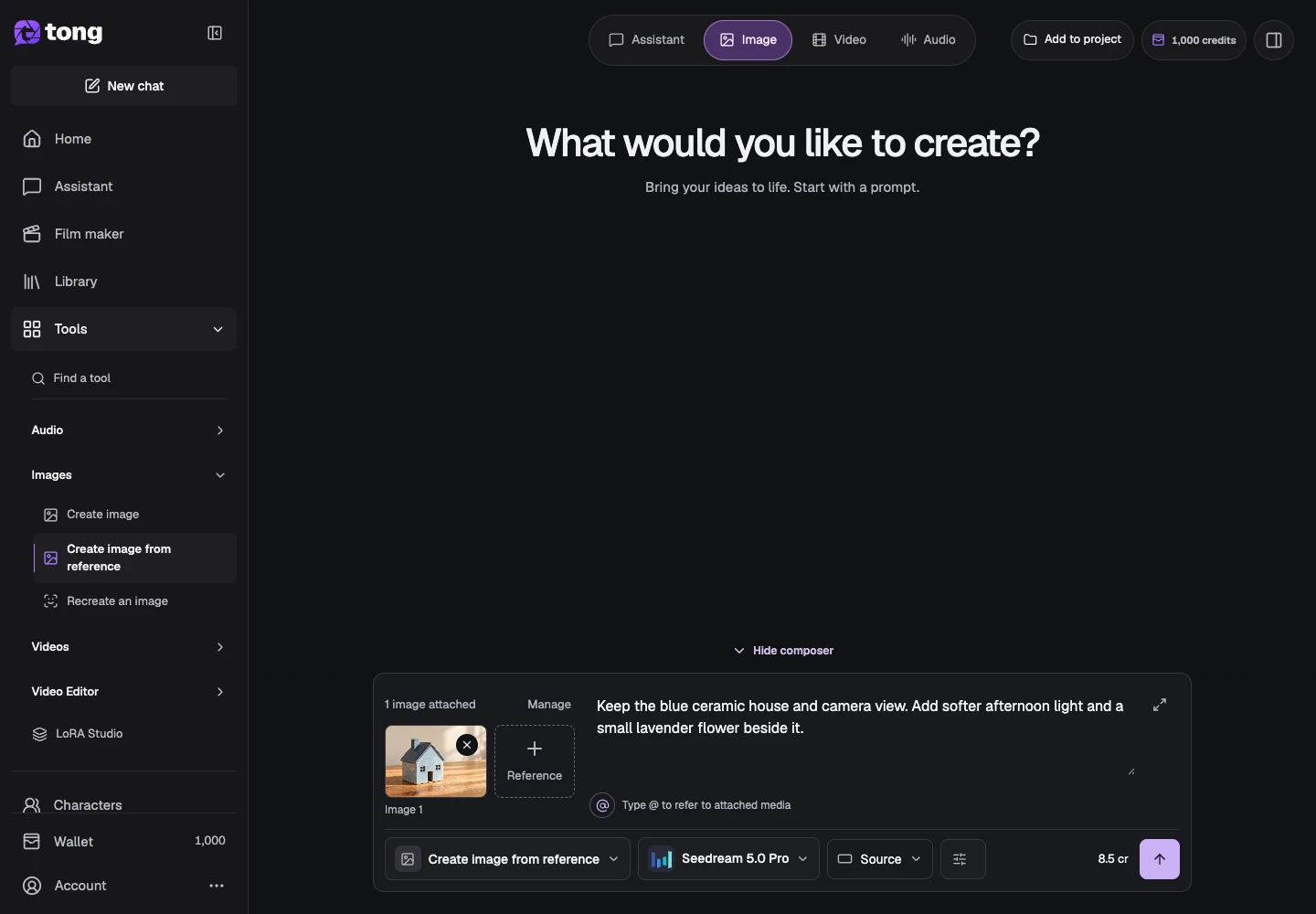
Describe the change
Write the desired image and identify the changes you want. For example: keep the bottle shape and camera view, replace the plain background with sunlit leaves, and use soft reflections.
Choose supported edit settings
Open Settings and check aspect ratio, reference inputs and any available model controls. A reference can guide identity and composition, but an exact match is not guaranteed.
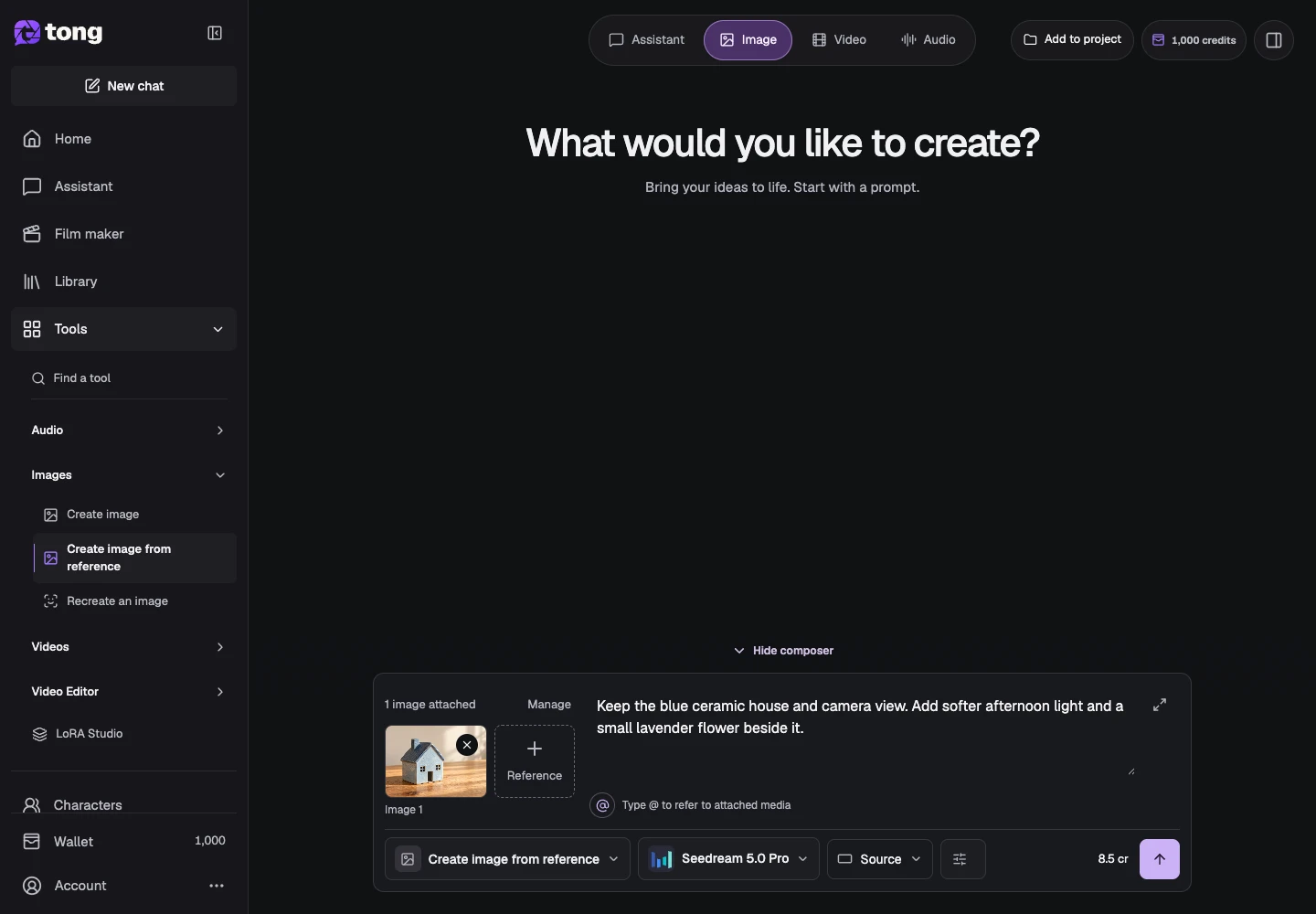
Review the price and create a new version
Check the displayed price and select Send prompt when ready. Inspect the result beside your reference. Save a successful version and use a more specific correction if an important detail changed.
A useful tip
Name the parts that should change and the parts you care about preserving. Avoid contradictory instructions.
If something goes wrong
If the source is missing or unsupported, replace it before requesting a quote. Keep the original file and previous completed outputs while you compare versions.
Read first, create when you’re ready
Reading this guide is free. The linked tool shows its own requirements and current credit price. Screenshots use demonstration data; review your own inputs and the quoted cost before submitting paid work.
Reviewed 2026-10-18 · Tong Academy