
Before you begin
Tool and model controls beside the prompt show the current selection. Select those names to open their menus.
- One supported starting image.
- A signed-in account and credits.
What you’ll achieve:
Model choices
To animate an image in an unrestricted AI video workflow, choose a Less restrictive model that supports image-to-video. Keep the image's framing in mind and check the selected model's motion, audio and duration options.
Choose Animate an image
Open the image-animation workflow through Change tool or its entry link. It is intended for bringing one still image to life, rather than describing an entirely new scene from text.
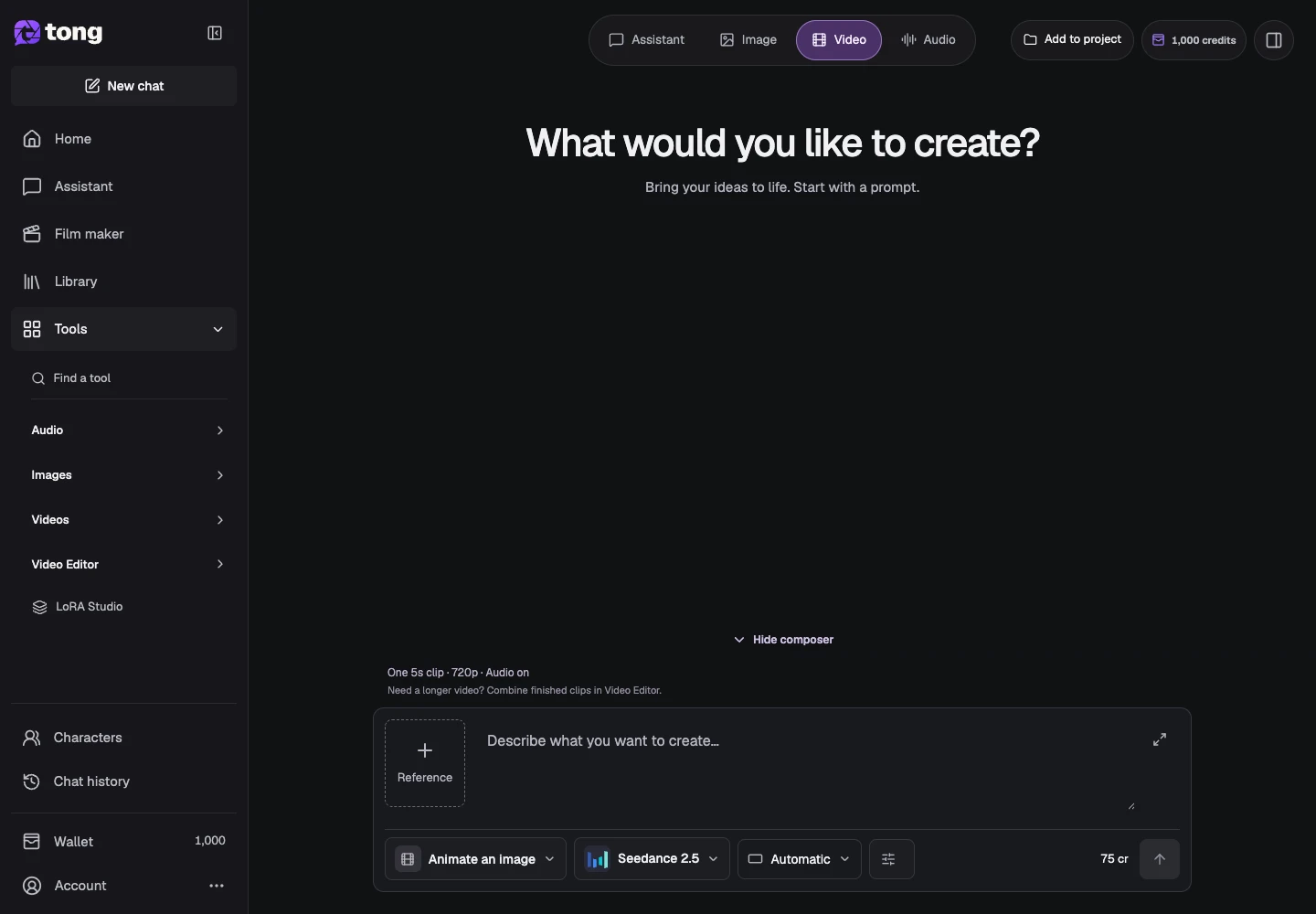
Attach the starting image
Choose Add references beside the prompt and add your starting image in the reference panel. Wait for preparation and confirm the correct saved source before describing movement.
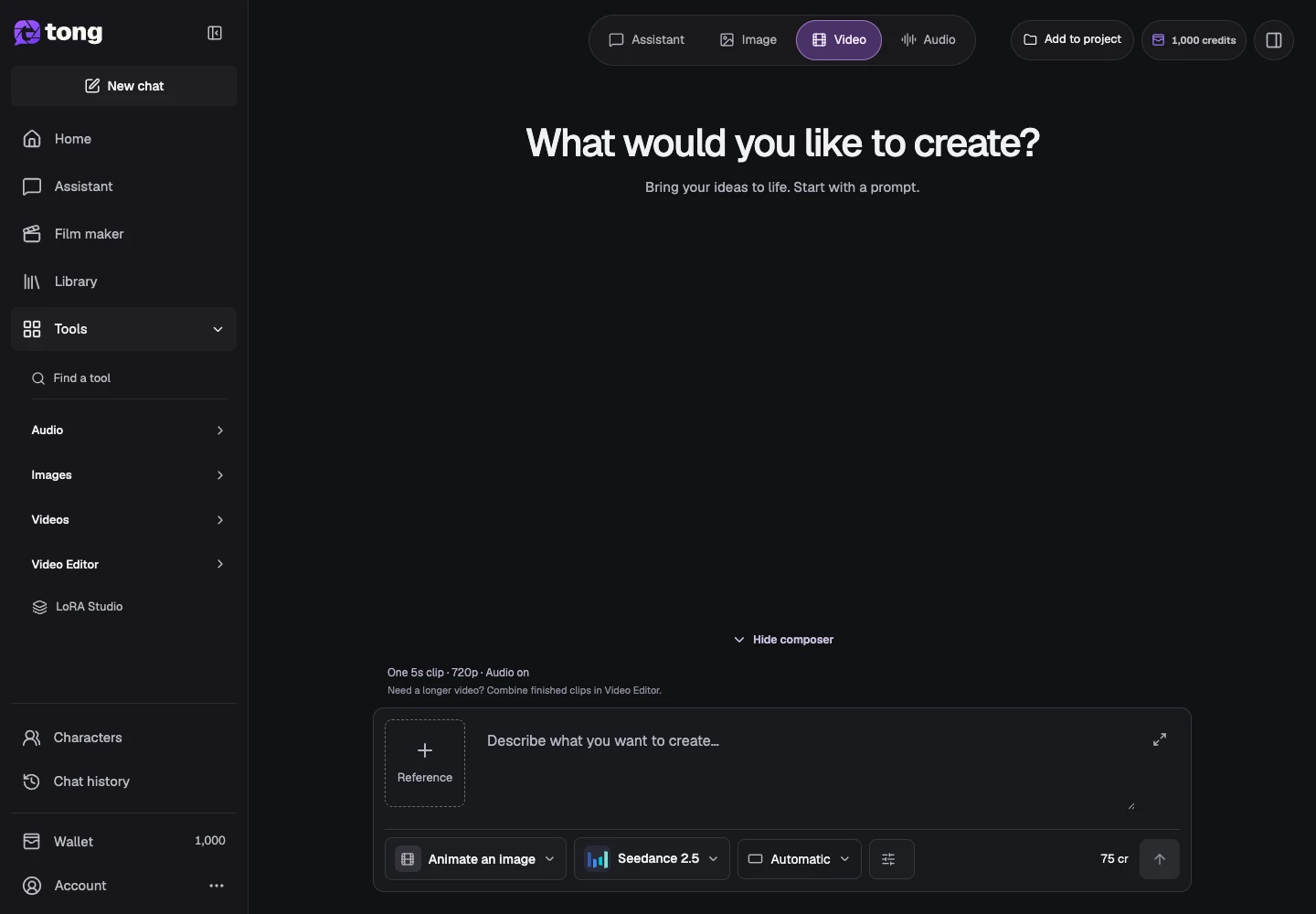
Describe restrained movement
Write what moves and what stays steady. For a landscape, you might ask for gentle water movement and a slow camera push while preserving the mountain composition.

Choose supported video settings
Open Settings to choose the model-supported duration, format and resolution. Avoid describing large pose or scene changes if your goal is subtle animation.
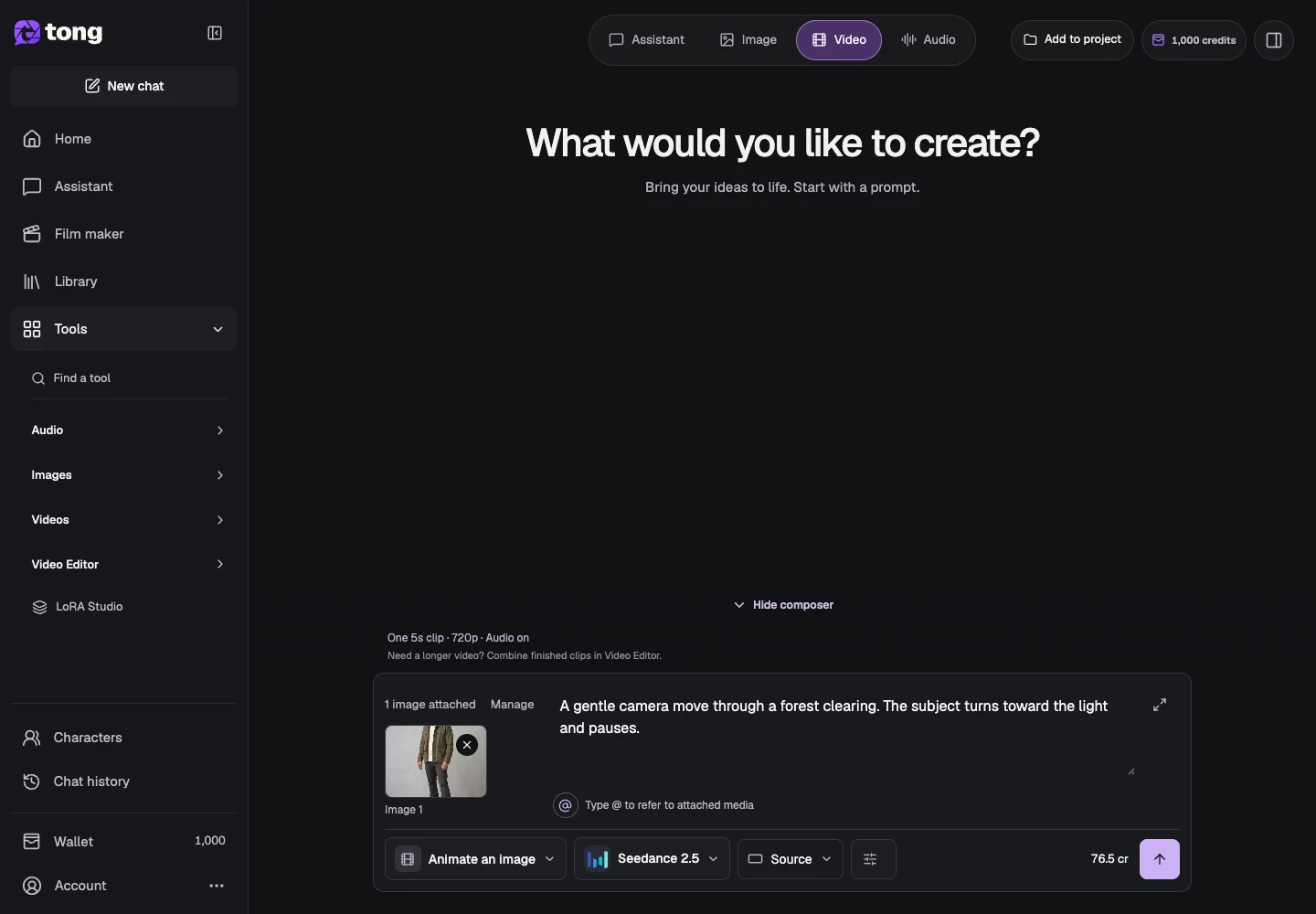
Review price and send
Check the price and send once. Inspect temporal motion in the finished clip, then download or use it in a saved edit.
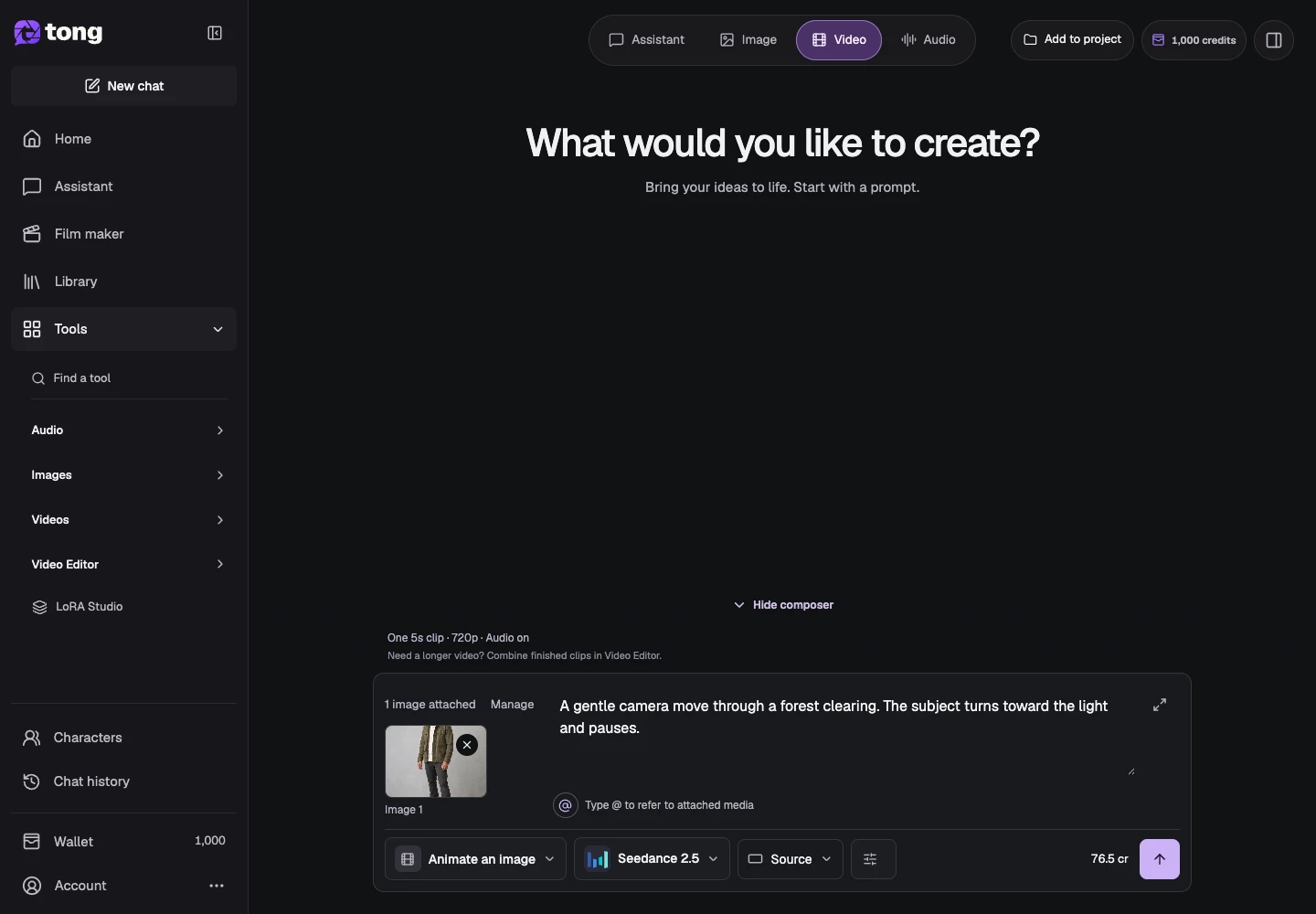
A useful tip
Keep the written action proportional to what the source image can plausibly show.
If something goes wrong
If the subject changes unexpectedly, refine the movement and references for a new version. Animation guidance does not guarantee exact identity or frame preservation.
Read first, create when you’re ready
Reading this guide is free. The linked tool shows its own requirements and current credit price. Screenshots use demonstration data; review your own inputs and the quoted cost before submitting paid work.
Reviewed 2026-10-18 · Tong Academy