
Before you begin
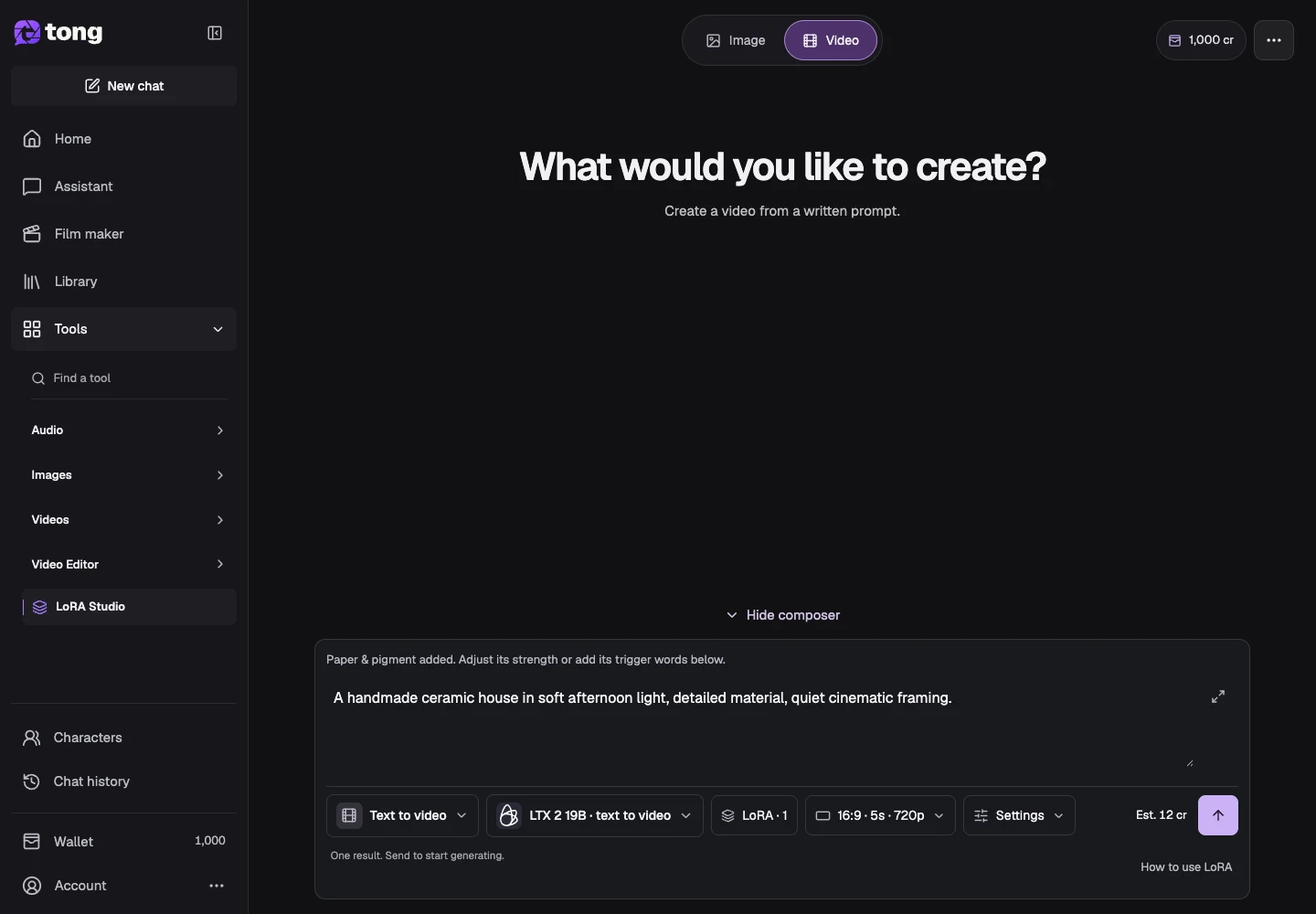
Tool and model controls beside the prompt show the current selection. Select those names to open their menus.
- A LoRA/preset and model with compatible video support.
- Any required frame/reference inputs and available credits.
What you’ll achieve:
Model choices
For unrestricted LoRA video creation, verify the generation model's category as well as the LoRA family and video input mode. A preset or LoRA does not remove the base model's policy, reference requirements or duration limits.
Choose the video input category
In LoRA Studio, choose Text to video, Image to video, Frames to video, Reference to video or Video to video according to the inputs you have. Available models are filtered for that category.
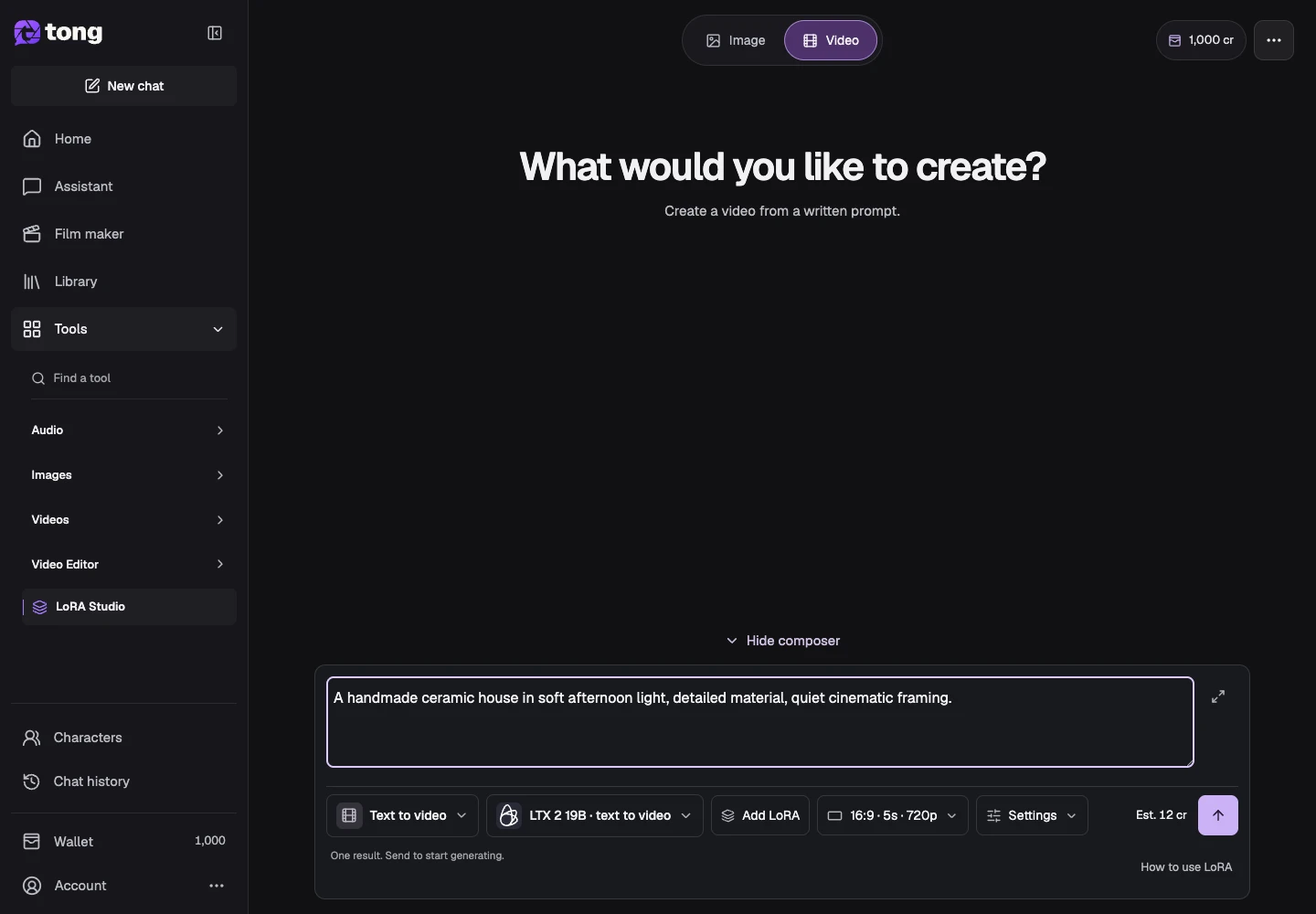
Choose the compatible model
Use Change model and read the supported media fields. Some video models use separate high/low-noise LoRA slots, while others offer fixed presets.
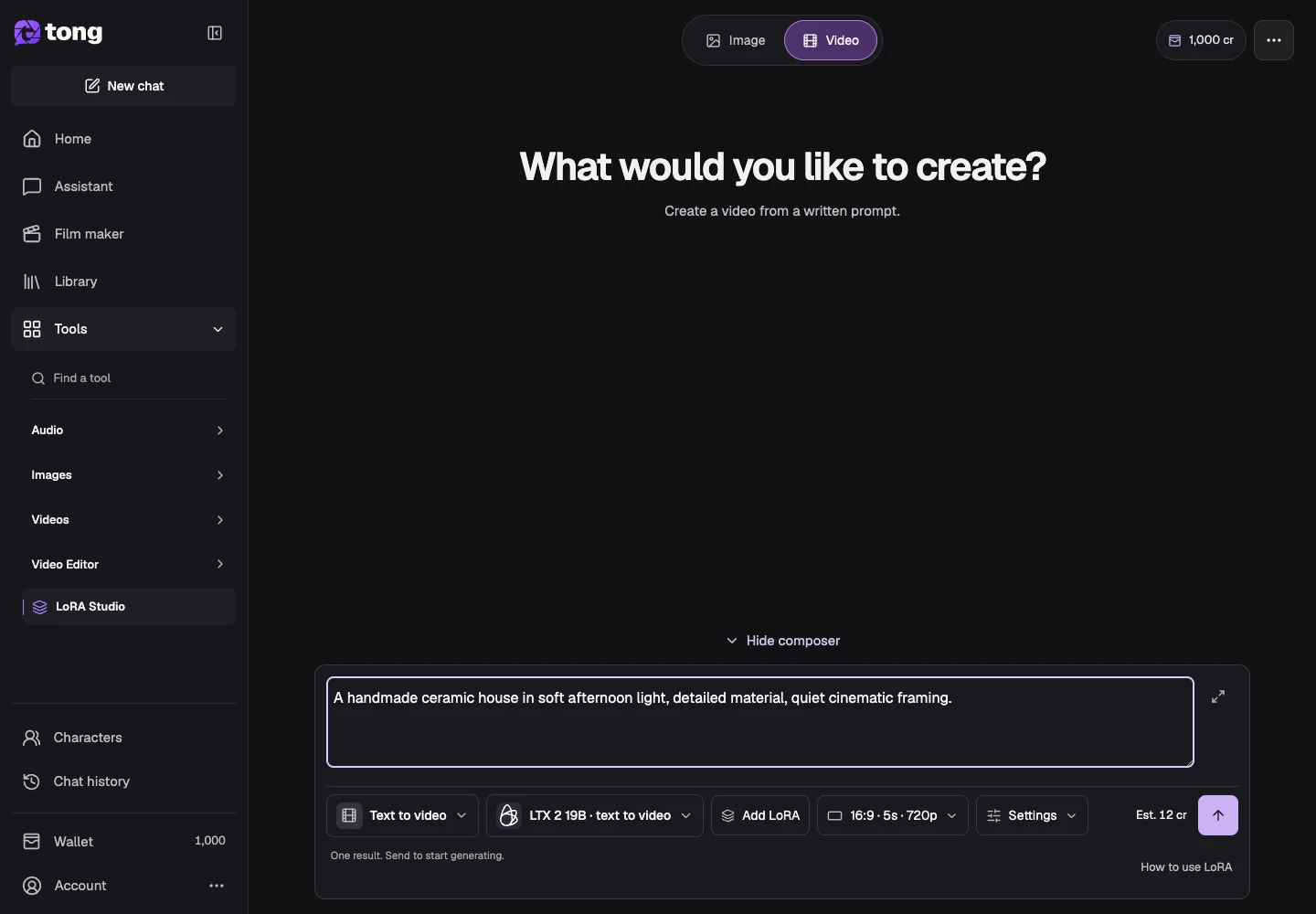
Add the LoRA and required references
Browse the library or presets and select a compatible entry. Add the starting image, ending frame, video or other required references in their own fields, then check the retained inputs.
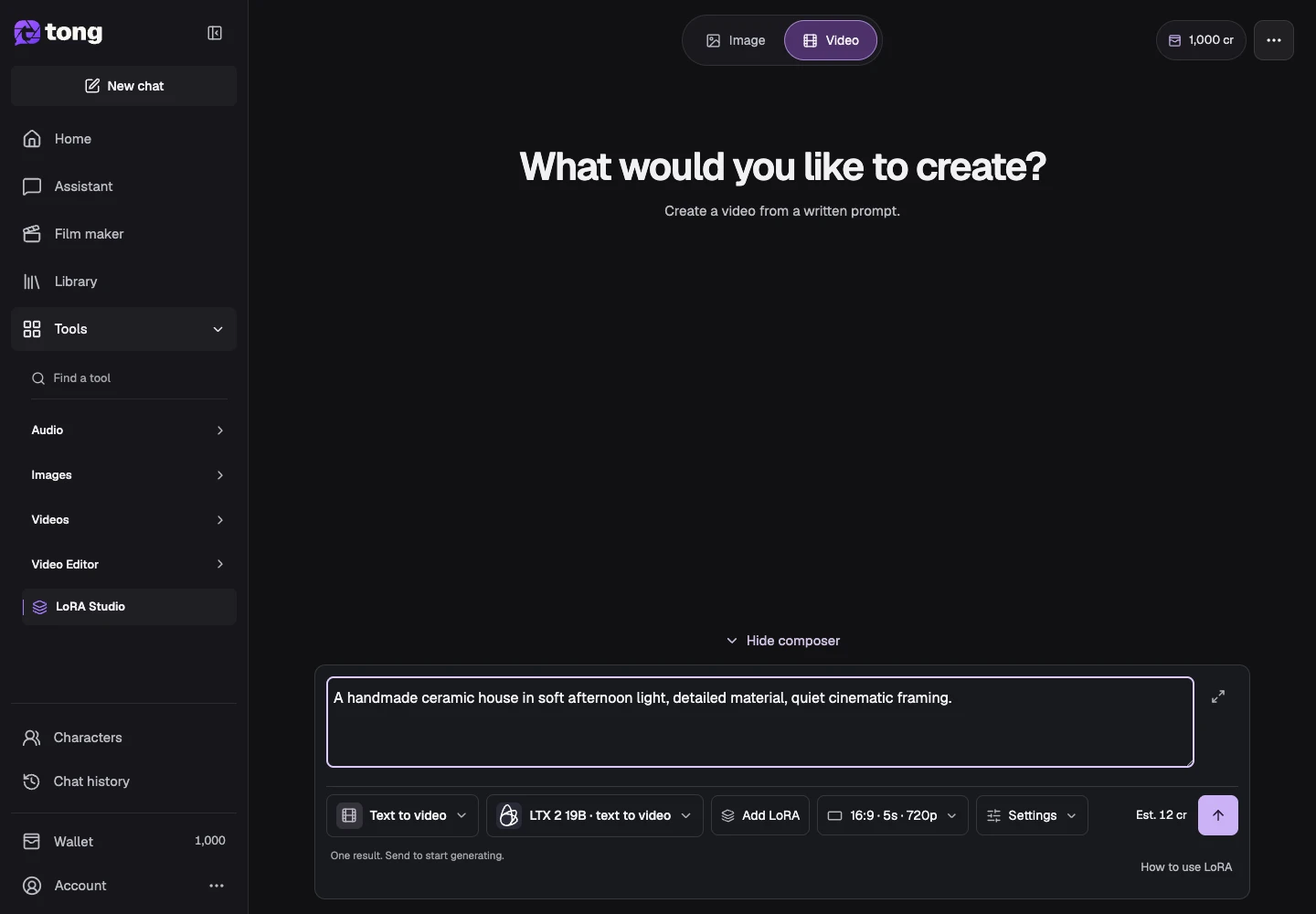
Describe movement and choose settings
Write the action and camera direction. Use Settings for supported duration, ratio and optional parameters, and inspect LoRA strengths/roles before submitting.
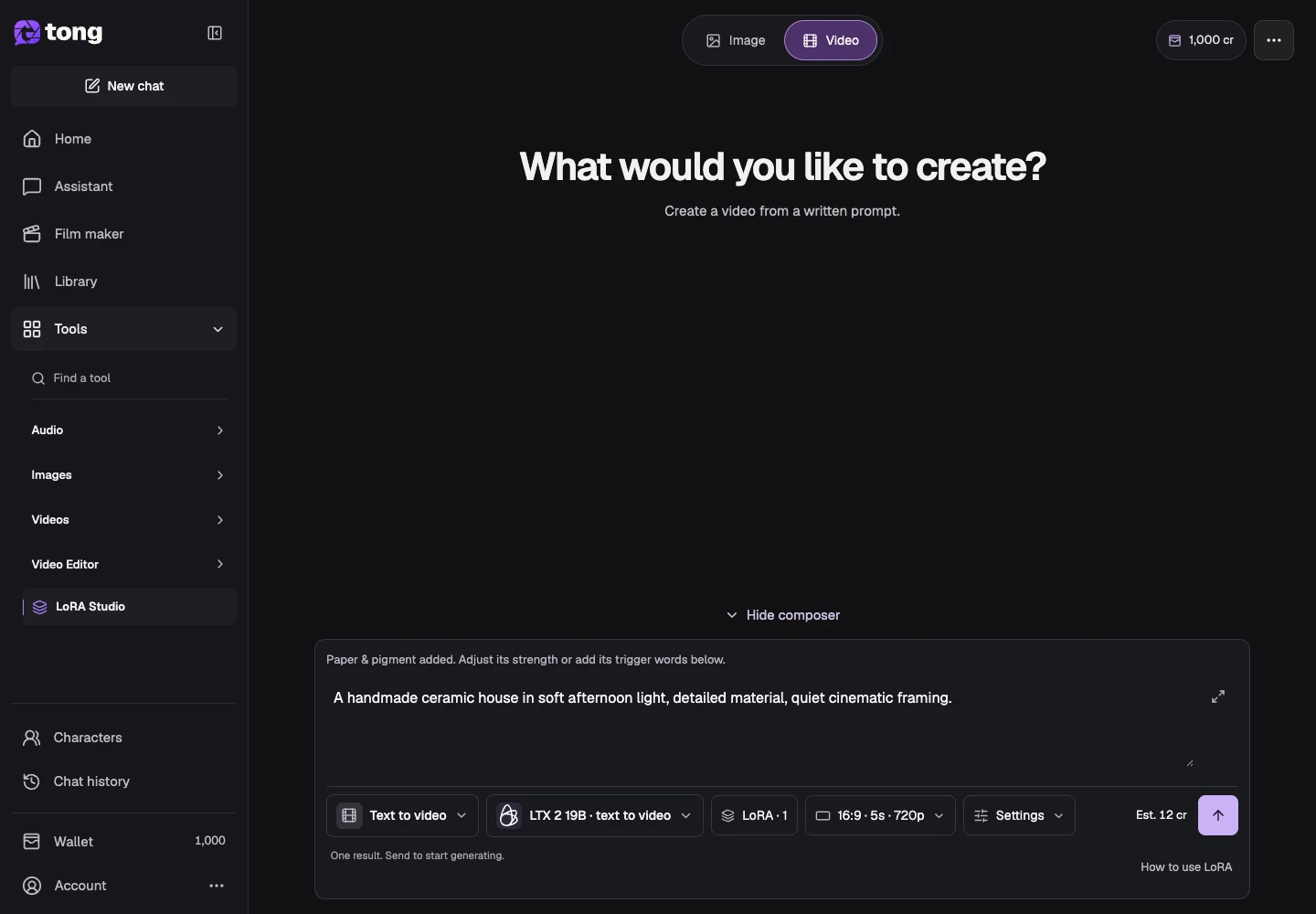
Review current cost and generate
Read the model's current credit estimate and send when the required inputs are ready. Inspect the completed video in the results/history and keep a useful version before trying another strength or prompt.
A useful tip
A LoRA trained for an image family is not automatically usable by a video model.
If something goes wrong
After switching category or model, review retained references and LoRA compatibility. Remove incompatible inputs explicitly and check the current requirements before sending.
Read first, create when you’re ready
Reading this guide is free. The linked tool shows its own requirements and current credit price. Screenshots use demonstration data; review your own inputs and the quoted cost before submitting paid work.
Reviewed 2026-10-18 · Tong Academy