Unrestricted AI video editing. Your footage. A new direction.
Swap faces and characters, change the background, add or remove objects, and give your footage a different look. Choose a compatible unrestricted model, direct the change, then bring your clips together in the same editor.
Open Video Editor Unrestricted options are labeled Less restrictive in the model picker.
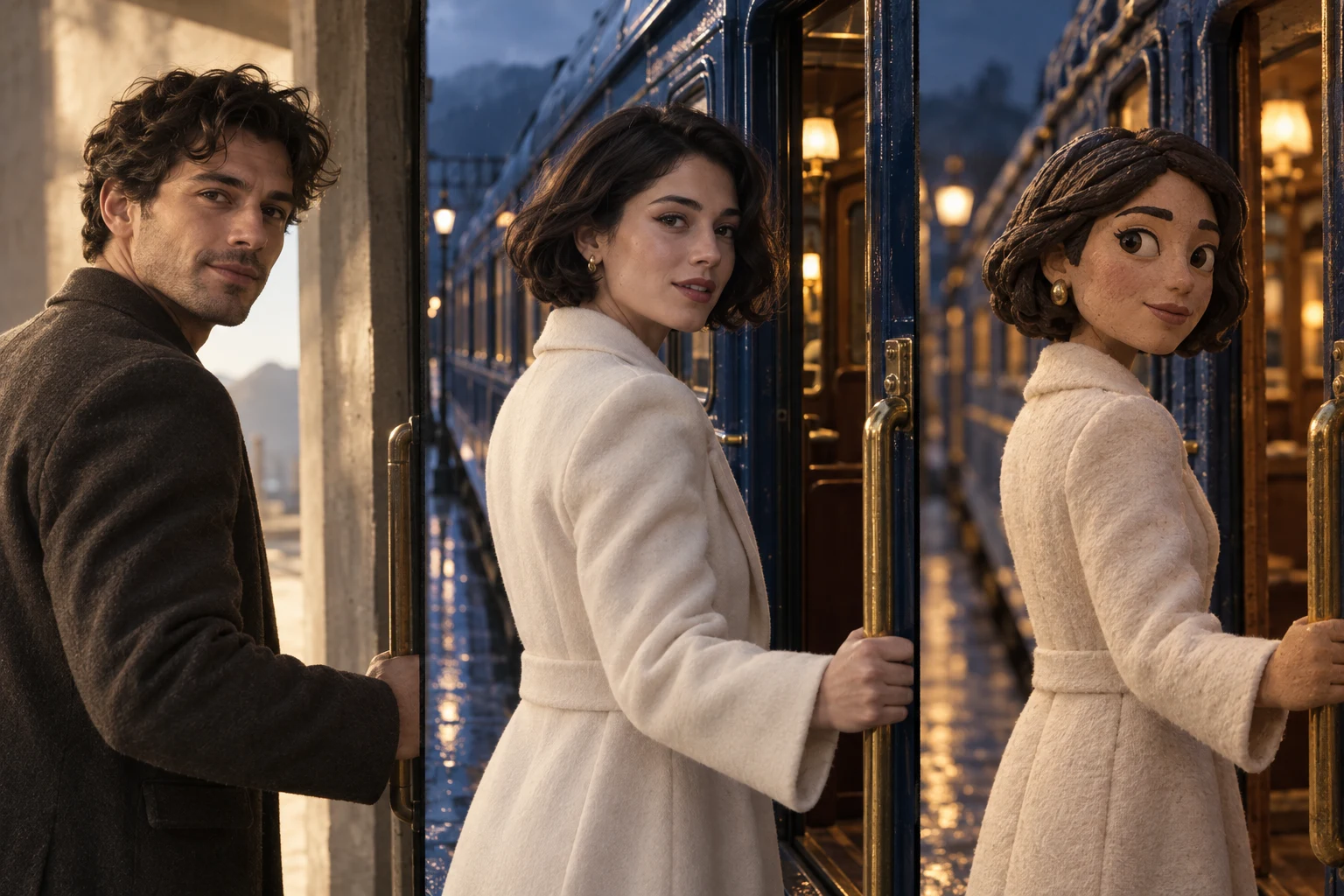
Character, setting and style study · Illustrative artwork, not a generated-video result.
Unrestricted options for the edits you want to make.
Use the Less restrictive model group for unrestricted AI video editing, including adult creative themes. Compatible options cover face and character swaps, background changes, object edits and restyling. Moderated models are also available; check the selected model’s supported edits, references and limits before creating.
Use remains subject to our Acceptable Use Policy, consent and rights requirements, and model-provider policies. Generation depends on the selected model’s capabilities and availability.
Six ways to change the shot.
Choose the change first. The editor brings together the models and controls that support it.
Face swaps & character replacement
Recast a person with a saved character or uploaded reference. Identify who to replace and describe the appearance and movement to keep. Compatible Less restrictive engines support unrestricted character swaps.
Move your footage into a different setting. Describe the environment, lighting and atmosphere, with an optional reference where supported, and name the subjects you want to preserve.
Introduce an accessory, a prop or another scene detail. Specify what it looks like and where it belongs; use references or a selected area when your chosen engine supports them.
Identify the unwanted person or object with written direction or the model’s subject-selection tools. Direct what should remain around the removed subject.
Change a jacket, adjust the weather, shift the light or revise a sign. Give the model one focused correction and say which details should stay. Check generated text in the finished result.
Explore animation, clay, comic art or another visual treatment. Use written style direction, a supported reference image or the presets offered by the selected model.
Switch to Merge clips to assemble videos and images you already have. Reorder, trim, duplicate or remove clips, and set how images and mixed formats fit the frame.
Keep or mute each clip’s audio, add an optional soundtrack and adjust its volume. Save the sequence, choose your output ratio and fit, then export an MP4 to Library and download it.
Your source, selected range and references stay together while you prepare the edit.
01
Add a video and choose the range
Upload a source video or choose a saved clip. Keep the whole video selected or mark the section you want to change. The editor shows the selected duration and the model’s current limits.
02
Choose the edit and model
Pick Swap characters, Change background, Add an object, Remove an object, Edit details or Change style. Compare Less restrictive and Moderated models, then add the written direction, character references or subject selection that your model needs.
03
Review the price and keep your result
Check resolution, original audio and whether to return the selected section or the full video. Review the exact credit price before confirming. Find completed versions in My edits, inspect the result and download it while keeping the original source available.
Control the range, sound and output.
Edit the whole video or a selected section
Keep the full video or export the edited section
Keep or mute the original audio
Choose a supported output resolution
Add saved character or image references where supported
Return to saved edits and download completed versions
Before your first video edit.
Is the AI Video Editor unrestricted?
Tong offers unrestricted video editing through compatible models labeled Less restrictive. The model picker also includes Moderated options, so not every engine has the same content support. The Acceptable Use Policy, consent and rights requirements, and model-provider policies still apply.
Can I swap a face or replace an entire character?
Yes. Choose Swap characters and add the replacement references. Depending on the engine, the change can extend beyond the face to the person’s appearance. Describe the clothing, expression and movement you want to preserve, then review the result. H3 Max Recast supports up to four people; other models have their own limits.
Do I have to select subjects before every edit?
No. Native written-direction models use your prompt and supported references. Detection-based engines ask you to find and select subjects. The editor shows the controls for the chosen model and edit type.
Can I change only part of a video?
Yes. Select a start and end point within the model’s supported duration. Choose whether to return that edited section or keep the full video. The source remains available, and a new AI version has its own quoted price.
Can I combine clips without generating them again?
Yes. Open Merge clips to arrange ready videos and images, trim clips, choose the output format and manage audio. Export assembles the existing media into an MP4; it does not require a new AI generation for each clip.
Will everything outside my requested change stay identical?
The selected model creates a new interpretation of the edited footage. Identity, motion, lighting and fine details can change. Start with a clear range, describe what to preserve, and compare the finished edit with your source.
Learn it in Tong Academy.
Free, step-by-step guides with screenshots. Follow along at your own pace, then bring what you learn into your next creation.