
In this article
To match a portrait to a series with Photoshop Relight, choose an approved reference first. Match the direction and softness of its main light with a single virtual light. Then compare the full-resolution result with the original to see whether the face still reads the same. A closer lighting match is useful only if the eyes, skin and small identifying details hold up.
What Adobe added to Photoshop
Adobe documents Relight in its November 10, 2026 Photoshop desktop update. It offers up to three on-canvas lights with controls for position, color, intensity and diffusion. The tool takes the source lighting into account and applies the change to the selected layer. It keeps the source on a separate layer and shows a lower-resolution preview while you work. Selecting Done generates the full-resolution image. The preview is for judging the lighting direction. Save the detailed comparison for the finished render.
Read the light in an approved portrait
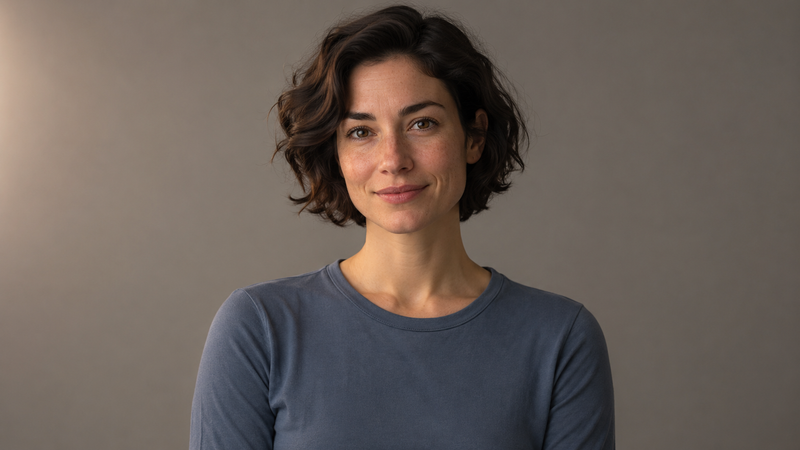
Imagine a team page where the reference portrait has a large soft light from camera-left and a gently shaded cheek on the other side. The new portrait was shot under a ceiling light, leaving deeper eye sockets and a short downward nose shadow. Put the two faces at a similar display size. Compare the bright spot in each eye, the direction of the nose shadow and how gradually the light falls away across the far cheek. Those clues describe the light more clearly than a general instruction to make the portrait warmer.
Move one light before adding a second
Select the portrait layer and create a Relight layer. Start with one light on the reference side. Move it until the nose shadow and bright cheek feel plausible together. Adjust diffusion to approach the soft edge in the reference, then adjust intensity. Change the light color only if a clear difference remains. A second light can help when the darker side needs a separate lift, but first make sure the main light explains most of the result. In a composite, check adjacent layers separately because a change to the selected layer leaves the others as they were.