
LoRA Studio
Make a style your own.
A LoRA is a small add-on that guides a compatible AI model toward a character, visual style, or type of motion. Choose one, add your scene, and create in LoRA Studio.
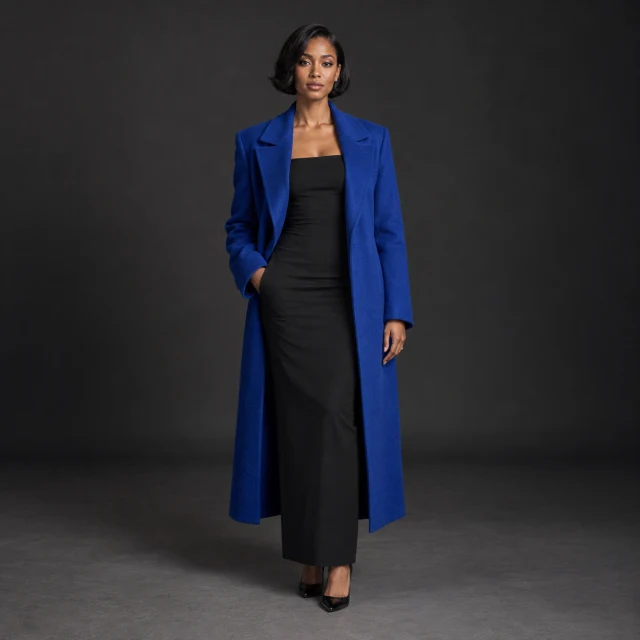 Reference
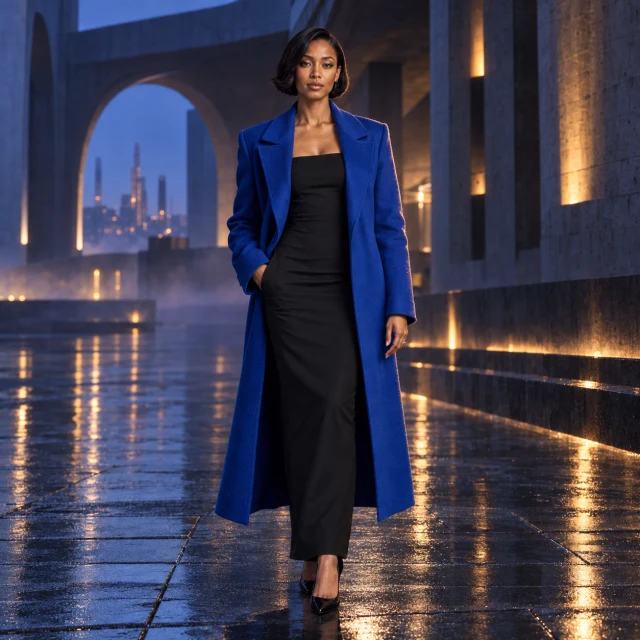 Illustrative result
Creative freedom for your prompts and content.
TongAI has no prompt restrictions, including for adult creative themes. Choose the subject, tone, and visual style that fit your idea, and write the direction in your own words.
Use remains subject to our Acceptable Use Policy, consent and rights requirements, and model-provider policies. Generation depends on the selected model’s capabilities and availability.
Your first result
Start with one LoRA so it’s easy to see what changes.
Choose what you’re making
In Create, choose an image or video model. The model picker shows its output type and starting credit price. Settings shows the references and options it supports.
Find a compatible LoRA
Open the LoRA library and select For my current model. Search a style or creator, or filter by model family and image or video output. Open a LoRA to check its compatible models, trigger words, and source license, then choose Add to prompt.
Describe your scene
Write the subject, setting, lighting, and composition you want. For video, describe movement too. If the LoRA has trigger words, use Add trigger words to include them in your prompt. Add any required reference files in Settings.
Send to create
Check the estimated credits beside the arrow, then choose Send to start generating. Find progress and completed results in History, where you can download a result or reuse its settings.
Two ways to add a LoRA
LoRA links
Choose a file from Discover or My LoRAs, or import your own public link. For custom imports, choose a model that matches the LoRA’s base model.
Use Discover or My LoRAsBuilt-in presets
Some models include named LoRAs. In Built-in presets, choose a bundle or an individual preset. Adjust supported strengths in Settings; no file link is needed.
Use Built-in presetsChoosing a different model from the library can clear incompatible LoRAs and references. Check the switch notice before continuing; your prompt stays.
Bring your own LoRA
In the library, choose Import a LoRA and paste one public version link:
- Hugging FaceA direct
.safetensorsfile link. Both/blob/and/resolve/links are accepted. - CivitaiA model link containing a specific
modelVersionId.
Choose Import LoRA. It stays private to your account and is ready to use from My LoRAs immediately. No admin approval is needed. Choose a matching base model before adding it to your prompt. A repository homepage or a full model checkpoint is not a LoRA file.
Import from the libraryGet a better result
- Use the right base model
- Match the exact model and version listed on the LoRA. A similar name or the same output type doesn’t guarantee compatibility.
- Change one thing at a time
- Start with the suggested strength. If the effect overpowers your scene, lower it where strength is adjustable. Keep the prompt steady while comparing results.
- Give the prompt a clear job
- Keep the LoRA’s trigger words and describe your scene in plain language. Avoid piling on competing style instructions.
- Match paired files to their stage
- When a model supports separate stages, put a HIGH file in Composition and its matching LOW file in Detail. Follow the LoRA’s instructions and the slots offered by the model.
A handmade ceramic bowl on a sunlit workbench, soft afternoon shadows, close-up composition.
Add your chosen LoRA’s trigger words using the composer button.Common questions
Can I use the same LoRA for images and video?
Only if its compatibility list includes both. Image and Video badges describe the supported outputs; the compatible model list determines where you can use it.
Why can’t I add a LoRA yet?
It may require a different model or input mode, or be unavailable. Private imports do not need admin approval. Open its details and check your selected model. Models marked Testing can be used to prepare a draft, but generation stays closed until verification.
Does importing a link download the LoRA to my device?
No. You supply a source link, and Tong records the import and checks compatibility before use. You don’t need to install the file locally.
Can I train a LoRA here?
LoRA Studio uses existing LoRAs and built-in presets. Training a new LoRA is not currently available.
Can I use any public LoRA commercially?
A public download is not automatic permission for every use. Read the source license and creator’s conditions in the LoRA details.
Where are my saved LoRAs and creations?
Saved LoRAs and private imports appear in My LoRAs. Generations appear in History, with progress, downloads, and Reuse settings. Sending again starts a new generation at the current price.