
Before you begin
- A supported source video.
- A signed-in account with available credits.
What you’ll achieve:
Model choices
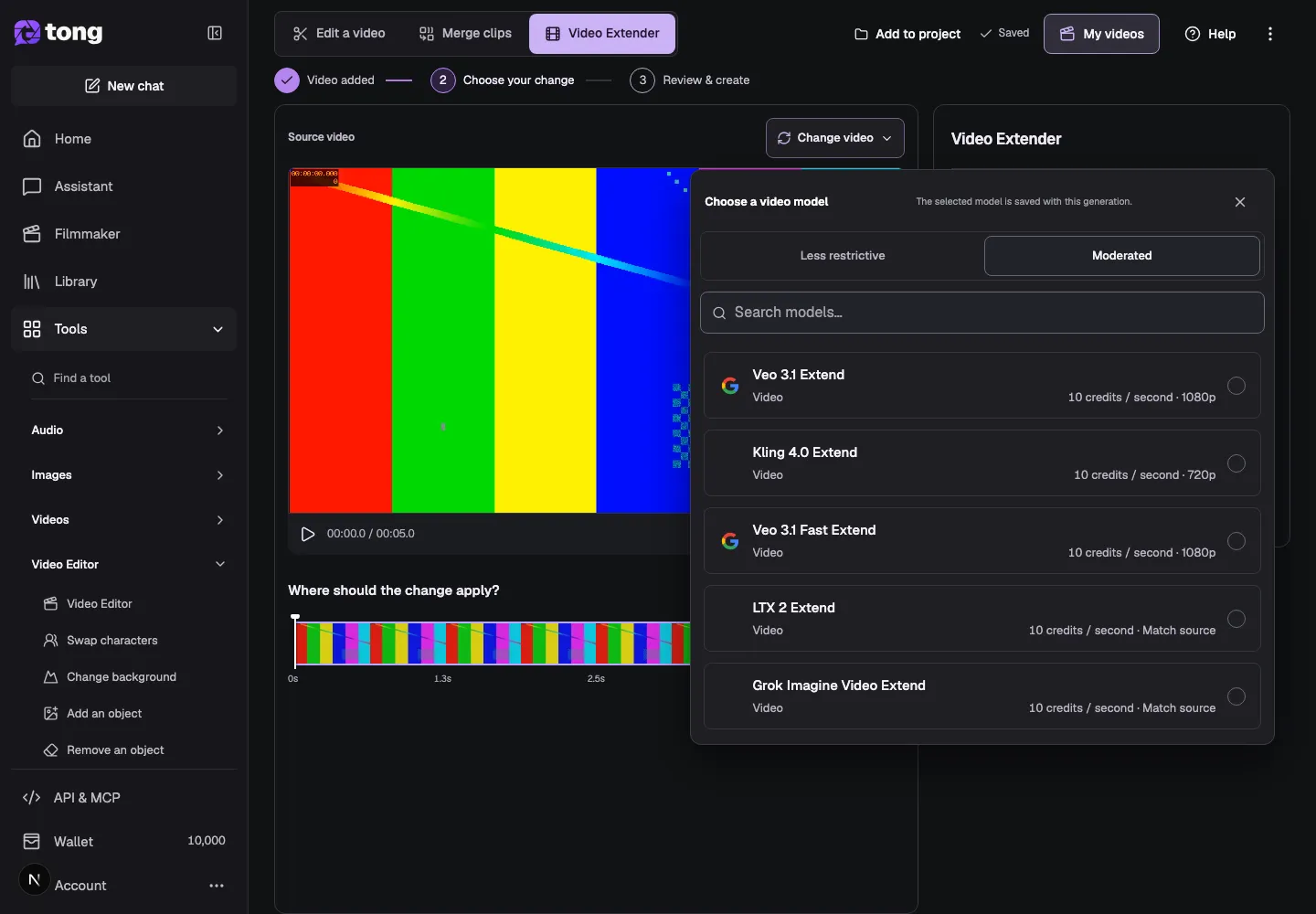
Video Extender offers unrestricted continuation models alongside Moderated choices. The selected model determines supported source ranges, added duration, resolution, audio and price.
Add a source video
Open Video Extender and upload a video or choose a saved clip. Wait for the source preview and duration to finish loading before choosing how the continuation should begin.
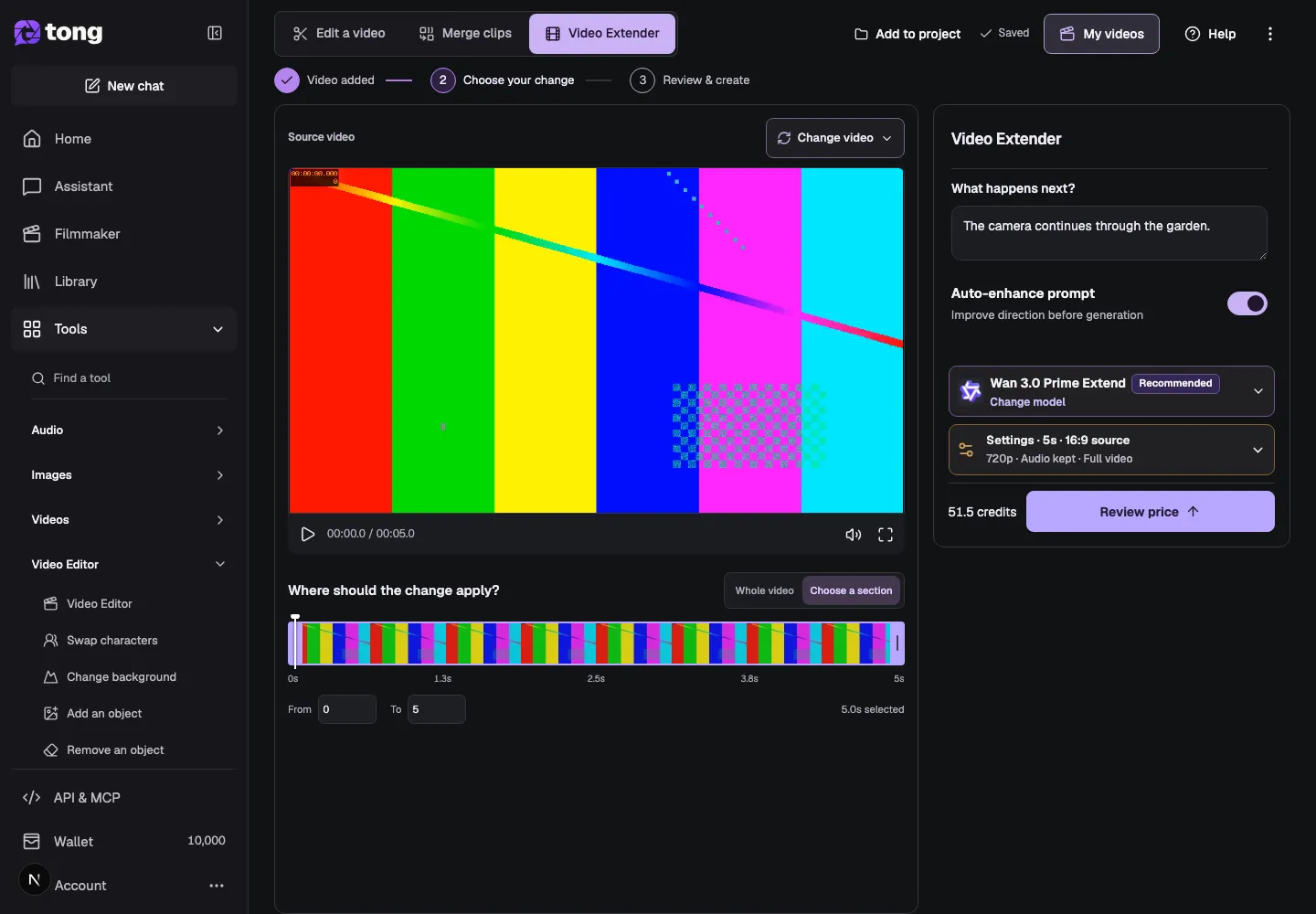
Choose the part to extend
Select Whole video when the new footage should continue from the end of the full source. Choose a section when you want to extend only a valid range inside the video, then check the From and To values.
Describe what happens next
Type a short description in What happens next? Explain the action, camera movement or ending you want to follow the source. For example: Continue the camera movement through the garden, keeping the same light and pace.
Choose a model and settings
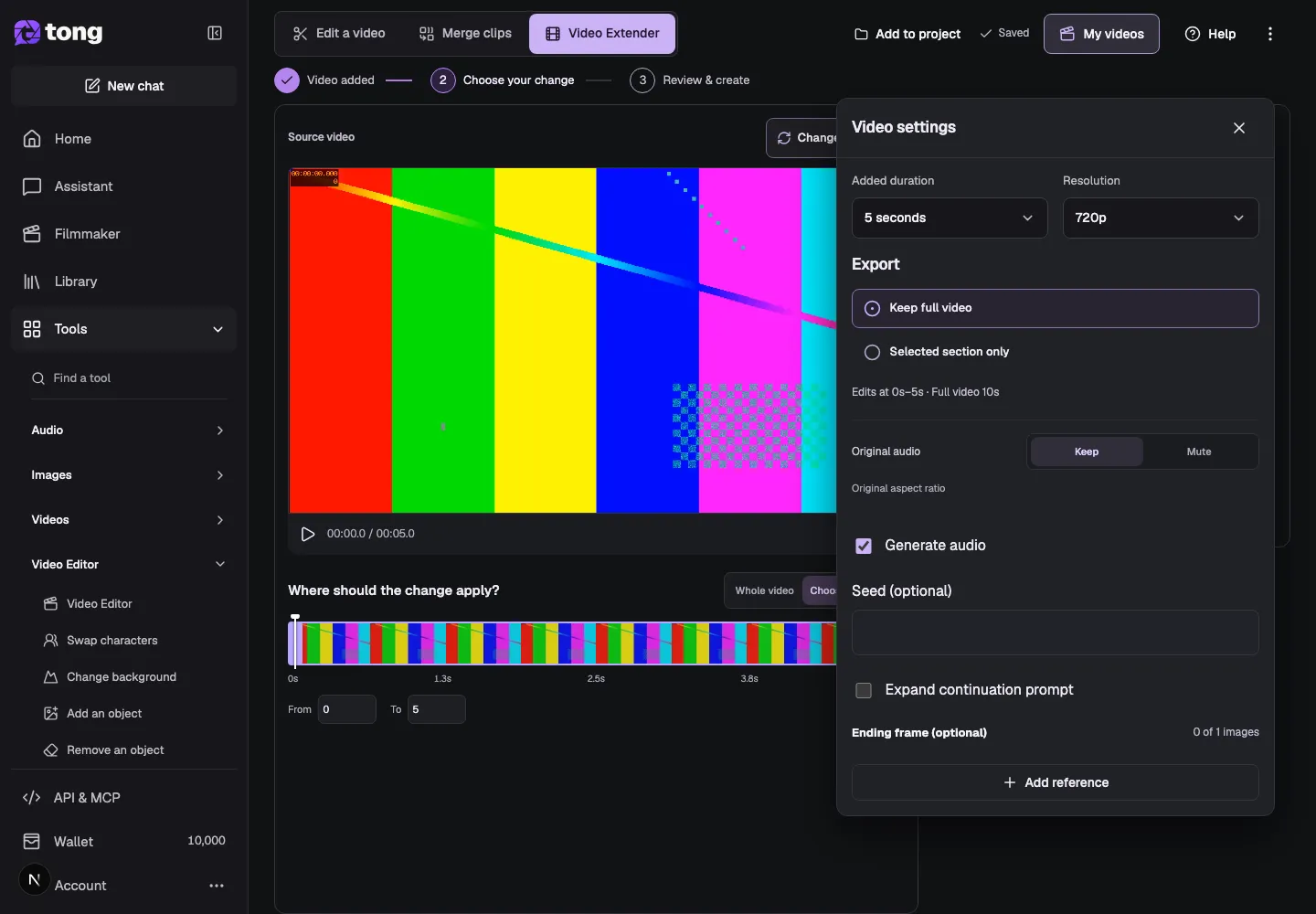
Choose a compatible Video Extender model, then open Settings to review added duration, resolution, audio and whether the output keeps the full video or only the selected section. The selected model controls which options are available.
Review the price and extend
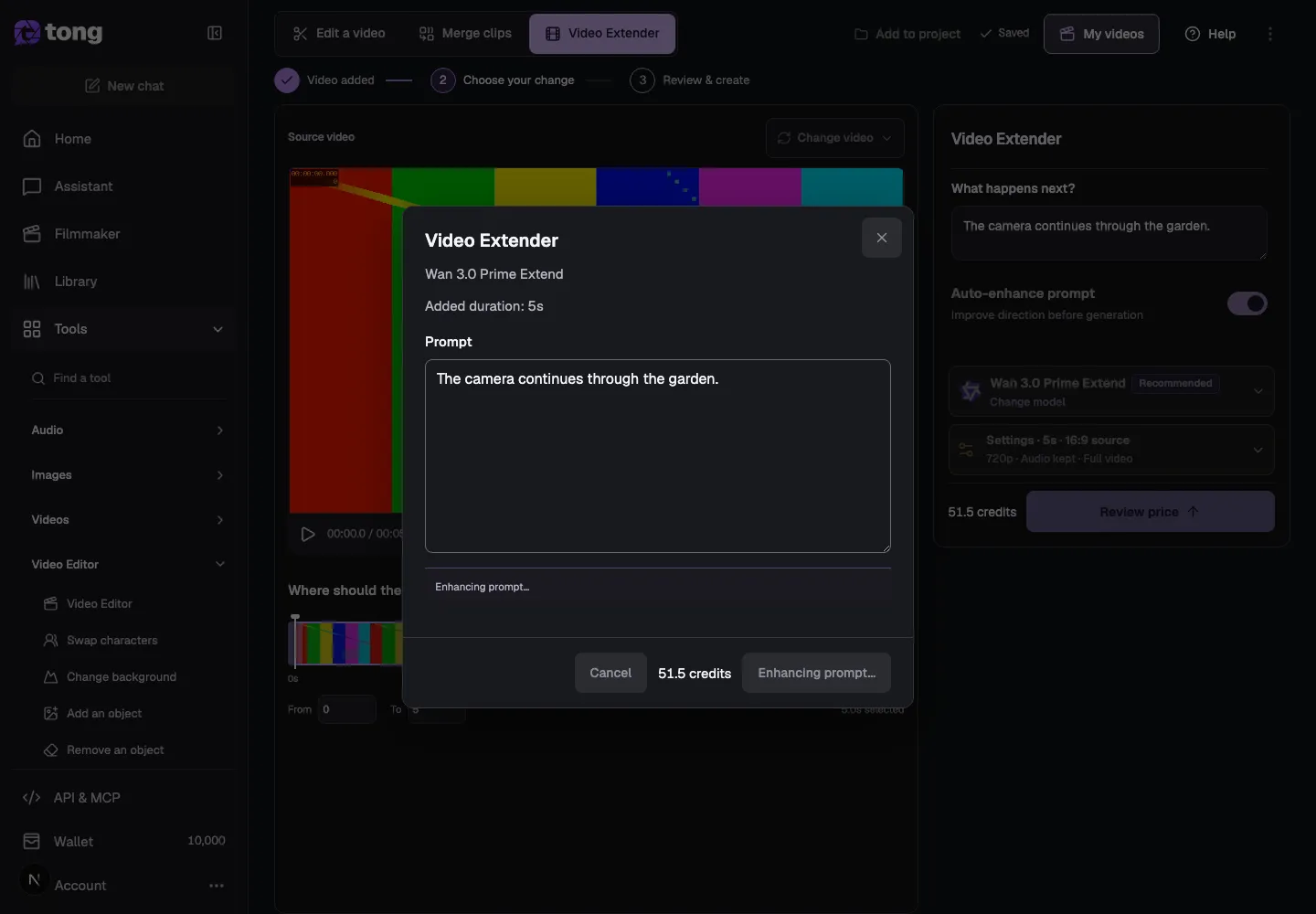
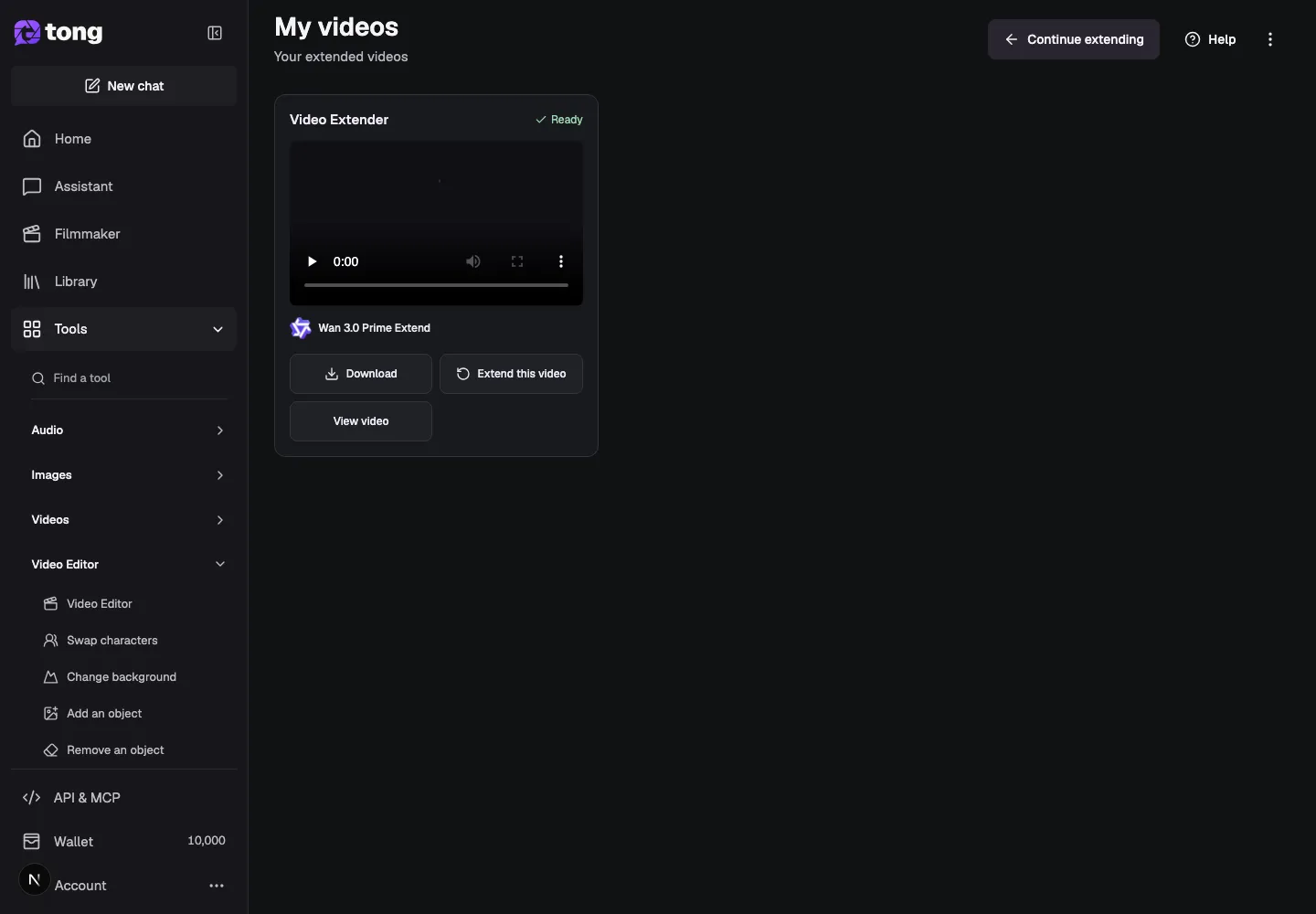
Select Review price and check the source range, added duration, model, audio and credit total. When everything matches your request, choose Extend video. Inspect the finished clip in My videos and download it or continue extending it.
A useful tip
Keep the prompt focused on what should happen after the source ends. If you want the whole clip to continue, select Whole video instead of guessing a range.
If something goes wrong
If Review price is disabled, wait for the source duration to load and check that the selected range stays inside the video. If the continuation starts from the wrong moment, reselect the section and review the From and To values before requesting another quote.
Read first, create when you’re ready
Reading this guide is free. The linked tool shows its own requirements and current credit price. Screenshots use demonstration data; review your own inputs and the quoted cost before submitting paid work.
Reviewed 2026-10-18 · Tong Academy